
Finding real changes between two JSON documents
How structural comparison catches what a line diff misses, what each option on the page controls, a full walkthrough with concrete data, and the edge cases that trip people up.
Why a line diff fails on JSON
JSON has no defined key order. Two documents that carry exactly the same data can list their keys in different sequences and still be equal. Run a regular line diff on them and the screen fills with red and green lines that mean nothing at all.
Formatting makes it worse. One file might use two-space indenting while another uses tabs, or one puts the closing brace on its own line while the other does not. A line diff treats every layout change as a modification, burying the genuine differences under noise.
Structural comparison solves both problems. It parses each document into a tree of values, walks the two trees side by side, and reports only the paths where they actually disagree. Moving a key to a different position produces no output. Changing the indentation produces no output. Only real changes show up.
Who reaches for this tool
Anyone working with APIs. A developer saves the response from a service before and after a deployment, pastes both into the page, and immediately sees what the release changed. No scrolling through hundreds of identical fields to find the one that moved.
Configuration reviewers use it to compare two versions of a settings file. Infrastructure teams compare Terraform state files or Kubernetes manifests exported as JSON. QA engineers compare expected and actual test output. Translators compare locale files to find which strings were added or removed. In each case the goal is the same: ignore the noise and show only what matters.
The two input panels
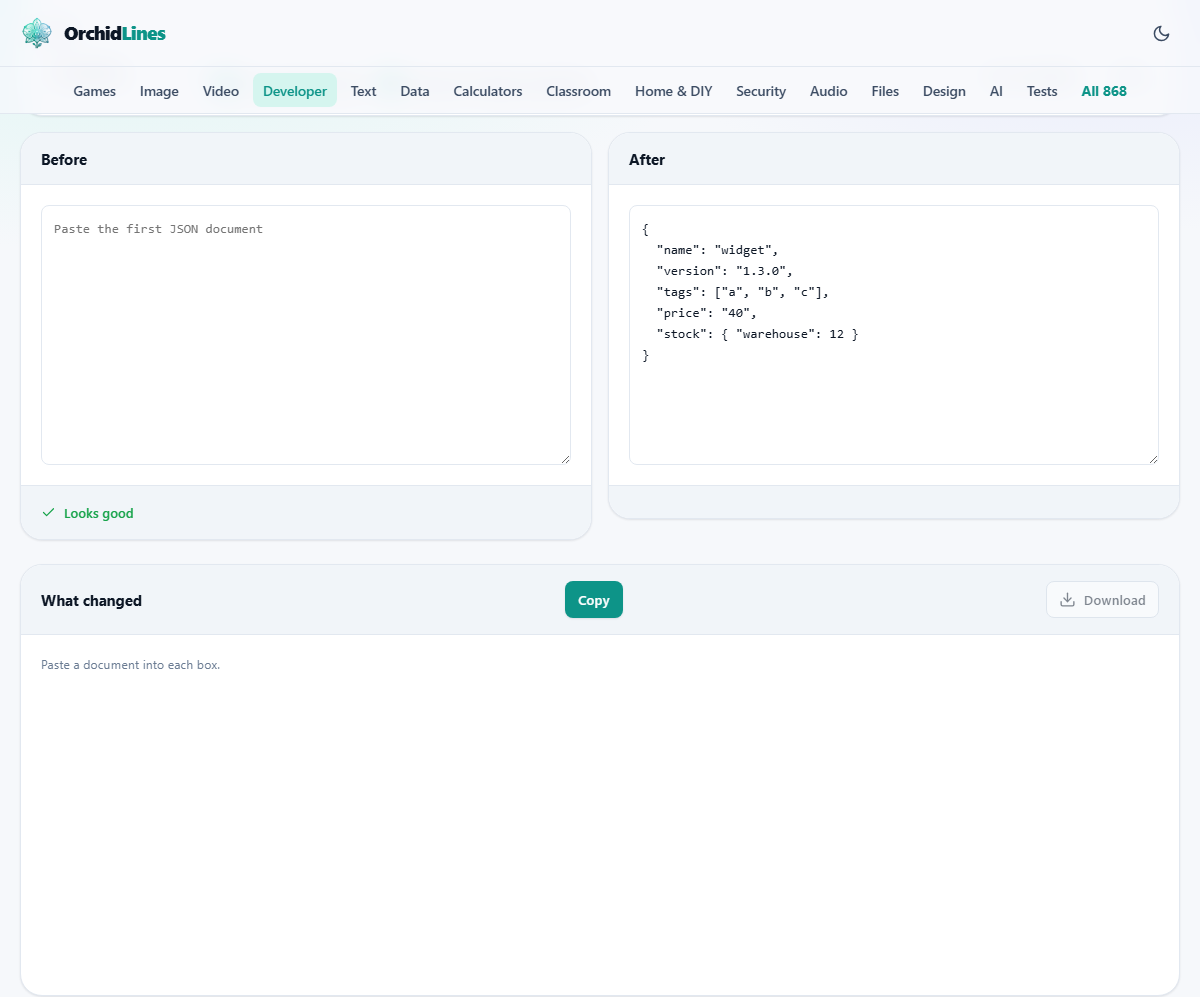
The page is split into two text areas. Before on the left, After on the right. Paste the older version on the left and the newer version on the right. The labels are deliberate: naming a direction makes it clear which side a change belongs to.
Both panels accept any valid JSON. If either document has a syntax error the status bar below it says so and the comparison does not run. Fix the syntax first. The JSON Formatter on the same site can pinpoint the exact line and column if the error message is unclear.
Try an example fills both panels with a ready-made pair of documents that demonstrates additions, removals, value changes and type changes all at once. It is the fastest way to understand what the output looks like before using your own data. Clear empties both panels.
Options that shape the comparison
Show has two settings. Everything prints the full structure with differences highlighted. Only what differs strips out all the unchanged paths and shows only the lines that moved, appeared or disappeared. The second setting is faster to scan when the documents are large and the changes are few.
Array order matters is a checkbox, on by default. When it is on, two arrays with the same elements in a different sequence are reported as different. That is correct for things like search results, where the ranking is part of the meaning. Turn it off for arrays that act as sets, like a list of tags. With the checkbox off, the elements are compared without regard to position and only missing or extra values are reported.
Flag type changes separately is also on by default. A value that was the number 42 and became the string "42" looks identical when printed. This option catches it and reports it as a type change rather than letting it hide inside an ordinary value change. Turning it off folds type changes into regular changes, which is rarely what you want.
Reading the results
The What changed panel below the two inputs lists every difference. Each line begins with a path into the document, using dot notation for objects and bracket notation for array positions. A path like data.users[2].email points directly to the third user's email field.
Next to the path the report shows the old value and the new value, or states that the key was added or removed. A stats row at the bottom counts additions, removals and modifications. The Copy button puts the entire report on the clipboard as text.
A key set to null and a key that does not exist at all are not the same thing. Many APIs treat them differently. The report distinguishes the two, showing removed when a key disappears and null when its value changes to null.
A walkthrough with real data
Suppose you have saved two responses from a product API. The first, taken yesterday, has a product with a price of 29.99, a stock count of 150 and a tags array containing "sale" and "new". The second, taken today, has the price changed to 34.99, the stock count removed entirely, and the tags array now containing "new" and "popular".
Paste the first response in Before and the second in After. With Array order matters on and Flag type changes separately on, the report shows three lines. The path price shows 29.99 becoming 34.99. The path stock is marked as removed. The path tags shows that "sale" is gone and "popular" was added at position 1, while "new" moved from position 1 to position 0, which also counts as a change because order matters.
Turn Array order matters off. Now the tags line changes. "new" is present in both, so it drops out of the report. Only "sale" being removed and "popular" being added remain. The question of which mode is correct depends entirely on whether tag order means anything in your application.
Spotting type changes that look harmless
A field that held the boolean true and now holds the string "true" prints the same four letters. So does an integer 1 that became the string "1". These changes are invisible in a log file or a print statement, yet they break downstream code that expects a specific type.
With Flag type changes separately on, the report calls these out in their own category. It shows the old type, the new type and the value. This is one of the most useful checks for catching bugs that creep in when a backend serializer changes or when a migration rewrites a column.
If you are only interested in value changes and do not care about type shifts, turn the option off. The type change will still be reported, but as an ordinary modification rather than a separate line.
Mistakes that waste your time
- Pasting the same document into both panels and wondering why nothing appears. The tool is working correctly. Two identical trees have no differences to report.
- Pasting invalid JSON and expecting the comparison to run. The tool must parse both sides before it can walk them. Fix the syntax error shown in the status bar first.
- Leaving Array order matters on when the array is really a set. A list of permission names, for example, has no meaningful order. Turning the checkbox off removes the false positives.
- Ignoring type changes because the values look the same. A price that was 9.99 as a number and became "9.99" as a string will break any arithmetic on it.
- Comparing documents from different API versions and treating every added field as a bug. New fields are expected when an API evolves. Focus on the removals and the value changes.
When a different tool fits better
- If you only need to clean up one document, the JSON Formatter handles formatting and validation without needing a second input.
- If you need to turn a JSON response into typed code for your project, the JSON to Code tool generates classes and interfaces.
- If you need to build structured data markup for search engines, the Structured Data Generator produces ready-to-paste JSON-LD.
- If you are comparing binary files rather than text, look for a hex-level diff tool instead.
Both documents stay in your browser
The comparison runs entirely on your own device. Neither document is sent anywhere. This matters when the JSON you are comparing contains access tokens, customer records, internal pricing or anything else you would not paste into a public service. Load the page, turn off your Wi-Fi, and every feature still works exactly as it did before. There is no server, no upload, and no queue. When you close the tab both documents are gone from memory with nothing left behind.