
Finding the right status code or file type without reading the spec
What HTTP status codes and MIME types are for, how to search the built-in reference by number, name, or file extension, every control on the page explained, a walkthrough that solves three real debugging questions, the codes people misuse most often, and why the whole thing works offline.
Numbers that tell the browser what happened
Every time your browser asks a server for a page, the server answers with a three-digit number before it sends any content. That number is the HTTP status code. It tells the browser whether the request worked, whether the page moved somewhere else, or whether something went wrong.
The first digit sorts codes into five groups. Codes starting with 2 mean success. Codes starting with 3 mean the page moved and the browser should follow the new address. Codes starting with 4 mean the browser asked for something the server cannot or will not provide. Codes starting with 5 mean the server itself broke while trying to answer.
Most people only meet these numbers when something fails. A 404 is the page-not-found error everyone recognises. A 500 is the catch-all server error. But the full set runs well past a hundred entries, and picking the right one matters when you are building an API, configuring a web server, or debugging a broken page.
File types and headers in the same place
Alongside the status codes, the page holds a reference of MIME types. A MIME type is a label that tells the browser what kind of file it is receiving. When a server sends a JPEG image, it attaches the label image/jpeg. When it sends a JSON document, it attaches application/json. The browser reads that label and decides how to display the content.
Getting the MIME type wrong causes real problems. A CSS file served as plain text will not be applied. An SVG image served as binary data will not render. A font served with the wrong type will be rejected by some browsers entirely.
The third category, common headers, lists the fields that ride along with every request and response. Headers like Cache-Control, Content-Type, and Authorization come up constantly in web development, and each one has rules that the raw specification buries in dense language. The reference here states them plainly.
Who reaches for this reference
Backend developers building an API need to return the right status code for every situation. A created resource should return 201, not 200. A missing resource should return 404, not 200 with an error message in the body. Picking the wrong code confuses client libraries and breaks automated monitoring.
Frontend developers see status codes in the browser's network panel and need to understand what each one means before they can fix the problem. A 401 means credentials are missing. A 403 means credentials were sent and rejected. Mixing the two up sends debugging down the wrong path.
DevOps engineers configuring web servers, load balancers, and CDN rules need to know which MIME type belongs to which file extension. A content delivery network that serves WebP images with the wrong type will cause blank squares in every browser that checks the header.
The controls at the top of the page
The Look up dropdown has three choices: HTTP status codes, File types, and Common headers. Each one shows a different data set in the results panel.
When status codes are selected, a second dropdown labelled Group appears. It lets you narrow the list to a single family: 2xx for success, 3xx for redirects, 4xx for client errors, or 5xx for server errors. Everything shows all groups at once.
The Clear button resets the search and the results. It is the quickest way to start a fresh look-up without reloading the page.
Searching for what you need
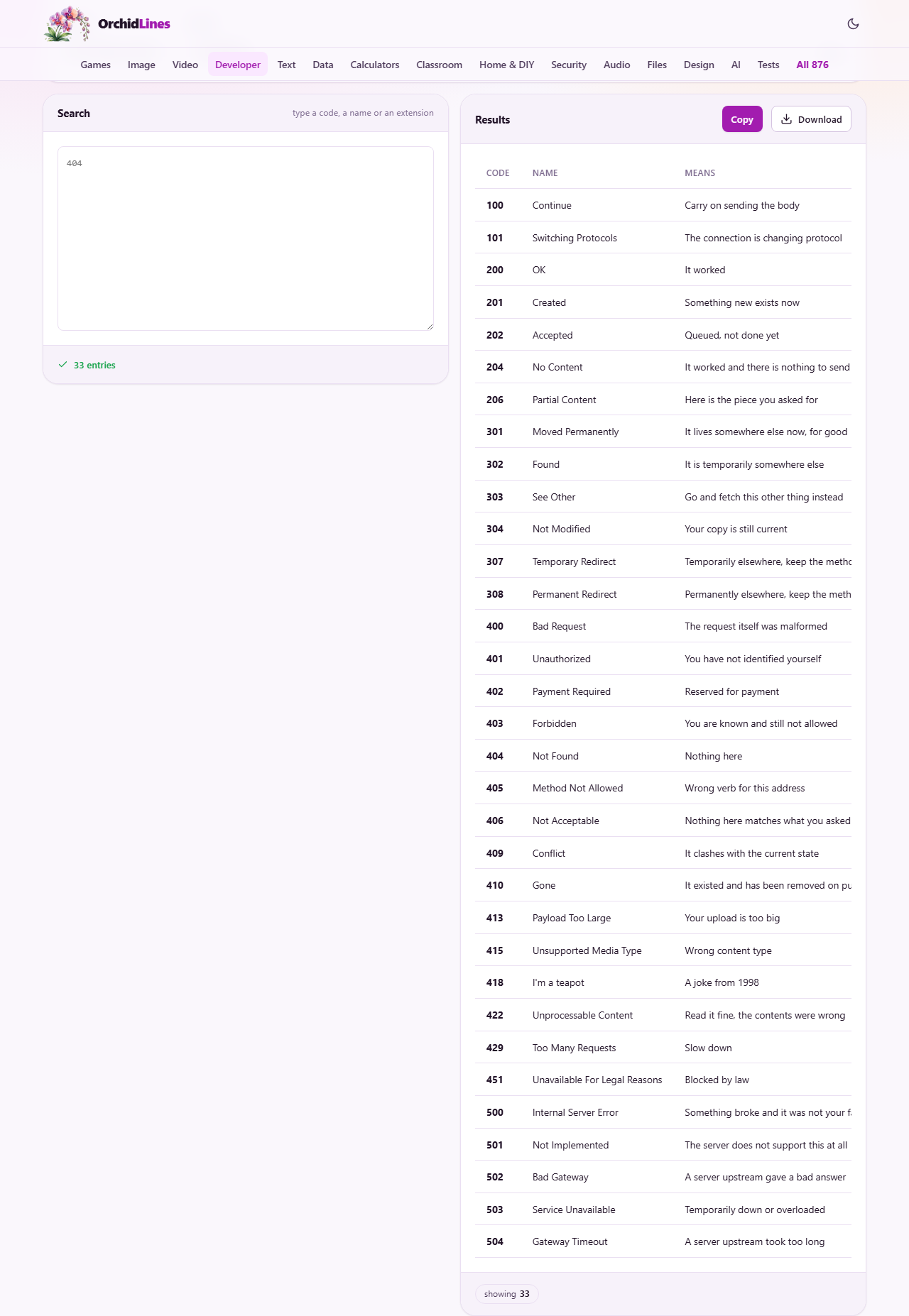
The left pane is labelled Search, with a hint that reads type a code, a name or an extension. You can type a number like 404 and see that single entry. You can type a word like redirect and see every code whose name or description contains that word. You can type a file extension like .json and see the matching MIME type.
The right pane is labelled Results. Each matching entry shows its code or type name, a short official name, and a practical note. That note is the part you will not find in the specification. It tells you when to use the code, what mistakes people make with it, and how it interacts with browser caching.
The Copy button in the results header copies the full list of matching entries as plain text, ready to paste into a document or a chat message.
Three look-ups that solve real problems
First problem: an API returns 401 and you are not sure whether to show a login prompt or an error message. Type 401 into the search. The result tells you that the client has not identified itself and should try again with credentials. That means a login prompt is the right response. Now type 403. The result tells you that the client has identified itself and the answer is still no. That means an error message, not a login form.
Second problem: you are configuring a web server to serve a new font format and do not know the correct MIME type. Switch Look up to File types. Type woff2 into the search. The result shows font/woff2. Set that as the Content-Type header in your server configuration and the browser will accept the file.
Third problem: a page redirect is cached by the browser and you cannot undo it. Type 301 into the search. The note warns you that 301 is permanent and cached aggressively by browsers, sometimes for a very long time. Switch to 302 or 307 while you are still testing. That one note would have saved you the trouble.
The codes that cause the most confusion
The pair 401 and 403 is the most misused in the entire set. Returning 401 when no amount of logging in will help sends automated clients into a retry loop. Returning 403 when the user simply has not logged in hides the fact that credentials are needed. Get them backwards and both humans and programs waste time trying the wrong fix.
The pair 404 and 410 trips people up as well. A 404 means the resource is not here right now but might come back. A 410 means it is gone and is not coming back. Search engines treat 410 as a stronger signal to remove the page from results, so using it by accident on a page that is only temporarily unavailable can erase your listing.
The pair 301 and 302 matters for redirects. A 301 is permanent. Browsers cache it and search engines transfer the old page's ranking to the new address. A 302 is temporary. Browsers do not cache it, and search engines keep the old address in their index. Using 301 for a redirect you might reverse locks you into a decision that is hard to undo.
Mistakes that waste debugging time
- Returning 200 with an error message in the body instead of a proper error code. Automated tools see 200 and assume everything worked.
- Using 404 to hide a private page without realising that a 403 would be more honest to the client. Both are valid strategies, but only the deliberate choice is good engineering.
- Serving a JSON API response with a Content-Type of text/html. Some client libraries refuse to parse it, and browsers display it as a web page instead of data.
- Setting Cache-Control incorrectly and wondering why changes do not appear. A max-age that is too long keeps stale content in the cache. A no-cache value that is misspelled does nothing at all.
- Confusing no-cache with no-store. The first allows caching but forces revalidation. The second forbids caching entirely. Most people who write no-cache actually want no-store.
When a different resource answers the question better
- To test what status code a live URL actually returns, you need a tool that makes a real HTTP request. This page is a reference, not a testing tool.
- To inspect the full set of headers a server sends back, a raw HTTP inspector or the browser's network panel shows the real response.
- To generate a robots.txt or a sitemap, the robots.txt and Sitemap Maker on this site builds both files for you.
- To look up a DNS record or check whether a domain resolves, a DNS lookup tool queries the name servers directly.
The whole reference lives on your device
Every status code, every MIME type, and every header entry is built into the page itself. There is no server query when you search. No data is sent and no data is received. The page works exactly the same way with the network cable unplugged.
That makes it a reliable desk reference. Bookmark it and use it during development, during code review, or during an outage when network access is already shaky. There is no account, no rate limit, and no usage cap. Search as many times as you like, and close the tab when you are done.