
Moving content between HTML and Markdown without losing structure
Why you would convert between these two formats, what survives the trip and what does not, every option on the page by its visible label, a hands-on walkthrough with sample markup, the traps that produce messy output, and when a different approach is smarter.
Two formats for the same job
HTML is the language that web browsers read. Every heading, link, list, and paragraph on a web page is wrapped in HTML tags. It is powerful and precise, but it is also noisy. A simple paragraph comes with an opening tag, a closing tag, and often a handful of attributes that control its appearance.
Markdown is a lightweight way to write the same content with far less clutter. A heading is a line starting with a hash sign. A link is a word in square brackets followed by an address in round brackets. A list is a set of lines starting with a hyphen. The result is easier to read and faster to type than raw HTML.
Most of the time, you work in one format and stay there. But sooner or later you need to cross the gap. You have a blog post in HTML and want to store it in a Markdown-based system. Or you drafted in Markdown and need to drop the result into a web page that expects HTML. That is what this converter handles.
People who cross this gap regularly
Technical writers often draft in Markdown because it is clean and portable, then convert to HTML for a content management system that only accepts markup. Developers working on documentation sites do the reverse: they pull content out of an HTML page and store it as Markdown in a repository.
Bloggers who migrate between platforms run into this constantly. Moving from WordPress to a static site generator means turning hundreds of HTML posts into Markdown files. Moving the other way means converting Markdown drafts into the HTML that a traditional CMS expects.
- Porting articles from an HTML-based CMS to a Markdown-based static site.
- Pasting formatted content from a word processor into a Markdown editor after stripping the styling.
- Converting a README written in Markdown into an HTML snippet for an email or a web dashboard.
- Cleaning up messy HTML by running it through Markdown and back, which strips everything Markdown cannot represent.
Choosing the direction and the options
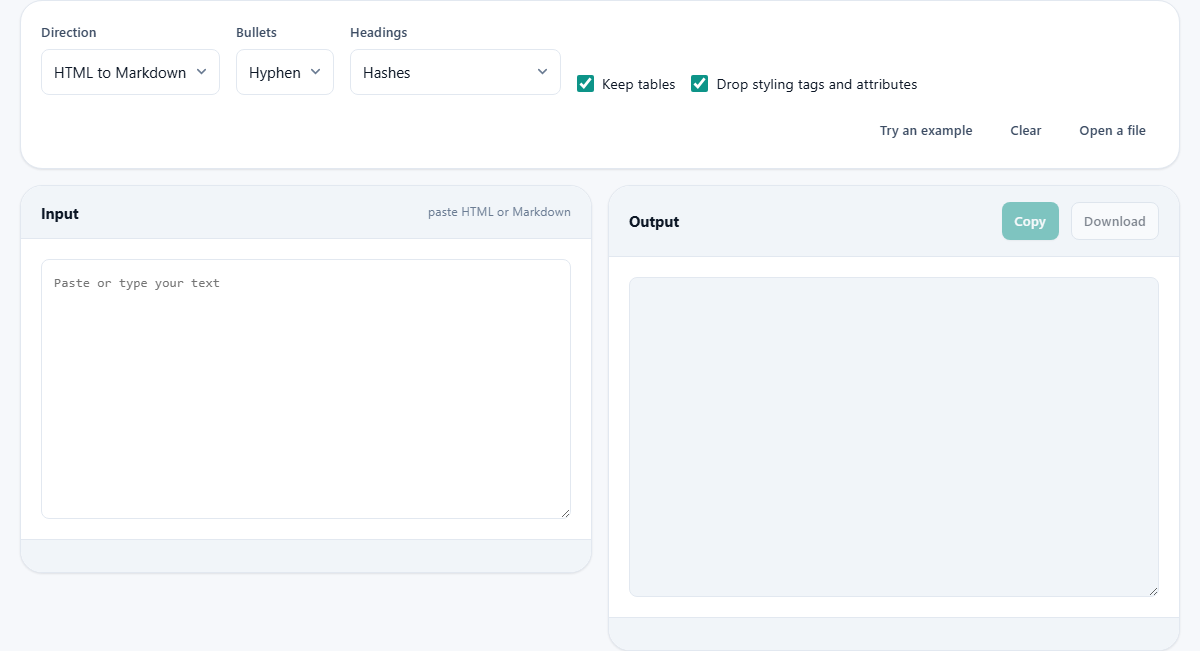
The Direction dropdown sits at the top. It has two choices: HTML to Markdown and Markdown to HTML. Pick the one that matches your starting format.
The Bullets dropdown controls which character marks each list item when generating Markdown. Hyphen is the default and the most common. Star and Plus are alternatives that some style guides prefer. The choice is purely visual; all three produce valid Markdown.
The Headings dropdown controls how headings look in the Markdown output. Hashes is the standard style, where a level-one heading starts with a single hash and a level-two heading starts with two. Underlines for h1 and h2 uses a row of equals signs under a first-level heading and a row of hyphens under a second-level heading. Deeper headings still use hashes either way.
The two checkboxes and what they strip
Keep tables is ticked by default. It converts simple HTML tables into Markdown pipe tables. Untick it and tables are dropped entirely, which is useful if your Markdown target does not support tables at all.
Drop styling tags and attributes is also ticked by default. It removes class names, inline styles, span tags, font tags, and other presentational clutter that has no equivalent in Markdown. Unticking it preserves that HTML in the output. Most of the time you want it on, because Markdown readers ignore styling attributes anyway.
These two checkboxes have no effect when converting in the other direction. Markdown to HTML always produces clean HTML with no extra styling.
The input and output panes
The left pane is labelled Input with a hint that reads paste HTML or Markdown. Type, paste, or load a file using the Open a file button above the panes. The Try an example button fills the input with a small sample document so you can see the conversion without preparing your own text. Clear empties both sides.
The right pane is labelled Output. It updates live as you type or paste. Two buttons sit in its header: Copy puts the result on your clipboard, and Download saves it as a file. Both are greyed out until there is output to act on.
A status line at the bottom of the input pane shows whether the tool is idle or working. For anything short of a very long document, the conversion is instant and you will not see it change.
A hands-on walkthrough
Set Direction to HTML to Markdown. Paste this fragment into the input pane: a level-two heading wrapped in h2 tags that reads Meeting Notes, followed by a paragraph saying The team agreed on three priorities, followed by an unordered list with three items: Ship the API, Update the docs, and Fix the login bug.
The output pane shows a clean Markdown version. The heading becomes a line starting with two hashes. The paragraph appears as plain text. The list becomes three lines starting with hyphens. All the angle brackets are gone.
Now switch Direction to Markdown to HTML. Clear the input and type the same content in Markdown: two hashes followed by Meeting Notes, a blank line, the paragraph, a blank line, and three lines starting with hyphens. The output shows the HTML version with proper tags around every element.
Notice that converting one direction and then converting the result back gives you something that reads the same. The tags and spacing may differ slightly from what you started with, but the content and structure are preserved. That is the nature of two formats with different levels of detail.
What converts cleanly and what does not
Headings, paragraphs, bold, italic, links, images, blockquotes, ordered lists, unordered lists, and fenced code blocks all move between the two formats without trouble. If your content is built from these pieces, the round trip is smooth.
Simple tables with one value per cell convert well in both directions. Merged cells have no Markdown equivalent. They are flattened into separate cells rather than lost, but the merge is gone.
Anything that HTML can express and Markdown cannot is handled by keeping the raw HTML in the Markdown output. Custom elements, embedded forms, and complex nested structures fall into this category. They will not look like Markdown, but the content is preserved rather than silently dropped.
Script and style tags are always removed. That is both safer and almost always what you want. If you need a script in your final page, add it back by hand after the conversion.
Traps that produce messy or wrong output
- Copying a rendered web page instead of its source HTML. The browser sends rich text to the clipboard, not the underlying HTML. You need to right-click, choose View Source, and copy from there, or use the developer tools panel.
- Pasting content from a word processor and expecting clean Markdown. Word processors wrap every line in spans and inline styles. Tick Drop styling tags and attributes to strip that clutter before converting.
- Leaving Keep tables ticked when your Markdown target does not support pipe tables. The output will look right in a preview that supports tables but will break in one that does not.
- Expecting the round trip to be byte-for-byte identical. Converting HTML to Markdown and back preserves meaning but not formatting details like whitespace, attribute order, or tag casing.
- Forgetting that Markdown needs blank lines between blocks. A heading followed immediately by a paragraph with no blank line may not render correctly in every Markdown parser.
When a different tool is the better choice
- To clean up or reformat HTML without converting it to Markdown, an HTML formatter or beautifier is a more direct path.
- To compare two versions of the same Markdown file, a text diff tool shows the exact lines that changed.
- To turn a full web page into plain text with no formatting at all, an HTML-to-text stripper is simpler than going through Markdown.
- To write Markdown from scratch with a live preview, a dedicated Markdown editor with split-pane display is built for that workflow.
The conversion stays inside your browser
Nothing you paste into this page is sent to a server. The conversion runs entirely in your browser using built-in text processing. There is no upload, no queue, and no account. You can disconnect from the internet, paste your content, and watch the output appear exactly the same way.
That matters when the content is sensitive. Internal documentation, draft articles, and proprietary templates are all safe to paste here. When you close the tab, the text is gone from memory and there is nothing on any server to clean up.