
Telling search engines where they may and may not go
What robots.txt and sitemaps do for your site, how to build both without memorising the syntax, every field and checkbox on the page by its visible label, a worked example for a small business site, common mistakes that backfire, and the AI crawler question.
Two small files that shape how crawlers see your site
Every search engine sends automated programs, called crawlers, to read websites. Before a crawler looks at any page, it checks for a file called robots.txt at the very top of the site. That file says which parts the crawler may visit and which parts it should skip.
A sitemap is the opposite side of the same coin. Instead of listing what to avoid, it lists what to find. It is an XML file that names every page you want indexed, along with hints about how often each one changes. Together, the two files give a crawler a complete picture: here is everything I have, and here is what I would rather you left alone.
Neither file is required. A small, well-linked site works fine without either one. But once your site grows past a few dozen pages, or when you launch a brand new domain with nothing linking to it yet, these files start earning their keep.
Who benefits from building these
Anyone who runs a website and cares about how it appears in search results has a reason to set up both files. That includes freelancers putting up a portfolio, small business owners managing their own site, and developers launching a side project.
The people who benefit most are those whose sites have areas that should not be crawled. Admin panels, shopping cart pages, internal search results, and staging copies of the site all waste a crawler's time and can clutter your search listings with pages nobody wants to land on.
- Keeping search engines out of admin dashboards and login pages.
- Stopping duplicate content from an internal search or filtered product listing from being indexed.
- Blocking a staging or test version of the site so it does not compete with the live one.
- Helping a brand new site get all its pages discovered quickly through a sitemap.
- Deciding whether AI training crawlers should be allowed to read your content.
Building the robots.txt, step by step
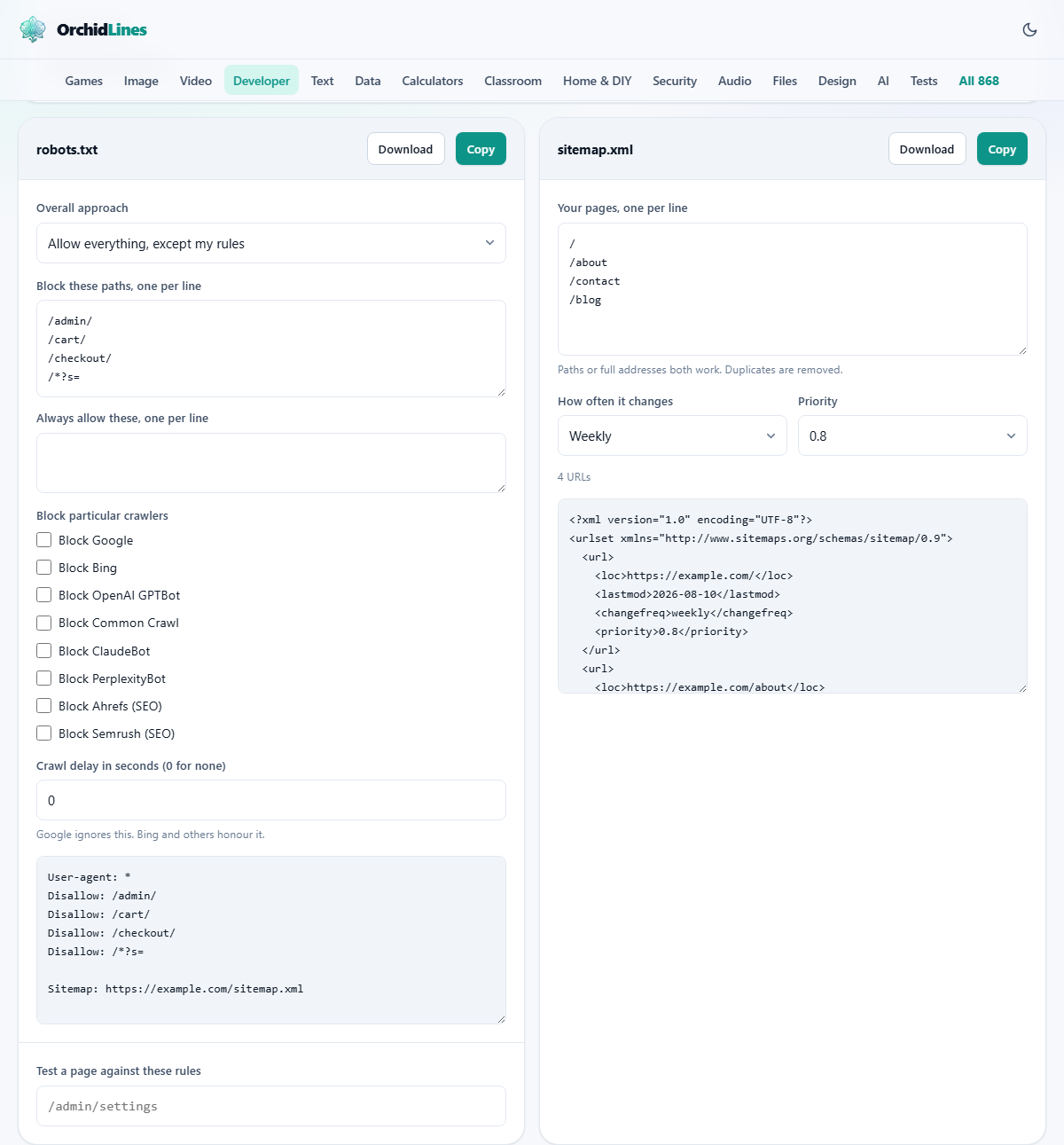
Start with the field labelled Your site address. Type the full address of your website, including the https part. This address is used to build the sitemap link inside the robots.txt file and to complete any short paths you enter later.
The Overall approach dropdown offers three choices. Allow everything, except my rules is the right one for most sites. It lets crawlers visit every page unless you say otherwise. Allow absolutely everything skips all rules and produces a minimal file. Block every crawler is for a staging site or a site that is not ready for public visitors yet.
Below the dropdown sit two text areas. Block these paths, one per line is where you list the parts of your site that crawlers should skip. Type each path on its own line, starting with a forward slash. Common entries are /admin, /cart, /checkout, and /search. The second area, Always allow these, one per line, overrides the block list. You might block /images/ but allow /images/logo.png so your logo still appears in search results.
Blocking specific crawlers and setting a delay
Under Block particular crawlers, a set of checkboxes names individual bots. GPTBot, ClaudeBot, CCBot, and PerplexityBot are the AI-related ones. Ticking a box adds a rule that tells only that crawler to stay away. The rest of your rules still apply to everyone else.
Whether to block AI crawlers is a genuine choice. Blocking stops your content from being used to train language models, but it also means your site will not be cited in AI-generated answers. There is no single right answer.
The Crawl delay in seconds field asks crawlers to pause between requests. Google ignores this setting entirely. Bing and some smaller crawlers respect it. A value of zero means no delay, and that is fine for most sites. Only raise it if you have evidence that crawlers are putting real strain on your server.
Testing a path before you publish
At the bottom of the robots.txt panel is a field labelled Test a page against these rules. Type a path like /admin/settings and the tool tells you instantly whether your rules would block it or allow it.
This saves you from the most frustrating mistake: publishing a robots.txt that accidentally blocks a page you wanted indexed. Testing a handful of real paths before downloading the file takes thirty seconds and catches errors that would otherwise go unnoticed for weeks.
The test applies your rules using the same logic that a compliant crawler would use. Wildcards and longer paths take priority over shorter ones, just as they do in the real world.
Building the sitemap alongside
The second panel is headed sitemap.xml. The field labelled Your pages, one per line accepts either full addresses or just paths. Type one page per line. Duplicates are removed automatically.
Two dropdowns sit below the list. How often it changes adds a frequency hint to every entry. The options are Daily, Weekly, Monthly, Yearly, or Do not include. Weekly is a sensible default for most sites. Priority sets a number between 0 and 1 that hints at how important each page is relative to the others. A value of 0.8 is a reasonable starting point.
A counter below the list shows how many pages are in your sitemap. A single sitemap file can hold up to fifty thousand entries and must be smaller than 50 MB. The tool warns you if you exceed either limit.
When your list is ready, the generated XML appears in the read-only area below. Copy or Download saves the file, ready to upload to the root of your site.
A worked example for a small business site
Imagine a bakery website at https://rosebakery.com. It has a home page, an about page, an order page, and a blog. It also has an admin dashboard at /admin and a checkout flow at /checkout.
Set Your site address to https://rosebakery.com. Leave Overall approach on Allow everything, except my rules. In the block list, enter /admin and /checkout, each on its own line. Leave the AI crawler boxes unticked for now.
In the sitemap panel, type four lines: /, /about, /order, /blog. Leave frequency on Weekly and priority on 0.8. The sitemap XML appears instantly with four entries. Download both files and upload them to the root folder of the site. The robots.txt is now reachable at rosebakery.com/robots.txt, and the sitemap at rosebakery.com/sitemap.xml.
Test it by typing /admin into the test field. The result confirms it is blocked. Type /about and the result confirms it is allowed. That is the whole job done.
Mistakes that cause real trouble
- Putting robots.txt in a subfolder. It only works in the root, reachable at yoursite.com/robots.txt. Anywhere else, crawlers will never find it.
- Expecting a blocked page to vanish from search results. Blocking stops crawlers from reading the page, but the address can still appear in results if other sites link to it. A noindex meta tag on the page itself is how you keep it out of results properly.
- Using robots.txt to hide private content. The file itself is public. Anyone can read it at yoursite.com/robots.txt, which means you are publishing a list of exactly where your sensitive pages live. Use real authentication instead.
- Forgetting to link the sitemap inside robots.txt. The generated file includes the link automatically, but if you edit the file by hand later, make sure the Sitemap line stays in.
- Blocking your CSS and JavaScript. Some people block their entire assets folder. That stops crawlers from rendering the page, and Google may rank it lower because it cannot tell what the page looks like.
- Leaving a staging block rule on the production site. If you copied robots.txt from a staging server, the Block every crawler rule will stop all indexing on your live site.
When a different approach serves you better
- To check whether your site currently has a robots.txt and what it says, open yoursite.com/robots.txt in a browser. You do not need a tool for that.
- To remove a single page from search results without blocking the crawler, add a noindex meta tag to the page itself. That keeps the crawler's ability to read the page while hiding it from listings.
- To manage redirects, you need server configuration or a redirect rule in your hosting panel. Robots.txt cannot redirect anything.
- To submit your sitemap to a specific search engine, use their webmaster console. Google Search Console and Bing Webmaster Tools both have a field where you paste the sitemap address.
Both files are built on your own device
Everything on this page runs inside your browser. Your site address, your page list, and your blocking rules are never sent anywhere. The generated files appear in read-only text areas on screen, and you save them yourself.
That means there is nothing to sign up for, no server processing your request, and no risk that your site structure leaks to a third party. Close the tab and the work is gone from memory. Open it again and start fresh.