
Reading a network log without handing over your session
What a HAR file contains and why it is sensitive, how to export one from any major browser, what the viewer shows for each request, a walkthrough of diagnosing a slow page load, and why this tool exists when several online viewers already do.
What sits inside a HAR file
HAR stands for HTTP Archive. It is a JSON file that records every network request a browser made during a page load or browsing session. Each entry holds the URL, the HTTP method, the request and response headers, the timing breakdown, the status code, the transferred size and often the full response body.
That list includes cookies, authorization tokens, session IDs and any form data you submitted while the recording was running. A HAR file from a logged-in session is effectively a copy of your credentials. Anyone who has it can replay those cookies against the server and act as you, at least until the session expires.
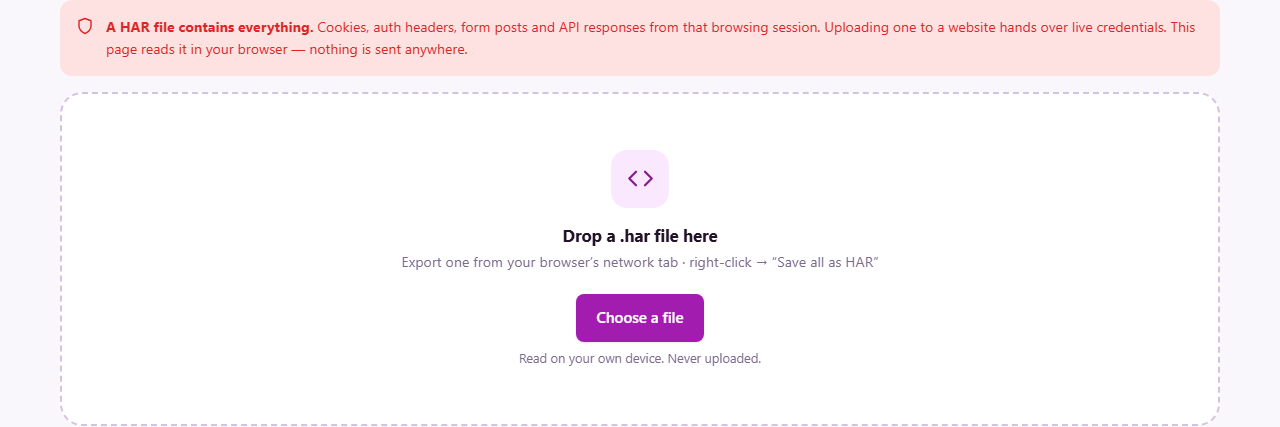
Support teams ask for HAR files regularly because they show exactly what the browser saw. But the popular online HAR viewers all require you to upload the file to their server, which means handing over all those credentials. This viewer reads the file in your browser and never sends it anywhere.
Exporting a HAR from your browser
The steps are similar in every modern browser. Open the developer tools, usually with F12 or the keyboard shortcut for your platform. Go to the Network tab. Reload the page so the tab captures every request from the start. Wait until the page is fully loaded and any background calls have finished.
Right-click anywhere in the request list and choose Save all as HAR or Save all as HAR with content, depending on the browser. Chrome, Edge, Firefox and Safari all produce the same format. Save the file somewhere convenient.
If you are capturing a problem that only happens during a specific action, start the recording, perform the action, then export. The HAR will contain everything the browser did during that window. Make sure to capture both the initial page load and the action itself, because some issues only appear when a cached resource expires or a background poll fires.
Loading the file into the viewer
Drop the .har file onto the drop area, or click Choose a file and pick it from a dialog. The page accepts files with a .har or .json extension. Once loaded, the file name appears at the top of the work area and a row of summary numbers appears below it.
The summary shows the total number of requests, the total transferred size, the number of failed requests and the total load time. These four numbers give you an instant picture of the page load before you look at any individual request.
To load a different file, press the Another file button in the top right. The current data clears and the drop area returns.
The waterfall and what the colors mean
Below the summary sits the request list, which shows each request as a horizontal bar. The bar is divided into colored segments that represent the phases of the connection. A legend at the top names each color.
Queued time means the browser was waiting for a free connection slot. DNS is the time spent looking up the domain name. Connecting is the TCP handshake. TLS is the additional handshake for HTTPS. Sending is the time to transmit the request. Waiting is the time the server took to think and start responding. Downloading is how long the response body took to arrive.
The length of each segment tells you where the time went. A long waiting segment means the server was slow. A long connecting segment points at network distance or congestion. A long queued bar means too many requests to the same host, and the browser ran out of parallel connections.
Filtering and sorting the list
Three controls sit above the request list. The Filter by URL text field narrows the list to requests whose URL contains what you type. Typing api shows only API calls. Typing .css shows only stylesheets fetched by name. The filter updates as you type.
The type dropdown, which starts at Every type, lets you filter by resource category: Documents, Scripts, Stylesheets, Images, Fonts, Data which covers JSON and XML, Media, and Other. Picking one hides everything else, which is useful when you know the slow item is an image or a script but do not know which one.
The sort dropdown offers three orders. In order shows requests in the sequence the browser made them, which is the natural timeline. Slowest first puts the most time-consuming request at the top, which is usually the first thing to try when debugging a slow load. Largest first ranks by transferred bytes, which helps when the problem is bandwidth rather than latency.
The type breakdown table
Below the request list sits a panel headed By type. It groups all requests by category and shows the count and total size for each one. A page that loads 40 scripts and 2 stylesheets has a different shape than one that loads 60 images and 3 scripts. The table shows that shape at a glance.
The numbers here are useful for comparing before and after. If you optimize a page and export a new HAR, loading both and comparing the type tables tells you exactly what changed: fewer scripts, smaller images, or a font that was dropped entirely. A heavy page often has most of its weight in images, and this table makes that obvious without scrolling through every individual request.
Diagnosing a slow page, start to finish
Open the developer tools in Chrome on a page that takes seven seconds to load. Go to the Network tab, reload, wait for the page to finish, and save the HAR. Drop the file into the viewer.
The summary says 94 requests, 3.2 MB transferred, 1 failed, 7.1 seconds. Sort by Slowest first. The top entry is an API call to /search that took 4.8 seconds. Its bar is mostly waiting, which means the server took nearly five seconds to respond. That is the bottleneck, and no amount of frontend work will fix it.
The second entry is a 1.4 MB hero image that took 1.9 seconds to download. Its bar is mostly downloading. Compressing it or serving a smaller version would save close to two seconds.
The failed request is a font file that returned a 404. It does not slow the page down, but it means the text renders in a fallback font and then shifts when it gives up waiting. The URL in the list tells you exactly which file is missing.
That single walkthrough found the server-side bottleneck, the oversized image and the missing font, all in under a minute.
Mistakes to watch out for
- Exporting a HAR while logged into a sensitive account and then emailing it. The file contains your live session cookies. Log out first, or use a fresh incognito session to capture the problem.
- Sorting by size and ignoring cached requests that show 0 bytes. Those are served from the browser cache and cost nothing on the network. They are not a problem to fix.
- Reading the total load time as a server metric. It includes browser queuing, DNS lookups, connection setup and download time. The server time is only the waiting segment of each request.
- Capturing a HAR on a fast office network and using it to judge performance for users on mobile. Network conditions change everything. The timing in a HAR only reflects the connection it was captured on.
Why a local viewer matters
A HAR file from a production session is one of the most sensitive files a developer handles. It often contains authentication tokens that are still valid, API keys passed in headers, form data from login or checkout flows, and response bodies that hold personal information.
Uploading that file to an online analyzer hands all of it to a third party. Even if the service promises to delete it, the transfer itself is a risk. This viewer avoids the question entirely. The file stays on your machine, the parsing happens in your browser, and no network request carries any part of the data. You can confirm it by loading a file with your network turned off. Everything works the same, because no server was ever in the loop.