
Making sense of a query that arrived as one long line
Where unreadable GraphQL comes from, how the formatter turns it back into something a person can follow, what the mode and indent settings do, a step-by-step pass over a real query, and when minifying is the right move instead.
How queries end up unreadable
GraphQL queries are written with neat indentation in source code, but they rarely stay that way. When a client sends a query over HTTP, it packs the text into a JSON string. Logging systems record it on a single line. Network inspectors show it as a blob of braces and field names with no whitespace at all.
A short query survives this treatment. A mutation with nested fragments, inline conditions and six levels of curly braces does not. Reading it means figuring out which brace closes which block, which is slow and error prone on a line that runs hundreds of characters.
This formatter parses the document into tokens and rebuilds it with proper indentation. It handles queries, mutations, subscriptions, fragments and SDL schema definitions. The result appears in the right panel as you type, so you can paste in a blob and see the structure immediately.
Who reaches for it
Frontend developers grab queries from the browser network tab when debugging an API call that returns wrong data. Backend developers paste schema definitions from documentation that lost its formatting during a copy. DevOps engineers pull queries from server logs when tracing a slow request.
The common thread is the same: someone has a valid GraphQL document that is too compressed to read, and they need the structure back before they can reason about it. Code review is another trigger. A colleague pastes a query into a chat message and it arrives as a single line because the chat client stripped the formatting. Dropping it in here rebuilds the structure in a second. The formatter does that one job without touching the meaning of the document.
The input panel
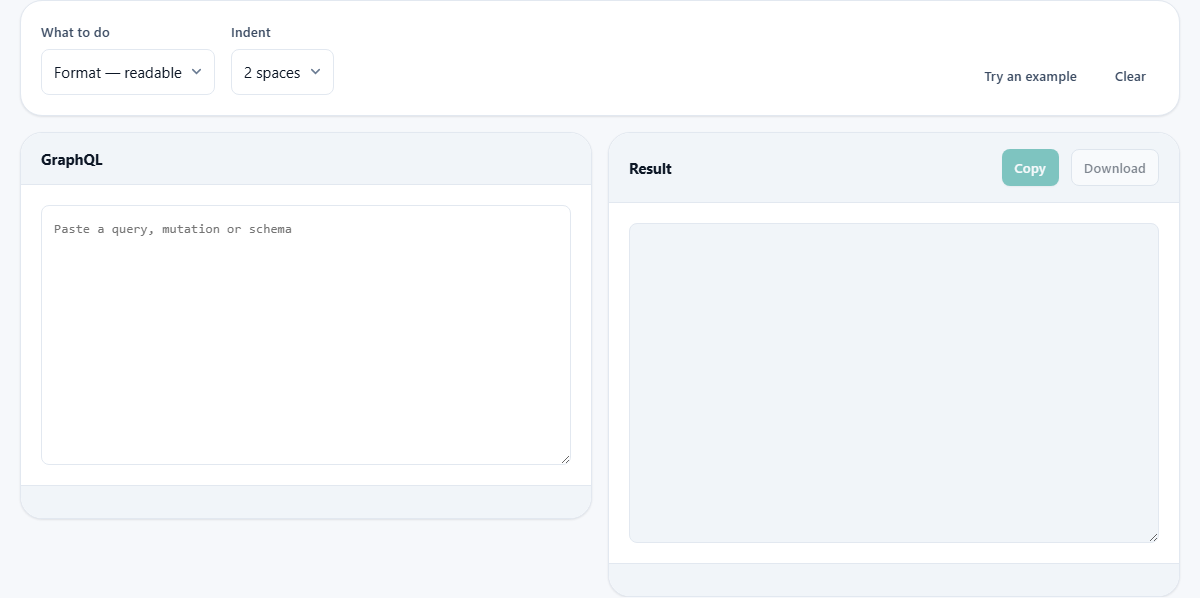
The left panel is headed GraphQL. Paste or type a query, mutation, schema definition or any combination of them. The placeholder text reads Paste a query, mutation or schema.
If the document has a syntax error, a message appears naming the problem and its position. An unclosed string, an unexpected character or mismatched braces all produce a clear report. The formatter will not silently mangle bad input and pretend it worked.
The Try an example button loads a sample query so you can see the tool working before you paste your own code. The Clear button empties both panels and lets you start fresh.
Mode and indent settings
Above the two panels sits a settings bar with two dropdowns. The first is labeled What to do. It has two choices: Format - readable, and Minify - smallest.
Format is the default. It adds line breaks and indentation so every field sits on its own line and nested blocks are visually grouped. Minify does the opposite. It strips every comment, every optional space and every line break, producing the smallest possible text that is still valid GraphQL.
The second dropdown is labeled Indent. It offers 2 spaces, 4 spaces and Tabs. The setting only matters in format mode. In minify mode there is no indentation to choose. Two spaces is the most common convention in GraphQL projects, which is why it is the default. Four spaces matches what many backend codebases use, and tabs leave the visible width up to the reader's editor. If your team already has a style, match it. If not, two spaces keeps the lines short and readable.
Formatting a nested query step by step
Suppose a log file contains this on a single line: query GetUser($id: ID!) { user(id: $id) { name email orders(last: 5) { edges { node { id total status } } } } }. Paste it into the left panel with the mode set to Format and the indent at 2 spaces.
The right panel immediately shows the query keyword on the first line, the operation name and variable on the same line, then the opening brace. Each field sits on its own line at the correct depth. The orders field and its arguments are visible, and the nested edges, node and their fields each step inward by two spaces. The closing braces march back out to the left.
You can now see at a glance that the query asks for a user by ID, fetches name and email, then pulls the last five orders with their ID, total and status. That took seconds instead of minutes of brace counting. Copy the result, paste it into your code editor and it fits right in. The output only contains what the document contains; no extra annotations or markers are added.
When minifying is what you want
Switch the mode to Minify. The right panel collapses the formatted query back to the shortest form. Comments disappear because their purpose is to be read by a human, and a minified query is for the wire.
Minifying typically saves 30 to 50 percent of the character count. That matters when a query goes into a URL, such as a GET request to a GraphQL endpoint. It also matters for persisted queries, where the text is hashed and registered with the server in advance. A smaller string produces a faster hash, and every byte shaved off the request body reduces network time.
If the minified query is still too long for a URL, that is a sign it belongs in a POST body. GET requests with very long query strings run into server and proxy limits, and the error messages are rarely helpful.
What happens to commas
Paste a query that uses commas between arguments, like user(id: $id, limit: 10). The formatted output drops the commas. This is not a bug.
The GraphQL specification treats commas as whitespace. They carry no meaning. Removing them is standard style in the GraphQL community, just as trailing commas are standard in JavaScript. The document is exactly as valid without them, and most style guides prefer the comma-free form.
If you want commas back, the formatter is not the right tool for that preference. It follows the community convention, and the convention says commas are noise.
Schema definitions and fragments
The formatter is not limited to queries. SDL type definitions, interfaces, unions, enums and directives all format the same way. If you paste a schema file that defines types alongside a query that uses them, both parts come out properly indented.
Fragments format like any other block. They appear at the top level with their type condition, and their fields indent normally. Inline fragments inside a query also indent as you would expect. The formatter tokenizes by brace depth, so any valid construct that opens and closes braces gets the right treatment.
Block strings, the triple-quoted strings that GraphQL uses for descriptions in SDL, are preserved as they are. Their internal whitespace is part of the content, so the formatter does not re-indent what is inside them. Regular single-line comments starting with the hash character are kept during formatting and placed on their own line. During minification they are removed, since a minified document is meant for the machine.
What it does not do
The formatter parses syntax, not meaning. It does not check whether a field exists in your schema. It does not validate argument types. It does not warn about unused variables. All of those checks need the schema itself, which lives on your server. This tool works without a schema, which is why it can handle any document without configuration.
It also does not sort fields or reorder arguments. The output preserves the original order exactly. If you want alphabetical fields, that is a linter rule in your editor, not a formatting pass. For full validation against your schema, tools like graphql-eslint or the Apollo CLI run in your project. This formatter fills a different gap: quick visual cleanup on any document, without setup or configuration.
Your query stays on your machine
The tokenizer and formatter run entirely in your browser. The document you paste is never sent to any server. This matters more than it sounds, because queries from a production network tab often carry real field names, customer IDs and internal API structure. Pasting them into an online tool is a leak. Pasting them here is not, because the text never leaves your device. You can verify that by turning off your network and trying it. The result appears just the same.