
Building an ignore file you can actually read
What belongs in a .gitignore, how the generator picks rules for your stack, what every checkbox and dropdown does, a worked file for a Node project, and the one thing ignoring a file does not do.
Why repositories collect junk
Every programming language generates files that should not be committed. Node downloads thousands of small packages into node_modules. Python creates __pycache__ folders. .NET builds a bin and an obj directory. Editors scatter their own settings across the project. Operating systems drop hidden files like .DS_Store or Thumbs.db into every folder they open.
None of those files belong in version control. They are large, they change constantly, and they can be regenerated from source. A .gitignore file tells git to pretend they do not exist. Without one, every pull request fills up with noise that has nothing to do with the work.
Writing one from scratch is tedious. The rules vary by language, editor and operating system, and getting them wrong means either committing things you should not or ignoring things you need. This generator picks the standard rules for your combination and explains each one, so you can judge them rather than trusting a list you found online.
Choosing your stack
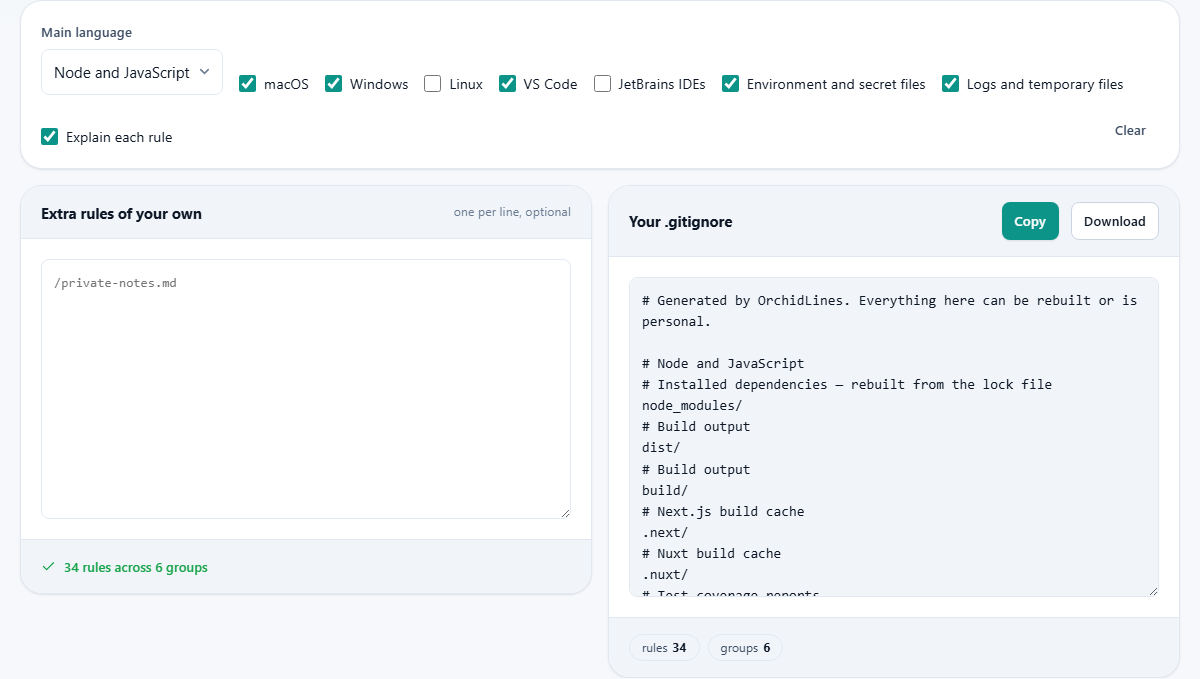
The Main language dropdown sits at the top of the page. It has eleven options: Node and JavaScript, Python, Java, .NET and C#, Go, Rust, PHP, Ruby, Android, Swift, and A static website. Each one loads a set of rules covering the build output, dependency folders, and cache directories that language creates.
Node, for example, ignores node_modules, the dist folder, and coverage reports. Python ignores __pycache__, .egg-info, virtual environments and .pyc files. .NET ignores bin, obj, and the packages folder. The rules follow the conventions that each community has settled on over the years.
Only one language can be selected at a time. If your project mixes languages, pick the primary one and add the extra rules by hand in the input box on the left. A common case is a Node frontend with a Python backend in the same repository. Pick Node, then type the Python rules into the custom box. The generated file groups everything clearly, so custom additions at the bottom are easy to identify and review.
Operating systems and editors
Below the language dropdown sit six checkboxes. Three are for operating systems: macOS, Windows and Linux. MacOS is checked by default because .DS_Store appears in nearly every repository that has a Mac contributor. Windows is also checked, covering Thumbs.db and desktop.ini. Linux adds rules for backup files and KDE metadata.
Two checkboxes cover editors. VS Code is on by default and ignores the .vscode folder. JetBrains IDEs is off by default and covers the .idea folder and its contents. Both are matters of team convention. Some projects commit editor settings so everyone gets the same configuration. Others ignore them so each developer can set things up independently. The generator gives you the rules for ignoring them. Whether you keep them is your call.
Secrets, logs and the explain toggle
Two more checkboxes handle common additions. Environment and secret files is on by default. It adds rules for .env, .env.local and similar files that hold API keys, database passwords and other values that should never reach a public repository. Logs and temporary files covers *.log, npm-debug.log and similar output that accumulates during development.
The Explain each rule checkbox is on by default. When active, every rule in the output has a comment above it saying what it matches and why it is there. Turn it off for a clean file with no comments. The explanation is the point of the tool. Many developers paste a gitignore from the internet and have no idea what half of it does. The comments let you delete any rule you disagree with and know exactly what you are removing.
Adding your own rules
The left panel, headed Extra rules of your own, is a text area where you can type one pattern per line. Whatever you enter appears at the bottom of the generated file under its own heading.
Common additions include paths to local notes, private configuration files, or output folders that are specific to your project. For example, if your project writes report PDFs to a reports folder, adding /reports would keep them out of the repository. The leading slash anchors the pattern to the root of the repository, so it will not match a subfolder called reports inside another directory.
An exclamation mark at the start of a line un-ignores something a previous rule matched. If you ignore a whole folder but need one specific file inside it tracked, the negation pattern lets you carve out that exception without changing the broader rule.
The output and how to use it
The right panel shows the generated .gitignore. It updates live as you change any setting. At the bottom, a small row of chips shows how many rules the file contains.
Copy puts the text on your clipboard. Download saves it as a file named .gitignore, ready to drop into the root of your repository. That is where git expects to find it. You can place additional .gitignore files in subfolders, and their rules apply from that folder downward.
The Clear button at the top right resets every checkbox and clears the custom rules. The output empties and you can start again from scratch. If you want to compare the rules for two different languages, generate one, copy it somewhere, press Clear, and generate the other. The differences are usually in the build output and dependency folders.
A worked file for a Node project on Mac and Windows
Select Node and JavaScript. Leave macOS, Windows, VS Code, Environment and secret files, Logs and temporary files, and Explain each rule all checked. Leave Linux and JetBrains off.
The output begins with the Node section: node_modules, dist, coverage, and .env files. Each rule has a comment explaining it. Next comes the macOS section with .DS_Store. Then Windows with Thumbs.db and desktop.ini. Then VS Code with .vscode. Then secrets and logs.
Type /docs/internal into the custom rules box. It appears at the bottom of the file under a Your additions heading. Press Download, move the file to your project root, and commit it. From that point on, git will stop suggesting those files and folders.
The trap that catches everyone
Adding a file to .gitignore after it has already been committed does nothing. Git keeps tracking it. The ignore file only affects files that are not yet tracked. To fix this, you need to remove the file from tracking without deleting it from disk, which is a cached removal. Then commit that removal. Only after that will the ignore rule take effect.
If the file was ever pushed to a remote, it is still in the history there. Rewriting remote history is possible but disruptive to every contributor. And any password or API key that reached a public repository should be treated as compromised the moment it was pushed, no matter how quickly you deleted it. Bots scan public commits in near real time. Rotate the secret first, then worry about cleaning the history. The ignore rule only prevents future commits from including the file. It does not erase the past.
When a different approach fits
A .gitignore in the repository applies to everyone who clones it. If you want to ignore files only on your own machine without affecting the team, use the personal exclude file at .git/info/exclude. It follows the same syntax but is never committed.
A global gitignore, set in your git configuration, applies to every repository on your machine. That is where rules for your editor and operating system often belong. The project .gitignore then only needs the language and project rules, keeping it shorter and less opinionated.
Nothing leaves your browser
The rules are built from a list stored on the page itself. No request goes to a server. Your language choice, your operating system checkboxes and any custom rules you type stay in your browser and are never sent anywhere. The tool works just as well with the network turned off. Close the tab and the session is gone, because there was never a server keeping track of it.