
Learning flexbox by watching it move
How the six container properties in CSS flexbox control where boxes end up, what each setting on this playground does to the live preview, a worked layout from scratch, and the mistakes that make nothing happen on screen.
What flexbox solves
Before flexbox, putting three items side by side with equal spacing meant floats, clearfixes and arithmetic. Centering a single element vertically took hacks that broke when the content height changed. Flexbox replaced all of that with a handful of properties on the parent container.
The idea is simple. You mark a container as a flex container. Its direct children become flex items. They line up along one direction, called the main axis, and sit at a position across the other direction, called the cross axis. Six properties on the container decide everything: which way the line runs, whether it wraps, how items spread along it, where they sit across it, how wrapped lines spread, and how wide the gaps are.
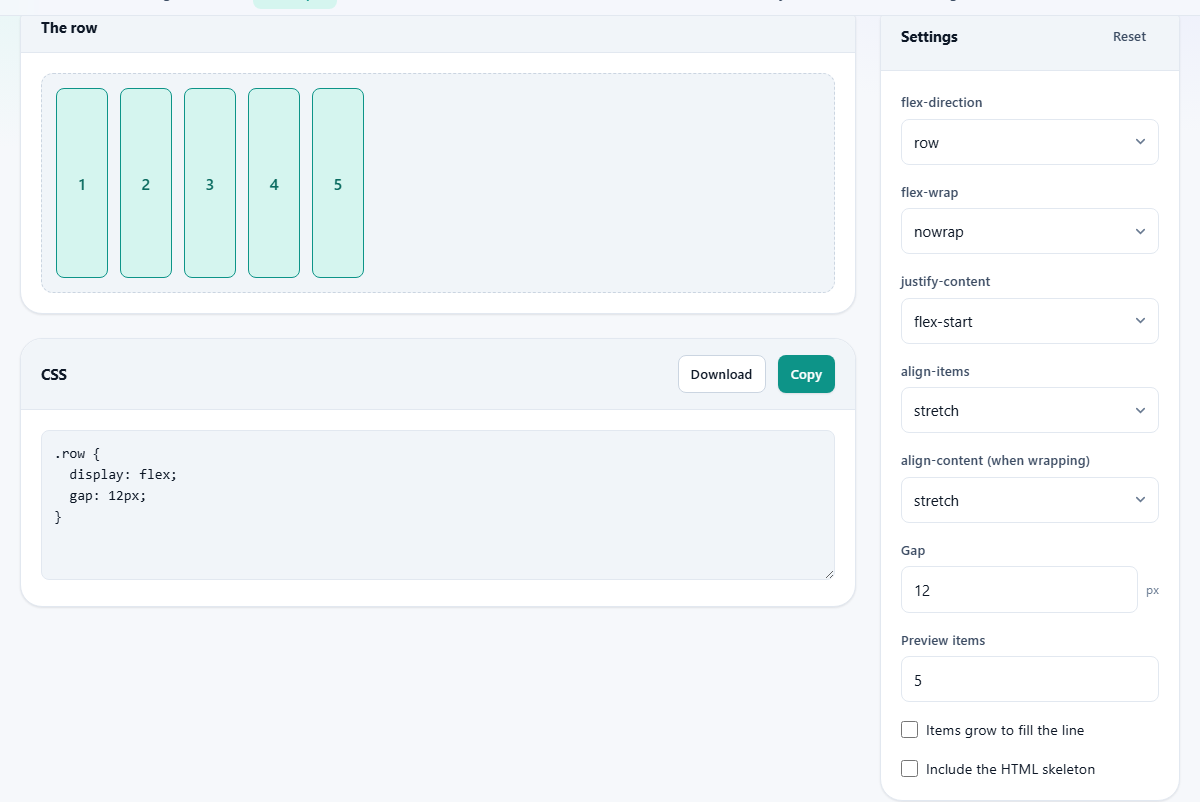
This playground lets you set each property and see the result instantly. The preview shows numbered boxes of different heights, so alignment is always visible. The CSS panel below it prints only the declarations that differ from the browser defaults, which means the code you copy is clean and honest.
The direction control
The flex-direction dropdown has four values. Row runs items left to right. Row-reverse runs them right to left. Column stacks them top to bottom. Column-reverse stacks them bottom to top.
Direction matters more than it looks. Every other property is relative to it. When the direction is row, justify-content works horizontally and align-items works vertically. Switch to column and the two swap roles. This single fact is the source of most flexbox confusion, and the playground makes it visible in one click.
Pick column, then set justify-content to center. The items gather in the vertical middle. Switch back to row and the same setting centers them horizontally. Watching the boxes move while the CSS updates underneath builds an understanding that reading the spec never quite delivers.
Distributing items along the line
The justify-content dropdown controls how items spread along the main axis. It only has an effect when there is leftover space on the line. If the items already fill the container, or if the Items grow to fill the line checkbox is ticked, there is nothing to distribute.
Flex-start pushes everything to the start of the line. Center gathers items in the middle. Flex-end sends them to the far side. The three spacing values divide the leftover room differently. Space-between puts all the gaps between items, with nothing at the edges. Space-around gives each item equal space on both sides, so the edges get half a gap. Space-evenly makes every gap identical, edges included.
The difference between those three is hard to remember from words alone. Set five preview items, untick the grow checkbox, and switch between the three values. The preview makes the distinction obvious in a way that a paragraph never will.
Alignment across the line
The align-items dropdown handles the cross axis. The preview items have different heights on purpose, so the effect is always clear.
Stretch is the default and makes every item as tall as the tallest one. Flex-start pins them to the top edge. Flex-end pins them to the bottom. Center lines up their middles. Baseline aligns the text inside each item, which looks similar to flex-start unless the items have different padding or font sizes.
A separate dropdown, align-content (when wrapping), appears in the settings panel. It controls how multiple wrapped lines spread across the container. It does nothing when flex-wrap is set to nowrap, because there is only one line and nothing to spread. The playground shows a note when this happens, so you know why nothing moved.
Wrapping, gaps and item count
The flex-wrap dropdown defaults to nowrap. That means items will shrink rather than break to a new line, no matter how many you add. Set it to wrap and the items flow to the next line once they run out of room. Wrap-reverse does the same but stacks lines in the opposite order.
The Gap field sets the space between items in pixels, from 0 to 60. Gap replaced the old pattern of putting a margin on every child and then removing it from the last one. It is a container property, so the spacing lives where it belongs.
Preview items is a number from 1 to 15. More items make wrapping and distribution visible. Fewer items let you focus on alignment. Five is a good starting point for most experiments.
Growing and the HTML toggle
The Items grow to fill the line checkbox adds flex-grow: 1 to every item. When it is on, the items expand to fill all available space, and justify-content stops having any visible effect because there is no leftover room to distribute. Turn it off to see the spacing values work.
The Include the HTML skeleton checkbox adds a sample HTML structure to the CSS output. It prints a container div and several child divs with class names, so you can paste both into a project and see the layout working immediately. With the checkbox off, only the CSS declarations appear.
Building a centered card row, step by step
Start with the defaults: row direction, nowrap, justify-content at flex-start, align-items at stretch, gap at 12, and five items. The boxes line up at the top left with small gaps between them.
Change justify-content to center. The group moves to the middle of the container. Change align-items to center as well. The boxes, which have different heights, now sit with their vertical centers aligned instead of stretching to the same height.
Set flex-wrap to wrap and increase the item count to 12. The items break across several lines. Set align-content to center so the lines gather in the middle rather than stretching apart. Increase the gap to 20 for breathing room.
Press Copy. The CSS panel holds five lines: display flex, flex-wrap wrap, justify-content center, align-items center, align-content center, and gap 20px. Paste that onto a container in your own project and the children will behave the same way.
Mistakes that make nothing happen
- Changing justify-content while Items grow to fill the line is ticked. Growing items consume all the space, so there is nothing left to justify. Untick the checkbox first.
- Setting align-content and expecting a result with nowrap. Align-content distributes wrapped lines, and one line cannot be distributed. Switch flex-wrap to wrap.
- Forgetting that direction changes the axis. Setting justify-content to center and expecting vertical centering only works if the direction is column. For row, that centers horizontally.
- Confusing align-items and align-content. Align-items positions items within a single line. Align-content positions the lines themselves within the container. The names sound alike, but they control different things entirely.
- Setting a large gap and wondering why items wrap early. Gap adds to the total width of the line, so fewer items fit before wrapping kicks in.
When grid is the better answer
Flexbox handles one line of items. If you need rows and columns that line up as a single grid, CSS Grid is the right tool. A toolbar, a navigation bar, a row of tags, or a set of cards that wraps naturally are all flexbox territory. A page layout with a sidebar and a main column, or a dashboard with tiles in a fixed grid, belongs to CSS Grid.
The line between the two is simpler than most guides make it. If the items decide how wide they are, use flexbox. If the container decides where things go, use grid. Many real designs use both: grid for the page skeleton, flexbox for each component inside it.
Everything stays on your machine
The playground runs entirely in your browser. No CSS is sent to a server. No layout choices are tracked or stored. The preview, the calculations and the code output all happen locally, and the page works the same way with the network cable pulled out. You can disconnect, change every setting, copy the result and close the tab. Nothing was recorded, because there was nowhere to record it.