
Building DNS records that will not embarrass you
What each kind of DNS record does, how to fill in the builder's fields without falling into the trailing-dot trap, a full walkthrough that adds three records to a zone, and the rules that only surface when two records collide.
What a DNS record does and who writes them
A DNS record is a single instruction in the phone book of the internet. It tells anyone who asks how to reach a name. An A record says which address a name points to. An MX record says where mail for that name should go. A TXT record carries a proof of ownership or a mail policy.
Anyone who owns a domain writes these records. You might do it once when you set up a website, or again when you add a mail provider, or when you need to prove you own a domain so a certificate authority will sign it. The records are usually typed into a hosting panel, one field at a time, and a mistake in any of them can quietly break mail, certificates, or the whole site.
Why the trailing dot matters
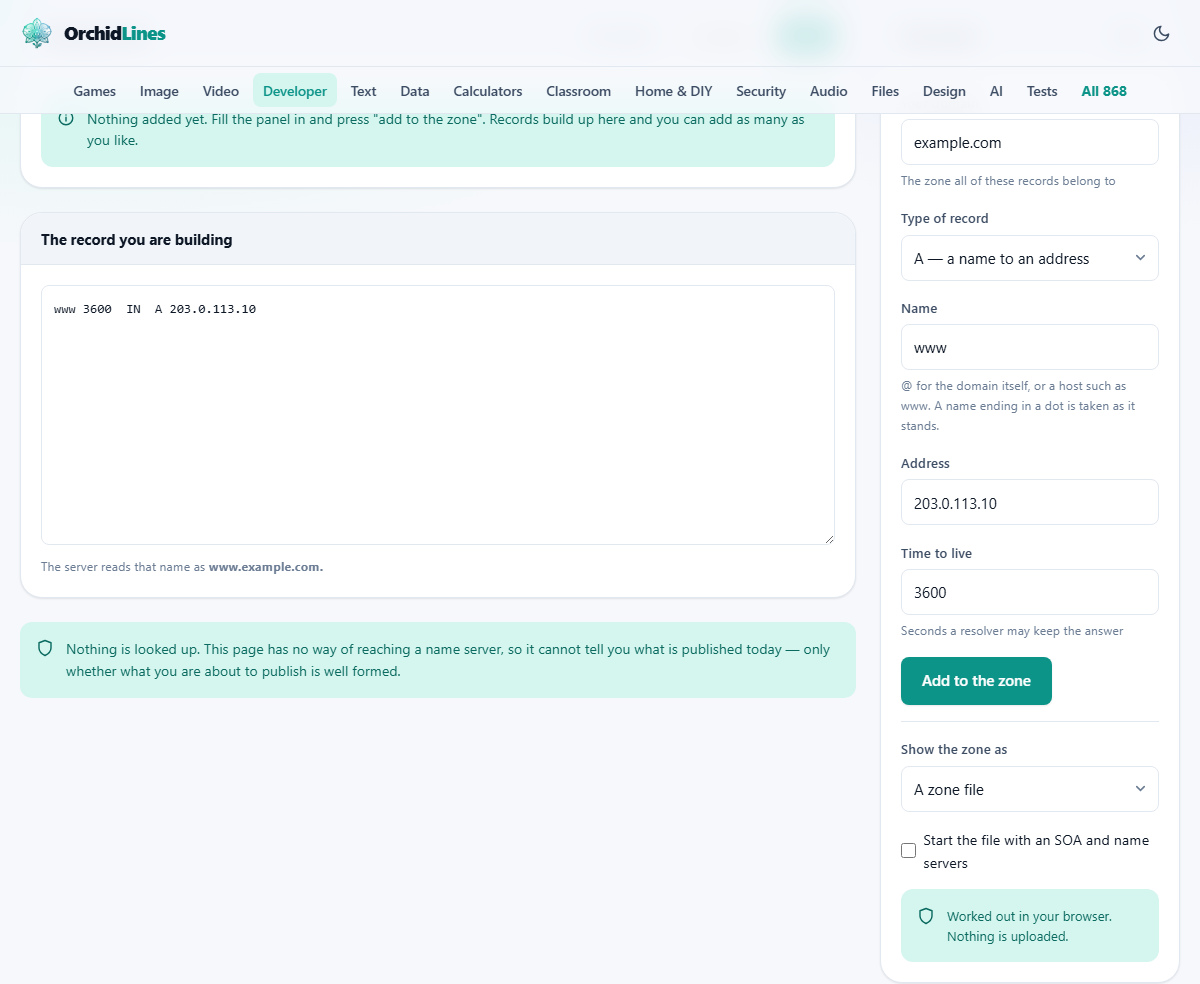
In a zone file, a name that does not end with a dot gets the domain added to it. Write www and the server reads it as www.example.com. Write mail.example.com without a dot and the server reads it as mail.example.com.example.com, which points nowhere.
This is the most common DNS mistake. The record loads without a complaint, the control panel accepts it, and mail stops arriving. The builder shows the full name that the server will read under every record you add. That line is the check. If the full name looks wrong, the dot is missing.
The fields on the right side panel
At the top of the panel is Your domain, which you fill in first. Every other field is measured against it.
Type of record is a dropdown with nine choices: A (a name to an address), AAAA (a name to a newer address), CNAME (a name to another name), MX (where mail goes), TXT (free text, for proofs and mail policies), SRV (a service, its host and its port), CAA (who may issue certificates), NS (hand a subdomain to other name servers), and PTR (an address back to a name).
The Name field appears for most types. Type @ for the domain itself, or a host like www. A name ending with a dot is taken exactly as typed.
The remaining fields change depending on the record type. An A record asks for an Address. An MX record asks for a Priority and a Points at target. An SRV record asks for a Service name, a Carried over protocol selector (TCP, UDP, or TLS), a Priority, a Weight, and a Port. A CAA record asks for a Flag, a Tag selector (issue, issuewild, or iodef), and a Value.
Time to live sits at the bottom, measured in seconds. It tells resolvers how long they may keep the answer. The default of 3600 means one hour.
Adding records and watching the zone grow
Press Add to the zone and the record moves into a list in the main area. You can then fill in the next record and add that too. The list grows as you work.
Rules that only make sense across several records are checked as the list builds. A CNAME may not share its name with any other record. If you try to add a TXT record beside a CNAME at the same name, you will be warned. This is the rule that most often catches people: they add a CNAME for a subdomain and then wonder why the SPF record at the same name stops working.
Below the Add button is a dropdown labelled Show the zone as, with two choices. A zone file writes the standard format that a name server reads. One line per record, for a console writes a simpler list that suits typing into a hosting control panel. A checkbox lets you start the file with an SOA and name servers, which asks for a First name server, a Second name server, and a Contact address.
A worked example: three records for a new site
Set Your domain to example.com. Leave Type of record on A, set Name to @ and type 203.0.113.10 in the Address field. Press Add to the zone. The list now shows one record that maps example.com to that address.
Change the type to MX. Leave the Name as @. Set Priority to 10 and type mail.example.com. in the Points at field. Note the dot at the end. Press Add. The list now has two records.
Change the type to TXT. Leave the Name as @. In The text field, type v=spf1 include:_spf.google.com ~all. Press Add. Three records sit in the list. If the text were longer than 255 characters, the builder would split it into the right number of quoted strings automatically.
Switch Show the zone as to the one-line view and you see each record on its own row. Copy the output and paste it into your hosting panel, one record at a time.
The CNAME rule and why providers bend it
A CNAME record says: this name is really that other name. The protocol requires that nothing else may exist at the same name. No MX, no TXT, no A record. And a CNAME cannot sit at the top of the domain, because the SOA and NS records must live there.
Hosting panels that seem to allow a CNAME at the apex are doing something else behind the scenes. They resolve the target and serve an A record in its place, calling it a CNAME in their own interface. The builder follows the actual standard and will refuse a CNAME at the domain root.
Text records and the 255-character split
One DNS string can hold at most 255 characters. Mail policies like SPF and DKIM routinely exceed that. The solution is to break the value into several quoted strings, which any reader joins back together with nothing in between.
The builder does this split for you. Type the full value in the text area and the output shows it broken at the right points. The joined result is always the text you typed, with no extra spaces or line breaks sneaking in.
Mistakes that break things quietly
- Forgetting the dot on a mail target. mail.example.com without a trailing dot becomes mail.example.com.example.com. Mail vanishes and nobody notices until a customer complains.
- Adding a TXT record beside a CNAME. The CNAME rule says nothing else may share its name. The TXT record will be ignored by some resolvers and honoured by others.
- Setting the time to live too high before a migration. If a resolver caches your old address for 24 hours, half the world will keep going to the old server for a full day after you switch. Drop the TTL a day ahead of any move.
- Putting an IP address in a CNAME target. A CNAME points at a name, never at an address. Use an A record for addresses.
- Leaving the SOA serial unchanged after editing. Some secondary servers will not pick up the new records until the serial number goes up. The SOA panel here sets a fresh serial each time.
When a different approach fits better
- To check whether your records are live and resolving correctly, use dig or nslookup on the command line.
- To generate a full BIND configuration with zones and views, a dedicated server management tool is more suitable.
- If you only need a single SPF or DKIM record, many mail providers give you the exact string to paste.
- For domain registration and ownership transfer, use your registrar's own panel.
No network, no lookup, no leak
The builder has no way of reaching a name server. It cannot tell you whether a record is live, and it will happily build records for a domain that does not exist. That cuts both ways: nothing you type goes anywhere.
A domain proof, a mail policy, a certificate authority restriction, all of it stays in the page until you copy it and paste it into your provider yourself. You can load the page offline and it works exactly the same, because there was never a network request to begin with.