
Reading a patch without a terminal
What unified diff format actually means, how to paste one and read it with proper line numbers instead of squinting at plus and minus signs in a terminal, and how the viewer handles multi-file patches and missing hunk counts.
What a unified diff is and where you meet one
A unified diff is a text file that describes the changes between two versions of a file. It lists which lines were added, which were removed, and a few unchanged lines around each change for context. The format was designed so that a program could apply the changes automatically, but people read them too.
You meet them constantly in software work. A colleague sends you a patch by email. A code review shows a block of green and red lines. A CI log dumps a diff to explain why a test failed. The output of git diff, svn diff, and the unix diff -u command all produce this same format.
Reading one in a terminal is possible but awkward. The line numbers are encoded in a header you have to decode, the columns do not line up, and scrolling back and forth through a long patch is slow. A proper viewer lays it out so you can see the old and new line numbers at a glance.
The difference between comparing and viewing
This tool does not compare two files. It reads a diff that already exists. That is an important distinction. A text comparison tool takes two documents and works out what changed. This viewer takes the result of that comparison and presents it so a person can follow it.
If you have two files and want to see the differences, use a text comparison tool first. If you already have the diff output, perhaps from git or from a patch file, paste it here. The viewer adds nothing to the content. It only arranges what is already there so that a person can read it quickly and cite line numbers with confidence.
The controls you will use
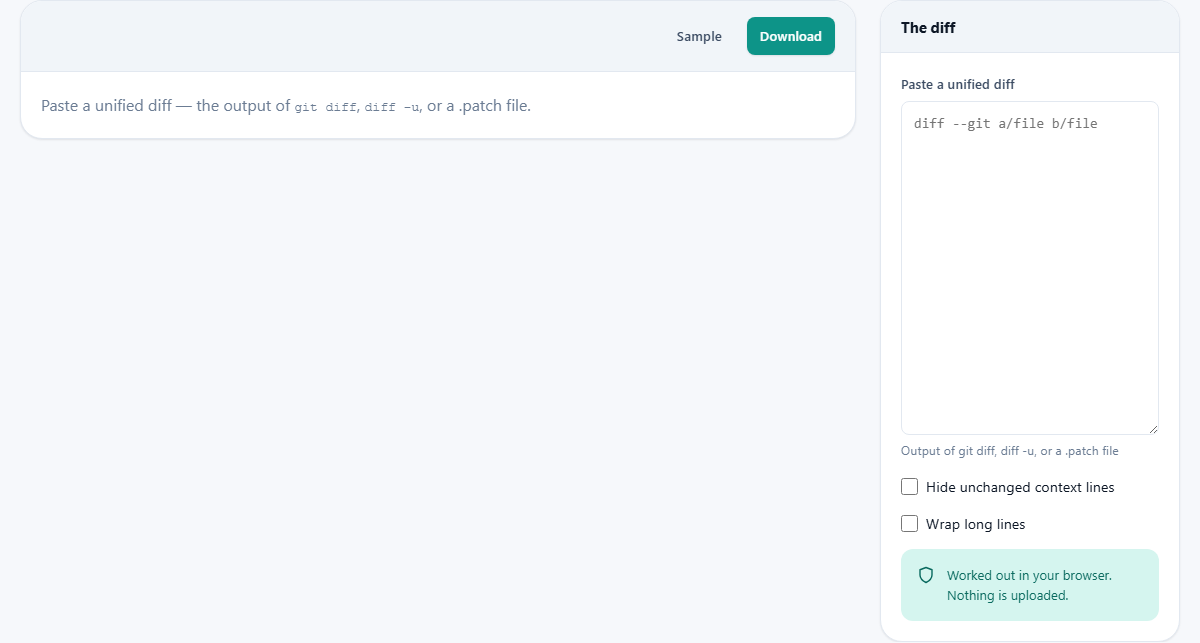
On the right side sits a panel headed The diff. Inside it is a text area labelled Paste a unified diff. Below the label is a hint that reads: Output of git diff, diff -u, or a .patch file. That is where you drop the raw text.
Two checkboxes sit under the text area. Hide unchanged context lines removes the grey lines that were not changed, leaving only the additions and removals. That helps when the patch is large and the surrounding code is not interesting. Wrap long lines keeps lines from running off the edge, which matters for code with deep indentation.
A Sample button fills in a small example diff so you can see what the layout looks like before pasting your own. A Download button lets you save the rendered view.
At the bottom of the panel is a short notice confirming that all the work happens in your browser and nothing is sent anywhere.
How the output is laid out
The main area shows each changed file in its own block. At the top of each block is the file path and a count of how many lines were added and how many were removed.
Inside the block, each hunk of changes appears under a decoded header. The raw format uses the @@ marker with numbers like -12,7 +12,9, meaning the old file contributes seven lines starting at line twelve and the new file contributes nine. The viewer writes both line numbers beside every row, which is the one thing a terminal never does clearly.
Added lines are shown in green. Removed lines are shown in red. Context lines, the unchanged ones that give you your bearings, appear in a neutral colour. When a line starts with a backslash, it is the marker for a missing newline at the end of the file, and the viewer shows it separately so it does not look like content.
A worked example with a small patch
Press Sample and a diff appears for a file called app/config.py. The header says two lines were removed and four were added. The hunk header is decoded and the old line numbers run on the left while the new ones run on the right.
Line 14 on the old side, shown in red, holds a timeout of 30 seconds. On the new side, that line is gone and in its place are two green lines: a timeout of 60 and a new retry count of 3. The numbers make it clear where each change sits in the file.
Tick Hide unchanged context lines and the grey rows vanish, shrinking the view to just the changes. That is useful when a patch covers many files and you only care about what actually moved.
Multi-file patches
A real patch often changes several files at once. The viewer handles this by splitting the input at each diff --git or --- / +++ header pair and rendering each file in its own block.
Every block carries its own statistics, so you can see at a glance that one file gained twenty lines while another lost five. The blocks follow the order they appear in the patch, which is normally alphabetical by file path.
This layout makes code reviews faster. Instead of scrolling through one continuous stream of plus and minus lines, you can jump to the file you care about and read its changes in isolation. The per-file counts also help you judge the size of a patch before you dive in. A patch that touches forty files but only changes two lines in each is very different from one that rewrites a single file from top to bottom.
The hunk header in detail
The line that starts with @@ is the most confusing part of the format for anyone reading it raw. It says where in the file this chunk of changes lives.
The first pair of numbers, after the minus sign, describes the old file. The second pair, after the plus sign, describes the new file. Each pair gives a starting line number and a count of how many lines follow. So @@ -30,4 +30,6 @@ means the old version has four lines starting at line thirty, and the new version has six lines starting at the same spot.
A count of one is sometimes left out entirely, so @@ -12 +12,3 @@ is legal and means one old line. Parsers that assume both counts are always present will misnumber every line after it. The viewer here handles that correctly.
Mistakes people make when reading patches
- Counting the plus and minus signs as part of the text. They are markers, not content. The actual line starts after that first character.
- Pasting a context diff (diff -c) instead of a unified diff. The viewer expects the unified format, which is what git and every modern tool produces. Context diffs use a different layout with exclamation marks and are not parsed here.
- Assuming the patch can be applied from this page. The viewer only displays the changes. Applying them requires the original files and a tool like git apply or patch on the command line.
- Ignoring the no newline at end of file marker. It looks like noise but it tells you the file does not end with a blank line, which matters for tools that are strict about trailing newlines.
- Missing a file in a long patch. Scroll through the full output or use the per-file headings to find the file you care about.
When another tool is the right choice
- To compare two documents and produce a diff from scratch, use the Text Compare tool.
- To read structured data like JSON or XML, use the dedicated formatter for that format.
- To search for a pattern inside a large text, the Text Search and Replace tool is a better fit.
- If you need to apply the patch, use git apply or the patch command on your own machine.
Nothing leaves your browser
Patches often carry unreleased code, internal file paths, and sometimes credentials that were accidentally committed. The viewer runs entirely on your device. The diff you paste is parsed and drawn in the page, and no part of it is sent over the network.
You can test this yourself. Load the page, turn off your connection, paste a diff, and watch the output appear. There is no server behind it. Closing the tab is all the cleanup you need.