
Making shadows that look designed, not default
Why a single shadow looks flat while layered shadows look real, what every slider and option on this page controls, a full walkthrough for a card and for a text heading, and the handful of traps that catch people every time.
The difference between a smudge and a shadow
Most default shadows in CSS look like a grey smear behind a box. That is because they use a single layer with a large blur and a solid grey colour. Real objects do not cast shadows like that. A mug sitting on a desk casts a tight dark shadow close to where it meets the surface and a wider softer one further away from it. Two or three layers with different blur sizes produce that look in CSS.
Design systems from every major company follow this pattern. Their elevation tokens are not single shadows. They are stacks of two, three, or sometimes four comma-separated values on the same property. The presets on this page follow the same layered approach, so the output already looks polished rather than needing careful manual tuning from a blank slate.
Box shadow versus text shadow
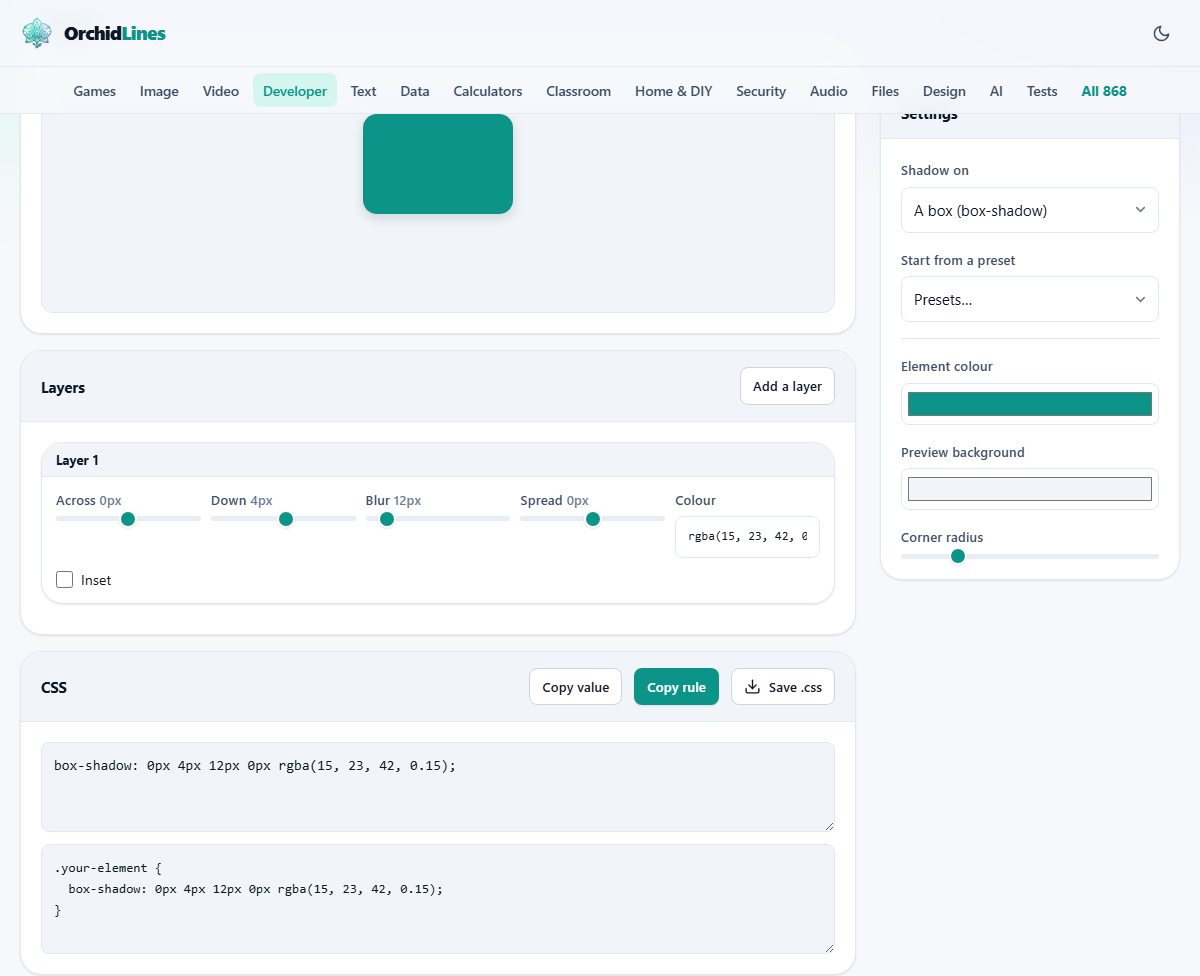
The Shadow on dropdown at the top of the settings panel offers two choices. A box (box-shadow) puts the shadow around a rectangular element. The preview shows a coloured square with the shadow behind it. Text (text-shadow) puts the shadow behind letterforms. The preview switches to the word Shadow rendered in large type.
The two properties look similar but differ in one important way. Box-shadow supports a spread value that makes the shadow bigger or smaller before blurring. Text-shadow does not. When you switch to text mode the spread slider disappears from every layer because it would produce invalid CSS. Box-shadow also supports the inset keyword. Text-shadow does not, so the inset toggle vanishes in text mode as well.
Starting from a preset
Start from a preset loads a ready-made set of layers. The presets cover the common cases. A card shadow is a subtle lift used under content blocks. A floating shadow is the heavier elevation used for dropdown menus and modals that sit above the page. Other presets may include flat accent shadows, long projection shadows, and tight focus rings.
After picking a preset, every slider in every layer updates to reflect the loaded values. Adjust from there rather than starting from nothing. Building a convincing three-layer shadow from scratch takes a lot of trial and error. Starting from a preset that is already close to what you need and nudging one or two values is far faster and gives a better result.
The layer controls
Each layer has its own set of sliders. Add a layer creates a new one. Multiple layers are separated by commas in the final CSS output.
Across moves the shadow left or right. A positive value pushes it to the right while a negative value pushes it to the left. Zero keeps it centred horizontally. Shadows almost always have this at zero because natural light usually comes from directly above rather than from the side.
Down moves the shadow up or down. A positive value pushes it downward. This is the one that should almost always be positive, because real light comes from above and pushes shadows downward. A shadow that goes upward looks unnatural unless that is the deliberate intent.
Blur controls how soft the edge of the shadow is. At zero the edge is razor sharp. At 20 or 30 it fades out gradually. A tight layer might use a blur of 3 or 4 while a wide ambient layer might use 40 or 50.
Spread grows or shrinks the shadow in every direction before the blur is applied. A positive spread makes the shadow larger than the element. A negative spread pulls it inward, which is useful for a tight glow effect or for hiding the shadow on certain sides.
Colour sets the shadow's colour, usually a semi-transparent black. Picking a solid grey rather than a transparent black is one of the most common visual mistakes in CSS. A transparent black adapts to whatever sits behind the element. A solid grey looks wrong as soon as the background is anything other than white.
Inset draws the shadow inside the box rather than outside it, making the element look pressed into the surface. It is the standard way to style pressed buttons and recessed input fields. This option is only available in box-shadow mode because the CSS specification does not define inset for text-shadow.
The preview and appearance controls
Element colour changes the fill of the preview box or the colour of the preview text. It has no effect on the generated shadow CSS. It is there so you can test the shadow against a surface colour that is similar to your actual design. A shadow that looks good on teal may look too strong on pale yellow.
Preview background changes the colour behind the preview area. This is purely for visual testing and does not appear in the output. Testing your shadow against a dark background is a quick way to check whether you used transparent black or a solid grey, because a solid grey shadow will stand out badly on any non-white surface and look like a visible rectangle.
Corner radius rounds the corners of the preview box with a slider from 0 to 70. It changes the box's appearance so you can see how the shadow sits on a rounded element, but the radius value is not written into the shadow output. If you need to generate a border-radius value of your own, the Border Radius Generator on this site is the dedicated tool for that.
A walkthrough: a card with two layers
Start with Shadow on set to A box. Pick the card preset if one is listed, or reset and build from nothing. On the first layer, set Across to 0, Down to 2, Blur to 6, Spread to 0, and Colour to a black at about 10% opacity. This is the tight contact shadow.
Press Add a layer. On the second layer, set Across to 0, Down to 8, Blur to 24, Spread to 0, and Colour to a black at about 8% opacity. This is the wide ambient shadow that gives the card its sense of floating above the page.
The preview now shows a box with a natural-looking lift. The CSS panel holds two comma-separated shadow values on a single box-shadow line. Copy value puts just the shadow values on the clipboard, handy when you already have a selector written and need only the right-hand side. Copy rule puts the full box-shadow declaration ready to paste inside any CSS rule block.
Common traps
- Using a solid grey colour instead of a semi-transparent black. The shadow looks fine on a white background and wrong on everything else.
- Pointing the shadow sideways. Unless the design has a strong directional light source, keep Across near zero and let Down carry the offset.
- Forgetting that text-shadow has no spread. If your CSS is rejected by a linter after switching from box to text mode, a spread value probably crept in.
- Adding too many layers. Two or three is the sweet spot. Five or six rarely looks better and each layer adds rendering cost during scrolling.
- Applying a heavy shadow to many elements at once. A page full of deep shadows loses the sense of elevation because nothing stands above anything else. Save the strongest shadow for the one element that should float highest.
- Using inset on text. CSS does not allow it. The inset toggle hides itself in text mode to prevent that mistake.
- Testing the shadow only in light mode. A shadow tuned for a white page may vanish on a dark-themed page. Check both by changing Preview background to a dark colour before committing.
Everything runs in your own browser
The preview is a real HTML element styled with the generated CSS. No settings or colours are sent to any server. The page works without a network connection, and closing the tab leaves nothing behind. Whatever you build here stays private until you decide to paste it into your own stylesheet. You can prove it by disconnecting from the network and watching every slider, colour picker, and layer continue to work exactly as before.