
Rounding corners without guessing numbers
What border-radius actually controls, how the three modes here move from simple rounding to organic blob shapes, a step-by-step example for buttons and decorative backgrounds, and the tricky difference between pixel and percentage values.
Why corners matter more than they should
A sharp rectangle feels stiff. Round the corners by a few pixels and the same box feels friendly. Round them a lot and you get a pill shape. Give each corner a different horizontal and vertical curve and you get the soft blob shapes that modern landing pages use as decorative backgrounds.
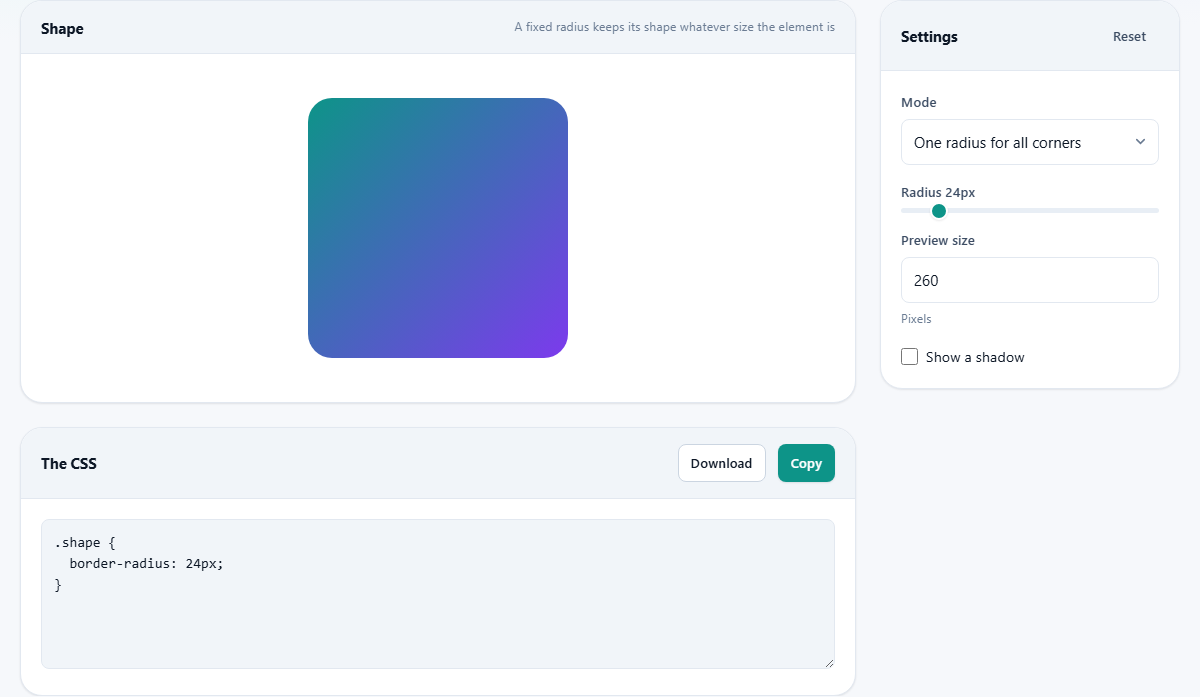
The CSS property behind all of this is border-radius. It takes between one and eight values, uses a slash to separate axes, and follows clockwise ordering rules that are hard to remember without a visual. That is what this generator is for. Move a slider, see the shape change instantly in the preview, and copy the shorthand when it looks right.
The three modes
Mode sits at the top of the settings panel. It controls which sliders appear and how many values the generated CSS will hold.
One radius for all corners is the default. A single Radius slider moves from 0 to 200 pixels. At 0 the shape is a sharp rectangle. At 24, the default, you get the gentle rounding used on most cards and buttons. At half the element's shortest side you get a perfect circle if the element is square, or a stadium shape if it is wider than it is tall. This mode covers the vast majority of real-world uses, from cards to input fields to image containers.
Each corner separately shows four sliders: Top left, Top right, Bottom right, and Bottom left. Each one moves from 0 to 100 percent. Set three corners to 30% and one to 0% and you get a speech-bubble shape. Set the bottom corners to 0% and the top corners high and you get a tab shape. This mode produces the four-value shorthand that runs clockwise from the top left.
Elliptical - two radii per corner is where the organic shapes live. Eight sliders appear, four for the horizontal radius of each corner and four for the vertical radius. When the horizontal and vertical values differ, the corner traces an ellipse rather than a circle. Nudging these eight values gives the smooth asymmetric blobs used as background decorations. The generated CSS uses the slash syntax: four horizontal values, a slash, then four vertical values.
Walking through each control
In the simple mode, Radius is the only slider. Every corner gets the same value. The preview square updates as you drag.
In per-corner mode, Top left, Top right, Bottom right, and Bottom left each act alone. The values are in percent, which means they scale with the element's size. Setting Top left to 50% and leaving the rest at 0% rounds just that one corner into a quarter circle.
In elliptical mode, the same four corner labels appear with an additional set: Top left vertical, Top right vertical, Bottom right vertical, and Bottom left vertical. The first set controls how far each corner curves sideways. The second set controls how far it curves up or down. When these differ the corner becomes an elliptical arc, which is what creates the organic feel.
Preview size lets you change how big the shape is in the preview area. It defaults to 260 pixels and can go from 100 to 500. Changing this does not affect the generated CSS. It only changes how large the demo square appears on screen.
Show a shadow adds a drop shadow behind the shape so you can see the outline more clearly against the page background. It is a visual aid, not part of the output.
Pixels versus percentages
The choice between px and % matters more than it seems. A 12-pixel radius looks the same on every element regardless of size. A 50% radius depends on the element's own width and height, which means the corner changes shape when the element resizes.
For buttons, use pixels. A button's width changes when the label changes, and a percentage radius turns into an unpredictable lozenge shape the moment someone translates the text into a longer language. A large pixel value like 9999px is the standard trick for pill-shaped buttons. The browser clamps the radius at half the shorter side, so the ends become perfect semicircles at any width.
For decorative blobs, use percentages. You want the shape to scale with the element as the viewport changes. The elliptical mode defaults to percentages for exactly this reason.
A worked example: a pill button and a blob
For the pill button, set Mode to One radius for all corners. Drag Radius all the way to 200. The preview turns into a rounded pill shape. The CSS output reads border-radius: 200px. In practice, paste this onto a button element and the browser clamps the curve to half the height, so the ends are always smooth semicircles no matter how long the label gets.
For a decorative blob, switch Mode to Elliptical - two radii per corner. Set Top left to 30%, Top right to 70%, Bottom right to 40%, and Bottom left to 60%. Then set their vertical partners to 40%, 30%, 70%, and 60%. The preview turns into a soft organic shape that looks hand-drawn. Copy the CSS and apply it to a large coloured div positioned behind your hero section. Scale the div with viewport units and the blob scales gracefully with the window. Tilt any value by five or ten percent and you get a completely different blob, so it is easy to make several that look like a family without looking identical.
The shorthand explained
When all four corners match, the output is a single value like border-radius: 24px. When they differ, it expands to four values running clockwise: top-left, top-right, bottom-right, bottom-left.
In elliptical mode a slash appears. Everything before the slash is the horizontal radius of each corner. Everything after the slash is the vertical radius. So border-radius: 30% 70% 40% 60% / 40% 30% 70% 60% means the top-left corner curves 30% sideways and 40% vertically, the top-right curves 70% sideways and 30% vertically, and so on.
The generator always writes the shortest form that still says what you meant. If all four horizontal values are the same and all four vertical values are the same, it collapses them. If the horizontal and vertical sets are identical, the slash is dropped entirely.
Common mistakes
- Using 50% on a rectangle and expecting a circle. A 50% radius on a non-square element produces an ellipse, not a circle. For a circle, make the element square first.
- Rounding a card that holds an image and forgetting overflow hidden. The image keeps its own square corners unless the parent clips what spills out.
- Nesting a rounded element inside another rounded element and using the same radius on both. The inner element should use the outer radius minus the padding between them, or the gap between the two curves will look uneven.
- Setting a percentage radius on a button whose width depends on its content. The corner shape changes every time the text changes, which looks inconsistent across the page. Use a fixed pixel value instead.
- Assuming the slash in the shorthand is a division sign. It separates the two axes. Everything before it is horizontal, everything after is vertical.
- Copying a border-radius value from one element and pasting it onto an element of a very different size without checking the preview. A radius that looks gentle on a 400-pixel card can look extreme on a 60-pixel icon.
When to reach for a different page
If you need a shadow around the rounded element, the CSS Shadow Generator on this site builds that property with a live preview of its own. If you need the element to sit inside a grid layout, the CSS Grid Generator handles placement. And if you want the element to animate into view, the CSS Animation Generator writes the keyframes. Border-radius controls shape alone. Other properties handle depth, position, and movement.
All of it runs on your own device
The shape preview is a real div in your browser with the generated border-radius applied live. No values are sent to any server. The page works offline just as well as online. Close the tab and the shape is gone, with nothing stored anywhere except what you copied to your clipboard. There is no account to create, no upload step, and no limit on how many times you use it.