
Building animations that belong in production
What a CSS keyframe animation is made of, how each timing control here changes the feel, a walkthrough with real settings, the reduced-motion guard that too many sites skip, and which preset fits which job.
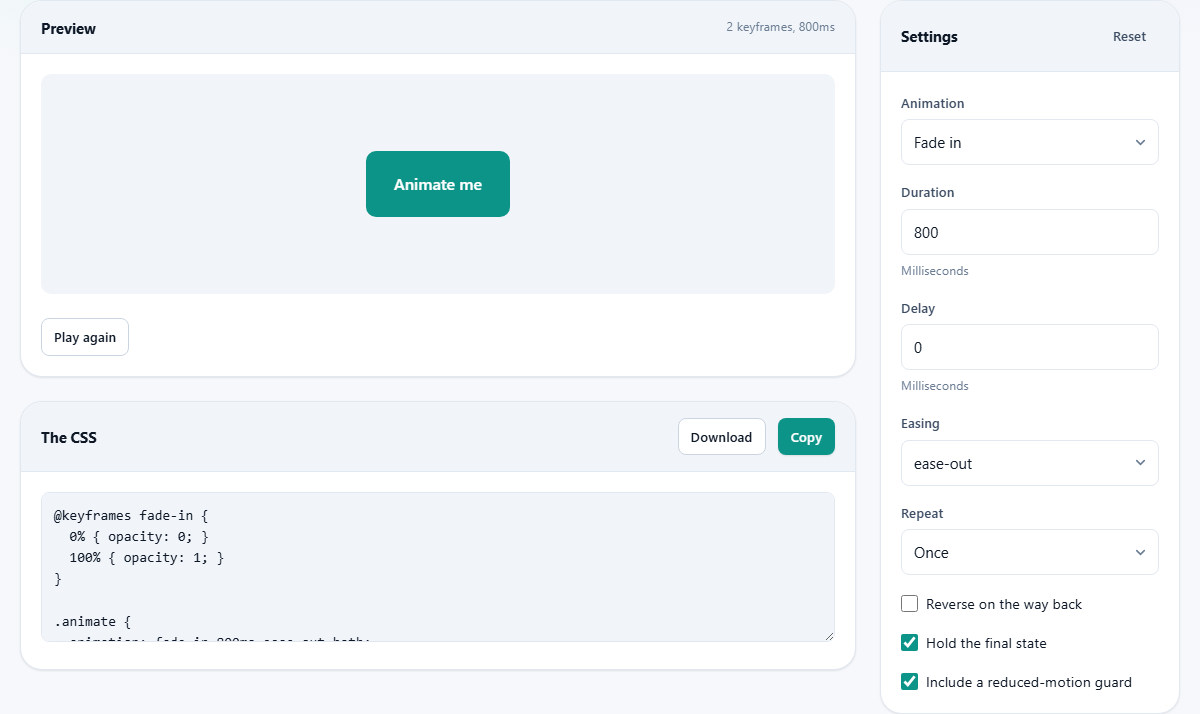
Two pieces to every animation
A CSS animation has two halves. The first is a set of keyframes that describe what changes and when. The second is the animation property on the element that says which keyframes to run, how long the run takes, and what happens at the end. Both are generated together here, so the output drops into a stylesheet with nothing to stitch together.
Keyframes are named. The generator picks a name that matches the preset, such as fade-in or shake. Inside the keyframes block you see percentages, from 0% at the start to 100% at the finish, each holding the CSS values for that moment. The browser fills in everything between those moments on its own.
This is different from a CSS transition. A transition triggers when a property value changes, like a button changing colour on hover. An animation runs on its own timeline, can hold as many steps as you like, and can repeat. If you need something to move without waiting for a state change, you need keyframes.
Choosing a preset
The Animation dropdown lists twenty-one choices. They fall into three families.
Entrance animations bring an element into view. Fade in, Fade up, Fade down, Slide in from the left, Slide in from the right, Zoom in, Zoom out, and Pop all start with the element invisible or off-screen and end with it in place. These are the ones used most often in real sites. A card that fades up as you scroll to it is an entrance.
Attention animations draw the eye to something already visible. Shake, Wobble, Pulse, Heartbeat, Swing, Rubber band, Jello, and Blink belong to this group. They work best as a one-time nudge. A notification badge that pulses once is helpful. A heading that bounces nonstop is exhausting.
Continuous animations run without stopping. Spin is the classic loading indicator that almost every web app uses somewhere. Float gives a gentle hovering motion for decorative elements. Typing cursor blinks a caret on and off to simulate someone typing in a terminal or chat window. These are meant to be set to repeat forever, and they look odd if set to play only once.
The timing controls
Duration sets how long one cycle takes, in milliseconds. The default is 800. For entrance animations, somewhere between 150 and 400 feels snappy and responsive. Push it past a second and the interface feels sluggish. For a loading spinner, a longer duration like 1200 gives a calm turning motion that does not rush the eye.
Delay holds the element still before the animation begins. It defaults to 0. A common pattern is staggering a row of cards so each one fades in slightly after the previous one. The first card gets delay 0, the second gets 100, the third 200, and so on. This generator sets one delay value, but the staggering idea carries straight into your own code with incrementing class overrides.
Easing controls the speed curve throughout the animation. ease-out starts fast and slows down at the end, which feels natural for things arriving on screen. ease-in does the opposite and suits elements leaving the page. ease-in-out slows at both ends and works for attention seekers that need to feel smooth. linear moves at a constant speed, which is right for spinners. Overshoot goes past the target and bounces back, adding a playful spring that suits pop and bounce effects.
Repeat, direction, and fill
Repeat says how many times the animation runs. Once is the default. Twice and Three times are there for effects that need emphasis without looping endlessly. Forever is for spinners and floating elements that should never stop.
Reverse on the way back makes the animation play forward on odd cycles and backward on even ones. A pulse that grows and then shrinks uses this setting. Without it the element snaps back to the start before growing again, which looks jarring rather than smooth.
Hold the final state is checked by default and for good reason. Without it an element that fades in snaps back to invisible the moment the animation ends. The CSS behind this is animation-fill-mode: forwards, which tells the browser to keep the last keyframe values in place after the animation finishes. Turning it off is almost never what you want for an entrance animation.
The reduced-motion guard
Include a reduced-motion guard is checked by default. It wraps the animation rule inside a media query that checks whether the visitor has asked their operating system to reduce motion. People turn this on because animation triggers nausea, dizziness, or migraines for them. The guard is not optional kindness. It is a basic accessibility requirement that many teams overlook.
When the guard fires, the generated code replaces the animation with an instant jump to the final state. The element still appears exactly where it should, but it arrives without any movement at all. That way the layout stays correct and nobody is made unwell by the effect. Removing the guard to save two lines of code is never a fair trade.
A walkthrough: fading in a hero section
Open the page and select Fade up from the Animation dropdown. Set Duration to 600. Leave Delay at 0. Pick ease-out for a smooth landing. Set Repeat to Once. Keep Hold the final state and Include a reduced-motion guard both ticked.
The preview shows the green box sliding upward while fading in, all over roughly half a second. Press Play again to watch it once more. If it feels too slow, drop the duration to 400. If the slide distance looks right but the timing feels stiff, switch Easing to Overshoot for a slight bounce at the end.
The CSS panel now holds a keyframes block named fade-up and the animation shorthand that references it. Below those sits the media query for reduced motion. Copy the entire block and paste it at the bottom of your stylesheet. Then add the matching class to your hero section element, and the effect is live on the page.
Which properties stay smooth
Every preset here sticks to transform and opacity. Those two properties can be handled entirely by the graphics hardware, so they animate at a full sixty frames per second even on a cheap phone with a heavy page.
Animating width, height, margin, padding, top, or left forces the browser to recalculate the layout of the page on every single frame. On a fast desktop you might not notice. On a mid-range phone with a busy document, the result is visible stutter and dropped frames. The presets avoid that trap entirely, so the output is safe to ship as-is without needing performance testing on slow devices.
Pitfalls to watch for
- Making entrance animations longer than 400 milliseconds. Users notice the wait and it feels like the page is struggling rather than looking polished.
- Setting a looping attention animation on a primary heading. It competes with the content and makes the page hard to read for everyone.
- Removing the fill mode and wondering why the element disappears after the animation finishes. The element returns to its pre-animation state unless you hold the final frame.
- Forgetting the delay stagger. Five cards that all fade in at the same moment look like a flash, not a choreographed sequence.
- Skipping the reduced-motion check. Roughly five percent of people have some degree of motion sensitivity. Shipping an animation without the guard excludes them.
- Applying an entrance animation to an element that is already visible above the fold on load. The visitor sees the content, then it disappears, then it animates back in. Start the animation only when the element scrolls into view.
Everything stays on your machine
The preview is the real CSS animation running live in your browser. No code is sent anywhere and no presets are loaded from a remote server. The output is built locally from values baked into the page. You can disconnect from the network entirely and every dropdown, slider, and preview will keep working exactly as before. Close the tab and the only trace of your work is whatever you copied to the clipboard.