
Laying out pages with CSS grid
How CSS grid turns a handful of properties into a full two-dimensional layout, what the three column modes here actually produce, a step-by-step example with real numbers, and where the common traps hide.
What grid solves and who reaches for it
Before grid, placing boxes in rows and columns meant floats, table hacks, or flexbox workarounds that never quite lined up. Grid is the first CSS feature built for two-dimensional layout. You describe the shape you want - how many columns, how many rows, how wide the gaps - and the browser fills it in.
Front-end developers use it every day for dashboards, card galleries, pricing tables, and full page scaffolding. Designers who hand off specs use it to describe intent without writing code. Students learning CSS land here because the mental model is a spreadsheet: columns, rows, cells.
Every browser in current use supports grid fully. There is no polyfill to load, no feature check to write, and no fallback to maintain. The specification settled years ago and the support is universal across Chrome, Firefox, Safari, and Edge.
The three column modes
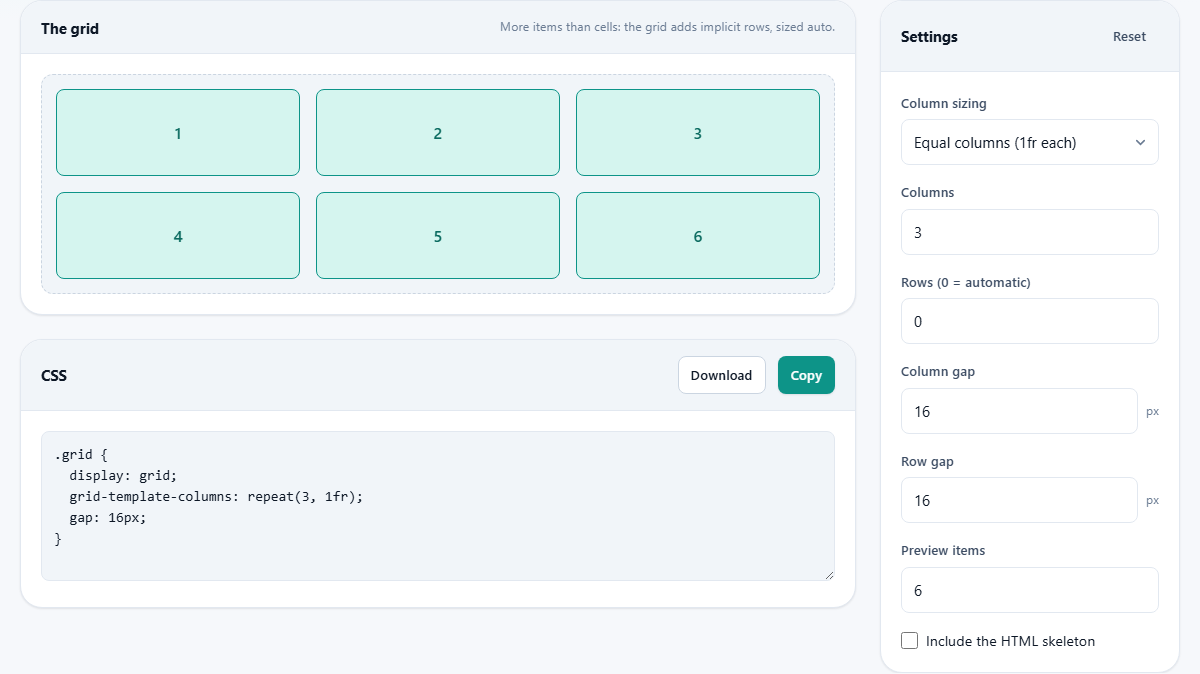
Column sizing sits at the top of the settings panel and drives everything else. It offers three choices.
Equal columns (1fr each) divides the row into identical shares. Three columns at 1fr each means every column gets one third of the available width after gaps are removed. Change the Columns number to four and each column gets a quarter. This is the natural choice for dashboards and any layout where every item deserves the same space.
Sized to content (auto) lets each column shrink or grow to fit whatever is inside it. A column with a short word stays narrow while a column with a paragraph stretches wide. This suits toolbars, label-value pairs, and any layout where the content should decide the width rather than a fixed track.
Responsive - auto-fit + minmax is the one most people come here to grab. It produces the single line that replaces an entire stack of media queries. You set a Minimum column width in pixels, and the browser packs as many columns as fit at that minimum, then stretches them equally to fill the row. On a wide monitor you might see five columns. On a phone you might see one. No breakpoints are needed.
Gaps, rows, and the preview panel
Column gap and Row gap set the space between tracks, both in pixels. The default is 16 for each. Unlike margins on the items themselves, gap is a property of the container. That means the first item has no leading space and the last item has no trailing space, and the math is always clean.
Rows (0 = automatic) usually stays at zero. With zero the grid creates new rows on the fly as items arrive. If you set it to 2, the grid has exactly two rows and items beyond that count spill into implicit rows. The preview note tells you when that happens.
Preview items lets you drop between 1 and 24 numbered boxes into the grid so you can see how things wrap and stack. More items than defined cells is not a bug. The grid adds rows quietly, which is exactly what a real page does when you add another card to a list.
The output and the HTML skeleton
Below the live grid sits the CSS panel. It holds the generated code, ready to copy or download. The Copy button puts the text on the clipboard in one click, and Download saves it as a file you can drop into your project folder.
Tick Include the HTML skeleton and the output adds a container div with child divs matching the preview. That is enough to paste into a blank page and see the grid working straight away. Most people leave it off because they already have their own markup and only need the CSS rule.
The code updates live. Every slider movement, every dropdown change, every number you type rewrites the output instantly. You never need to press a generate button because there is none to press.
A worked example: a photo gallery
Suppose you are building a photo gallery that should show as many thumbnails as fit, each at least 220 pixels wide. Set Column sizing to Responsive - auto-fit + minmax. Change Minimum column width to 220. Leave Rows at 0 so the grid grows as photos arrive. Set Column gap to 12 and Row gap to 12 for tight spacing. Bump Preview items up to 12 to check the wrapping.
The preview fills the available width with columns. On a 1280-pixel container that works out to five columns of roughly 246 pixels each, because the four gaps eat 48 pixels and the remaining 1,232 is split evenly. Narrow the browser window and columns drop off one by one until a single column fills the space. The CSS panel shows one line of grid-template-columns plus the gap declaration. Copy it, paste it into your stylesheet, and the layout is finished.
Now switch Column sizing to Equal columns and set Columns to 4. The preview locks to exactly four columns regardless of how wide the window is. That is fine on a desktop dashboard but breaks on small screens because four columns at 300 pixels each cannot fit a 375-pixel phone. The responsive mode avoids that problem entirely.
How fr works under the hood
The fr unit stands for fraction. It divides the space left over after fixed sizes and gaps have been subtracted. In a container that is 900 pixels wide with a 16-pixel gap between each of three columns, the two gaps consume 32 pixels and the three 1fr columns each get (900 - 32) / 3 = 289.3 pixels.
You can mix fr with fixed values in your own code. A sidebar layout might use 250px 1fr, giving the sidebar a fixed width and letting the main column absorb whatever remains. The generator here does not produce mixed tracks, but knowing how fr works explains why the equal-column mode behaves the way it does.
A common misunderstanding is that 1fr means the same as 1/n of the container. It does not, because gaps are removed first. The difference is small with narrow gaps and large with wide ones.
Common mistakes and how to avoid them
- Choosing equal columns for a layout that will be viewed on phones. Four fixed columns cannot fit a narrow screen. Use the responsive mode instead and let the browser decide the column count.
- Setting Rows to a fixed number when items will be added later. A fixed row count does not stop extra items from appearing, but the implicit rows that hold them will not carry whatever track sizing you set on the explicit ones.
- Confusing gap with margin. Gap goes on the container and only appears between tracks, never on the outside edges. Adding margins to the items on top of gap doubles the spacing in the middle.
- Expecting the auto-fit minimum to be a maximum. A column starts at the minimum and stretches to share leftover space. If you set the minimum to 300 on a 320-pixel container, you get one column at 320, not 300.
- Forgetting that grid items are direct children only. Wrapping an item in an extra div and expecting the grandchild to participate in the grid does not work. Only the immediate children become grid items.
- Setting both gap values to 0 and wondering why the cells touch. That is the correct result. If you want breathing room, raise the gaps.
When another tool fits better
Grid is for two-dimensional layout. If your items flow along a single line and you just need them to wrap, flexbox does that with fewer concepts. The Flexbox Playground on this site covers that case.
If you need a shadow on one of the grid items, the CSS Shadow Generator handles the visual part. If you are rounding the corners of cards inside the grid, the Border Radius Generator is the faster path. Grid decides where boxes sit. Other properties decide how those boxes look.
Nothing leaves your browser
The entire generator runs locally in your browser. No code is sent to a server, no settings are stored remotely, and the page works just as well with no network connection at all. Close the tab and every trace of your layout is gone, unless you already copied the CSS into your own project. You can prove it by loading the page, turning off your network, and watching the generator keep working just as before.