
Building gradients that look professional
The three gradient types CSS offers, how to set colours and stops, what the angle and centre controls do, a worked example producing a subtle hero background, the transparent-fade trap, and how repeating gradients make stripes without an image.
Why gradients belong in CSS, not in image files
A gradient made in CSS is a few dozen characters of text. The same visual saved as a PNG or JPEG can be tens of kilobytes, needs a separate HTTP request to download, and goes blurry if it is stretched beyond its original size. A CSS gradient loads instantly, scales to any container, and stays sharp on any screen.
Gradients are used as backgrounds on hero sections, cards, buttons, overlays, and loading indicators. They can sit behind text, fill a full page, or repeat as stripes and patterns. The browser draws them fresh on every paint, so they never pixelate and they cost nothing to load.
Three types and when to use each one
Linear runs colour along a straight line. It is the most common type and the right choice for hero sections, button backgrounds, and horizontal or vertical fades. The colour changes evenly from one end of the line to the other.
Radial spreads colour outward from a centre point, like a spotlight. It works well for circular highlights behind a logo, soft vignettes around the edges of a section, and any effect where you want the colour to radiate from one spot.
Conic sweeps colour around a circle, like the slices of a pie chart. It is the newest of the three and the least used, but it produces effects the other two cannot: colour wheels, conical highlights, and angular sweeps that look like light reflecting off a metal surface.
The colour stop panel
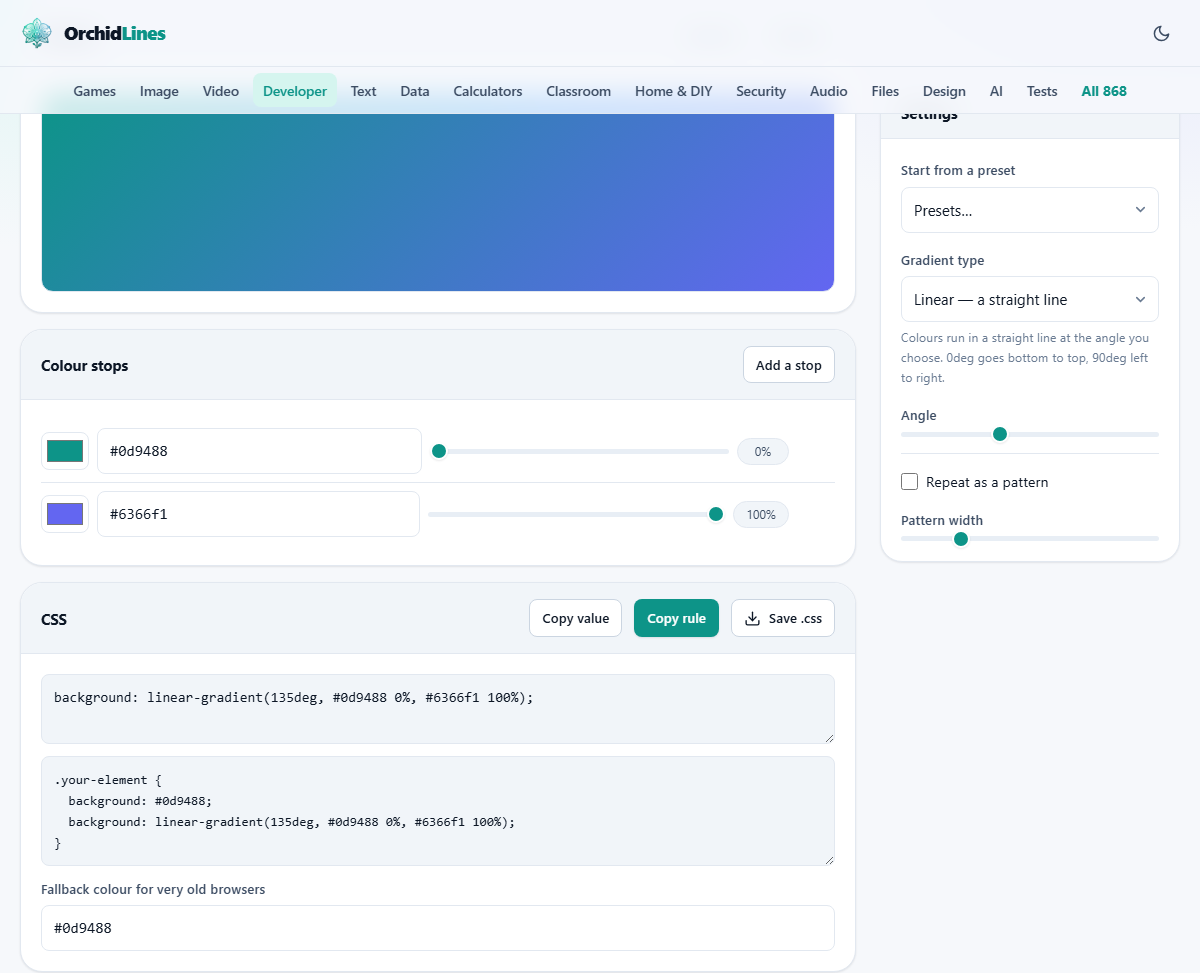
The Colour stops panel lists each colour in the gradient. Every stop has a colour picker and a position slider that sets where in the gradient that colour sits, as a percentage from 0 to 100. Click Add a stop to insert a new colour. Remove a stop by clicking the delete button beside it.
Dragging the position slider moves the colour along the gradient. Two colours with positions close together create a sharp edge. Two colours spaced far apart create a gentle blend. Putting two stops at the same position creates a hard line with no blend at all, which is how you make stripes.
The preview updates as you drag, so you can see the result of every change in real time. Two or three colours is usually enough for a professional look. Beyond four or five stops, gradients tend to look busy rather than better.
Settings that shape the gradient
Start from a preset loads one of several ready-made gradients. They serve as a starting point you can adjust. Random picks colours for you, and Reverse flips the order of every stop.
Gradient type switches between Linear, Radial, and Conic. The descriptions beside each option say what they do: a straight line, from a point outward, and sweeping around.
Angle controls the direction of a linear gradient, from 0 to 360 degrees. In CSS, 0 degrees points upward and angles go clockwise. So 90 degrees runs left to right and 180 degrees runs top to bottom. The default is 135 degrees, which gives a diagonal from top-left to bottom-right.
For radial and conic gradients, the angle control is replaced by Shape (circle or ellipse), Centre across, and Centre down. These position the origin of the gradient anywhere within the element.
Repeat as a pattern tiles the gradient. Pattern width sets how much of the element each tile covers, from 5 to 100 percent. A repeating linear gradient with a small pattern width and hard colour stops makes stripes. A repeating radial gradient makes concentric rings.
The output panels
The CSS panel shows two text areas. The first holds just the gradient value, the part inside parentheses. Copy value puts it on your clipboard. The second holds the full rule with the background property, ready to paste into a stylesheet. Copy rule copies that version.
Below both text areas is a field labelled Fallback colour for very old browsers. It holds a plain hex colour that the generated rule uses as the first declaration. A browser that does not understand gradients shows this solid colour instead. The default is teal, matching the site brand, but you should change it to something that makes sense for your design.
A worked example: a subtle hero background
A marketing page needs a gentle gradient behind its hero section. Open the generator. Leave the type on Linear. Set the angle to 160 degrees for a slightly off-diagonal sweep that avoids looking generic.
Click the first colour stop and pick a soft blue, something like #e0f2fe. Click the second and pick a pale lavender, like #ede9fe. The preview shows a gentle transition between the two. It is quiet enough that black text will sit comfortably on top of it.
Now add a third stop by pressing Add a stop. Set its colour to white (#ffffff) and drag its position to about 70 percent. The gradient now fades from blue at the top, through lavender in the middle, and into white at the bottom. This keeps the bottom of the hero section clean against whatever content follows.
Copy the full rule. Paste it as the background on your hero div. The total CSS is one declaration, about 90 characters long, and it replaces what would have been a background image of several kilobytes.
The transparent fade that looks grey
This is the single most common gradient mistake. You want a colour to fade to transparent, so you set the second stop to transparent or rgba(255,255,255,0). The gradient shows a grey band in the middle.
The reason is that transparent in CSS is shorthand for rgba(0,0,0,0), which is transparent black. The browser blends your starting colour through black on its way to invisible, and the midpoint of that blend is grey.
The fix is to fade to the same hue with zero alpha. If your starting colour is teal, the ending colour should be rgba(13,148,136,0), not transparent. The blend then goes from solid teal to invisible teal with no grey in between. The Fade to clear preset demonstrates this technique.
Making stripes without an image
Check Repeat as a pattern. Set Pattern width to about 10 percent. Give the gradient two colours with positions that meet at the same point, say 50 percent each. The result is sharp alternating stripes that tile across the element.
Diagonal stripes come from a linear gradient at 45 degrees. Concentric rings come from a repeating radial gradient with hard stops. These patterns are pure CSS, weigh nothing, and scale to any size. They are useful for loading indicators, decorative backgrounds, and placeholder elements.
Traps worth knowing about
- More colours is rarely better. Subtle two-tone gradients look professional. Rainbows look like a demo page.
- Gradients on text need extra CSS. You have to set background-clip to text and make the text colour transparent. This tool gives you the background value to start from, but the clipping rules are up to you.
- Conic gradients with only two stops leave a hard line where the sweep finishes. Add a third stop that matches the first to close the loop smoothly.
- Large shadows behind gradient panels can look wrong because the shadow colour does not match the gradient. Pick a shadow colour that complements the dominant end of the gradient.
- Testing only on a white page hides problems. Put the gradient over dark content and over light content to see how the fallback colour behaves.
When another tool fits better
- For the frosted glass effect that sits on top of a gradient background, the Glass Effect Generator writes the backdrop-filter rules.
- For sizing the text that goes over the gradient so it scales between phone and desktop, the CSS Clamp Generator does the maths.
- For checking that the text over your gradient meets accessibility contrast standards, the Contrast Checker handles the measurement.
Drawn by your own browser, sent nowhere
The preview is a real HTML element with your CSS applied to it, rendered by your browser. No image is generated on a server. No data leaves your machine. You can disconnect from the internet, open the page, and every slider, colour picker, and preset still works. The gradient you build is yours to copy and use in any project.