
Frosted glass panels that people can still read
What makes the glassmorphism effect work, how each slider changes the look, why readability breaks before you notice it, a step-by-step example building a card overlay, and the performance cost that most tutorials skip.
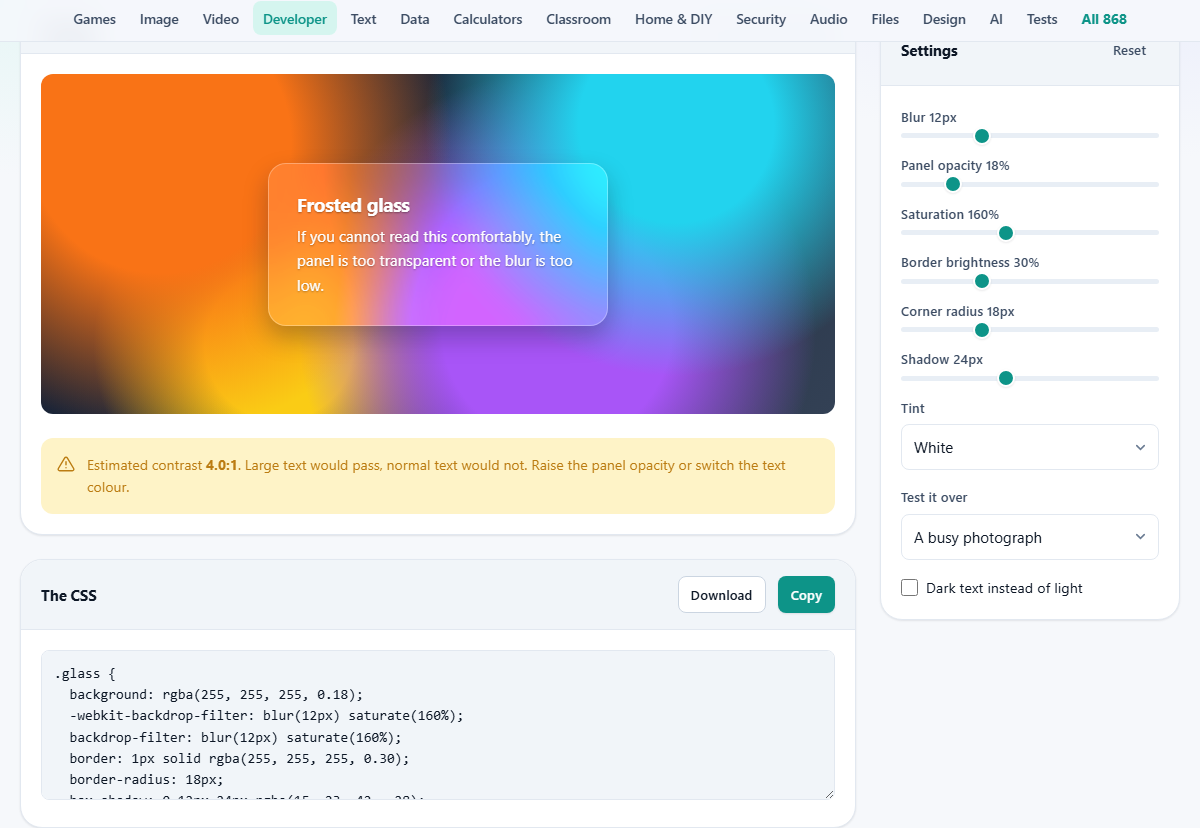
What the frosted glass look is made of
The effect has four parts. A semi-transparent background colour gives the panel its tint. A backdrop-filter blur softens whatever sits behind it. A thin bright border along the top catches the light the way the edge of real glass does. And a soft shadow lifts the panel off the surface beneath it.
Backdrop-filter is the key ingredient. It tells the browser to take everything visible behind the element and run a blur on it before painting the element on top. Without enough blur, the background shows through as noisy detail and the text on the panel becomes hard to read. With too much blur and too little transparency, the panel looks solid and the frosted effect disappears. The whole game is finding the middle ground.
Where glass panels show up
Navigation bars that float over a hero image. Card overlays on photo grids. Notification popups on dashboards. Modal dialogs that dim the page but still let you see the content behind them. Login forms on landing pages with a large background photograph.
The style became popular after Apple used it across macOS and iOS. It gives an interface a sense of depth without the weight of solid panels, and it pairs well with colourful backgrounds because the blur picks up the colours underneath.
Every slider and dropdown on the settings rail
Blur controls how strongly the background is softened, from 0 to 40 pixels. Ten to twenty pixels is the range where the effect usually looks right. Below ten, you can still make out shapes and text behind the panel. Above twenty, the background becomes a smooth wash of colour and the frosted quality fades.
Panel opacity sets how much of the tint colour is visible, from 0 to 100 percent. At 0 the panel is fully transparent and the blur does all the work. At 100 the panel is solid and there is nothing to see through. Somewhere between 10 and 25 percent is the sweet spot for most designs.
Saturation runs from 100 to 250 percent. Blurring washes colour out, so bumping saturation up to about 160 percent puts the vibrancy back without looking artificial.
Border brightness goes from 0 to 100 percent. It controls the opacity of a one-pixel white border. A bright top border is what sells the illusion of a glass edge catching light.
Corner radius rounds the panel corners, from 0 to 60 pixels. Shadow adds a soft drop shadow, from 0 to 60 pixels. Both are cosmetic but they make the panel feel like a real object sitting above the page.
Tint picks the colour of the panel background. The choices are White, Black, Teal, and Purple. White is the most common for light designs. Black works well on dark backgrounds.
Test it over switches the background behind the panel. The options are A busy photograph, A gradient, A fine pattern, and A plain colour. A gradient flatters the effect. A busy photograph is the honest test, because if the text is readable over a photograph it will be readable over anything.
Dark text instead of light is a checkbox that flips the text colour. Use it when the tint is light enough that dark text has better contrast.
The readability verdict
Below the preview, the tool shows a verdict on whether the text is likely to be readable. This is the check that most glass generators leave out. A panel that looks beautiful in a screenshot can be impossible to read when the background behind it is busy or moving.
The verdict estimates contrast between the text and the blurred background. If it warns you, raise the blur, raise the panel opacity, or both. Switching from light text to dark text with the checkbox can also help when the tint is bright enough. Do not ignore the warning and ship it anyway, because accessibility rules do not make an exception for attractive panels. A panel that fails contrast is a panel that some visitors cannot use at all.
A worked example: a card overlay on a photo
A portfolio site shows project cards over full-bleed photographs. Each card has a title and a short description. Open the generator and set Test it over to A busy photograph.
Start with Blur at 14, Panel opacity at 20, and Saturation at 160. The preview shows a soft frosted rectangle. The text is readable, but only just. Raise Panel opacity to 28. Now the panel has more body and the words are clear against any part of the photograph.
Set Border brightness to 35 and Corner radius to 16. The hairline border adds a glass edge and the rounded corners keep the card from looking sharp against the organic photo beneath it. Set Shadow to 20 for a gentle lift.
The CSS panel now holds all four rules: background with rgba, backdrop-filter with blur and saturate, border, border-radius, and box-shadow. Copy and paste them into your card class. Switch Test it over to A plain colour and check that the card still looks intentional without the blur, because that is what a visitor on an older browser will see.
Choosing the right tint for light and dark themes
A white tint at low opacity looks right on a light background but turns into a pale smear on a dark one. A black tint does the opposite. If your site supports both light and dark modes, you will need two versions of the glass rule, one with a white base and one with a dark base, switched by a prefers-color-scheme media query or a data attribute on the root element.
Teal and Purple are decorative tints that work when the glass is meant to carry a brand colour rather than blend into the background. They look best at very low opacity, around 8 to 15 percent, where the colour is a suggestion rather than a statement. At higher opacity they overwhelm the blur and the panel stops looking like glass.
The performance cost nobody mentions
Backdrop-filter blur is expensive. The browser has to sample and blur everything behind the element on every single frame. One panel on a static page is fine. A list of twenty glass cards scrolling on a phone is not. Janky scrolling on mid-range Android devices is the most common symptom.
There is also no graceful fallback. In a browser that does not support backdrop-filter, the panel is a plain translucent rectangle. If the text is unreadable without the blur, visitors on those browsers get a broken layout. The safe approach is to design for the fallback first and treat the blur as an improvement.
Mistakes that ruin the effect
- Setting blur too low with opacity too low. The panel becomes a slightly tinted window and every letter of the text behind it shows through under your own text.
- Building a whole page out of glass panels. One or two panels look elegant. A full interface of them looks like a tech demo and runs slowly on anything that is not a high-end laptop.
- Ignoring contrast. The panel might look fine over a pale gradient but fail over a dark photograph. Test with the busy photograph option before you ship.
- Forgetting that some backgrounds move. A glass panel over a video or a parallax scroll reblurs every frame, and the cost is higher than it is on a static image.
- Using a thick border. The real-world look depends on a thin bright line, not a heavy frame. One or two pixels is enough.
When to reach for something else
- For the gradient that sits behind the glass panel, the CSS Gradient Generator builds linear, radial, and conic gradients.
- For checking whether the text on the panel meets accessibility contrast ratios, the Contrast Checker does the measurement.
- For the shadow values on their own without the glass effect, the Box Shadow Generator produces the CSS.
Everything stays in your browser
The preview is a real HTML element styled with your CSS values, rendered entirely by your browser. No image is created, no server is contacted, and no settings leave your machine. You can open the page offline, move every slider, and get the same preview and the same output. The code you copy is yours to use anywhere.