
Fluid sizing without a single breakpoint
How CSS clamp works, what each input on the generator controls, why the middle value has two parts, a full worked example sizing a heading from phone to desktop, and the edge cases that catch people out.
The problem clamp solves
A heading that looks right on a desktop is too large on a phone. The old fix is a media query: one font-size for wide screens, another for narrow ones. The text jumps between the two sizes at the breakpoint, and adding more breakpoints means more rules to maintain.
Clamp replaces all of that with a single line. It takes three values: a minimum, a preferred value that grows with the screen, and a maximum. Below the small screen the size stays at the minimum. Above the large screen it stays at the maximum. In between, it scales smoothly. No jump, no breakpoint, one rule.
Who uses it
Front-end developers building responsive layouts without stacking media queries. Designers who want headings and spacing to feel proportional at every width, not just the two or three widths they tested. Theme builders writing CSS that has to work across sites they do not control. And anyone tired of choosing between a size that looks good on a phone and a different size that looks good on a monitor.
Clamp is not limited to text. Padding, margin, gap, and width all accept it, and fluid spacing is often more noticeable than fluid text because gaps that work at one width can feel wasteful or cramped at another.
The four size inputs
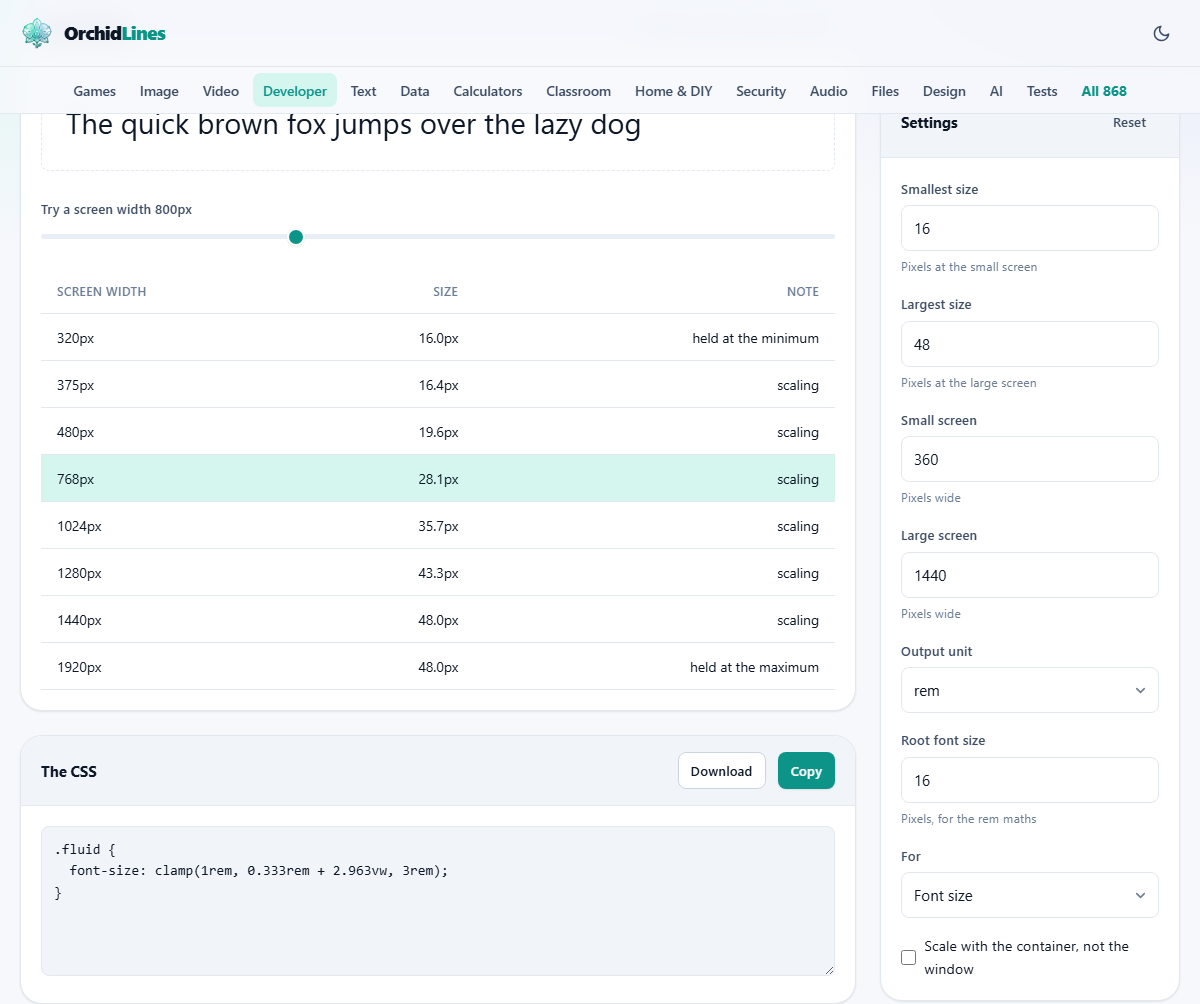
Smallest size is the font size you want at the narrow end, in pixels. The default is 16. Largest size is the font size at the wide end. The default is 48. These two numbers are the floor and ceiling. The generated clamp will never go below the first or above the second.
Small screen is the viewport width where the minimum size applies, in pixels. The default is 360, which covers most phones. Large screen is the width where the maximum applies. The default is 1440, which covers a typical laptop or desktop monitor.
Changing these four values is the core of the tool. Everything else adjusts how the output is written or what property it applies to.
Output unit, root size, and the property selector
Output unit offers rem or px. The default is rem, and there is a good reason for it. A value in rem scales when the user changes their browser font size setting. A value in px ignores that setting entirely. For text sizing, rem is almost always the right choice. For spacing or widths, px is sometimes acceptable.
Root font size tells the generator how many pixels one rem equals on your site. The default is 16, which is the browser standard. If your stylesheet sets a different base size on the html element, change this number to match so the rem calculations come out right.
For is a dropdown that chooses the CSS property the clamp wraps around. The options are Font size, Padding, Margin, Gap, and Width. It changes the property name in the output but does not affect the numbers.
Container queries and the checkbox
The checkbox labelled Scale with the container, not the window switches the formula from vw (viewport width) to cqi (container query inline size). With it off, the text scales with the browser window. With it on, it scales with the width of the containing element.
Container-based scaling matters when a component lives inside a sidebar, a card, or a grid cell that is narrower than the viewport. A heading inside a 400 pixel card on a 1440 pixel screen should not size itself as though it has the whole width to work with. Container queries fix that mismatch.
Browser support for container query units is solid in all current browsers. If you need to support older versions, leave the checkbox off and use vw.
The live preview and the width slider
The preview panel shows a sentence rendered at the computed size for a given screen width. Below it is a slider labelled Try a screen width. Drag it from left to right and watch the text grow. At the far left it hits the minimum and stops shrinking. At the far right it hits the maximum and stops growing. In the middle, it changes smoothly.
This slider is the most useful part of the tool. Designers can see how text will look at every width without resizing their browser. The value beside the slider shows the current simulated width in pixels.
Why the formula has a fixed part and a variable part
The preferred value in the middle of a clamp looks something like 1rem + 2.963vw. The vw part grows with the viewport. The rem part is a fixed offset. Together they draw a straight line between your two chosen sizes at your two chosen widths.
Without the fixed part, the formula would pass through zero at a viewport width of zero. That means it would be wrong at every width except the one where the slope happens to land on the size you wanted. The fixed part shifts the line so it passes through both of your chosen points.
The fixed part also preserves browser zoom. When a user zooms in, the viewport width in pixels does not change, so a size built entirely from vw does not get bigger. The rem part does respond to zoom, because rem is tied to the root font size, which zoom affects. That is why rem plus vw works and vw alone does not.
A worked example: scaling a page title
A blog has a page title that should be 18 pixels on a 360 pixel phone and 40 pixels on a 1440 pixel desktop. Open the generator. Set Smallest size to 18, Largest size to 40, Small screen to 360, Large screen to 1440. Leave Output unit on rem and Root font size at 16.
The CSS output reads something like: font-size: clamp(1.125rem, 0.392rem + 2.037vw, 2.5rem). Copy that line into your stylesheet. The title is now 18 pixels at 360, 40 pixels at 1440, and scales linearly between them.
Drag the width slider to 768. The preview shows the title at roughly 27 pixels, which is about where a tablet would land. No media query needed.
Now try the same thing for the spacing around the title. Change For to Padding, set Smallest size to 12, Largest size to 32, and keep the same screen widths. The output gives you a clamp line for padding that grows in step with the heading. Fluid spacing paired with fluid text keeps proportions steady at every width, which is the real benefit over a fixed padding value.
Things that trip people up
- Clamping body text over a wide range. A heading going from 18 to 40 is fine. Body text going from 12 to 24 produces uncomfortable sizes at narrow widths. Body text usually wants a small range or none at all.
- Forgetting to check the small end. A large range can produce text that is too small to read on a narrow phone. Drag the slider all the way left before you ship.
- Using px instead of rem for text. It works visually, but it ignores the reader's browser font size setting. Accessibility guidelines expect text to scale with that setting.
- Setting the small and large screen values too close together. If they are only a hundred pixels apart, the slope is very steep and the size jumps dramatically over a tiny range of widths.
- Assuming the root font size is 16. If your stylesheet changes it, the rem output will be wrong unless you update the Root font size field to match.
When you need a different tool instead
- For the easing curve on an animation that runs alongside the resized text, the Easing Curve Editor handles that.
- For building the gradient background the text sits on, the CSS Gradient Generator is the right page.
- For checking that the text contrast remains readable at every size, the Contrast Checker does that job.
All the maths happen on your machine
The generator runs entirely in your browser. The sizes you enter and the formula it produces never leave your device. You can open the page offline, fill in the four numbers, and get the same output. There is no server involved, no account, and nothing stored beyond what your browser holds on the page while you use it.