
Designing an easing curve you can actually see
How a cubic bezier curve controls animation feel, what each handle does when you drag it, how the preset easings compare side by side, a worked example tuning a menu slide, and the one rule about easing direction that fixes most sluggish transitions.
What an easing curve decides
Every CSS transition and animation has a timing function. It controls how fast the movement is at each point between start and finish. A straight line means constant speed. A curve that rises steeply at the left means the movement starts quickly and then settles. One that is flat at the left and steep at the right means a slow start that rushes at the end.
The function is called cubic-bezier. It is defined by two control handles, each with a horizontal and a vertical position. Those four numbers are all the browser needs to draw the curve and time the movement. The default, if you write a transition with no easing named, is a curve called 'ease'. It accelerates slowly and is noticeably sluggish off the mark. Most interfaces feel better with a different choice.
Who reaches for this
Front-end developers who want a transition that feels snappy rather than mushy. Designers reviewing a prototype who can tell something is wrong but cannot name what. Animators building CSS keyframe sequences who need a curve they cannot get from the five named presets. And anyone who has typed 'ease-in-out' out of habit and wants to see what it actually looks like compared to a custom curve.
Looking at a number like cubic-bezier(0.42, 0, 0.58, 1) in a stylesheet tells you very little. Dragging the handles and watching the ball move tells you everything.
The canvas and the two handles
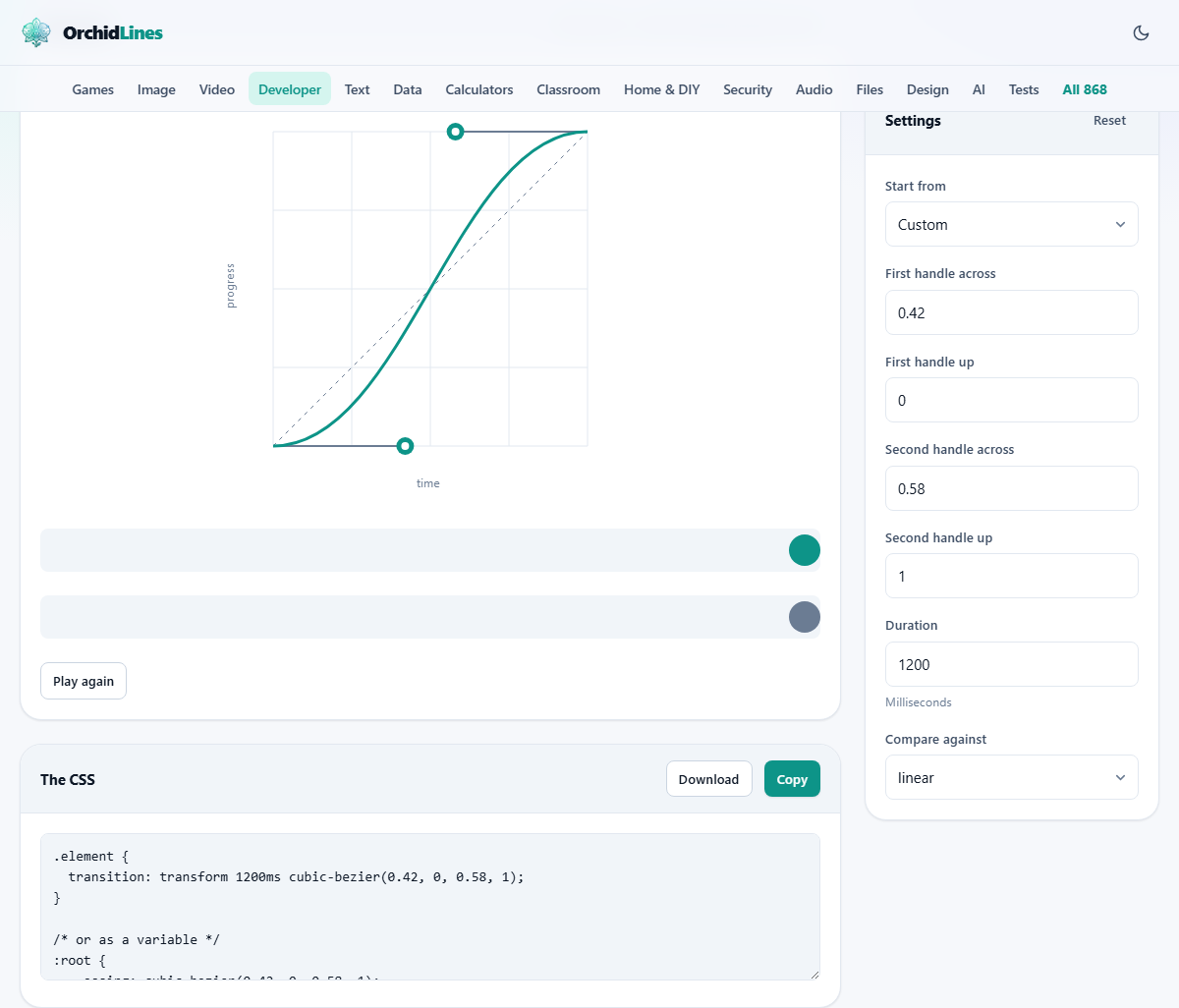
The curve is drawn on a canvas where the horizontal axis is time and the vertical axis is progress. The bottom left corner is the start of the animation and the top right corner is the end. The curve between them is the path the animation follows.
Two control handles stick out from the start and end points. Drag the first handle to shape the beginning of the motion. Drag the second to shape the ending. A steep section means the animation covers a lot of ground quickly. A flat section means it barely moves during that stretch of time.
The vertical values can go above 1 or below 0. Taking a handle above 1 makes the animation overshoot its target and come back. Taking it below 0 pulls it backwards before it starts forward. The horizontal values stay between 0 and 1 because time cannot run backwards.
Every control on the settings rail
Start from is a dropdown with the five CSS named easings plus four extra curves: Smooth, Snappy, Overshoot slightly, and Pull back then go. Picking one loads its handle positions so you can see the curve and then adjust it. Custom is the default and means the handles are free.
Below it are four number fields. First handle across and First handle up set the X and Y of the first control point. Second handle across and Second handle up do the same for the second. X values go from 0 to 1. Y values go from minus 2 to 2, which is enough to produce strong overshoot or anticipation effects.
Duration sets how long the animation runs, in milliseconds, from 100 up to 5000. The default is 1200. That is deliberately slow so the curve shape is easy to watch. Most real interface animation should be between 150 and 300 milliseconds.
Compare against lets you pick a reference easing. The page shows two balls side by side: the top one runs your curve and the bottom one runs the comparison. Watching them together is the fastest way to judge the difference. The options are linear, ease, ease-in-out, and Nothing if you only want one ball.
What the named presets actually look like
Most developers have typed 'ease' or 'ease-in-out' hundreds of times without watching them move. The preset dropdown loads each one into the canvas so you can see the shape. Linear is a straight diagonal, constant speed from start to finish. ease starts gently, speeds up, then slows at the end. ease-in starts slowly and accelerates. ease-out starts at full speed and decelerates. ease-in-out is a symmetrical S curve.
The extra presets beyond the CSS names show common patterns. Smooth gives a gentler version of ease-in-out. Snappy starts very fast and settles quickly. Overshoot slightly pushes past the end point and comes back, like a spring. Pull back then go dips backwards before moving forward, which is called anticipation in animation terms.
Comparing these side by side is useful even if you do not need a custom curve. Many developers switch from ease to ease-out after seeing the two balls move together, because ease-out responds to a click far more quickly.
The output and how to use it
The CSS panel below the canvas shows the cubic-bezier value wrapped in a transition shorthand and also in an animation-timing-function rule. Copy puts it on your clipboard. Download saves a small text file.
Drop the value straight into your stylesheet. For a transition, it goes where the timing function sits: transition: opacity 200ms cubic-bezier(0.22, 0.61, 0.36, 1). For keyframe animation, it goes in animation-timing-function or inside the animation shorthand. Nothing else needs to change.
A worked example: tuning a sidebar slide
A sidebar panel slides in from the left when the user clicks a menu button. The current CSS says transition: transform 300ms ease. It feels like there is a pause before anything happens.
Open the editor. Pick ease-out from Start from. The handles load at (0, 0) and (0.58, 1). Watch the ball: it starts fast and settles gently. That already feels better than ease.
Now pull the first handle's Y value up to about 0.7 while keeping X at 0. The curve gets steeper at the start. The ball jumps forward and then glides to a stop. The cubic-bezier reads (0, 0.7, 0.58, 1).
Set Duration to 250, closer to what a real menu would use. Press Play again. The sidebar will reach its position quickly and ease into place. Copy the line and replace the old ease value. The difference is instant.
The rule about direction that fixes most problems
Things arriving on screen should ease out. That means fast at the start, slowing as they land. It reads as responsive because the interface reacts the instant you act. A menu slides in, a dialog fades up, a tooltip appears. All of them should start moving immediately.
Things leaving the screen should ease in. Slow at first, then speeding away. The delay is not in the way because the element is going, not coming.
Ease-in-out splits the difference and works for things that move without appearing or disappearing, like a carousel sliding from one card to the next. If you remember nothing else about easing curves, the arrival-versus-departure rule fixes the vast majority of animations that feel wrong.
Mistakes that make animations feel off
- Using ease-in for a menu opening. The pause before movement feels like lag, even if the total time is short.
- Setting a duration over 300 milliseconds for interface elements. Long animations look polished in a demo and irritating in daily use.
- Ignoring overshoot on elements with text. A slight bounce on a card is playful. A bounce on a tooltip makes the words jump and is hard to read.
- Forgetting the reduced-motion media query. Some users disable animation at the system level. Wrap decorative motion in a query that honours that setting.
- Copying a four-number bezier from a tutorial without watching it run. What looks reasonable as digits can feel wildly different in motion. Always play it first.
Where another tool is the right fit
- For building the gradient behind the element that is moving, the CSS Gradient Generator handles that.
- For generating the responsive font size that the animated panel shows, the CSS Clamp Generator does the maths.
- For the frosted glass look on the panel itself, the Glass Effect Generator writes the backdrop-filter rules.
Your curve stays on your own machine
The canvas, the animation, and the CSS output are all produced by your browser. No values are sent to a server. You can disconnect from the internet, open the page, drag the handles, and everything works exactly as it does online. There is no account, no save to cloud, and no telemetry on what curves you build.