
Finding the right colour and proving it is readable
What each colour format actually means, how the converter and contrast checker work together, how to read the accessibility badges, and a full walkthrough of building a small palette from a single brand colour.
Colour has more than one spelling
Every colour on a screen is a mix of red, green, and blue light. The mix can be written in several ways. A web developer writes #0d9488. A designer says hsl(175, 84%, 32%). A printer asks for 91, 0, 8, 42 in CMYK. All four describe the same teal.
The reason there are so many formats is that different jobs need different lenses. CSS works in hex and HSL. Design tools think in HSV. Printers think in ink percentages. A single converter that accepts any of them and gives back all the rest saves a surprising amount of time.
Typing a colour in any way you like
The field labelled Any CSS colour takes whatever you throw at it. A hex code like #ff6600. An rgb value like rgb(255, 102, 0). An HSL value like hsl(24, 100%, 50%). Or just the word orange. The input is handed to the browser itself, so anything CSS understands is accepted. That includes the modern space-separated form, rgb(255 102 0), and named colours like cornflowerblue or rebeccapurple.
Next to the text field is a small colour square. Click it and a native colour picker opens. This gives you a visual way to explore the spectrum without having to know any numbers. Choose a point on the picker and the text field updates to match.
The Random button picks a colour for you. It is there for exploration, for when you want to see what a tint scale looks like on a colour you did not plan for. It is also handy for testing. Press it a few times, watch the contrast badges flip between Pass and Fail, and you quickly get a feel for which lightness values work for text.
Reading the format list
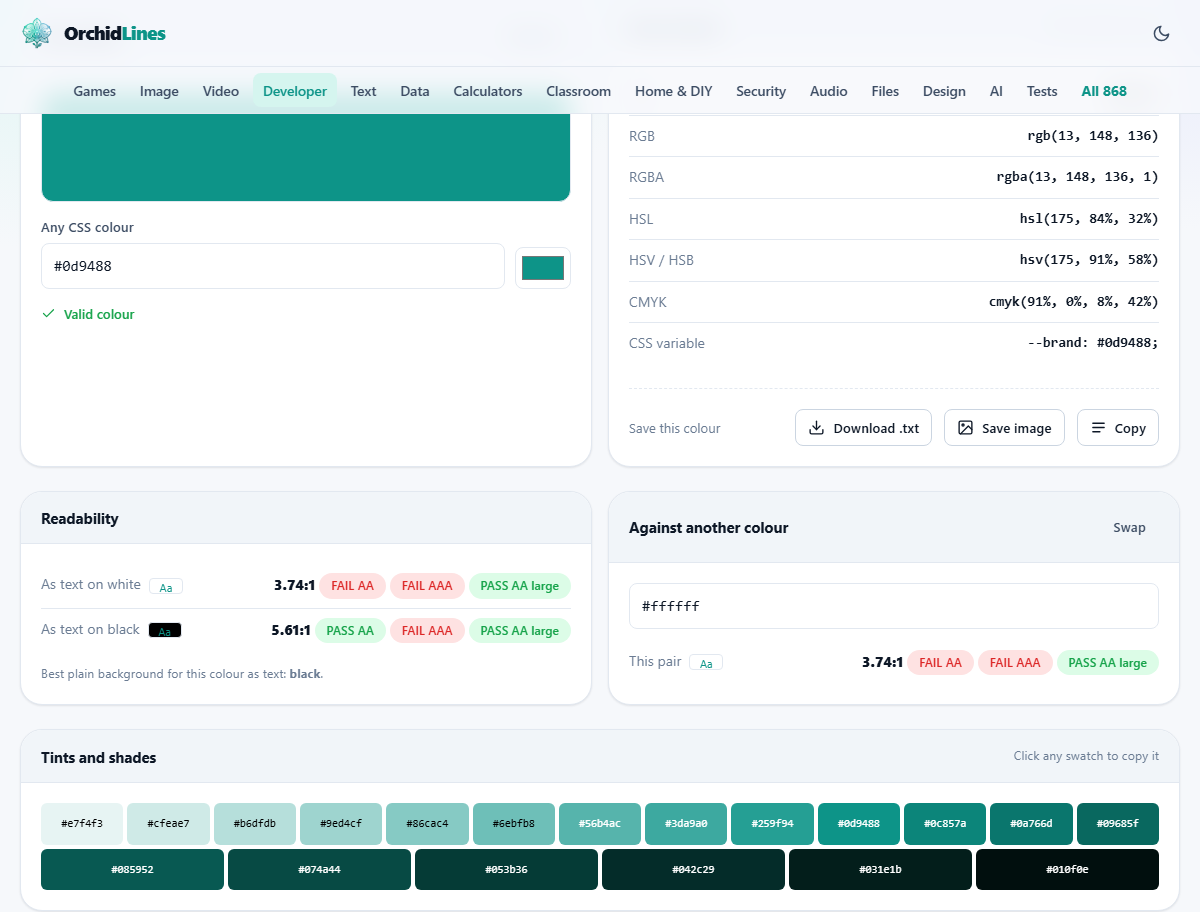
Once a colour is entered, the panel labelled Every format fills with values. You get hex, RGB, HSL, HSV, and CMYK, each written out in full. Click any value to copy it to the clipboard.
A few details are worth knowing. Hex is the six-character form web developers use most. RGB gives three numbers from 0 to 255, one for each channel. HSL breaks the colour into hue, saturation, and lightness, which is the format CSS uses for colour adjustments.
HSV looks like HSL but uses value instead of lightness. The difference is that HSL runs from black through the full colour to white, while HSV runs from black to the full colour and stops there. Most design tools use HSV internally, even when they label it differently.
CMYK is the ink model printers use. Screen colours and ink colours do not map exactly. Bright greens and vivid blues in particular cannot be reproduced in print. Treat the CMYK values as a starting point and always check a printed proof for critical work.
Checking contrast for accessibility
Below the formats sit two contrast panels. The first, labelled Readability, shows your colour against white and against black automatically. For each pairing it reports the contrast ratio and a badge: AA, AAA, or Fail.
Normal body text needs a ratio of at least 4.5 to 1 to pass AA. Large text, roughly 24 pixels or 19 pixels bold, only needs 3 to 1. The stricter AAA level asks for 7 to 1 on normal text. If your body text fails AA, a significant number of readers will struggle with it.
The second panel is labelled Against another colour. Type a background colour into that field and you see the contrast between your two choices. A Swap button flips the two, which is useful when you want to check text on a coloured background and then reverse the pairing.
A walkthrough with real values
Suppose your brand colour is #2563eb, a medium blue. Type it in. The format panel immediately shows rgb(37, 99, 235), hsl(220, 83%, 53%), and the rest.
The readability panel shows this blue against white at a ratio of 3.96 to 1. That fails AA for normal text. It passes for large text, so it works for headings but not for a paragraph.
Now look at the tints and shades strip at the bottom. It gives you nineteen steps from nearly white down to nearly black, all based on the same hue. The fourth swatch from the dark end might read 4.8 to 1 against white, which passes AA. That darker variant becomes your body text colour while the original stays for buttons and links.
Click any swatch in the strip to copy its hex value. In a few seconds you have three or four related blues, all derived from one starting point, and you know which ones are safe for text.
The tints and shades strip explained
A tint is the colour mixed with white. A shade is the colour mixed with black. The strip runs from the lightest tint on the left to the darkest shade on the right, with the original colour somewhere in the middle.
This is useful beyond accessibility. Hover states often use a slightly darker shade of the button colour. Borders use a tint that is close to the background but still visible. Backgrounds for cards and alerts use a very pale tint of the brand colour so the page feels consistent without being heavy.
Click any swatch to copy its value. The hint above the strip says so, but it is easy to miss on a first visit.
Common mistakes with colour on the web
- Picking a colour that looks good but fails the contrast check. A pale grey on white is a frequent offender. Always verify the ratio before shipping.
- Confusing HSL and HSV. They share two of three initials but the third number means different things. CSS uses HSL. If you copy an HSV value into a stylesheet, the colour will be wrong.
- Treating CMYK output as final for print. The conversion is an approximation. Bright screen colours sit outside the range ink can produce. Always proof on paper.
- Using only colour to convey meaning. Even perfect contrast does not help someone who is colour blind. Pair colour with an icon, a label, or a pattern.
- Hardcoding one shade for every state. A button, its hover, and its disabled state all need different lightness values. The tint strip gives you a consistent family.
HSL as a thinking tool
Of all the formats, HSL is the easiest to reason about. Hue is the angle on the colour wheel, from 0 to 360. Saturation is how vivid the colour is, from grey to pure. Lightness is how bright, from black through the colour to white.
Want a darker version of the same colour? Lower the lightness. Want a pastel? Raise the lightness and drop the saturation a little. Want a complementary colour? Add 180 to the hue. These adjustments are hard to do in hex, awkward in RGB, and obvious in HSL.
That is why many design systems define their palette in HSL and convert to hex only at the last step. The converter makes that workflow painless.
When a different tool would serve you better
If you need to extract a colour from a photograph rather than type one in, an eyedropper tool or a colour picker extension will sample a pixel for you.
If you need a full colour palette with five or six coordinated hues, a palette generator that uses colour theory rules will give you a set that works together. This tool starts from one colour and gives you its tints and shades, not a multi-hue scheme.
If you need to check an entire page for contrast problems at once, a browser accessibility audit scans every element. This tool checks one pair at a time, which is enough for picking colours but not for auditing a finished design.
Everything runs on your own device
All the conversions and contrast calculations happen inside your browser. No colour value is sent anywhere. There is no login, no tracking of what you type, and no server doing the maths.
This matters most when you are working with a brand palette that has not been published yet. The values stay on your machine, and closing the tab is the end of the session.
You can verify this yourself. Open the page, turn off your network connection, and type in a colour. Every format converts, the contrast ratios appear, and the tint strip fills. Nothing breaks because there is no server involved in any of the work.