
Turning a code snippet into a picture worth sharing
How to paste a snippet, pick a visual style, and save or copy the result as an image that sits well on a slide, a social post, or a bug report - with worked examples and practical tips for keeping it readable.
Why code ends up as a picture
Text is usually the right way to share code. People can copy it, search it, and screen readers can speak it aloud. But there are a handful of situations where an image works better.
A conference slide needs a fixed layout. A social media post needs to catch the eye while scrolling. A bug report sometimes needs to show exactly what the terminal printed, formatting and all. And a chat message sent through a platform that strips indentation can be rescued by sending a screenshot instead.
The trade-off is real. Nobody can select text from a picture, paste it into an editor, or run it. On a small phone screen, long lines shrink until they become unreadable. For documentation or answers that someone needs to copy, always post the text. Save the image for the places where appearance matters more than access.
What the tool does, step by step
The page draws your snippet onto a canvas with syntax colouring, an optional window frame, and a background. The result is a PNG image you can save to disk or copy straight to the clipboard.
There are three broad steps. Paste the code. Choose how it should look. Save or copy. Every setting updates the preview instantly, so you can try different looks before you commit to one.
Pasting your code and choosing a language
The left panel is labelled Your code. Paste or type a snippet into the text area. Short snippets, around ten to twenty lines, tend to produce the best looking images. Anything much longer starts to shrink when viewed on a phone.
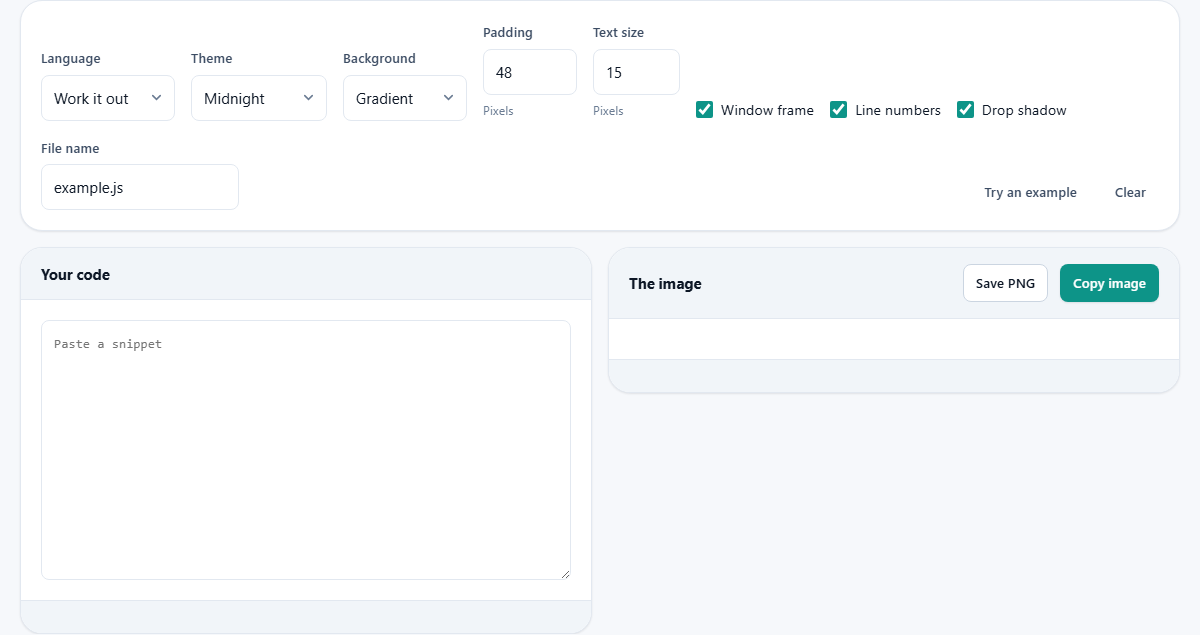
Above the panels sits a row of controls. The first is Language. It defaults to Work it out, which means the tool will try to guess from the content. If the guess is wrong, or if you are pasting something short that does not have enough clues, pick the language yourself. The choices are JavaScript, Python, HTML, CSS, SQL, JSON, Shell, and No colouring. That last option turns off all highlighting and treats the text as plain.
The highlighting is approximate. It colours keywords, strings, numbers, and comments. It is not a full parser, so an unusual edge case may be coloured slightly wrong. For a screenshot this rarely matters.
Picking a look with themes and backgrounds
Theme controls the colour scheme used for the syntax highlights. There are five choices. Midnight uses light text on a dark background - the classic terminal look. Paper reverses that with dark text on a light ground. Forest, Ember, and Monochrome each offer a different mood.
Background sets what sits behind the code window. Gradient is the default and gives the image a soft coloured backdrop that helps it stand out in a feed. Solid uses a flat colour instead. Transparent removes the background entirely, which is useful when you want to drop the code window onto your own slide design without a visible rectangle around it.
Padding controls how much space sits between the code and the edge of the image. It starts at 48 pixels and can go from 0 to 120, in steps of 4. A generous padding makes the image feel more composed. Set it to zero when you want the code to fill every pixel.
Text size sets the font, in pixels, from 10 to 28. The default of 15 suits most screens. Bump it up for a keynote slide that will be projected, or bring it down when you need to fit a wide snippet.
Frame, line numbers, shadow, and file name
Three checkboxes sit beside the size controls. Window frame adds the familiar three dots at the top of the image, mimicking a code editor window. Line numbers prints a column of numbers down the left side. Drop shadow places a soft shadow behind the code panel to give it depth.
All three are on by default. Turning off the window frame gives a cleaner rectangle. Turning off line numbers helps when the snippet is a single expression or a shell command where numbering would look odd.
File name is a text field that starts with example.js. Whatever you type here appears in the title bar of the window frame. Change it to match the real file, or clear it if you do not want a name shown. The file name is purely cosmetic. It does not change how the code is highlighted.
A worked example from start to finish
Suppose you have a short Python function that you want to share on a team chat. Paste these four lines into the code area:
def greet(name): message = f"Hello, {name}!" print(message) return message
Set Language to Python. Set Theme to Midnight for a dark look. Leave Background on Gradient and Padding at 48. Tick Window frame and Line numbers. Type greet.py in the File name field.
The right panel, labelled The image, updates instantly. You see four numbered lines of Python with keywords in one colour, the string in another, and the function name picked out. The whole thing sits inside a windowed frame on a smooth gradient.
Press Copy image. Open your chat app and paste. The image lands inline, clean and readable, with no formatting lost. If the chat app does not support pasting images from the clipboard, press Save PNG instead and attach the downloaded file.
The two buttons and what they produce
Save PNG downloads a file to your computer. The file is named after whatever you put in the File name field, with a .png ending. The image is at full resolution, so it will look sharp on any screen.
Copy image puts the picture on your clipboard. In most modern browsers this works in one click. Some older browsers block clipboard writes, in which case Save PNG is the fallback. Either way the image is the same.
Keeping images readable in a feed
Social platforms and messaging apps shrink images to fit their layout. A wide code image with long lines can become unreadable after that shrink.
The best defence is to keep lines under about sixty characters. Break long lines before you paste. Most languages allow you to split a statement across two lines without changing what it does. The result is a taller, narrower image that survives scaling far better.
Another approach is to trim the snippet to only the interesting part. Five lines that make the point clearly will always beat forty lines where the reader has to hunt for the change.
- Break lines before column sixty so the image stays readable when scaled.
- Remove imports and boilerplate that do not help the reader.
- Use a generous padding so the code does not feel cramped.
- Choose a dark theme for social posts. Light themes can wash out against a white feed background.
Common mistakes and how to avoid them
- Posting code as an image when the reader needs to copy it. If someone has to retype what they see, post the text instead.
- Leaving the language on Work it out when the snippet is too short to guess. A two-line shell command may be mistaken for plain text. Pick Shell yourself.
- Forgetting to change the file name from example.js. The default looks odd sitting above a Python snippet.
- Using a light theme on a white background. The image blends into the page and loses its frame. Switch to a dark theme or add a visible background.
- Pasting a hundred-line file. The image becomes huge and nobody reads it. Crop to the lines that matter.
- Ignoring the transparent background option when building slides. Gradient looks great on social media but clashes with a carefully designed slide deck.
When another tool fits better
If you need to compare two snippets side by side, a diff viewer shows the changes more clearly than two separate images.
If you want to share runnable code, a paste bin or a gist lets the reader copy and execute it. The image is for display, not for use.
If you are writing documentation, inline code blocks in your markup language give the reader selectable, searchable text with syntax highlighting built in.
Your code stays on your own machine
The image is drawn entirely inside your browser. The snippet is never sent to a server. There is no account, no upload, and no copy stored anywhere outside your device.
You can test this yourself. Load the page, disconnect from the internet, paste a snippet, and press Save PNG. Everything still works. For proprietary code or credentials you accidentally pasted, closing the tab is all the cleanup you need.