
Understanding Unix file permissions without memorising octal
How the three-digit permission number works, why directories need the execute bit, what setuid and sticky actually do, the five numbers every sysadmin types from muscle memory, and a full walkthrough that turns a tick-box grid into a ready-to-paste chmod command.
Three groups of three
Every file and directory on a Unix or Linux system carries a set of permissions. They answer three questions for three groups of people. Can the owner read it, write it and run it? Can members of the file's group do those things? Can everybody else?
Each answer is a yes or a no, stored as a single bit. Three questions times three groups gives nine bits. Those nine bits are written as three octal digits, each between 0 and 7. The first digit covers the owner, the second covers the group and the third covers everyone else.
Within each digit, read is worth 4, write is worth 2 and execute is worth 1. Add them up. Read and write is 4 plus 2, which is 6. Read, write and execute is 4 plus 2 plus 1, which is 7. Read alone is 4. Nothing at all is 0.
The permission grid
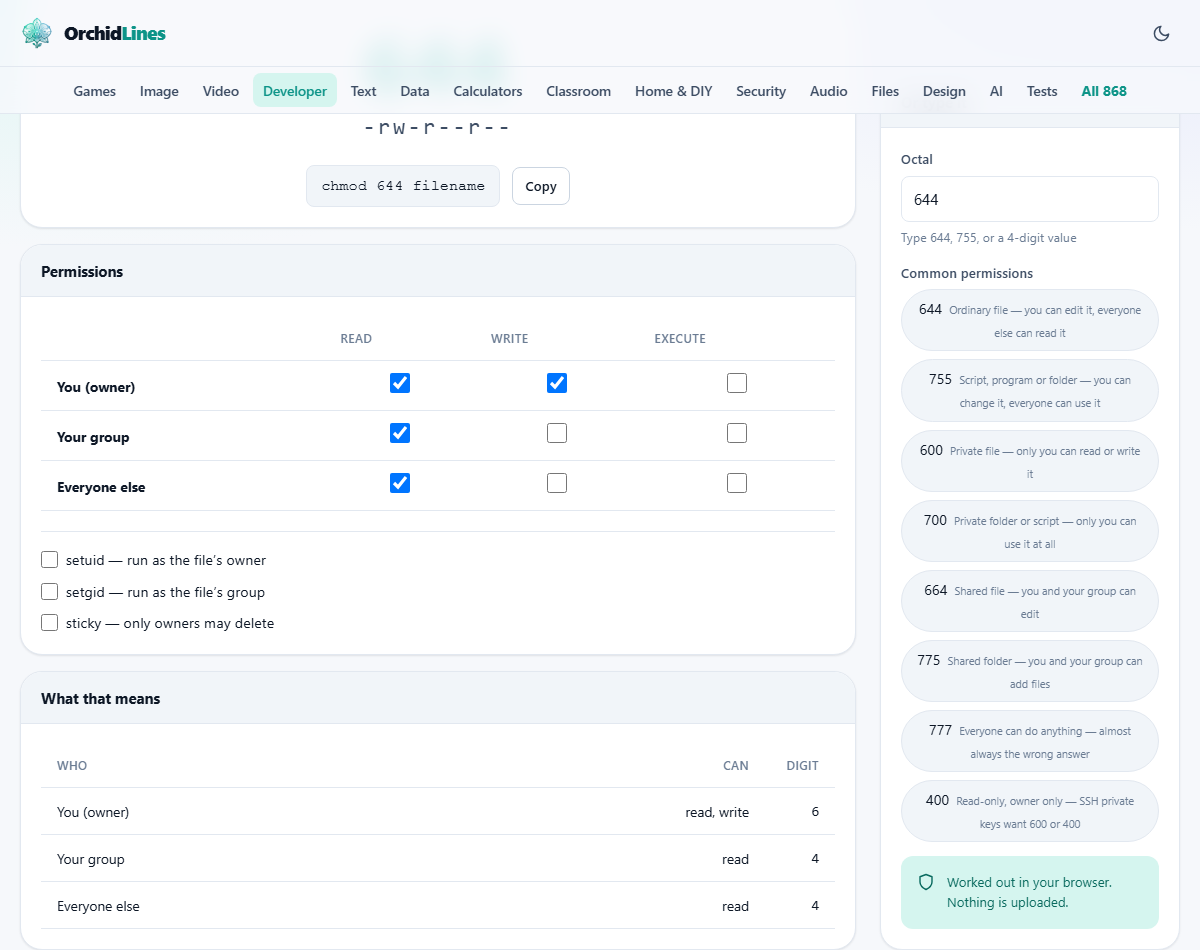
The main panel shows a table with three rows and three columns. The rows are labelled You (owner), Your group and Everyone else. The columns are labelled Read, Write and Execute. Each cell holds a checkbox.
Tick the boxes for what should be allowed. As you tick and untick, three things update at the top of the page: the octal number, the symbolic form like -rw-r--r--, and a complete chmod command ready to paste into a terminal. The command reads chmod followed by the number and the word filename, which you replace with your actual path.
Below the checkboxes are three more options for the special bits: setuid, setgid and sticky. These are rarely needed but important when they are. They add a fourth digit in front of the usual three.
Typing a number to see what it means
The panel on the right has a text field labelled Octal. Type a number like 644 or 755 and the checkboxes fill themselves in. This is usually the faster direction. You have seen a chmod command in a tutorial or a script and you want to know what it allows.
Below the text field is a list of common permissions. Clicking any of them fills in both the checkboxes and the octal field. The list includes 644 for ordinary files, 755 for scripts and directories, 600 for private keys and 777 for the setting that almost always means something else went wrong.
The What that means panel at the bottom spells out the permission in sentences. It says things like "The owner can read and write this file" and "Everyone else can only read it". It is the plain-language version of the number, useful when you need to explain the setting to someone who does not speak octal.
The five numbers worth knowing by heart
644 is the standard for ordinary files. The owner can read and write. Everyone else can only read. No one can execute. This is the default for most files created by editors and tools.
755 is the standard for scripts, programs and directories. The owner can read, write and execute. Everyone else can read and execute but not write. Directories need execute for anyone to enter them, which is why they get 755 where files get 644.
600 is for private files that only the owner should touch. SSH private keys require exactly this. OpenSSH will refuse to use a key with looser permissions and print a cryptic error that amounts to "fix the permissions".
700 is the same idea for a private directory. Only the owner can enter it, list its contents or create files inside it.
777 means everyone can do everything. It is almost never the right answer. When a tutorial suggests it to fix a permissions error, the real fix is nearly always correct ownership with chown, not opening the file to the entire machine.
Why directories need the execute bit
On a regular file, the execute bit means the file can be run as a program. On a directory, it means something completely different: it means the directory can be entered. Without it, nobody can cd into the directory, and nobody can access any file inside it even if those inner files have perfectly open permissions.
This is the single most confusing part of Unix permissions. A directory with 644 - read and write for the owner, read for everyone else - is unusable. You can list its name in its parent, but you cannot step into it. Changing it to 755 fixes it. The only thing that changed is the execute bit.
This is also why recursively applying a single chmod number to an entire tree is risky. Files and directories need different settings. The safe pattern is to use the find command with -type d and -type f to handle them separately.
A worked example: deploying a web application
You upload a web application to a Linux server. The web server process runs as the www-data user and belongs to the www-data group. Your files are owned by your deploy user, also in the www-data group.
For ordinary files like HTML pages, CSS and images, set 644. The deploy user can read and write them. The web server, being in the group, can read them. Visitors hitting the site get their requests served from those files.
For the directory tree itself, set 755. The deploy user can enter any directory and create files. The web server can enter and read. Everyone else can enter and read too, which is fine for a public website.
For a configuration file that holds a database password, set 640. The deploy user can read and write it. The web server group can read it. Nobody else can see it at all. Not even the read bit is set for the world.
For the deploy user's SSH key, set 600. Only the owner reads it. If you set 644 by mistake, the next SSH connection fails with a warning about unprotected private key files.
The special bits: setuid, setgid and sticky
The three checkboxes below the main grid control the special bits. They add a fourth octal digit in front of the usual three, making a four-digit number like 4755 or 1777.
Setuid makes a program run with the permissions of the file's owner rather than the user who launched it. The classic example is the passwd command, which needs to write to the shadow password file even though ordinary users cannot. Setuid is powerful and dangerous. Misusing it can give every user on the machine root access.
Setgid on a file works the same way but for the group. On a directory it does something different and useful: files created inside it inherit the directory's group rather than the creator's default group. This is how shared project folders work without everyone having to remember to change groups.
Sticky, when set on a directory, prevents users from deleting files they do not own. Without it, anyone with write access to the directory can remove any file in it. This is why /tmp is 1777 - everyone can create files there, but only the owner of each file can delete it.
Mistakes that cause real outages
- Using 777 to fix a permissions error. It fixes the symptom by removing all protection. The real fix is almost always correct ownership with chown plus 755 for directories and 644 for files.
- Forgetting that chmod -R applies the same number to files and directories. A directory needs execute to be entered. A file with execute enabled is a program the system may try to run. Use find to apply different numbers to each type.
- Setting a web-accessible directory to be writable by the web server. That lets any exploit that compromises the web server write files into the document root. Only the upload directory, if any, should be writable.
- Leaving group write on a file that should be private. On a shared server, other users in the same group can overwrite your files. Set group permissions to read-only unless you specifically need shared editing.
- Not checking ownership before changing permissions. If a file belongs to root and you make it 644, your own user still cannot write to it. Ownership and permissions are two separate questions.
When another approach fits the job better
- For fine-grained control beyond user, group and other, access control lists (ACLs) let you name individual users and groups with specific rights.
- For managing permissions across many servers, a configuration management tool like Ansible or Puppet is more reliable than running chmod by hand.
- For Windows file permissions, the model is entirely different. Windows uses ACLs with inheritance, and the concepts here do not apply directly.
- For checking what permissions a running process actually has, the id command shows its user and group memberships.
Calculated on your own device
The entire calculation happens in your browser. The numbers you type and the boxes you tick are processed locally. There is no server call, no account and no stored history. The chmod command it builds never leaves your machine until you paste it into a terminal yourself.