
Finding the exact bytes that differ between two files
How binary comparison works at the byte level, what the offset report tells you, why insertions are detected rather than smeared across every later byte, and how to read the results in a real-world firmware check.
What binary comparison does and who needs it
Most diff tools work in lines. They compare two text files and show which lines were added, changed or removed. That works well for source code, configuration files and anything else that splits neatly into lines. But many files have no lines at all. A compiled program, a firmware image, a font, a PNG, a database snapshot - these are streams of bytes with no newline characters to split on. A line-based diff simply prints "binary files differ" and stops.
A binary file compare reads both files byte by byte and reports each region where they disagree. It gives you the offset in hex, the bytes from each file side by side, and whether the difference looks like a substitution or a shift caused by inserted or removed bytes.
- Checking that a firmware build matches the previous one except for the version stamp.
- Finding the one byte a hex editor changed in a patched executable.
- Verifying that a download arrived intact when only a checksum was available and it did not match.
- Spotting a stray byte-order mark that a text diff cannot see because it renders as nothing.
- Confirming that two copies of a signed document are identical before filing them.
Loading the two files
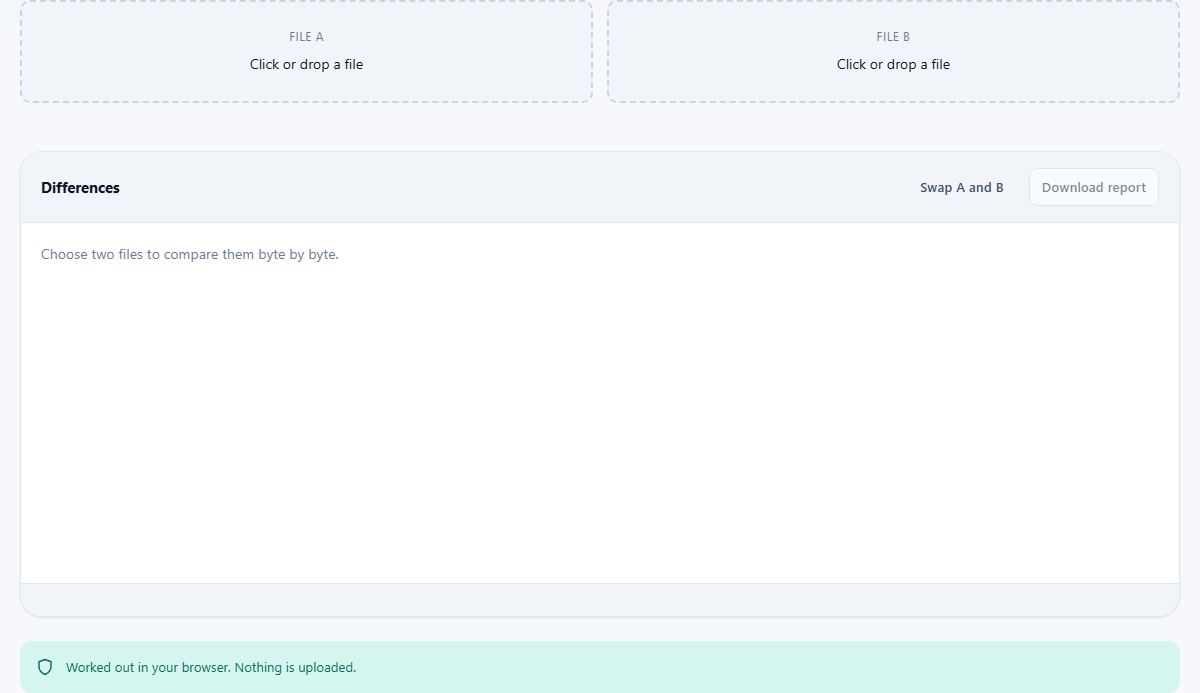
The page has two drop zones labelled File A and File B. Click either one or drag a file onto it. There is no limit on file type. Anything your machine can hold in memory is fair game - executables, images, database dumps, raw disk sectors.
Once both files are loaded the comparison runs automatically. There is no button to press. The Differences panel fills in with every region where the two files disagree. If the files are identical the panel says so, which gives you the same assurance a matching checksum would, with the added benefit that when they do not match you already know where.
The Swap A and B button reverses the two sides. It does not re-read anything. It just flips which file is treated as the original and which is treated as the changed version. The reported offsets stay the same but the labels switch, so "A has 0x4F, B has 0x50" becomes "A has 0x50, B has 0x4F". Use it when you dropped the files in the wrong order.
Reading the output
Each reported region shows a hex offset, a count of how many bytes are involved, and the first sixteen bytes from each file side by side in both hex and ASCII. The hex column is the precise value. The ASCII column is a convenience for spotting readable text - non-printable bytes show as dots.
The type of each region matters. A substitution means the files have the same length at that point and some bytes simply differ. An insertion means extra bytes appear in one file that are not in the other. A removal means the opposite.
This matters because a single inserted byte would, in a naive comparison, make every following byte look different. The tool avoids that by looking ahead for a point where the two streams come back into alignment. When it finds one, it reports the gap as an insertion rather than painting the entire rest of the file red.
A worked example with two firmware images
Suppose you have two builds of a router firmware. File A is the release from last month. File B is the release from this week. You drop both in.
The output might show three regions. The first is at offset 0x0010, a substitution of four bytes - that is the build date stamp changing from 20260701 to 20260714. The second is at offset 0x3FA0, another four-byte substitution - the version number moved from 2.4.1 to 2.4.2. The third is at offset 0x12000, an insertion of 96 bytes in File B.
Those first two are expected. The third one is the interesting finding. Ninety-six bytes were added deep inside the image. You can see the hex and ASCII representations and decide whether that looks like a new configuration block, a patched function, or something worth investigating further.
If instead the files were identical the panel would say so immediately. That is a useful check too. It tells you the two builds are the same binary, not just the same version string.
The download report
The Download report button saves a plain text file listing every difference. Each line has the offset, the byte values from both sides, and the type. The format is simple enough to paste into a bug report, an email or a version control comment.
The report is a snapshot. It does not contain the files themselves, only the offsets and the differing bytes. That makes it small even when the files are large, and safe to share even when the files are confidential.
Keep the report alongside your build artifacts if you regularly compare releases. Over time a folder of these text files becomes a changelog at the byte level, showing exactly what moved between each pair of builds. Because the format is plain text, you can diff two reports against each other to see which differences are new.
When the files have nothing in common
Comparing two unrelated files - a JPEG and a PDF, say - produces a difference at nearly every byte. The tool limits the output to the first few hundred regions in that case. This is not a failure. It is the correct answer to a question that was probably not the one you meant to ask.
If you see a wall of differences, the files are not two versions of the same thing. They are two different things. The question you actually wanted was probably whether they are the same file, and the answer is clearly no.
Common mistakes
- Comparing text files here instead of in a line-based diff viewer. This tool will work, but every change shows as byte offsets rather than line numbers. For source code, prose or configuration, the line-based tool is far easier to read.
- Expecting every byte after an insertion to be marked as different. The tool detects the shift and reports the insertion itself, which is much more useful than a flood of false positives.
- Assuming same file size means same file. Two files that differ in a single bit have the same size. Length is the weakest possible comparison.
- Comparing very large files on a machine with limited memory. Both files are loaded into the browser's memory at once. If each file is several hundred megabytes, the tab may run out of memory. Split the files into chunks with a command-line tool first if that happens.
- Forgetting that encoding differences are real differences. Two text files that look identical on screen can differ at the byte level because one is UTF-8 and the other is UTF-16, or because one has a byte-order mark and the other does not. This tool will find that difference.
When a different tool fits better
- For comparing source code, configuration files or any text that has lines, a line-based Diff Viewer shows changes in context and is much easier to read.
- For checking whether two files match without needing to know where they differ, a checksum tool is faster. Generate an MD5 or SHA hash of each file and compare the two strings.
- For comparing images pixel by pixel rather than byte by byte, an image comparison tool overlays the two and highlights visual differences.
- For examining the raw bytes of a single file without a comparison, a hex viewer or hex editor is the right starting point.
Both files stay on your machine
The comparison runs entirely in your browser. Both files are read into memory on your device and compared there. Nothing is sent to a server. There is no upload, no queue and no account.
You can prove it. Load the page, disconnect from the internet, and drop two files in. The comparison still works because there was never anything on the other end. For files that cannot leave your network - proprietary firmware, signed legal documents, unreleased builds - closing the tab is all the cleanup you need.