
Making sense of a web server access log
What the analyser pulls out of an nginx or Apache log, how the format detection works, what each table in the output tells you, a walk through a real report with numbers, and why address counts are not visitor counts.
What an access log records
Every time somebody or something asks your web server for a page, an image, a stylesheet or a script, the server writes one line into a file. That line holds the address that asked, the date and time, what was requested, the status code that came back, how many bytes were sent, where the visitor came from, and what software they used. A busy day can fill hundreds of thousands of lines.
Reading those lines by eye tells you almost nothing. You need totals, sorted lists, and patterns. This tool reads the file on your own machine and builds those summaries for you. It counts how requests ended, finds the pages asked for most, ranks the files that moved the most data, lists the slowest paths, groups the referrers, separates the robots, and draws the traffic across the hours of the day.
Who uses a log analyser
System administrators check logs after a server alert to see which paths are throwing errors and which addresses are hammering the box. Web developers look at the slow list to find the pages that need work. SEO practitioners scan the crawler section to confirm that search engines are reaching the right pages.
Site owners who do not run analytics trackers sometimes use the log as their only record of traffic. Anyone investigating a spike in bandwidth, a sudden wave of 404 errors, or an unusual address that appeared overnight will find what they need in these tables. Freelancers who manage a handful of client sites often download the log from a hosting control panel, check it here, and send a summary without installing any software on their own machine.
Opening the log and choosing a format
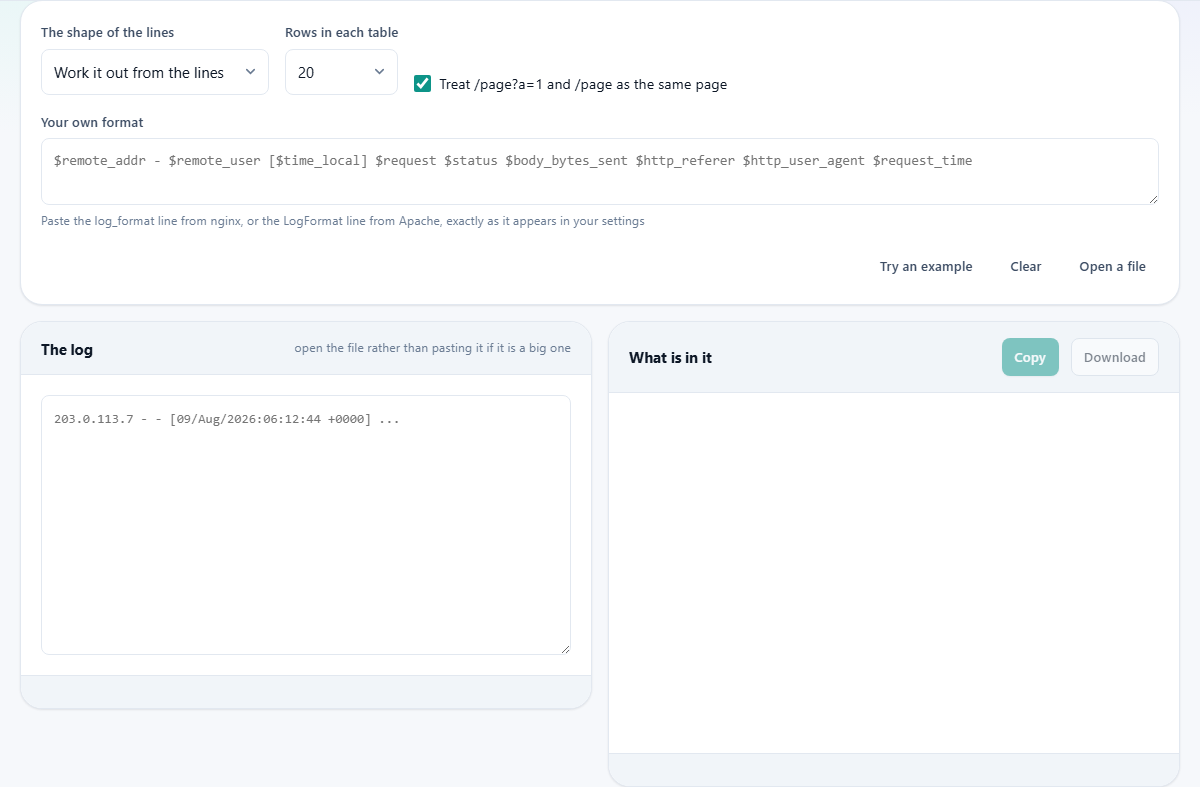
Press Open a file and pick the log from your disk, or paste it into the left panel labelled The log. For a large file, opening is faster than pasting because the browser does not have to lay out all the text in the text area.
The dropdown labelled The shape of the lines controls how lines are parsed. The default choice, Work it out from the lines, finds the date, the request and the status code by the shape of the values. It handles a host column at the front or timing columns at the end without being told. Two named presets are available: Combined, which is the usual default for nginx and Apache, and Common, the shorter format without the referrer and user agent fields.
If your server writes a custom format, pick The one I give below and paste the log_format line from your nginx settings or the LogFormat line from Apache into the field labelled Your own format. Paste it exactly as it appears in your config file.
The other controls
Rows in each table sets how many rows appear in every ranked list. It defaults to 20 and can be set to 10 or 50.
The checkbox labelled Treat /page?a=1 and /page as the same page strips query strings before counting. It is on by default, which is what you want when the query string is a tracking parameter or a session token. Turn it off when the query string is part of the real address, such as a search page where the query is the search term.
Try an example loads a small sample log so you can see the output shape before you open your own file. Clear empties both panels. On most Linux servers, the access log lives under /var/log/nginx or /var/log/apache2. On shared hosting, there is usually a logs folder in the control panel, sometimes with the last few days compressed into .gz files that you will need to unpack first.
Reading the output
The right panel, headed What is in it, fills with several tables and a chart. At the top is a summary line with the total lines read, the lines skipped, and the date range covered.
The status code table groups requests by their response code. A healthy log is mostly 200 and 304. A row of 404 codes tells you that visitors or crawlers are asking for pages that do not exist. A row of 500 codes points at server errors that need attention right away.
The pages table ranks requests by count. The data table ranks them by bytes, which reveals the large downloads that eat your bandwidth. The slow table ranks paths by the 95th percentile response time rather than the average, because the average hides the bad visits. A page averaging 200 milliseconds can still keep one visitor in twenty waiting four seconds.
The referrer table shows where visitors arrived from. The robot table separates crawlers, uptime checkers and scanners, which can be half the traffic on a quiet site. The hourly chart shows how traffic ran through the day, using the timestamps from the log rather than your local clock.
A worked example
You open a file called access.log from an nginx server. The summary says 14,820 lines read, 3 skipped, covering 2026-08-12 from midnight to 23:59.
The status table shows 12,400 lines at 200, 1,100 at 304, 890 at 404, 22 at 500, and a handful of redirects. The 404 list reveals that most of those are bots looking for wp-login.php on a site that does not run WordPress. The 500 errors all hit the same path, which tells you exactly where to look in the error log.
The slow table shows /api/search with a 95th percentile of 3.2 seconds. The average for that path is only 400 milliseconds, so the average alone would have hidden the problem. The data table shows a single PDF download that accounts for 40 percent of the day's bandwidth. The hourly chart peaks at 10 in the morning and again at 2 in the afternoon, local server time.
Press Copy to take the full report as text, or Download to get a CSV file with one row per page, its hit count, total bytes, and timing figures. That CSV drops straight into a spreadsheet.
One address is not one person
The most common mistake when reading a log is to count different addresses and call the result visitors. It does not work that way. An office, a school, a coffee shop and a whole mobile network can all share one address, so hundreds of people show up as one. The same person on a phone and a laptop shows up as two. Tomorrow their address changes and they show up as someone new. Crawlers move between addresses on purpose.
A log is an excellent record of what was asked for and what went wrong. It is a poor record of how many people came. Read it for the first job, not the second.
Common mistakes
- Pasting a huge file instead of opening it. A paste copies everything into a text area, which slows the browser. The open button streams the file directly.
- Forgetting the line limit. The tool reads up to three hundred thousand lines and says so when a file is longer. For a very large log, cut it to one day first.
- Mixing in lines from the error log. Error log lines have a different shape and are counted as skipped. If most of your lines are skipped, you probably opened the wrong file.
- Reading the average response time instead of the 95th percentile. The average can look fine while a fraction of visitors wait much longer.
- Stripping query strings when they carry meaning. Turn off the checkbox when the query is part of the real page address.
When another tool is the right choice
- For real-time monitoring, use a tool that tails the log as it grows. This one reads the file once and gives you a snapshot.
- For tracking actual visitors across sessions, use an analytics service. A log cannot do that job.
- For reading error logs, use a text search tool. This tool expects the access log format and will skip most error log lines.
- For a log written in a format that is not a standard combined or common variant, paste your format line into the custom field rather than guessing at a preset.
Your log never leaves your machine
An access log holds IP addresses and every path your visitors requested. That is exactly the sort of data that should not be handed to a website. This tool reads the file entirely inside your browser. There is no upload, no processing on a remote server, and no copy sitting anywhere after you close the tab.
You can verify this yourself. Open the page, turn off your internet connection, then open a log file. The tables appear just the same, because no network connection was ever part of the process.