
Finding accessibility faults before your visitors do
How to paste or open an HTML page and get a list of every barrier the markup alone can reveal, what the three severity groups mean, how to track each fault back to its line, and what no automatic checker can see for you.
What the checker looks for
Every web page carries a hidden layer of meaning that screen readers and other tools rely on. An image needs alt text so a blind visitor knows what it shows. A form field needs a name so software can announce it. A heading needs to follow the one before it without skipping a level, so a person navigating by outline does not lose their place.
This tool reads your HTML into a page that never fetches anything and never runs any scripts, then asks it the questions that have an answer in the tags themselves. It checks for missing alt text, alt text that is just a file name, form controls with no label, buttons and links with no name, labels that point at ids that do not exist, ids used more than once, roles that are not real, things hidden from assistive software but still reachable by keyboard, empty and skipped headings, a missing page language, a missing title, zooming turned off, pages that reload themselves, tables with no header cells, frames with no title, tab order forced out of shape, nested interactive controls, and vague link text like click here.
Who reaches for it
Front-end developers use it as a first pass before pushing code. A page that fails on missing alt or unlabelled inputs will fail a manual audit too, so catching these early saves time.
QA testers paste the output of a build and check whether the count of faults went up or down since the last release. Accessibility consultants paste client pages to build a punch list before a deeper review. Content authors check whether the CMS produced clean markup after they saved a post. Students learning web development paste their homework and get a clear list of what they missed, with each fault explained in a sentence they can understand.
- Developers checking a component before it goes into a pull request.
- Testers scanning a staging page for new regressions.
- Consultants building a first-pass report for a client.
- Anyone who needs to know whether their markup has obvious holes.
Getting the HTML in
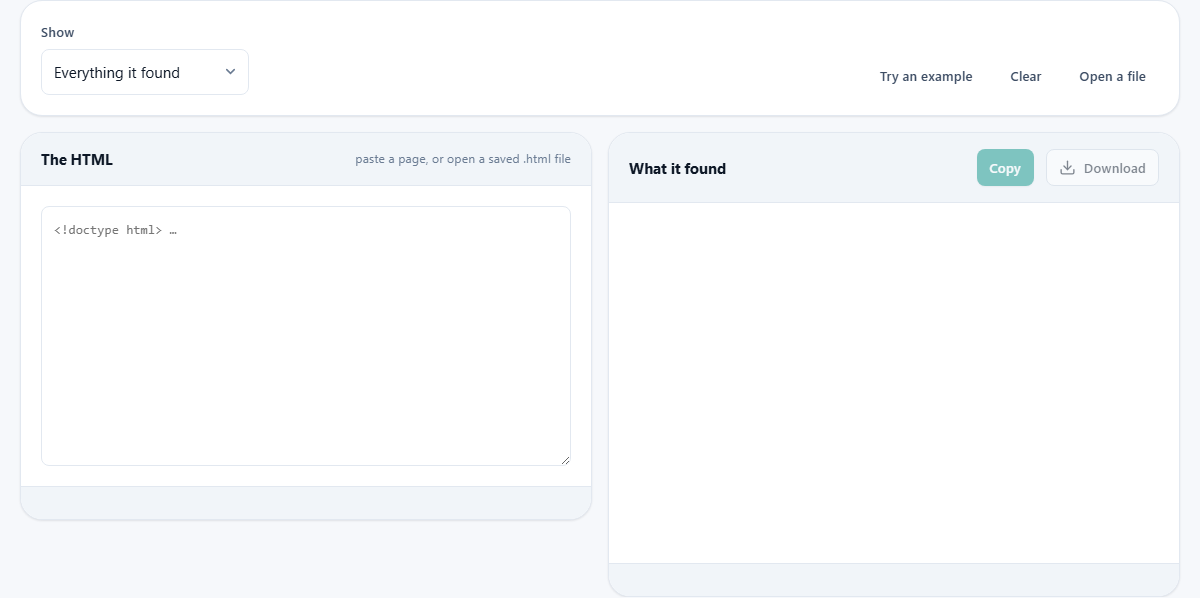
There are two ways to feed it. Paste the source of a page into the left panel, labelled The HTML, or press Open a file and pick a saved .html file from disk. A fragment works too. If you paste a piece of a page rather than a full document, checks that only apply to a whole document are skipped, and the report tells you which way it read what you gave it.
The Show dropdown above the panels controls what comes back. Set it to Everything it found for the full picture, or switch to Only what must be fixed if you want just the faults that stop somebody using the page at all. The Try an example button loads a small page full of deliberate mistakes so you can see the report before you paste your own work.
Reading the report
The right panel, headed What it found, fills in as soon as the HTML is pasted. Faults are sorted into three groups. The first group covers things that must be fixed because they block a visitor entirely. The second group covers things worth fixing. The third covers things worth a look.
Each fault carries the rule it breaks, a plain sentence about why it matters, a CSS selector that points at the element, and the opening tag as it was written. That selector is there so you can search your source for it instead of counting elements by hand. Press Copy to take the whole report to your clipboard.
A worked example
Suppose you paste this fragment into the left panel: a nav element holding three links, an image with no alt attribute, a text input with only a placeholder and no label element, and an h1 followed by an h3 with no h2 between them.
The report comes back with four faults. The image is flagged because a picture with no alt text is invisible to a screen reader. The input is flagged because a placeholder is not a label, since it vanishes the moment somebody types. The heading skip is flagged because jumping from level one to level three leaves a hole in the outline. And if one of the links says click here, it is flagged because that text tells a screen reader nothing about where the link goes.
Each fault shows the selector, so you can find the image by searching for img, the input by searching for input, and the heading by searching for h3. Fix all four, paste the updated source, and the count drops to zero.
Why it skips colour contrast
Colour contrast needs the colours a page actually ends up with after every stylesheet has loaded. This tool never loads stylesheets, so it cannot know the final colours. There is one exception. When a colour and a background are both written in the same style attribute, nothing else can come between them, so those pairs are measured and the contrast ratio is shown.
For everything else, open the live page in a browser and use its built-in accessibility inspector. That inspector sees the computed colours after all the CSS has been applied.
The naming rule that explains most surprises
Most of what the checker finds comes down to one question. When somebody who cannot see the screen lands on an element, what does their software say? The answer is worked out in a fixed order. First it looks for a pointer to other text on the page, such as aria-labelledby. Then a written-in label like aria-label. Then a real label element. Then the element's own text content. Only then the title attribute.
Knowing that order explains a common surprise. If you add an aria-label to a button that already has words in it, the words are thrown away because the label wins. If a label element points at an id that does not exist, the control has no name at all, even though the label is sitting right next to it on screen.
Common mistakes when using the checker
- Treating a clean report as the finish line. Alt text reading photograph of a dog passes every automatic checker, even on a picture of a cat. Automatic testing finds what is missing. Only a person can tell you whether what is there is any good.
- Ignoring the last panel. It lists the things no checker of this kind can see, which is roughly two thirds of real barriers. Read it before you call the page done.
- Confusing heading levels with heading sizes. Jumping from h1 to h3 because h3 looks right is a structure problem, not a styling problem. The fix is a CSS rule, not a different tag.
- Pasting only the body and expecting document-level checks. If you leave out the html tag, the checker skips the language check and tells you it did so.
- Thinking a placeholder counts as a label. It disappears when the visitor types, some assistive software ignores it, and it is usually too pale to read.
When a different tool fits better
- For colour contrast checking, use a browser's built-in accessibility inspector, which sees the real computed colours.
- For validating whether your HTML is well-formed, an HTML validator is the right choice.
- For checking a whole site at once, you need a crawler-based scanner. Nothing is fetched here, so pages arrive one at a time.
- For testing keyboard navigation and focus order in a live page, open the page and press Tab through it yourself. That test cannot be done from markup alone.
- For meeting a specific legal standard like WCAG 2.1 AA, hire a specialist. No automated tool covers every rule, and many rules need a human judgement that software cannot make.
Your markup stays on your own machine
The entire scan runs inside your browser. The HTML is parsed in memory, checked there, and never sent anywhere. There is no server, no queue, and no copy stored after you close the tab. That matters when the page you are checking is behind a login, is not published yet, or belongs to a client who did not give you permission to hand it to a third party.
You can prove it. Load the page, disconnect from the internet, then paste some HTML and watch the report appear. Everything still works because there was nothing on the other end to begin with.