
How to Remove Vocals From a Song Using Channel Cancellation
This article explains how the Vocal Remover works, what each setting does, and why some songs respond better than others. You will learn how to build a karaoke backing track, keep only the singer, or split both parts onto separate sides of a stereo file.
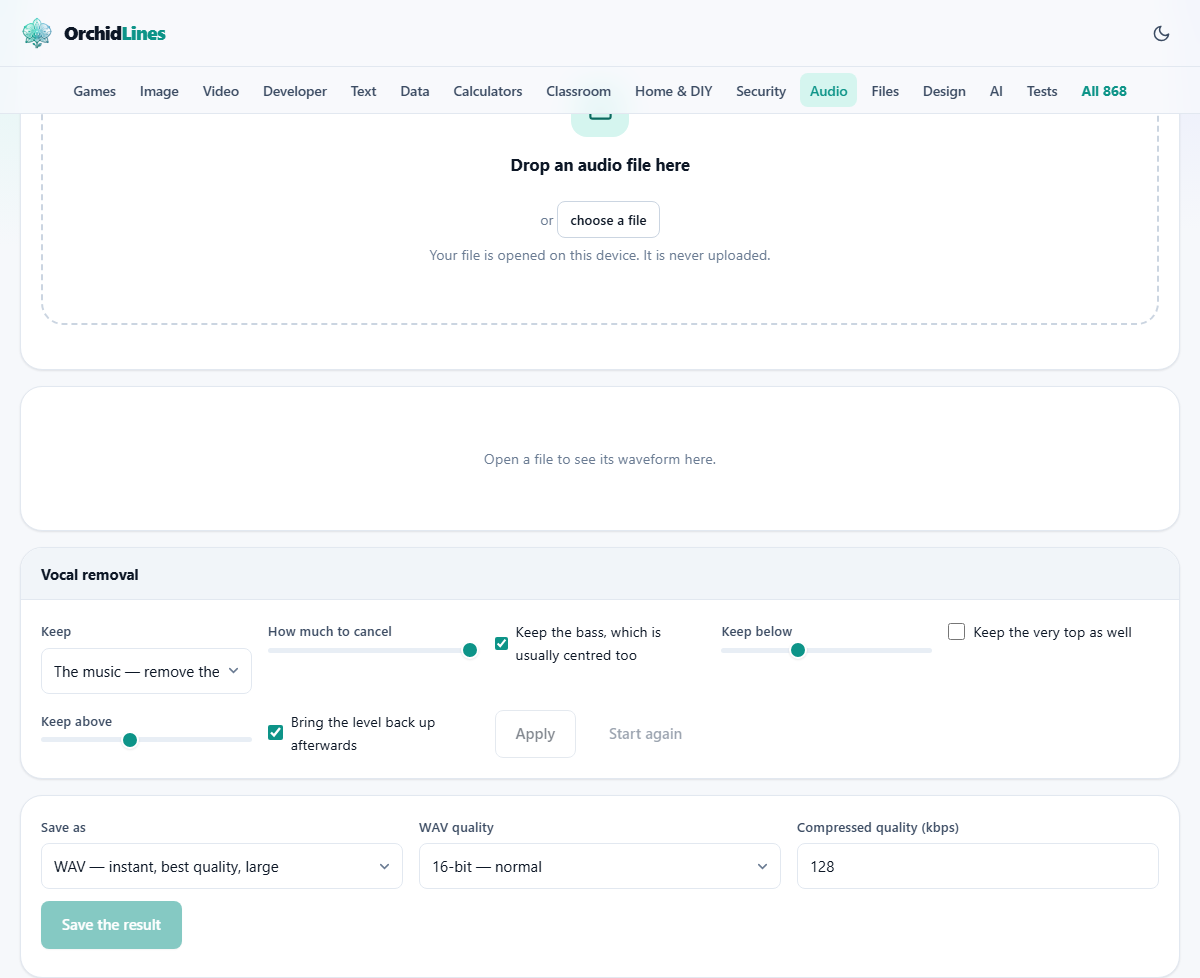
What happens when you press Apply
A stereo recording carries two audio streams, one for the left speaker and one for the right. In most popular music the lead singer sits equally in both channels. The bass, the kick drum and often the snare sit in the same place. Guitars, keyboards, cymbals and backing voices are usually spread to one side or the other.
The tool takes the right channel away from the left. Anything that was the same in both vanishes. Anything that was different stays. That is the entire trick. It is fast, it needs no trained model, and it runs without a server. The catch is that the outcome depends on how the song was mixed, not on any button you press.
Who finds this useful
Singers who need a backing track for practice or a live show are the most common users. DJs sometimes pull an a cappella or an instrumental from a record to layer over something else. Music teachers use it to isolate parts for students. Language learners strip dialogue from clips so they can record their own voice over the top.
None of these jobs need a studio-perfect result. They need something quick, private and good enough to work with. That is exactly what channel cancellation delivers.
Every control explained
The Keep dropdown has three choices. 'The music - remove the vocal' is the default, and it is what most people want. 'The vocal - remove the music' does the reverse, keeping what sits in the centre and dropping what is spread out. 'Both, on separate sides' puts the instrumental in the left ear and the vocal in the right, which is handy for checking what went where.
How much to cancel is a slider from 0 to 100 percent. At 100 the subtraction is complete. Pulling it down to 70 or 80 leaves a faint trace of the singer behind, which can sound more natural in some mixes. Very low values do almost nothing.
Keep the bass, which is usually centred too is a checkbox that is on by default. Because the bass guitar and kick sit in the centre just like the singer, they vanish along with the voice unless you protect them. The companion slider, Keep below, sets the cutoff frequency. The default is 180 Hz, which covers most bass instruments. Push it up toward 300 or 400 Hz to rescue lower midrange content as well, but the higher you go the more vocal energy you let back in.
Keep the very top as well is off by default. Turn it on to preserve cymbals and hi-hats that were panned to the centre. The Keep above slider sets that boundary, starting at 9000 Hz. Most singing has very little energy above 8 kHz, so this switch is usually safe.
Bring the level back up afterwards restores the volume that the subtraction took away. Leave it on unless you plan to normalise the file yourself in another editor.
Saving the finished file
The Save as list offers M4A, WebM and WAV. There is no MP3 option because browsers can decode MP3 files but cannot encode them. M4A is the best pick for most people. It compresses well, plays on every phone and computer sold in the past twenty years, and takes less space than MP3 at the same quality level.
The Compressed quality field sets the bitrate in kilobits per second, with 128 as the starting value. For a karaoke track that will play through a PA system, 192 or 256 is a safer pick. For a scratch file you only need once, 96 is plenty.
When you choose WAV, the WAV quality selector appears. 16-bit is the standard for everyday playback. 24-bit keeps more detail and is useful when you plan to edit the file further. 32-bit float is for technical work where you want to avoid rounding during later processing.
Worked example: a karaoke track from a pop song
Suppose you have a four-minute pop track saved as an MP3 on your desktop. Drop it onto the page. A waveform draws itself, and the file details show the duration, sample rate and channel count. Confirm it says stereo. If it says mono, stop here because the method cannot work on a single channel.
Leave Keep set to 'The music - remove the vocal'. Set How much to cancel to 100 percent. Make sure Keep the bass is ticked and the cutoff reads 180 Hz. Leave Keep the very top unticked for now. Press Apply.
The waveform redraws. Press Play to hear the result. The singer should be gone or nearly gone, and the low end should still feel solid. If the bass sounds thin, raise Keep below to 220 or 240 Hz and press Apply again. If cymbals have vanished, tick Keep the very top and leave Keep above at 9000 Hz.
Once the result sounds right, choose M4A from the Save as list, set the bitrate to 192, and press Save the result. The file lands in your downloads folder within seconds.
Why the results change from song to song
The technique removes whatever is the same in both channels. On a simply recorded track where the singer is placed dead centre with no effects, the cancellation can be almost perfect. On a heavily produced modern record, the vocal often carries stereo reverb, chorus or delay that spreads across both channels. Those effects survive the subtraction and leave a ghostly echo.
Older recordings from the 1960s and 1970s tend to have very clean centre placement, so they cancel well. Live recordings often pick up room sound in both channels, which fights the process. A recording made with a single microphone is mono by nature, and the tool will not change it at all.
No setting on the page can fix these limits. They come from the recording itself. If you need a truly clean separation regardless of how the song was mixed, that job belongs to a service running a neural network trained on thousands of isolated stems. Those services work well, but they require you to upload the file, and many charge a fee.
Mistakes people make and quick fixes
The most common error is opening a mono file and wondering why nothing changes. Check the file info that appears after loading. If it says one channel, the tool has nothing to compare.
The second most common mistake is leaving bass protection switched off. The result sounds empty and hollow because the low instruments were in the centre and vanished with the voice. Tick the checkbox and the weight comes back right away.
Some people lower How much to cancel thinking it will clean up the result. It does the opposite. Lower values leave more of the singer in. Use 100 for the fullest removal and only pull back if you want a deliberate vocal bleed for effect.
Others apply the effect, save, then reload the saved file and apply again hoping to strip away more. This does not help. Any vocal content that survived the first pass did so because it was off centre. A second run has nothing new to subtract.
Finally, saving repeatedly to a compressed format such as M4A introduces a tiny loss each time. Always go back to the original file when you want to try a different setting rather than reworking a file you already saved.
When a different approach would serve you better
If the song is mono, no channel method can help. You need an AI separation tool that reads frequency patterns rather than stereo position.
If you want the vocal on its own and clean enough to drop into a new mix, the keep-vocal mode here will give you a rough version but not a polished one. A trained model handles that job with better results.
If the goal is to lower the vocal rather than erase it, try setting How much to cancel to 30 or 40. But a proper vocal-down mix is something only the original multitrack session can truly provide.
If you need to remove a speaker from a podcast or a phone call, those recordings are almost always mono. Channel cancellation has no way in. A noise gate or a manual cut in a wave editor is the right path there.
Your file never leaves your device
The page decodes the audio and runs every calculation inside your own browser. You can disconnect from the internet after the page loads and the tool still works. No file is sent to any server, no account is needed, and nobody else ever hears the song you brought in. That matters when the recording is a personal one, or when you simply prefer to keep your music library to yourself.