
Changing audio speed or pitch without ruining the sound
Speeding up a podcast should not turn the host into a chipmunk, and transposing a song into a new key should not make it shorter. These are three separate jobs that people often confuse, and this guide covers all three as they appear on the Speed and Pitch Changer page. Every control is explained, a worked example goes through each mode, and the section on why big changes sound odd will save you time before you push the slider too far.
Three things this tool does
The page handles three distinct operations. The first is changing speed while holding the pitch steady - what you want for podcasts, lectures, and audiobooks. The second is changing speed and pitch together, which is what happens when you play a record at the wrong RPM or speed up a tape. The third is changing pitch alone, keeping the length exactly the same, which is how you transpose a backing track into a different key.
All three share the same page and the same file. You open your audio once, pick a mode, set the amount, press Apply, and listen to the result before saving.
Opening a file and using the waveform
Drop a file onto the page or browse for one. It accepts any format your browser can play, including MP3, WAV, M4A, AAC, OGG, OPUS, and FLAC. A waveform draws once the file loads. You can drag across it to select a region, zoom in and out, and scroll along a long recording using the bar underneath.
Press the space bar or the Play button to listen. The selection controls let you work on just part of the file if you want to hear how a change sounds on a specific passage before you commit to the whole thing.
The What to change dropdown
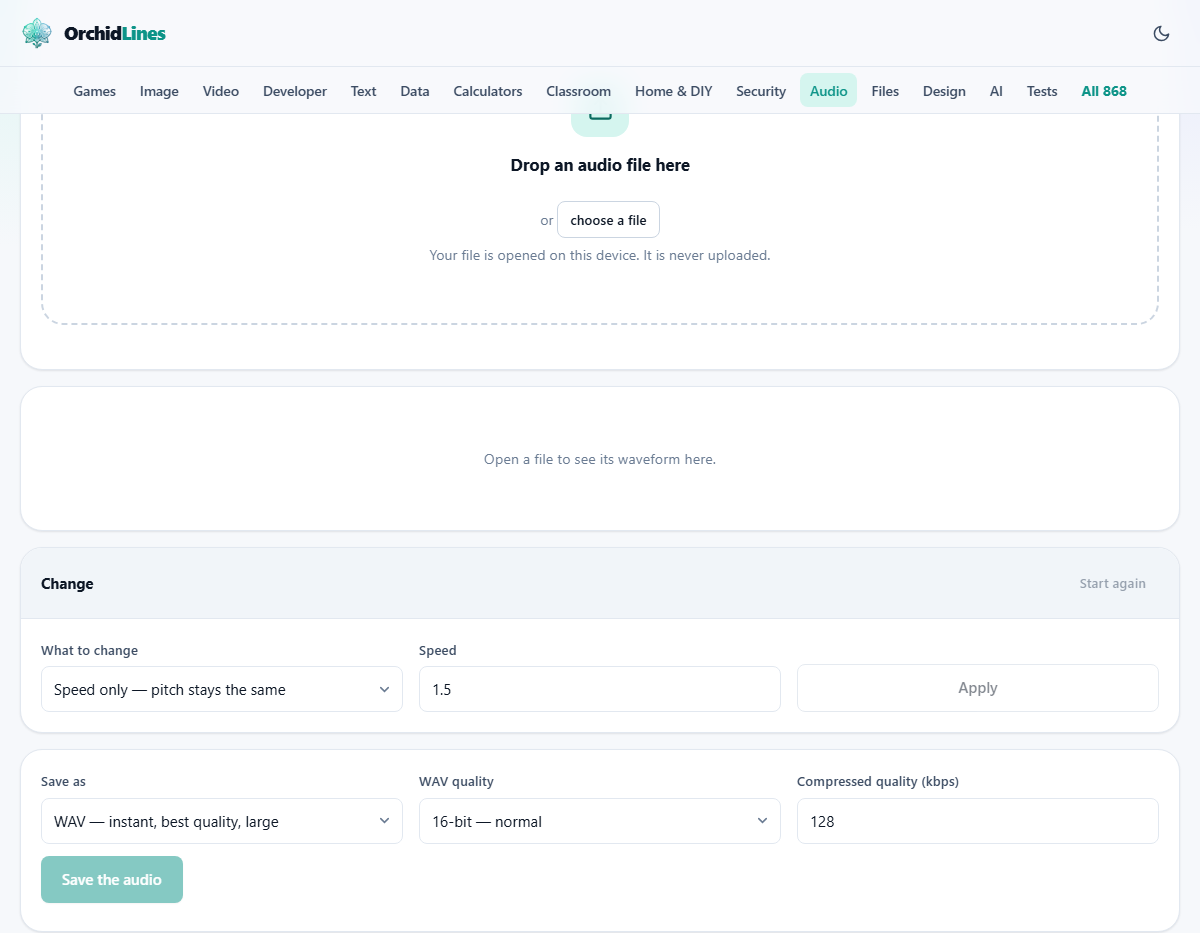
The panel labelled Change holds the main controls. The first is a dropdown called What to change with three options.
Speed only - pitch stays the same is the default. This is the mode for making a podcast faster without raising the voice. The page chops the audio into tiny overlapping slices, about a twentieth of a second each, and lays them closer together. Each slice still plays at its original speed, so the pitch inside it never moves. Only the spacing between the slices changes. The slices are cross-faded at the joins so there are no clicks.
Speed and pitch together - like a tape is the simplest version. It just plays the samples faster or slower, which naturally raises or lowers the pitch. This is the effect you hear when a vinyl record spins at the wrong speed. It sounds artificial in a very specific way that some people find charming for creative work.
Pitch only - length stays the same transposes the audio without making it longer or shorter. This is useful for musicians who need a backing track in a different key, or for vocalists who want to shift a karaoke track up or down to match their range.
Speed and semitone values
When Speed only or Speed and pitch together is selected, a field labelled Speed appears. It accepts values from 0.25 to 4. A value of 1 means no change. A value of 1.5 means half again as fast - a ten-minute file becomes six minutes and forty seconds. A value of 0.5 means half speed - the same file stretches to twenty minutes.
When Pitch only is selected, the Speed field hides and a field labelled Semitones appears. It takes values from minus 12 to plus 12. Each semitone is one musical half step. Two semitones is a whole tone. Twelve semitones is a full octave. Setting it to plus 3 raises the pitch by three half steps, roughly a minor third. Setting it to minus 5 drops the pitch by five half steps, which is a perfect fourth down.
A worked example in each mode
Start with a thirty-minute lecture recording. You want to listen at 1.25 speed while commuting. Open the file, leave What to change on Speed only, type 1.25 into the Speed field, and press Apply. The waveform redraws showing a twenty-four-minute file. Press space to listen. The voice sounds natural but brisk. Save it as M4A at 128 kbps.
Now open a guitar riff you want to learn. Set What to change to Speed only and the Speed to 0.5. Press Apply. The riff plays at half tempo, but every note stays in tune. You can play along on your guitar without retuning.
Finally, open a backing track that is in the key of C but you need it in D. Set What to change to Pitch only and type 2 into the Semitones field, because D is two semitones above C. Press Apply. The track plays at the same tempo but everything is two half steps higher. Save it and load it into your practice setup.
Why big changes sound odd
The pitch-preserving algorithm works by overlapping short slices of audio. On speech and most music, the joins are invisible. On sustained notes, heavy reverb, or solo piano, the overlaps can interfere with each other and produce a watery, slightly metallic quality.
The further you push the speed, the worse this gets. At 1.5 it is usually clean. At 2.0 it starts to show on exposed notes. Beyond 2.5 it is obvious on almost anything. Running the process twice at smaller steps does not help, because the final file carries the combined artifacts of both passes.
If the result sounds odd, there are two practical fixes. Either reduce the amount - going from 2.0 to 1.75 often cleans it up completely - or switch to the tape mode and accept the pitch shift. The tape mode has no artifacts at all because it is not doing any splicing.
Saving the result
The bottom panel handles export. Save as lists the formats your browser supports - usually M4A, WebM, and WAV. MP3 is available. Browsers do not include an MP3 encoder, so this page loads a small open-source one the first time you choose it. M4A is the closest substitute: it is smaller than MP3 at the same quality and plays on every modern phone, car stereo, and music app.
WAV quality offers 16-bit for everyday use, 24-bit for studio work, and 32-bit float if you plan to edit the file further. Compressed quality sets the bitrate for M4A or WebM, from 32 to 320 kbps, with 128 as the default. Press Save the audio and the file downloads. A progress bar tracks the encoding.
Comfortable ranges for speech and music
For podcasts and lectures, the sweet spot is between 1.25 and 1.5 times normal speed. Most people can follow speech clearly at 1.5, but beyond about 2.0 comprehension drops sharply no matter how clear the audio is. The words might still be distinct, but your brain stops keeping up. For slowing music down to learn it, 0.5 to 0.75 keeps things musical. Below 0.5 even clean recordings start to sound hollow.
For pitch shifting, staying within four or five semitones in either direction gives the best results. A full octave shift of 12 semitones works technically but can sound robotic on vocals. Instruments hold up better under large shifts than voices do. A piano shifted by three or four semitones usually sounds perfectly normal, while a voice shifted by the same amount starts to sound processed.
When this tool is not the right fit
If you need to speed up a video and keep the picture in sync, this page only handles the audio track. You would need a video editor that can change playback speed with the picture and sound locked together.
If you want to change the tempo of a song while keeping it exactly in time with a click track, a DAW with a tempo-mapping feature will do a better job because it can align beats to a grid. This tool shifts the whole file by a fixed ratio and has no concept of bars or beats.
And if the goal is to remove vocals from a track or isolate one instrument, that is a separation task, not a speed or pitch task. A different kind of tool handles that.
Your audio never goes anywhere
The file is decoded, processed, and re-encoded entirely within your browser. No server sees your audio at any point. You can confirm this by loading the page, opening a file, switching off your internet connection, and running the full change. Everything still works. There is no account to create and no upload step to skip past.
That is particularly relevant for musicians working with unreleased tracks, students processing copyrighted lecture recordings, and anyone who simply does not want their voice on someone else's server. The whole operation happens on your own device and the result goes straight to your downloads folder.