
How a browser-based chromatic tuner works and how to get accurate readings
Tuning an instrument used to mean buying a dedicated gadget or finding someone with perfect pitch. A browser-based tuner listens through your microphone, identifies the note you are playing, and tells you how far off you are in cents. This article explains every setting on the tuner, gives tuning tips that make a real difference, walks through a full guitar tuning session, and covers the physics behind why the needle moves the way it does.
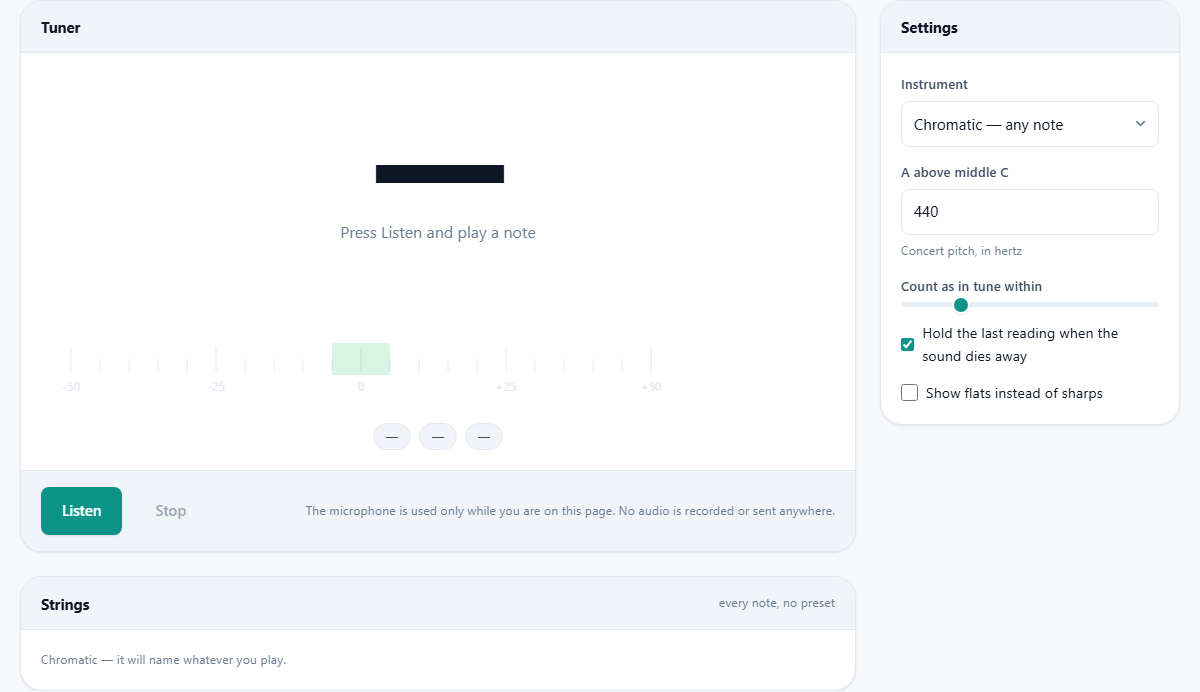
What the tuner shows you
Play a note and three things appear on the screen. The big letter in the centre is the note name - A, B flat, C sharp and so on. Below it is the measured frequency in hertz. The dial shows a needle that swings left or right of centre. Left means flat, which is below the target pitch. Right means sharp, which is above it. When the needle sits in the middle, the note is in tune.
Three chips below the dial give you the numbers. One shows the offset in cents. One shows the target frequency for the nearest note. One shows the signal level, so you can tell if the microphone is picking you up at all. A cent is one hundredth of a semitone. Within five cents, nobody listening will hear a problem. Within one cent is better than most players can hold.
Starting the microphone and giving permission
Press the Listen button. Your browser asks for permission to use the microphone. Grant it once and the browser remembers for future visits. The sound is measured and thrown away several times a second. Nothing is recorded and nothing is stored.
Press Stop when you are finished. The microphone shuts off and the browser stops listening. If Hold the last reading when the sound dies away is ticked in the settings, the last note stays on the screen after you stop playing, which makes it easier to check a reading without rushing.
Choosing an instrument preset
The Instrument dropdown in the settings panel offers eight options. Chromatic is the default and responds to any note in the musical scale. Guitar shows the six strings of standard EADGBE tuning. Guitar - drop D tunes the lowest string down to D. Guitar - half step down shifts every string down by one semitone. Bass covers the four-string EADG layout. Ukulele sets GCEA. Violin sets GDAE. Cello sets CGDA.
When an instrument is selected, a row of string buttons appears. Each one shows the target note for that string. Tap a string button to hear what that note should sound like, which gives you a reference pitch to match. The currently detected note highlights the nearest string so you can see at a glance whether you are on the right one.
The reference pitch and what 432 Hz means
A above middle C is set to 440 hertz by default. This is concert pitch, the standard used by orchestras and most recorded music worldwide. The A above middle C field in the settings lets you change it to anything from 415 to 466.
Setting it to 432 Hz is the most common alternative. Some musicians feel that 432 sounds warmer or more natural. Whether the difference is real or imagined is debated, but the setting is there if you want it. Baroque ensembles often tune to 415 Hz, which is roughly a semitone lower than modern pitch. Whatever reference you set, every note shifts with it.
Tolerance, flats and the hold option
Count as in tune within sets how close the needle needs to be to the centre before the display signals that the note is good. The default is 5 cents. Tighten it to 1 or 2 for very precise tuning. Loosen it to 10 if you are tuning quickly and do not need concert accuracy.
Show flats instead of sharps switches the display so that A sharp appears as B flat, C sharp as D flat, and so on. Which you prefer depends on the key you play in. Most guitar players leave it on sharps. Players in flat keys may find the other view easier to read.
Hold the last reading when the sound dies away keeps the note and the needle on screen after the sound fades. Without this, the display resets to a dash as soon as the microphone stops picking up a pitch. Holding is useful because strings lose volume quickly and you need a moment to look up at the screen.
A worked example - tuning a guitar from scratch
Set Instrument to Guitar. Press Listen and allow the microphone. Start with the thickest string, the low E. Pluck it gently and let it ring. The display should show E2 and the needle should sit near the centre. If the needle is to the left, the string is flat and you need to tighten the tuning peg. If the needle is to the right, the string is sharp.
If you find yourself sharp, do not just loosen the string to the right pitch. Go clearly below the note first and then come back up to it. A string that is brought down from above settles further flat over the next few minutes, because the slack at the tuning post has not been taken up. Tuning upward keeps the string under tension and it holds.
Move to the A string, then D, G, B, and finally the thin high E. Each string button in the strip highlights as you play the matching note. After all six are in tune, strum a chord and listen. If anything sounds off, go back and check that string again. New strings stretch and go flat within minutes, so you may need to retune a couple of times before they settle.
Getting accurate readings in practice
A quiet room makes a big difference. The tuner picks the strongest pitch it can hear. In a noisy room, that pitch may not be your instrument. Turn off fans, close windows, and ask other people to stop playing while you tune.
Pluck or bow gently. A hard attack on a string makes the note go sharp for the first fraction of a second before it settles to the true pitch. Tune to where the note settles, not to the initial spike. On a guitar, pluck near the twelfth fret for a cleaner fundamental with fewer overtones.
Get the microphone close. Laptop microphones work fine for acoustic instruments in a quiet setting. If you are tuning an electric guitar without an amplifier, the sound from the strings alone may be too quiet for a built-in microphone to measure. Use an external microphone or plug into a small amp and let the tuner hear that.
Why very low notes are harder to measure
Low notes have long wave cycles. The low B on a five-string bass vibrates at about 31 Hz, which means each cycle takes over 30 milliseconds. The tuner needs several complete cycles to measure the pitch with confidence, so very low notes take a moment longer to register. If the display jumps between two notes, play louder and let the note ring longer. Laptop microphones also struggle with bass frequencies because their small size makes them less sensitive at the low end.
When a chromatic tuner is not enough
You can measure a piano with this tuner, but piano tuning is a different discipline. Piano tuners deliberately stretch the octaves, making the lowest notes slightly flatter and the highest notes slightly sharper than a simple chromatic tuner would suggest. That stretching compensates for how our ears perceive pitch on a piano, and it takes years of training to get right.
Instruments that do not produce a clear single pitch, like drums or some percussion, will confuse any chromatic tuner. The display will jump between notes because there is no dominant fundamental to lock onto.
Privacy and what happens to the microphone stream
The microphone stream is analysed for pitch and then discarded. Nothing is recorded to your device and nothing is sent to any server. The microphone is only active while you are on this page with the tuner running. Close the page or press Stop and the microphone shuts off immediately. You can even disconnect from the internet after loading the page and the tuner keeps working, because all the pitch detection runs locally in your browser with no server calls needed.