
How to generate test tones, noise and click tracks in your browser
A steady tone at a known frequency is the starting point for testing speakers, tuning instruments, and checking hearing. This page builds tones, white noise, pink noise and metronome clicks right in your browser, with controls for pitch, wave shape, tempo and level. This article explains every option, walks through practical uses, and points out the safety and format details that catch people off guard.
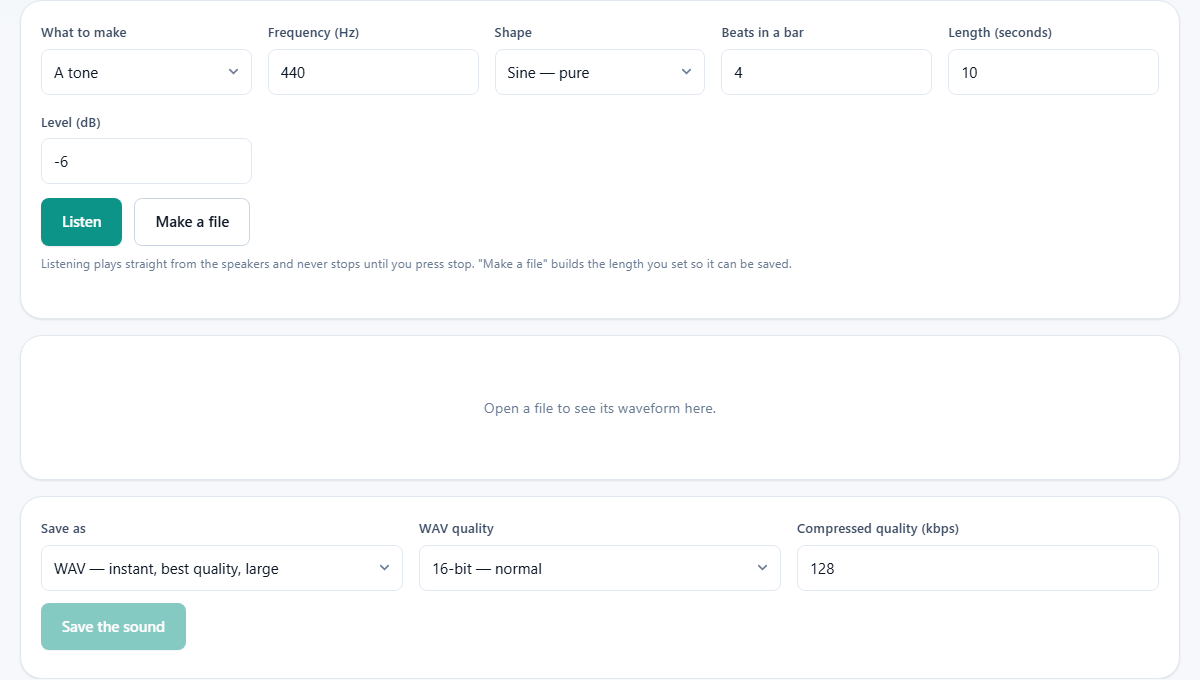
Choosing what to make
The What to make dropdown has four choices. A tone produces a steady pitch at a single frequency. White noise fills every frequency at equal energy and sounds like a television between channels. Pink noise drops the high end so the energy is equal per octave, which matches the way human hearing works and sounds more like steady rain. Metronome click produces a repeating tick at a set tempo.
Each choice changes which controls appear below it. A tone shows frequency and wave shape. The metronome shows beats per minute and beats in a bar. White and pink noise need only a length and a level, since there is no pitch to set.
Frequency and wave shape for tones
The Frequency (Hz) field accepts any whole number from 20 to 20000. That covers the full range of human hearing. The default is 440, which is the A above middle C and the standard tuning note for orchestras. Some musicians prefer 432 Hz as an alternative reference pitch.
The Shape dropdown offers four options. Sine is the purest - it contains only its own frequency and nothing else. It sounds clean and smooth. Square is harsh and buzzy because it adds odd harmonics above the base pitch. Sawtooth is bright and rough, adding both odd and even harmonics. Triangle is softer than square but still richer than sine. For testing speakers or tuning, sine is usually the right choice. For checking that a system handles complex signals, square or sawtooth reveals more.
The metronome and its tempo controls
When you select Metronome click from the dropdown, two extra fields appear. Beats per minute sets the tempo, from 20 up to 400. The default is 100. Beats in a bar sets how many clicks make one group, from 1 to 16, with a default of 4. The first beat of each bar is accented so you can hear where the bar starts.
The metronome is useful for practice sessions where you want a fixed tempo to play along with. You can listen to it live, or build a file of any length and save it to play back later on any device, even one without internet access.
Level, length and listening
Level (dB) runs from minus 60 to 0, with minus 6 as the default. That default matters. Generated tones are far louder than typical music at the same number, because music has quiet moments mixed in. Starting at 0 dB through headphones can be painful. Keep the level low and raise your speaker volume instead.
Length (seconds) sets how long the file will be when you press Make a file. It goes up to 600 seconds, which is ten minutes. This only affects the downloadable file. The Listen button plays the sound continuously from the speakers until you press stop, regardless of the length setting.
Press Listen to hear the sound immediately. While a tone is playing, you can change the frequency and hear the pitch shift in real time. Press Make a file to build the audio as a waveform you can see, trim and download. The waveform panel appears with the full length visible, and you can select part of it or play it back before saving.
Saving the file you built
The Save as dropdown offers WAV plus any compressed formats your browser supports, typically M4A and WebM. WAV quality lets you choose 16-bit for normal use, 24-bit for studio work, or 32-bit float for further editing. Compressed quality (kbps) sets the bitrate when saving to a compressed format, from 32 to 320 with 128 as the default.
WAV saves instantly because it just writes the raw samples to a file. Compressed formats take roughly as long as the audio lasts, because the browser encodes them in real time. MP3 is available. No browser ships an MP3 encoder, so this page loads a small open-source one the first time you choose it. M4A is the closest alternative and plays on the same devices.
Press Save the sound once you are happy with the result. A progress bar appears for compressed formats. The file downloads to your computer when it finishes.
A worked example - testing a pair of speakers
Set What to make to A tone. Leave Shape on Sine and Level at minus 6. Set the frequency to 100 Hz and press Listen. You should hear a low hum from both speakers. If one side is silent, that speaker is not connected or its woofer is damaged.
Now slowly increase the frequency. Move through 500, 1000, 5000 and up toward 15000. Listen for any frequency where the sound rattles, buzzes, or disappears. A rattle usually means something loose in the cabinet. A sudden dip may point to a dead spot in the room rather than the speaker itself.
When you finish the sweep, switch to Pink noise and let it play for a minute. Pink noise is balanced across the hearing range, so both speakers should sound about the same. If one side sounds brighter or duller, that speaker may need attention.
White noise versus pink noise and when to use each
White noise has equal energy at every frequency. It sounds harsh and hissy because human ears are more sensitive to mid and high frequencies. It is the better choice for technical tests where you want every frequency represented at the same power.
Pink noise drops by three decibels each time the frequency doubles. That matches how our hearing is arranged, so it sounds balanced and natural. Sound engineers use pink noise to calibrate speakers and test room acoustics. It is also the more comfortable choice for masking background noise, helping with sleep, or providing a steady background while working.
Using the waveform viewer after building a file
After pressing Make a file, a waveform panel appears showing the full audio. You can drag across the wave to select a portion of it, and drag the edges of the selection to fine-tune the boundaries. Scroll to zoom in, and use the bar underneath to move along the timeline. Press space to play or stop.
The selection display shows the start time, end time and length of whatever you have highlighted. Zoom controls let you step in and out, jump to a selection, or fit the whole file on screen. This is especially useful when you build a long click track and want to check that the tempo sounds right before saving the full ten-minute version.
Common uses beyond speaker testing
Music teachers use the tone generator to give students a reference pitch for ear training. Set the frequency to any note and have the student match it by singing or playing. Changing the shape from sine to triangle adds a little warmth that some people find easier to match vocally.
Sound designers generate raw tones to layer into sound effects. A low sine at 50 Hz adds weight to an explosion. A high square wave at 2000 Hz becomes the base for an alarm. Building these from scratch gives you a clean starting point with no background noise or room echo baked in.
People who study or work in noisy environments use pink noise to mask distracting sounds. Build a ten-minute file, save it, and loop it on your phone. Because it covers every frequency evenly, it blends into the background faster than music does.
Safety notes for high frequencies and headphones
A steady tone above 10 kHz at a high level can damage hearing without sounding especially loud, because we do not perceive all frequencies at the same volume. Always turn your output down before you press Listen, and raise it slowly. This is especially important with headphones, where the sound goes straight into the ear canal with no room to spread out.
Children and younger listeners hear higher frequencies than adults. A 16 kHz tone that sounds faint to you may be piercing to someone younger in the room. Be aware of who else is listening.
Privacy and offline use
Nothing you build on this page is uploaded to any server. The sounds are generated inside your browser using its built-in audio system, and any file you save is written on your own device. You can disconnect from the internet after the page loads and every feature still works.