
Lining up two recordings of the same moment so they start together
You filmed something on a camera and recorded the sound separately on a phone or a field recorder. The sound is better on the recorder, but it started at a different moment. This guide walks through every control on the Audio Sync Offset Finder, explains how the comparison works, gives a step-by-step example of syncing a camera file with an external recorder, and covers the edge cases where the match might be weak or wrong.
The problem this solves
Two devices recording the same event will start at different times. The camera began rolling three seconds before the external microphone was switched on, or the phone started filming ten seconds after the dedicated recorder. The result is two files that cover the same sounds but are offset by some number of milliseconds.
In video editing, you need these to start at exactly the same point so you can swap the camera's rough audio for the cleaner recording. Doing this by ear in a timeline is tedious and never quite right. This page automates it. You drop both files in, press a button, and it tells you the exact offset in milliseconds and in samples. It can then save a shifted copy of the second file so both recordings start together.
Dropping in the two files
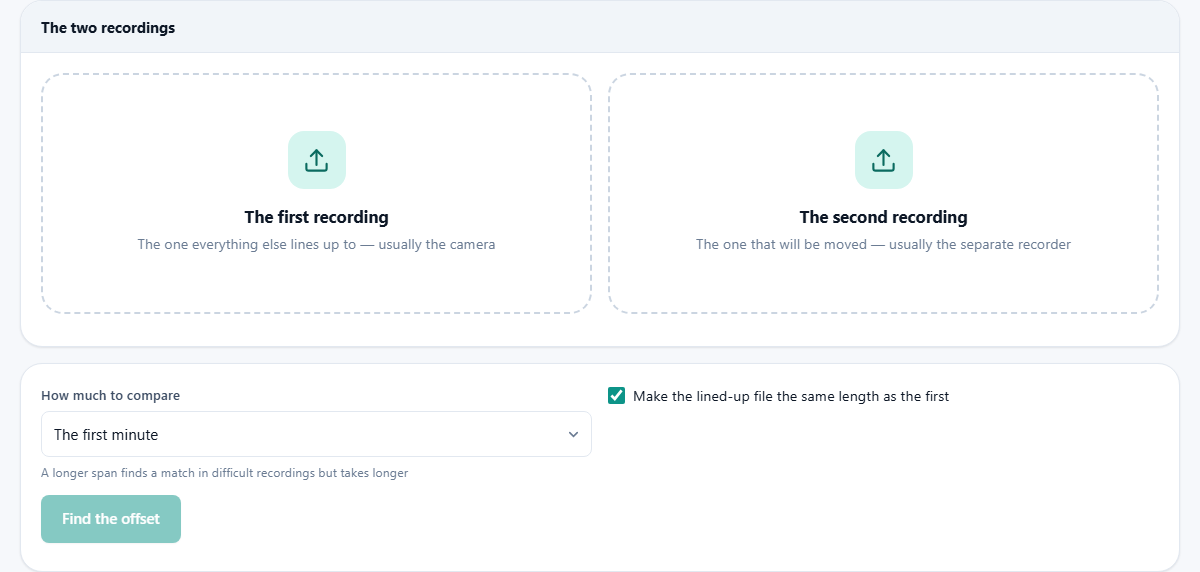
The page shows two drop zones side by side in a panel labelled The two recordings. The left one says The first recording and has a hint underneath explaining that this is the reference - the one everything else lines up to, usually the camera. The right one says The second recording and notes that this is the file that will be moved, usually the separate recorder.
Both zones accept audio files and video files. When you drop a video in, only its sound track is read. The picture is ignored. This means you can drop a camera MP4 file directly without extracting the audio first. Any format the browser can play is accepted, including MP3, WAV, M4A, FLAC, OGG, and OPUS.
How much to compare and the match checkbox
Below the two drop zones is a settings panel. The How much to compare dropdown controls how many seconds of each file are analysed. The choices are the first 30 seconds, the first minute, the first two minutes, and as much as will fit. The default is the first minute.
A longer span takes more time to compute but finds matches in difficult recordings where the overlap is buried in noise or starts late. If both files have a clear shared event like a clap or a door slam in the first few seconds, 30 seconds is plenty. If the two files started far apart and the shared content does not begin until later, extend the span.
A checkbox labelled Make the lined-up file the same length as the first is ticked by default. When active, the shifted output is trimmed or padded so it has the same duration as the reference file. This makes it easy to drop into a video timeline as a direct replacement. Untick it if you want the full length of the second recording preserved.
What the comparison actually measures
The tool does not compare tone. It does not care whether one microphone is tinny and the other is rich. It compares timing only - when each burst of sound energy arrives. A phone held across the room and a studio condenser two inches from the speaker produce completely different waveforms, but the peaks of energy arrive at the same moments because they are caused by the same physical events.
The measurement uses cross-correlation. Each file is reduced to an energy envelope, and the tool slides one envelope along the other until it finds the offset where the two line up best. The strength of that alignment is reported as a match score. A strong match means the answer is reliable to the sample. A weak match means the two files may not overlap at all, and you are warned rather than given a bad number.
Reading the result
Press Find the offset and the analysis runs. When it finishes, a result panel appears labelled The answer. The headline number is the offset in milliseconds. Below it, a verdict box tells you whether the match is strong, moderate, or weak, and what that means.
A details section shows the offset in both milliseconds and samples, the sample rate, and the match strength as a percentage. If the second recording started after the first, the offset is positive and the shifted file will have silence added at the beginning. If it started before the first, the offset is negative and the beginning of the second file is trimmed.
Saving the lined-up file and the check file
Two buttons appear under the result. Save the second file, lined up produces a WAV file of the second recording shifted by the measured offset so it starts at the same moment as the first. Import this into your video editor alongside the footage and the sound should be in sync from the first frame.
Save a left-and-right check file produces a stereo WAV with the first recording in the left channel and the shifted second recording in the right channel. Put on headphones and listen. If the two are properly aligned, a sound that both recordings captured will appear as a single image in the centre of your head. If one side feels late, the offset is off and you may need to try a longer comparison span.
A worked example: camera plus lapel mic
You filmed an interview with a camera on a tripod and recorded the speaker on a lapel microphone feeding a phone in their pocket. The camera started rolling first. The phone recording started about eight seconds later when the speaker remembered to press record.
Drop the camera MP4 into the first slot. Drop the phone M4A into the second slot. Leave the comparison span on the first minute. Press Find the offset. After a few seconds, the result appears: the offset is 8,243 milliseconds, and the match strength is 94 percent. The verdict says the match is strong.
Press Save the second file, lined up. The output is a WAV with 8.243 seconds of silence at the start, followed by the lapel recording. Drop it into your video editor on a new track, align it to the start of the timeline, and the lapel audio plays in perfect step with the picture. Mute the camera's built-in track and the interview sounds clean.
Why a clap at the start helps so much
A sharp transient - a handclap, a snap, a clapperboard - gives the comparison an unmistakable spike to lock onto. That is the entire purpose of the film clapperboard, and it works just as well with a casual handclap. The spike stands out above background noise, it is extremely short in time, and both microphones will pick it up regardless of how different they sound.
If you forgot to clap, the tool still works. Any shared sound will do. A door closing, a cough, or even a sentence spoken loudly enough for both microphones to catch it. The match may take a longer comparison span to find, but the result is just as accurate once it locks on.
When the match is weak or wrong
A weak match usually means the two files do not actually overlap during the compared section. This happens when both recordings start with a long stretch of silence or ambient noise before the action begins. The fix is to extend the comparison span to two minutes or to the full length so the analysis reaches the part where something happens.
Another cause is clock drift. Two devices can run at very slightly different sample rates. They line up at the start and slowly drift apart over the length of the recording. This tool finds a single offset that corrects the start, but it cannot fix a drift that accumulates over time. If the files are in sync at the beginning and noticeably out by the end, you need a tool that can stretch one recording to match the other's clock.
When to use a different approach
If you have more than two recordings to line up - say four camera angles from a live event - doing them one pair at a time here will work, but a multi-track editor that aligns everything at once is faster.
If the two recordings are of different events entirely, there is no shared timing to find and no tool can sync them. And if the problem is not timing but volume - one recording is much louder than the other - a normaliser or a gain adjustment tool is what you need, not a sync tool.