
Save just the sound from a video, on your own machine
This guide shows how to take the audio out of a video and keep it on its own. You will learn which files open, what the waveform lets you do, how to trim and clean the sound, which save formats are offered, and how long each one takes. Every part named here is a real button or box on the page.
When you only want the sound
A video often carries something worth keeping by itself. A recorded talk becomes a podcast episode. An interview turns into a file you can type notes against. A tune from a clip you filmed can live in your music folder. In each case the picture is dead weight and the sound is the whole point.
This page lifts that sound out and hands it back as an audio file. There is no editing suite to learn and no account to make. You open a video, mark the part you want, and save it. The steps below walk through each control in turn, with the real names you see on screen.
Opening a video
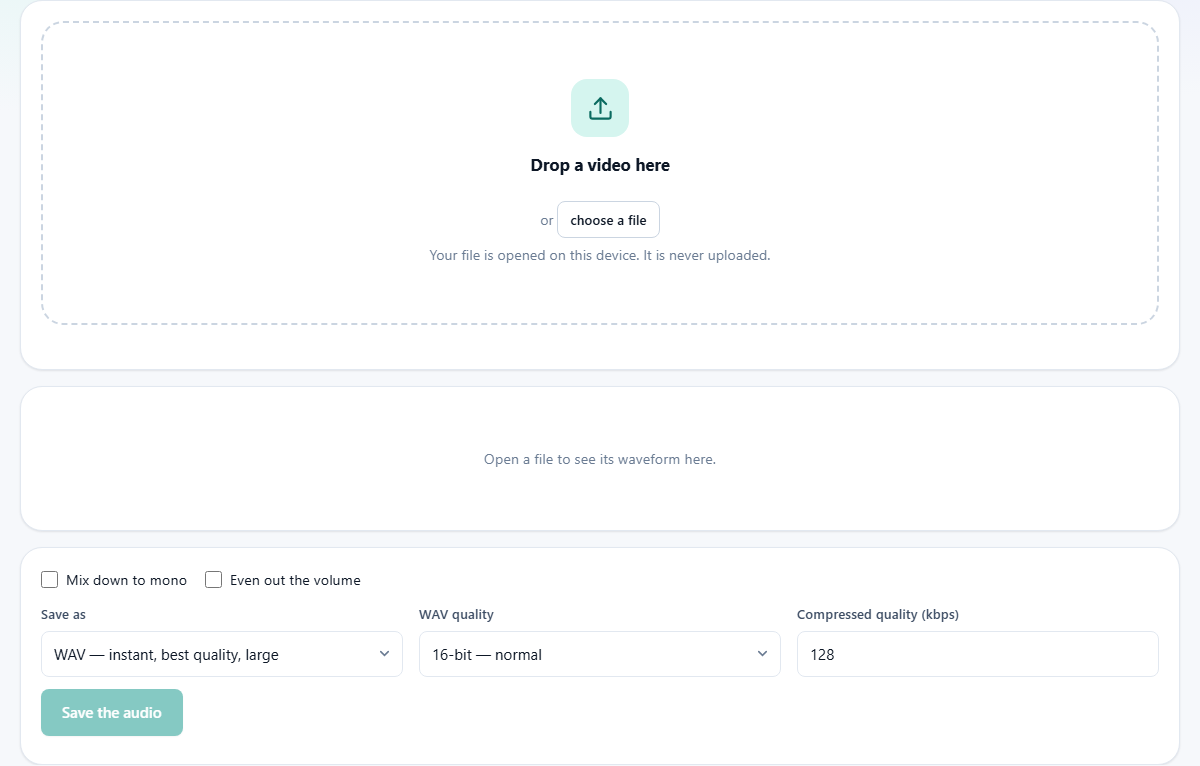
Drop a file onto the top panel, or press the choose a file button and pick one. MP4, WebM, MOV and M4V videos all open. A video file is really two things bundled together in what is called a container: a picture track and a sound track. This tool leaves the picture alone and reads the sound track only.
Whether a file opens depends on its codec, which is just the method used to squeeze the sound down small. Some codecs your browser can unpack and some it cannot. Chrome and Edge read the widest range. If a file will not open, a plain message says so, and the two usual reasons are that the clip has no sound at all or uses a codec the browser does not know.
Once a file is in, a short line reports its name, its length, whether it is mono or stereo, its sample rate and its loudest peak. That is enough to confirm you opened the right thing.
Why the sound comes out so fast
Tools that build a new video must redraw every frame, so they run at playback speed: a ten minute clip takes about ten minutes. Pulling the audio out skips all of that. The sound track is unpacked on its own, as quickly as your device can manage, which is many times faster than playing it through. An hour of recording is usually done in a few seconds.
The one slow step left is saving to a small format, and that is covered further down. Reading the sound in is always quick.
Trimming on the waveform
The sound appears as a waveform. That is a picture of the audio in which tall parts are loud and flat parts are quiet. It is the fastest way to find the bit you want without listening to all of it.
Drag across the wave to select a stretch. Drag either edge to nudge it. Press Play, or tap the space bar, to hear just the selection. The bar underneath holds Select all, a minus and plus pair with a zoom figure between them, Zoom to selection, and Fit to see the whole file again. Rolling the wheel zooms around the pointer, and the slider below slides you along a long recording.
Three small readouts keep you right while you drag: where the selection starts, where it ends, and how long it runs. A time ruler along the top marks the minutes and seconds, so you can aim for a spot you already know.
Only the part you select is saved. So trimming first is not merely tidy: there is less to write out, and the save is quicker. Select nothing and the whole file is saved.
Two ways to clean it up
Two tick boxes sit under the wave. Mix down to mono folds the left and right sides into one. Speech and lectures gain nothing from two sides, and mono makes the file about half the size. Leave it off for music, where the two sides carry the stereo image.
Even out the volume lifts a quiet recording. It finds the loudest moment in your selection and raises the whole clip until that moment sits just under the ceiling, the level where sound would start to break up. A mumbled phone recording comes out at a sensible loudness. A track that is already strong barely moves.
Picking a save format
The Save as menu lists your choices. WAV is first. It is instant, loses nothing, and is large, which makes it the right pick when the sound is heading into an editor next. WAV quality lets you choose 16-bit, which every program opens, 24-bit, or 32-bit float for more editing. Bit depth is how finely each instant of sound is measured. Higher numbers hold more detail and make bigger files.
Below WAV come the smaller formats your browser is able to write. M4A plays on almost anything. WebM is small at good quality. MP3 is on the list. No browser can create one unaided, so a small open-source encoder is loaded the first time you pick it. Compressed quality is set in kbps, short for kilobits per second. The box starts at 128, and a higher number keeps more detail while adding to the size.
How long a save takes
WAV is written straight from the raw numbers, so it appears at once, however long the clip. The smaller formats work another way. They have to be recorded as they play, so a save takes about as long as the audio itself. A three minute song saved as M4A takes roughly three minutes, and a bar shows how far it has got.
If speed matters, save WAV now and turn it into a smaller file another day. If a small file matters more than the wait, choose M4A and let it run the once.
The finished file
When the save is done a Result panel opens. It holds a small player, so you can check the sound, and a Download button that writes the file to your downloads folder. The name follows the video with -audio added, so a clip called lecture.mp4 gives you a lecture-audio file.
Your video is only ever read, never altered. The original clip on your disk stays exactly as it was, picture and sound intact. You can extract a different stretch, or a different format, as many times as you like from the same open file, without opening it again.
A worked example, start to finish
Say you filmed a twenty minute interview as talk.mp4 and want a two minute answer as a clip to share. Open talk.mp4, and the line reports twenty minutes, stereo, 48 kHz. The waveform fills the panel.
You know the answer starts near the twelve minute mark, so you slide there and drag across the wave to cover it. You press Play, listen to the edges, and pull them in until they land on the pauses. The readout now shows the selection running from 12:04 to 14:10, a touch over two minutes.
Because this is speech, you tick Mix down to mono. The recording ran quiet, so you tick Even out the volume as well. You leave Save as on WAV to keep the quality whole, then press Save the audio. The Result panel opens straight away with a player. You press Download and get talk-audio, ready to drop into a message or an editor. The whole job took a few clicks and no waiting.
Common slips, and better matches
A handful of things trip people up. Each has a quick fix.
- It says no sound was found. The clip is silent, often a screen recording made with no microphone, or its codec cannot be read here. Try opening it in Chrome or Edge.
- The save is dragging on for minutes. A small format is being recorded in real time. Save WAV instead for an instant result.
- The file is far bigger than expected. That is WAV being lossless. Switch to M4A to shrink it.
- The wrong stretch came out. Only the selection is written. Drag a fresh selection, or press Select all, and save again.
When another tool fits better
This page keeps the sound and drops the picture. If you want the reverse, keeping the video but muting it, that is a job for the video tools instead. If you already hold an audio file and only need it in a different format, an audio converter is a more direct route than opening a video here. And to join several clips into one long recording, reach for a tool made to stitch audio end to end.
It all happens on your device
Your file is opened by the browser and stays on your computer. Nothing is sent away. You can unplug the network, or switch off the wifi, once the page has loaded, and every part of this still works. That is the honest reason to handle a private interview or an unreleased track right here, rather than on a site that asks you to upload it first and trust it afterwards.