
Cutting a song into a ringtone your phone will accept
Making a ringtone from a favourite song should be simple, but phones have length limits, format rules and installation steps that trip people up. This article walks through the Ringtone Maker from start to finish, explains every control, covers the differences between Android and iPhone, and shows how to get the result onto your device.
What the tool does and why you need it
Most phones ship with a handful of ringtones and a way to buy more. If you want a particular part of a particular song, you need to cut it yourself. The Ringtone Maker takes any audio file, lets you select the section you want, fades it in and out, caps it at the length your phone allows, and saves it in a format the phone can play.
People use it to set a favourite chorus as their call tone, to make short notification sounds from sound effects, or to create alarm clips from songs that actually wake them up. The tool handles the fiddly parts - the length limit, the fade, the volume - so you can focus on picking the right few seconds of the track.
Loading a song and finding the right section
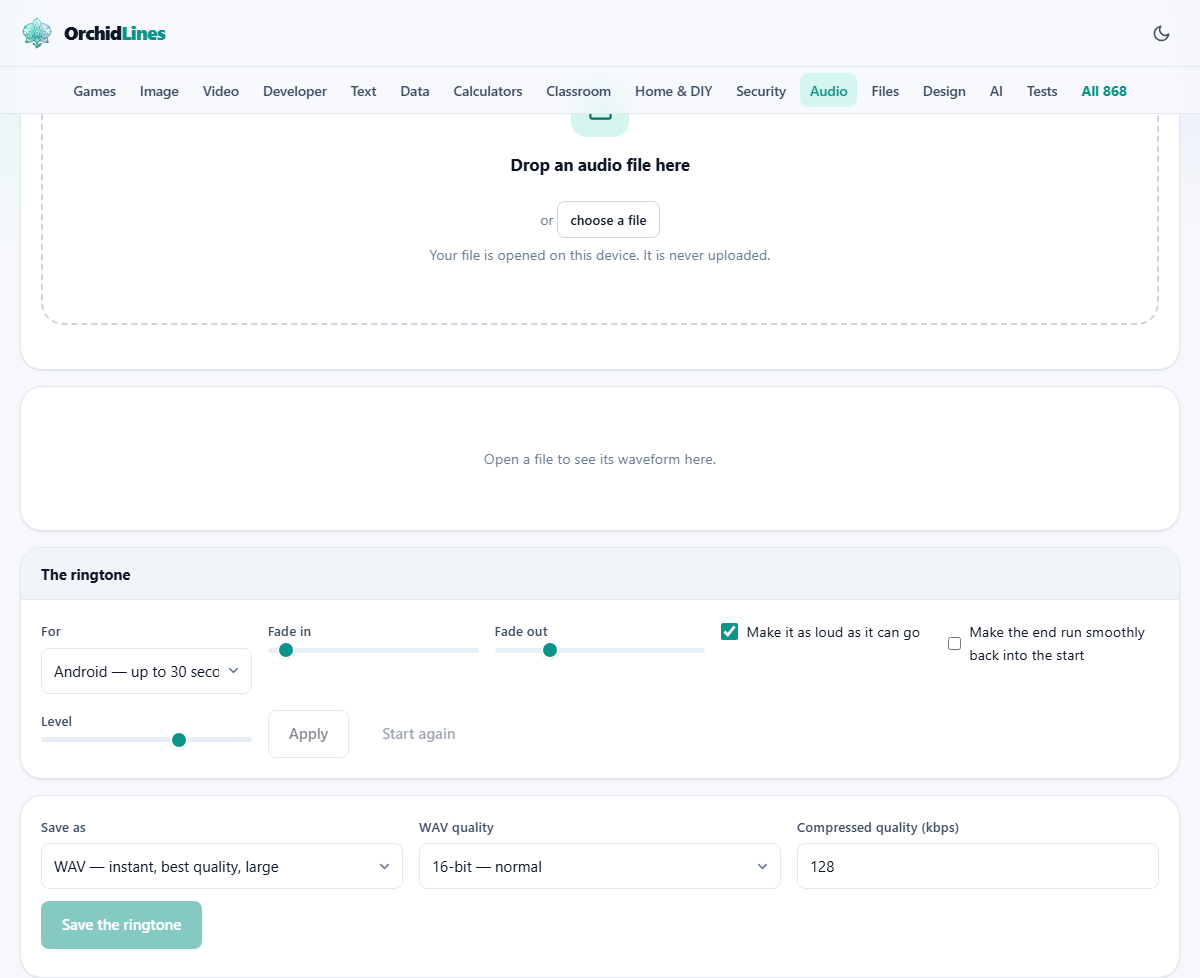
Drag a file into the drop zone or click the button to browse. The page reads MP3, WAV, M4A, AAC, OGG, OPUS, FLAC and WebM audio. The file is decoded inside your browser and drawn as a waveform. Nothing is uploaded.
To select the part you want, drag across the waveform. The times below update to show where your selection starts, where it ends, and how long it is. Press Play to hear it. If the selection is not quite right, drag the edges to adjust. You are looking for a section that sounds complete on its own: a chorus, a hook, or a recognisable phrase. Starting on a strong beat rather than a quiet intro makes the ringtone grab attention the moment the phone rings.
The For dropdown and length limits
The For dropdown tells the tool what the clip is meant for, and each option sets a maximum length. Android ringtones and iPhone ringtones are both capped at 30 seconds. An alarm allows up to 60 seconds. A notification expects just a few seconds. No limit saves whatever you selected without any cap.
If your selection is longer than the limit, the tool trims it to fit rather than refusing to continue. A 45 second selection aimed at a 30 second ringtone becomes 30 seconds. Choose the right target before you apply, and keep your selection close to the limit if you want to keep control of where the cut falls.
Fades, volume and the loop option
Two sliders control the fade. Fade in runs from 0 to 5000 milliseconds, defaulting to 250. This softens the entry so the ringtone does not start with a hard pop. A quarter of a second is enough to kill the click without being noticeable as a fade. Fade out runs from 0 to 5000 milliseconds, defaulting to 1200. A longer fade out lets the ringtone end gently rather than cutting off mid-note.
The checkbox Make it as loud as it can go normalises the clip so the loudest point sits just below full scale. This is useful because a ringtone competes with traffic, conversations and pocket fabric. The louder it is, the more likely you are to hear it. The Level slider underneath adjusts the gain manually, from minus 12 to plus 6 decibels, for fine tuning after normalising.
Make the end run smoothly back into the start creates a crossfade loop. When the phone plays the ringtone on repeat, the end blends into the beginning instead of jumping back. This matters most for music with a steady beat or a sustained note at the tail. Without it, the loop point is a hard restart.
Applying, previewing and resetting
Press Apply and the tool cuts, fades and normalises the clip. The waveform updates to show the processed result. Press Play to hear exactly what will be saved. If the fade is too long or the clip starts at the wrong moment, press Start again to go back to the original and try a different selection or different settings.
Listen on headphones if you can. A ringtone that sounds fine through laptop speakers can have a click or a volume spike that only shows up on close listening. Check the start especially - a pop there will repeat every time the phone rings.
Saving and the format question
The Save as dropdown offers M4A, WebM and WAV. No browser includes an MP3 encoder, so this page loads a small open-source one the first time you choose MP3. M4A is the best general choice. It produces small files, sounds good at 128 kilobits per second, and plays on both Android and iPhone.
WAV quality has three settings: 16-bit for standard, 24-bit for studio and 32-bit float for editing. For a ringtone you will almost never need anything above 16-bit, and you will usually pick a compressed format anyway. Set the bitrate in the Compressed quality field. The default of 128 is fine. Press Save the ringtone and the file goes to your downloads.
Getting it onto your phone
Android is straightforward. Save the file as M4A. Connect the phone to your computer or use a file manager app, and copy the file into the Ringtones folder on the device. Open the phone's sound settings and your new ringtone appears in the list. Android has played AAC files since version 3, so the M4A format works on every Android phone in use today.
iPhone is more involved. An iPhone ringtone is an M4R file, which is just an AAC file with a different file extension. Save the clip as M4A, then rename it from .m4a to .m4r on your computer. Connect the iPhone and open Finder on a Mac or iTunes on Windows. Drag the .m4r file onto the device. The ringtone then appears in Settings under Sounds and Haptics. A website cannot install a ringtone directly because Apple does not allow it. This extra step is a platform restriction, not a limitation of the tool.
A worked example - a 20 second ringtone from a full song
You have a four minute track and you want the chorus as your ringtone. Drop the file in. The waveform shows the whole song. Scroll or zoom to find the chorus, which usually sits around a third of the way through. Drag across the waveform to select roughly 22 seconds starting just before the first word of the chorus.
Set For to Android. Set Fade in to 200 milliseconds and Fade out to 1000 milliseconds. Tick Make it as loud as it can go. Leave Level at 0 and the loop checkbox unticked. Press Apply. The waveform now shows a 22 second clip that starts cleanly and fades out gently. Press Play to check. The chorus stands on its own, and the fade out sounds natural.
Save as M4A at 128 kilobits per second. The file is about 350 kilobytes. Copy it to the Ringtones folder on your Android phone, and it is ready to use.
Common mistakes and fixes
Several problems show up often.
- The ringtone starts with a pop. The selection starts in the middle of a loud passage. Move the start point to a quieter spot or increase the fade in.
- The clip sounds too quiet on the phone. The normalise checkbox was off. Turn it on, or raise the level slider by a few decibels.
- The ringtone stops abruptly. The fade out is set to 0. Add at least 500 milliseconds of fade out so the end is smooth.
- The phone does not recognise the file. On iPhone, the file must end in .m4r. On Android, it must be in the Ringtones folder. Check both.
- The notification tone is too long. Set For to A notification, which caps the length to a few seconds. A notification sound that runs for 20 seconds is more annoying than helpful.
When this tool is not the right one
If you need to record a custom sound rather than cut from an existing track, a voice recorder is the better starting point. Record first, then bring the saved file here to trim and fade it. If you need to change the pitch or speed of the clip, do that in the relevant tool first and import the result. The ringtone maker trims, fades and normalises, but it does not pitch-shift, time-stretch or add effects.
Your music stays on your own machine
The song is opened, cut and saved entirely on your device. The page never sends any audio data over the network. You can confirm this by loading the page, adding a song, and then disconnecting from the internet. The cutting and saving continue to work normally. There is no account, no watermark, and no record of what you trimmed. The file goes from your disk, through your browser's memory, and back to your disk.