
Looking inside a MIDI file and hearing what it holds
How to open a dot mid file, read the tempo, tracks and instruments it was built with, watch the notes on a piano roll, play a plain version of the piece, and pull the raw notes out as data. Along the way, the terms are explained in everyday words.
What a MIDI file holds
A MIDI file is not sound. It is a list of instructions, closer to sheet music than to a recording. Each line says something like turn note 60 on now, then turn it off a moment later. A player makes the actual sound from those instructions.
That is why a whole piece can fit in a few kilobytes, and why the same file can sound quite different on one device and the next. The file names the notes. Whatever plays it supplies the voice.
- Checking what is inside a MIDI file before you use it.
- Hearing a rough idea of how a file plays without opening a full music program.
- Reading the tempo, track and instrument list a file was built with.
- Pulling the raw notes out as data for a spreadsheet or a script.
Opening a file, and why some are turned away
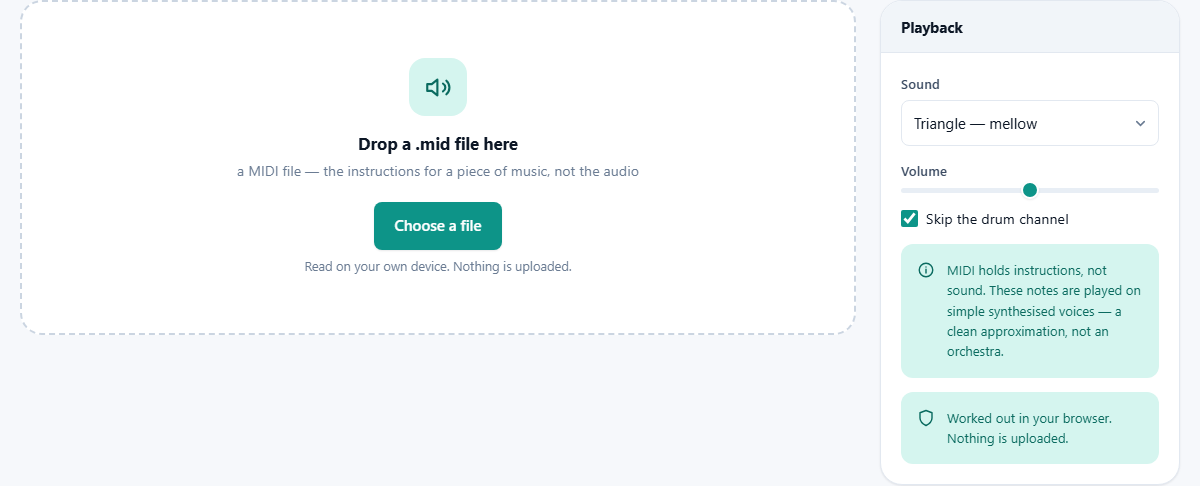
Drop a dot mid file onto the box, or press Choose a file. The details come up at once, and the piano roll draws itself below.
A few files are turned away on purpose, each with a reason. A file that does not begin with the standard MIDI marker, a short code called MThd, is not a MIDI file at all, and the page says so rather than read nonsense out of it. A file that keeps its timing by the clock used on film reels, known as SMPTE timing, is refused too, because playing it here would run it at the wrong speed. And a file with no notes in it has nothing to show, so it is turned back with a plain message.
Once a file is open, a button marked Another file clears it and brings the drop box back, so you can move from one file to the next without reloading the page. Two more buttons sit beside it, Play and Notes as dot tsv, which the sections below cover in turn.
What the file tells you
As soon as a file opens, a panel called The file lists what is inside it. Each row is worth a quick word.
- File is the name you opened.
- Format is the layout. Zero means one single track. One means several tracks that make up one song, and is the common case. Two means separate, independent tracks.
- Tracks and Channels used count the separate streams in the file. A channel is one line of music, so a piano and a bass on their own channels can carry different notes at the same moment.
- Notes is the plain count of notes across the whole file.
- Length is how long the piece plays for.
- Ticks per beat is the timing grid, meaning how finely one beat is divided. A higher number allows finer timing.
- Tempo is the speed in beats per minute. If the file changes speed as it goes, the row shows the range and how many changes there are. If no speed was set, it says so and falls back to 120.
- Instruments lists which sound each channel asked for, by family, such as Piano, Bass or Strings.
Playing it back, and why it sounds plain
Press Play and the file sounds, while a line sweeps across the piano roll to mark the spot. Press it again to stop. A small readout shows the time reached against the total length, so you can see how far through the piece you are.
What you hear is simple, and that is expected. Because a MIDI file holds no sound of its own, something has to make the sound for it. A lifelike result needs a soundfont, which is a large library of real instruments recorded note by note, often hundreds of megabytes in size. Sending one to every visitor would be a heavy download.
So this page uses plain synthesised tones instead. The notes and their timing are exact. Only the tone is simplified, into a clean set of voices rather than a real orchestra. For checking and reading a file that is plenty. For a true to life version you would open the file in a program that has a soundfont installed.
The playback settings
Three settings in the Playback panel shape what you hear. Sound picks the voice: Triangle is mellow, Sine is pure and soft, Square is reedy, and Sawtooth is bright and buzzy. Each is a different flavour of the same simple tone.
Volume slides from 0 to 100 per cent and starts halfway. Skip the drum channel is ticked to begin with, and it is worth knowing why.
In the shared MIDI scheme, one channel, the tenth, is always drums. On that channel a note number picks a drum rather than a pitch, so playing it as ordinary notes sounds wrong. Leaving the tick on keeps the drums out of the way. Clear it if you want to hear that channel too, odd as it may sound.
The piano roll
The piano roll is the picture under the file panel. Time runs from left to right, and pitch runs from bottom to top, so a low note sits low and a high note sits high. Each note is a small bar, and its length is how long the note is held.
Every channel is drawn in its own colour, so you can see at a glance which line carries the tune and which the accompaniment. As the file plays, the notes already reached are shown solid and the ones still to come are faint, with a line marking the exact position.
This view often tells you more than the written score does. A repeat, a key change, or the moment a second part comes in are all plain to the eye.
Exporting the notes as data
The button marked Notes as dot tsv writes every note out as data. A TSV is a plain text table with a tab between each value, which any spreadsheet opens straight into neat columns. The saved file is called notes.tsv.
Each row is one note, with five values: the start time in seconds, the note number, how long the note lasts in seconds, the velocity, and the channel. The note number names the key, where middle C is 60 and each step of one is a semitone. Velocity is how hard the key was struck, which usually sets how loud the note is, from 1 up to 127.
This is the raw material behind the music. You can sort it, count it, chart it, or feed it into another program. It is the fastest way to get at what a file truly contains, with no music program in the way.
A worked example
You open song.mid. The file panel reads Format 1, three tracks, 742 notes, a length of 2 minutes 14, ticks per beat of 480, a tempo of 96 bpm, and four channels used. The instruments line shows a Piano, a Bass and some Strings.
You press Play. A plain but clear version of the piece sounds, and the position line sweeps across the roll. You can watch the bass notes running low and steady in one colour while the piano moves above them in another.
You want the notes as data, so you press Notes as dot tsv and save notes.tsv. Opened in a spreadsheet, it has 742 rows, one for each note, with the start, note number, length, velocity and channel laid out in five columns, ready to sort or study.
For a softer feel you switch Sound from Triangle to Sine and press Play once more. The piece is the same, note for note, but the voice is rounder. None of these choices touch the file itself, only the way this page gives it a voice.
What it does not do
A couple of things people hope for are worth heading off, so you are not left waiting for them.
- Turning a MIDI file into an MP3 or a WAV of a real performance. That needs a soundfont and a separate rendering step, which this page does not carry. A desktop program with a soundfont does it well.
- Sounding like the original track. The notes are right, but the tone is a plain approximation, not the instruments the maker pictured.
- Opening a file that is not standard MIDI, or one that uses film style timing. Both are refused with a clear message rather than played wrong.
- Playing the drum channel as melody. It is skipped by default, because its numbers mean drums, not pitches.
Everything is read on your device
The file is read and played inside your browser, on your own machine. Opening it, drawing the roll, making the sound and writing the notes out all happen there, and the file is never sent anywhere.
To see that plainly, open the page, then take your device offline before you drop a file in. Every part still works, because there was no server in the loop to begin with.
The notes you export are written straight to your disk the moment you press the button. Nothing lingers once you close the tab.