
A steady click for practice, and how to get the most from it
How to set a tempo, hear where each bar begins, split the beat into smaller parts, and use the gradual speed-up mode to take a hard passage up to full pace. Every control is covered by the label you see on the page.
What a metronome gives you
Tempo is measured in beats per minute, or BPM. It is how many steady taps fit into one minute. At 60 BPM a beat falls every second. At 120 there are two beats a second. A metronome plays those beats out loud, evenly, so you have something firm to play against.
A steady pulse is the thing most players lack and most need. Rushing the easy bars and dragging the hard ones is the usual fault, and a click makes it plain the moment it happens.
- Keeping even time while you practise an instrument.
- Setting a fixed speed before you record a part, so it lines up later.
- Drilling a hard passage slowly, then working it up to full pace.
- Feeling an unusual time signature by hearing where each bar starts.
Setting the speed
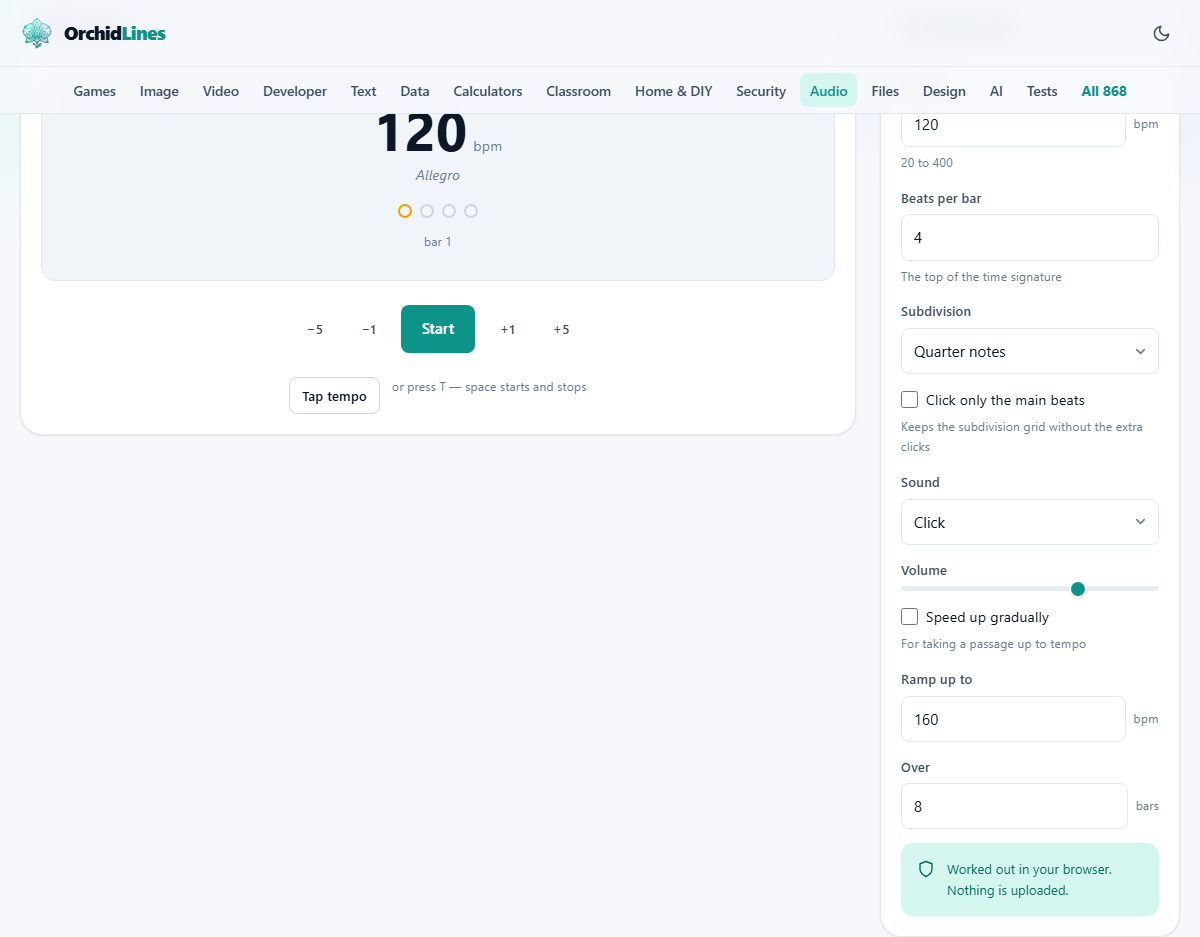
The Tempo box holds the speed, in BPM, from 20 up to 400. Type a number, or use the buttons that sit around the Start button to nudge it. The outer buttons move it by five, the inner ones by one, so you can settle on an exact figure.
If you do not know the speed but can feel it, press Tap tempo in time with the beat. After a few taps the tool works the speed out from the gaps between them and fills the Tempo box in. The letter T does the same as the button. A clumsy tap or two does not spoil the answer, because the middle value of your taps is used rather than the plain average.
Give it four or five taps for a firm reading. If you stop for a couple of seconds and then start again, it treats that as a fresh count, so an old rhythm never bleeds into a new one.
Under the big number sits a word such as Allegro or Andante. These are the old Italian names for speeds. The word changes as you change the tempo, so 120 shows Allegro and a slower 76 shows Andante. You can ignore them, or use them to match a marking printed on a piece of music.
Reading the face
The big round face in the middle shows everything at a glance, so you do not have to look at the settings while you play. The current speed sits in the centre in large figures, with the Italian marking just beneath it.
A ring of dots stands for the beats of the bar, and they light in turn as the click sounds, with the first one set apart as the downbeat. A soft pulse flashes on every beat, and a counter reads the bar you are on. When the speed-up drill is running, the centre figure climbs on its own, so you can watch the tempo rise as you play.
Beats in a bar
Music is grouped into bars, and Beats per bar sets how many beats each bar holds. It is the top number of a time signature, the pair of figures at the start of written music. Four is the common one. Three gives the lilt of a waltz. Seven keeps you on your toes. The range runs from 1 to 16.
The first beat of every bar is the downbeat, and the tool marks it with a higher, stronger click, so you can hear where each bar starts without counting in your head. A row of dots lights up one by one as the beats pass, and a small bar count ticks upward so you never lose your place.
Splitting the beat
A subdivision splits each beat into smaller, even parts, so you can hear the spaces in between. The Subdivision menu offers Quarter notes, which is one click a beat and the plain setting, then Eighth notes for two clicks a beat, Triplets for three, and Sixteenth notes for four.
Subdivisions are the cure for uneven rhythm. If your off beats come out lopsided, set Eighth notes and you can hear exactly where each one belongs. Once they are even, tick Click only the main beats. That keeps the same inner grid but silences the extra clicks, so you feel the subdivision without hearing every part of it.
The sound and how loud
The Sound menu picks the click itself. Click is a sharp, plain tick. Wood block is warmer and rounder. Beep is a clean tone. Tick is the thinnest and highest. Try each one against your instrument, since a click that cuts through a piano can vanish under a drum kit.
Volume slides from 0 to 100 per cent, and starts at 70. Set it loud enough to hear over what you are playing, but no louder. Past that point the click starts to fight the music rather than guide it.
The gradual speed-up drill
This is the setting that lifts the tool above a plain click. Tick Speed up gradually and the metronome climbs from your starting tempo to a faster one, a little at a time, while you play.
Two boxes steer it. Ramp up to is the speed you are heading for. Over is the number of bars the climb should take, from 1 to 200. So a start of 80, a Ramp up to of 120, and an Over of 16 walks you from 80 up to 120 across sixteen bars, then holds there.
The rise is smooth and even across those bars, not a jump, so there is no single moment where the speed leaps ahead of you. This is the surest way to get a hard passage clean. You play it slow enough to be right, and the speed creeps up so gently that each bar feels barely quicker than the last, until you are at full tempo without ever having fought for it.
A worked example
Say a run of notes keeps falling apart at full speed. You set the Tempo box to 80, where you can play it cleanly, and Beats per bar to 4. You leave the Sound on Click and press Start, or tap the space bar.
The first beat of each bar clicks higher than the rest, the dots sweep across, and the bar count climbs. You play the run a few times through until it is easy and even.
Now you tick Speed up gradually, set Ramp up to 116, and set Over to 24. You press Start again and begin to play. The live number creeps upward, bar by bar, and by the time it reaches 116 the run is still under your fingers. If a spot trips you, drop the target back a few and run it once more.
Once the run holds at 116, you can push further. Raise Ramp up to 132 and go again, or clear the tick and set the Tempo box straight to full speed to test yourself cold. Either way, the slow and even start is what carried you there.
Common mistakes, and what to do
- Practising at the speed you wish you had, not the one you have. Start where you can play it right, even if that feels slow. The drill takes you up from there.
- Setting the volume so high the click hides your own playing. Turn it down until it sits just above the music.
- Counting a waltz in the wrong grouping. Beats per bar is the top of the time signature, so a waltz is three, not four.
- Reaching for an odd meter and forgetting the subdivision. For a six eight feel, use six beats with the Eighth notes setting, or two beats with Triplets, depending on how you count it.
- Wondering why it went quiet when you clicked away. It stops on purpose when the tab loses focus, which the last part explains.
When another tool fits better
- To find the speed of a track you want to play along with, a tempo finder reads the BPM straight from the recording.
- To turn a tempo into echo and delay times in milliseconds, a delay time calculator does that sum for you.
- To practise against a real backing track rather than a bare click, play the track in a player and use this only to check the speed.
- To tune up before you begin, an instrument tuner is the page for pitch rather than pulse.
On your device, and why it stops when you leave
The metronome makes its sound inside your browser, from short tones built on the spot. There is no file to load and nothing to send anywhere, so it runs with the network switched off once the page has loaded.
It leans on the audio hardware's own clock to stay in time, which is why it does not drift the way a plain timer would. That same care is why it stops the moment you switch to another tab. A background tab is slowed right down by the browser, and a click that quietly loses time is worse than one that stops. So it stops, and it says so, rather than pretend to keep time.
Nothing about your practice is recorded or kept. Close the tab, and there is nothing left behind.