
Timing lyrics by tapping along, then lining them up
How to load a song, paste its words, and give each line a time by tapping in beat with the singer. You will also see how to fix the small delay that every tapper leaves behind, how to build a word by word karaoke file, and how to save the result.
Turning one tap into 01:23.28
Press T and the page asks the player one thing: where are you now? The answer comes from the audio itself, as a plain count of seconds. Say it comes back as 83.4267. That raw reading is what the line keeps for the rest of the session.
The shift is added next. The box is in ms, so its number is divided by 1000. With the box on minus 150 that is minus 0.15 seconds, and 83.4267 minus 0.15 leaves 83.2767.
Now comes the step that keeps the clock honest. The time is turned into whole hundredths of a second first, and only then split up. 83.2767 times 100 is 8327.67, which rounds to 8328 hundredths. Minutes are 8328 divided by 6000, whole part only, so 1. Seconds are the 2328 left over, divided by 100, so 23. The two digits that remain are 28. The line is saved as [01:23.28].
Do those steps the other way round and you meet the old clock bug. Pick the minute first and round the seconds after, and 59.999 seconds prints as 00:60.00. Working in hundredths from the start makes that 6000, which reads 01:00.00, as it should.
Minutes are never wrapped at sixty. A tap an hour into a set puts 62 in the minutes slot, so 3730.5 seconds is written as [62:10.50]. A long live recording still reads in order. Times also stop at zero: tap at 0.08 seconds with the shift on minus 150 and the sum goes below zero, so it is pinned to [00:00.00].
The subtitle file counts the same instant a different way. Hours are kept, and the fraction runs to thousandths after a comma. Our tap becomes 00:01:23,277. If the next line was tapped at 87 seconds, the block reads 00:01:23,277 --> 00:01:26,850, since both ends carry the same shift.
End times get two checks. An end that runs past the length of the song is pulled back to the length of the song. An end that lands on or before its own start is pushed to half a second after it. Say the last line is tapped at 200.5 seconds in a song of 202 seconds. Four seconds would take it to 204.5, past the end, so it is cut back, and the block reads 00:03:20,350 --> 00:03:21,850.
- The shift box moves by 10 with its own arrows, and the two buttons beside it move 50. It is set to take anything from minus 5000 to 5000 ms.
- Every time you see in the row list has the shift in it already, so the list and the saved file always agree.
- In word mode the first tap on a line sets the line time and the first word time to the very same number. Word times go in angle brackets, line times in square ones.
- A line you never tapped is left out of both saved files. Half a timed sheet gives you half a file.
- The last line of the song has no next line to end on, so it is given four seconds before those two checks run.
The strip, the running order, and pasting a file back
The picture under the player is built once, as the song is read. It is cut into 1200 columns, and each column keeps the lowest and the highest sample it covers rather than an average. That matters: an average of a wave sits near zero and draws a flat line, which is why so much waveform art looks dead on quiet parts. For a song of 200 seconds, one column stands for about a sixth of a second.
So the strip is a sketch, not a microscope. It is there to show you verses, gaps, and where the loud part starts. Clicking it seeks by pixel, so on a strip 800 pixels wide that same 200 second song moves about a quarter of a second per pixel. Click to land near, then let your ears do the last bit.
Running order matters more than it looks. The lyric file is written in the order your lines sit in the list, not in time order. The subtitle file sorts by time before it writes. So if you skip about and stamp lines out of turn, the saved lyric file can hold times that run backwards while the subtitle file still looks tidy.
The big line under the strip is a live check on your work. It shows the last line whose time has gone by, with the shift taken off again, which is the same sum a music player does with the file you save. It also reads down the list in order, so times that are out of turn fool it in the same way they fool the file.
Pasting a finished file back in holds one trap. The times are read out of the file, but the shift box is not touched. If it still says minus 150 from your last run, saving again takes off another 150 ms, and the words creep early. Set the box to 0 before you paste back a file that was shifted once already.
Four tags are understood on the way in: ti, ar, al and by. They fill the fields and drop out of the list. Any other bracket line is kept as a lyric, because the page has no way to tell it from one. A word by word file comes back with its angle bracket marks sitting inside the text, since only the mark at the head of a line is taken off.
- A blank line between verses gets a time in the lyric file, but it is dropped from the subtitle file, which needs words to show.
- In word mode the words are split on spaces and joined again with one space, so double spacing you typed is flattened.
- Once every line has a time, more taps do nothing until you step back or clear.
- If the browser cannot read the audio, the strip is dropped and the player and the timing carry on without it.
- One pixel of the strip shows one column, so on a narrow window some of the 1200 columns are simply skipped.
- The saved name is taken from the Title, with these marks turned into a dash: backslash, slash, colon, star, question mark, quote, angle brackets and bar. An empty title saves as lyrics.lrc.
- Nothing here listens for the beat. The page never compares a tap with the singing; it only writes down the moment you pressed.
What a synced lyric file is
An LRC file is a plain text file that holds the words of a song with a time stamped in front of each line. A music player reads it and shows each line at the moment it is sung, so the words move in step with the music. The name is just the file ending, dot lrc.
Typing those times by hand is slow and never quite right. This page lets you tap them in while the song plays, which is faster and lands closer, because you can hear whether a line falls where it should.
- Lyrics that scroll in time inside a music player that supports them.
- A karaoke screen that lights up each word as it comes.
- A learner who wants a song's words to follow along line by line.
- A home music library where you simply like to see the words.
Loading the song and pasting the words
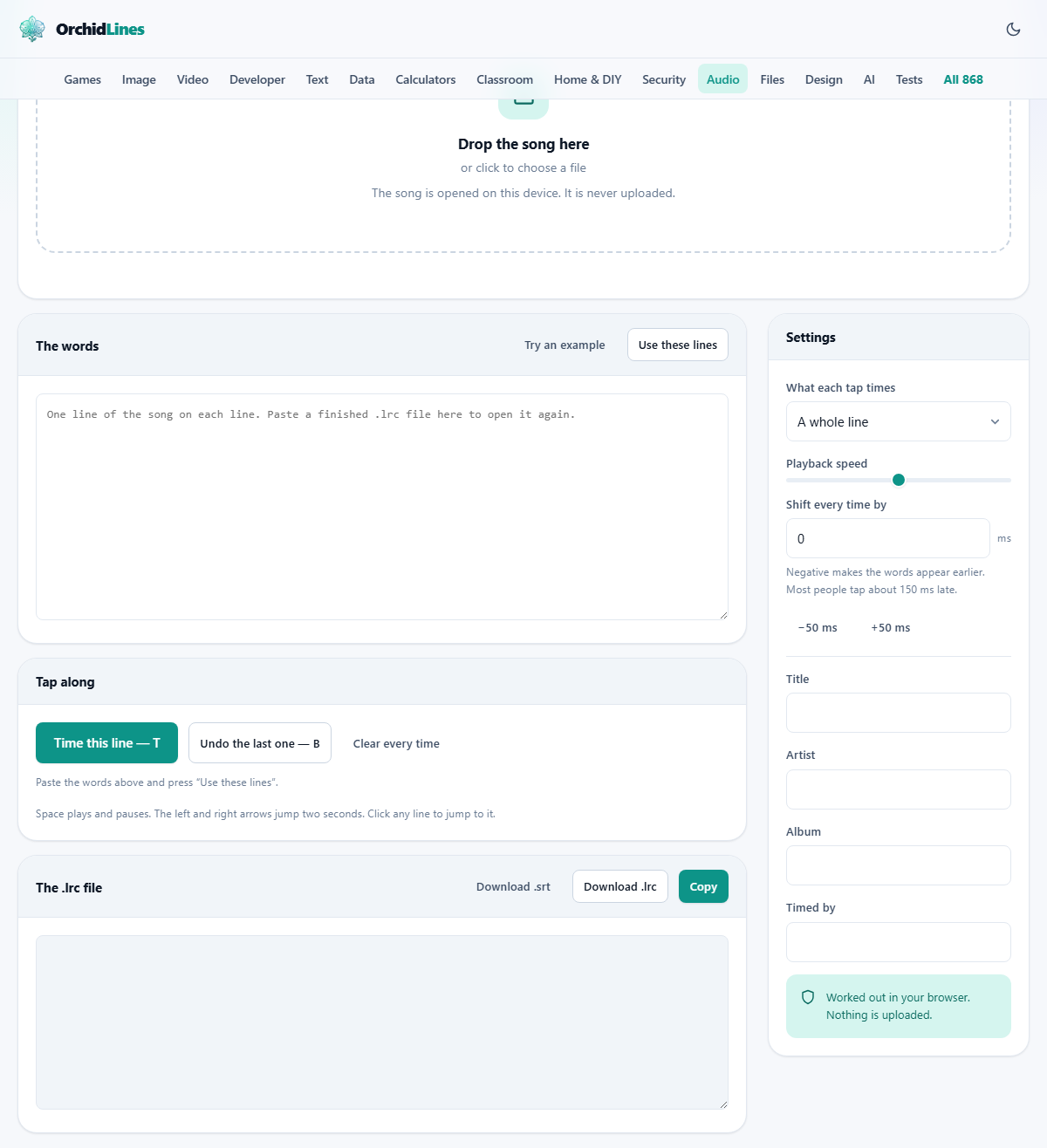
Drop the song onto the box, or click to choose it. A player and a thin waveform strip appear, and the Title field fills in from the file name on its own.
Type or paste the words into the box marked The words, one line of the song on each line of the box. Then press Use these lines. Each line turns into a row below, waiting for a time.
Two shortcuts help here. Try an example loads a short set of sample words, so you can see the shape of the job before you start. And if you already have a finished dot lrc file, paste its whole contents into the box and press Use these lines. The page reads the old times back out, so you can pick up where you left off.
Tapping each line in
This is the heart of the tool. Play the song, and at the moment each line begins, press the button marked Time this line. Its keyboard shortcut is the letter T, which is far easier than reaching for the mouse while the song runs on.
Missed one? The button marked Undo the last one steps you back a line, with the letter B as its shortcut. Clear every time wipes them all so you can start over. A counter shows how many of your lines are timed so far.
The space bar plays and pauses. The left and right arrows jump two seconds back or forward, handy for a second run at a line you fluffed. You can also click any line in the list to send the song straight to it.
The line waiting for its time is picked out in the list, so you always know which one the next tap will mark. Once a line has a time, that time shows beside it, and a mark for it appears on the waveform strip.
Blank lines earn their keep. Leave an empty line between verses, and it takes a time of its own, which clears the last line off the screen during the gap rather than leaving it to hang there.
A whole line, or one word at a time
The setting What each tap times decides what a single press of T marks. Left on A whole line, each tap times one line, which is what most lyric files ask for.
Switch it to One word at a time, and the tool builds a karaoke file instead. Now each tap times a single word, so a player can light the words up one by one as they are sung. This is sometimes called enhanced or word level LRC. The file still marks the start of each line, and adds a time in front of every word within it.
Word timing is a great many presses. A four minute song holds hundreds of words. The sound plan is to time the lines first, check they are right, and only then switch to words for the parts that truly call for it.
Slowing the song, and fixing the delay
Two settings make the tapping easier and the result tighter. Playback speed slides from 50 to 150 per cent. Pulling it down to seventy gives your hands more room when the words come thick and fast. It does not change the times that get stored, because those are read from the song's own clock, not from the speed you chose.
The other setting is Shift every time by, measured in ms, which is short for milliseconds, or thousandths of a second. Almost everyone taps a shade late, since you press once you have heard a word, not before it. A negative shift moves every time earlier to make up for that. Most people need about minus 150. Two buttons, minus 50 ms and plus 50 ms, nudge it while you listen.
The shift is written into every time stamp itself. The lyric format does carry a tag meant for this, but players disagree about which way it should move the words, so leaning on it is a gamble. Folding the shift into the times means the file behaves the same wherever it is opened.
The tags, and the two files you can save
A few text fields hold the details a player likes to show: Title, Artist, Album, and Timed by, which is your own credit for the work. The title starts from the file name, and you can change it to anything.
The finished file builds in a box as you go, and there are three ways to take it away. Copy places the text on your clipboard. Download dot lrc saves the standard lyric file. Download dot srt saves a subtitle file instead.
An SRT is the subtitle format that video uses. A lyric line only has a start, but a subtitle needs a start and an end, so the page works each end time out from where the next line begins. The last line is given four seconds. The saved file is named from your title, so a song titled Rainfall comes out as Rainfall.lrc or Rainfall.srt.
A worked example, start to finish
You open morning.mp3. The Title field fills with the word morning. You paste four lines of the song into The words and press Use these lines, and four rows appear below, each showing dashes where a time will go.
You press play and tap T as each line begins. The counter climbs to four of four lines timed, and a mark for each tap shows up on the waveform strip. Playing it back, the words feel a touch late against the voice.
So you set Shift every time by to minus 150, or tap the minus 50 button three times, and play again. Now each line lands right as the singer starts it. You press Download dot lrc, and save morning.lrc beside the song with the same name, so a player pairs the two on its own.
If you wanted the same words as video subtitles instead, you would press Download dot srt from the same panel. The page turns your four start times into four subtitle blocks, each one running until the next line begins, and hands you morning.srt to drop onto a video.
Common mistakes, and what to do
- Tapping for perfect and landing late. A line that shows a shade early reads as correct. A line that shows late reads as broken, because you have already heard the words. Aim early.
- Forgetting to press Use these lines after pasting. The words only become timed rows once you do. Nothing happens before that.
- Timing every word from the very start. Do the lines first. Words are for the parts that need the extra polish.
- Leaving the shift at zero and wondering why it drags. Set it near minus 150 and then trim it by ear.
- Renaming the saved dot lrc so it no longer matches the song. Many players pair them by name, so keep the two the same.
When another page is a better choice
- For subtitles on a video rather than lyrics on a song, a proper subtitle tool gives you more say over where each line ends.
- To trim the song to a single verse before timing it, the Audio Cutter does that job first.
- To slow a song down and keep it slow, rather than only while you tap, the speed changer writes out a slower copy.
- To write the words down by ear in the first place, do that in a text box somewhere, then bring them here to time.