
Turning a tempo into times you can type into an effect
This page takes one number, the speed of a track, and turns it into every time figure an effect box might ask for. Below you will find what each field on the right does, how to read the tables it fills in, and a full example worked through with real numbers.
Why an echo needs a number and not a guess
An echo effect asks you one question: how long should it wait before it repeats? Answer with a time that matches the beat and the repeats land with the drums. The part sounds wider and busier, but still tidy. Answer with any other number and the echo fights the beat. It sounds like a mistake, because it is one.
Tempo is measured in beats per minute, shortened to BPM. It counts how many beats fit into a minute. At 120 BPM there are two beats every second, so one beat lasts half a second, or 500 milliseconds. A millisecond is one thousandth of a second.
People open this page for very different jobs. A guitar part needs an echo that sits between the beats. A radio advert needs a reverb tail that stops before the voice comes back. An engineer needs to know how far to hold back a speaker at the rear of a hall. All three answers come from the same sum.
The tempo field
Tempo is the only figure the page truly needs. It starts at 120 and accepts anything from 1 up to 1000. Decimals are allowed and they matter. A track made at 128.4 is not a track made at 128, and after four repeats the gap between those two answers is easy to hear.
Type zero or below and the figures are replaced by a short message asking for a tempo above zero. Go past a thousand and you are told that no delay will take a figure that high. Nothing breaks; the page waits for a sensible number. Everything else is built on this field, so a wrong tempo quietly makes every row wrong.
The note menu and the feel menu
The menu called the note you are setting holds seven lengths: whole, half, quarter, eighth, sixteenth, thirty-second and sixty-fourth. It opens on eighth note. Each step down the list halves the time, so if you know one you know them all.
Under it sits a menu marked straight, dotted or triplet. Straight is the plain length. Dotted makes the note half as long again, so a dotted eighth lasts three quarters of a beat. Triplet cuts it to two thirds, which packs three notes into the space of two.
The difference is easy to hear once you know what to listen for. A straight eighth echo repeats right on the half beat and can vanish into the drums. A dotted eighth echo lands just off the beat, which is why so many big guitar sounds use it. A triplet echo rolls, like a horse trotting. Picking the wrong one of these three is the most common slip in this whole subject.
The four supporting fields
The rest of the panel changes single rows rather than the headline. None of them can spoil your main answer.
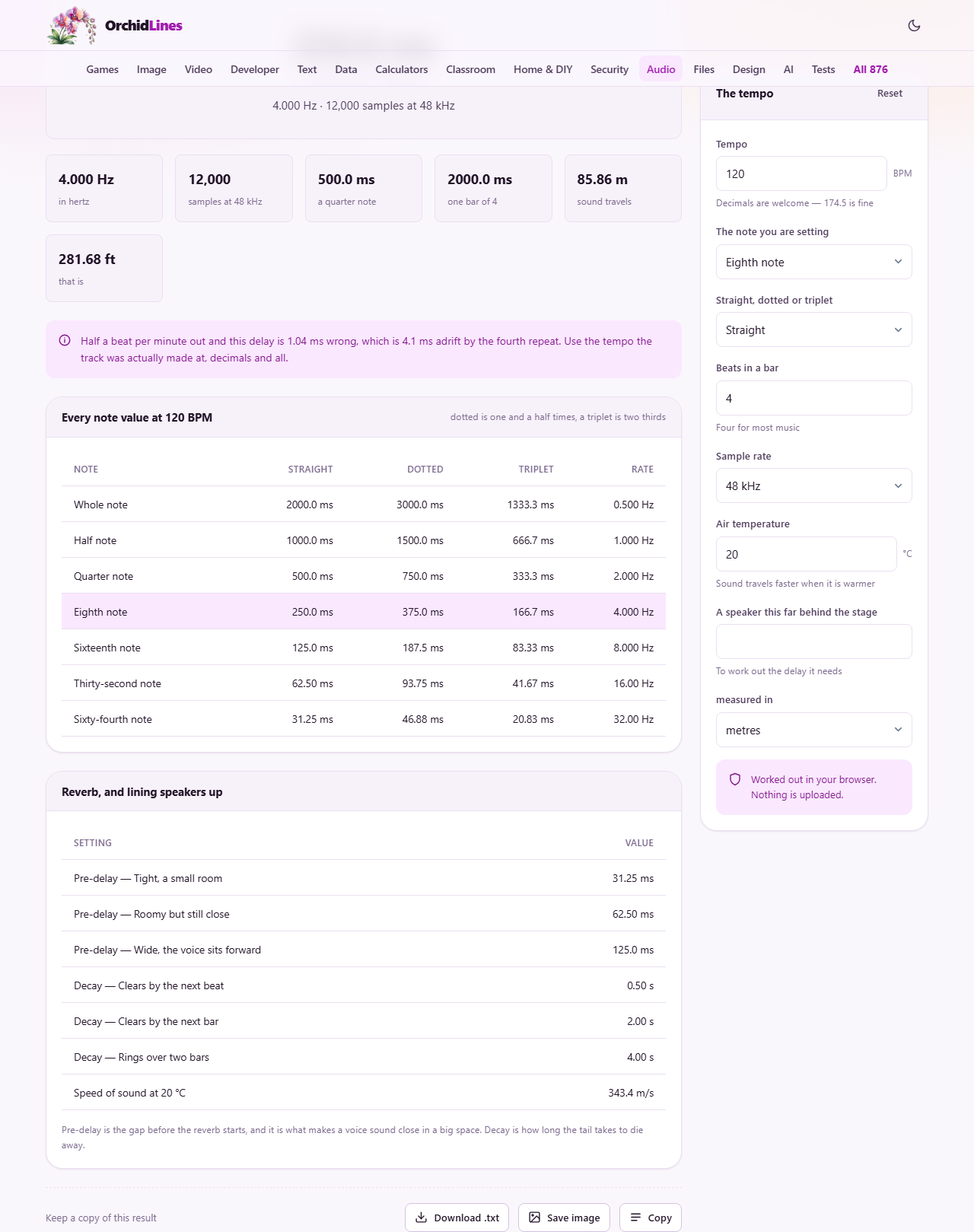
- Beats in a bar takes a whole number from 1 to 16 and starts at 4. It only feeds the one bar figure and the two longer reverb decay rows. Set it to 3 for a waltz or 7 for something odd.
- Sample rate offers 44.1 kHz, 48 kHz and 96 kHz, and opens on 48. A sample rate is how many times per second the sound was measured when it was recorded. This field only changes the sample count, which some old effects ask for instead of a time.
- Air temperature runs from -40 to 60 degrees Celsius and starts at 20. Sound moves faster through warm air, so this field feeds the speed of sound row, the two distance figures and the speaker delay.
- A speaker this far behind the stage is empty when you arrive. Type any distance above zero and a new highlighted row appears with the delay that speaker needs. The small menu under it switches between metres and feet.
Everything the page gives back
The big figure at the top is your chosen note in milliseconds. Under it a label repeats what it stands for, such as a dotted eighth note at 128.4 BPM, and below that the same length appears as a rate in hertz and as a number of samples. Hertz counts how many times something happens in one second, so it is the natural unit for anything that wobbles rather than waits.
Six small figures follow: the rate in hertz, the sample count, a plain quarter note, one full bar, and how far sound travels during your chosen note in metres and in feet. A tinted note then warns how far out the answer would be if the tempo were half a beat wrong.
Then comes a table with a row for each of the seven note lengths and columns for straight, dotted, triplet and rate. The row you picked is highlighted. Many people never touch the menus and simply read the number they want out of that grid.
A full run at 128.4 beats a minute
Say a friend sends you a track made at 128.4 BPM and you want the classic off-beat guitar echo. Type 128.4 into the tempo field, leave the note on eighth note, and set the feel menu to dotted.
The headline reads 350.5 ms. Under it the rate shows as 2.853 Hz, and the sample count as 16,822 samples at 48 kHz. Among the small figures, a quarter note is 467.3 ms and one bar of 4 is 1869.2 ms. Sound travels 120.35 m during a single repeat, which is 394.85 ft.
The tinted note says that being half a beat out would make this delay 1.36 ms wrong, and 5.4 ms adrift by the fourth repeat. That sounds tiny. On a long tail it is the reason the last echo drifts off the beat.
Type 350.5 into the delay box in your software and the job is done. If your delay counts in hertz instead, use 2.853. If it counts in samples, use 16,822 and make sure it is running at 48 kHz.
The reverb panel underneath
Reverb is the wash of sound a room adds after a note. Two of its controls can be worked out from tempo, and the second panel does both.
Pre-delay is the short gap before that wash starts. It is what makes a singer sound close even in a huge space. The panel offers three: tight for a small room, roomy but still close, and wide so the voice sits forward. At 120 BPM those come out as 31.25 ms, 62.50 ms and 125.0 ms.
Decay is how long the tail takes to fade away. The three rows offer a tail that clears by the next beat, one that clears by the next bar, and one that rings over two bars. At 120 BPM in four, that is 0.50 s, 2.00 s and 4.00 s. Pick the first for a busy mix and the last for something slow and empty.
Lining up a speaker at the back of a room
In a long hall the people at the back sit too far from the stage. Extra speakers fix the volume, but they also arrive before the sound coming down the room, and the ear notices at once. Holding the far speaker back by the travel time puts everything in step.
Type 12 into the distance field with metres selected. At 20 degrees the row reads 34.94 ms and the speed of sound row shows 343.4 m/s. Change the temperature to 30, because the hall is full and warm, and the answer drops to 34.34 ms. Switch the unit menu to feet and type 40 instead, and you get 35.50 ms, which fits, since 40 feet is a shade over 12 metres.
Keeping a copy of the answer
Under the result sits a small bar offering three buttons: Download .txt, Save image and Copy. The text file and the picture both carry the headline, a list of the values you typed, the summary figures, the warning note and the full seven row table. The name follows the tool and the date, so a file saved today arrives as delay-and-reverb-time-calculator-2026-08-10.txt.
Worth knowing: the reverb and speaker panel is not included in that saved copy. If those rows matter, write them down or take a screen shot of that panel as well.
Where people go wrong
- Mixing up dotted and triplet. A dotted eighth is three quarters of a beat. An eighth triplet is one third. They are nothing alike.
- Using a rounded tempo. If the track was made at 97.7, typing 98 puts every figure slightly out and long tails suffer most.
- Setting a fixed time on music played by hand. A band speeds up and slows down, so a time that fit the first bar slides out of place later. Use fewer repeats, or an effect that follows the tempo.
- Typing the milliseconds into a box that wanted hertz. If the effect asks for a rate, take the hertz figure instead.
- Reading the sample count while your project runs at another sample rate. Set the menu to match the project first.
When a different page is the right one
This page cannot listen. If you do not know the tempo of a track, the BPM and Tempo Finder will work it out from the audio itself, and then you can bring the number here. If you want to play along at a set speed, the Metronome is the page you want.
It also changes nothing. No audio goes in and none comes out. To cut, join, level or convert a recording, the audio tools handle that; this one only does the arithmetic that tells them what to do.
Sums done where you are sitting
There is no file to hand over here. Your browser runs the arithmetic as you type and redraws a moment after you stop.
One thing is kept: your last set of values is saved in your browser's own storage, on your machine, so the next visit opens where you left off. It never travels anywhere. Clearing the site data from your browser removes it completely.