
Sorting out left, right and mono in a recording
A guide to the report this page prints about your file, what each of the eight operations really produces, a two step repair of a one sided interview, and the traps that turn a stereo file into a thin one.
The faults it was built for
Stereo means the file carries two separate signals, one meant for each ear. Mono means it carries one, sent to both. Most everyday sound trouble is really a muddle between those two.
The page starts by describing what you have before it offers to change anything, which is the part that saves you from guessing.
- An interview where the microphone went into one input and half the recording is nearly silent.
- A video whose sound only reaches one earphone.
- A talk that has to be handed in as mono because the platform asks for it.
- A file that says stereo but holds the same thing twice, at double the size for no gain.
- A track that goes thin and hollow the moment anyone plays it on a single speaker.
The report that appears first
Drop a file on the panel and it is decoded at once. MP3, WAV, M4A, AAC, OGG, Opus and FLAC all open, because your browser can already unpack them. One it cannot read, .wma being the usual example, stops there with a short message under the drop area. Something that is not audio at all is skipped with a note about the wrong type.
What comes back is a short list: File, Channels, Length and Sample rate. Channels reads Mono (1) or Stereo (2). Sample rate is how many measurements a second the recording holds, so 44,100 Hz is the compact disc figure.
For a stereo file three more rows appear, and they are the interesting ones.
- Left level and Right level, in decibels. This is average loudness across the whole recording, not the single loudest moment, so it describes how the side sounds overall. Zero is the ceiling and everything real sits below it, so minus 20 dB is ordinary and minus 60 dB is close to nothing.
- Channel correlation, a single figure between minus one and plus one. It says how alike the two sides are. Near plus one they are carrying the same thing. Around zero they are genuinely different, which is what real stereo looks like. Near minus one they are mirror images of each other.
The notice, and what it is telling you
When those figures deserve comment, a blue note appears under them. It only shows up when one of four things is true, so no note means nothing stood out.
Above 0.98 correlation you are told the sides are almost identical: a mono recording stored as stereo. Converting it to mono throws away nothing and halves the size.
Below minus 0.5 you are warned that they are largely out of phase. Phase is which way the sound wave is pushing at any instant. When one side pushes as the other pulls, adding them cancels much of the sound, and you get near silence instead of a mix.
If one side is more than 20 dB quieter than the other you are told so, and pointed at the two step fix: pull out the good side, then spread it across both.
Every entry in the Operation menu
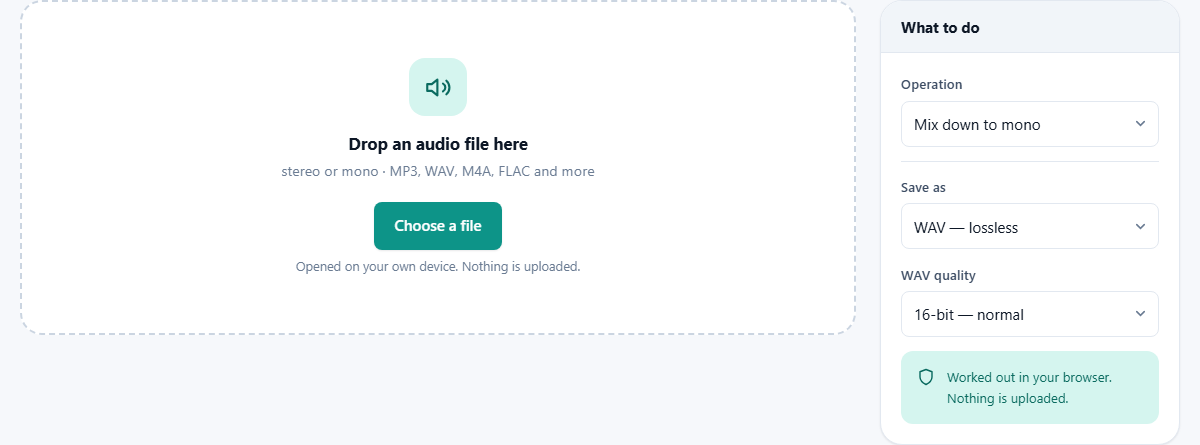
The menu sits in the panel on the right and changes the result the moment you pick from it. Under the menu the page states what it did, along with whether the result is mono or stereo and how long it is.
- Mix down to mono. A true average of both sides, not a copy of one of them. Out comes a single channel.
- Mono to stereo, same on both sides. Puts one signal on both sides so it reaches both ears. Feed it a stereo file and it averages first, then copies that.
- Swap left and right. The sides trade places, and the result stays stereo.
- Keep only the left channel, and Keep only the right channel. One side is lifted out on its own, and the result is mono.
- Invert the left channel's phase, and the same for the right. One side is turned upside down while the other is left alone. This is the repair for the out of phase warning, not an effect.
- Difference, left minus right. Whatever both sides share is cancelled out and only what differs survives, in mono. On a finished song that often means the centred voice disappears, which is the old and rather crude karaoke trick.
What needs two channels
Six of the eight only make sense on a stereo file. Ask for a swap, an extract, an invert or a difference on a mono recording and the page says the operation needs a stereo file and this one is mono. The save button switches off until you pick something that fits.
Only two work on anything. Mix down to mono leaves a mono file as it was. Mono to stereo is the one you want after an extract, and it is how a single sided recording gets both ears back.
One habit is worth learning early. Every operation is applied to the file you opened, never to the result of the last one. To run two in a row, save the first result, then open that saved file and run the second.
Two pictures, before and after
Under the report sit two drawings of the sound, one of the original and one of the result. Each channel gets its own row and its own colour, so a stereo file shows two rows and a mono one shows a single row.
This is the fastest way to check that you picked the right thing. A swap makes the rows exchange shapes. An extract collapses two rows into one. An invert flips a row, so its peaks point where its dips used to. It is also how you spot a nearly empty channel: one fat row and one almost flat line means a single microphone did all the work.
There is no playback on this page, so listening means saving the file and opening it. The pictures are there to make sure you only have to do that once.
A one sided interview, repaired
A file called interview-raw.wav is dropped in. The report reads Stereo (2), 24:18.00 long, 44,100 Hz, Left level minus 21.4 dB, Right level minus 68.9 dB, Channel correlation 0.02. The notice says the right channel is far quieter and the source may have been plugged into the left input only.
Step one. Choose Keep only the left channel. The line under the report reads Left channel extracted as mono, mono, 24:18.00, and the lower drawing collapses to a single row. Leave Save as on WAV, leave WAV quality on 16-bit, and press Save the result. The download is called interview-raw-left.wav.
Step two. Press Another file, open interview-raw-left.wav, and this time choose Mono to stereo, same on both sides. The report now reads Mono (1), and the result line says it was spread to both channels. Save again and you get interview-raw-left-stereo.wav.
That file plays in both ears and holds no dead channel, and neither save made you wait, because WAV is written straight from the samples. Notice how the names build up as well: each save adds the operation to the end, which keeps the trail obvious a week later.
Saving, and which format to pick
Save as offers WAV first, then whichever compressed formats your browser is able to write. The two quality controls swap themselves in and out to match: pick WAV and you get the bit depth menu, pick anything else and you get the quality box instead.
WAV quality means how finely each measurement is stored. 16-bit is the normal choice and opens anywhere. 24-bit is the studio habit. 32-bit float is for material heading into more editing.
WAV is lossless and instant, so it is the right answer whenever the file is going on for further work. A compressed save is different: it has to be recorded as it plays, so a twenty four minute interview takes about twenty four minutes, and the status line counts the percentage while it runs.
Remember too that every trip through a compressed format throws a little detail away for good. If the source was already an MP3, saving as WAV will not bring back what is missing.
Mistakes that cost the most
- Mixing to mono without reading the correlation. If it is well below zero the mix will cancel itself out. Invert one side first, save, reopen and then mix.
- Treating a quiet side as damage. Some recordings put an audience or a room mic on one side on purpose. Listen before you throw half of it away.
- Delivering an extracted channel as it is. It is mono, so on some players it will only come out of one speaker. Follow it with Mono to stereo.
- Hoping the difference option will give you a clean backing track. It also removes the bass and everything else sitting in the middle.
- Chaining operations in your head. The tool always starts again from the file you opened, so a second step needs a save and a reopen.
- Reaching for a compressed format on a working copy. WAV costs disk space and nothing else.
When a different page is the right one
- For a proper attempt at pulling a voice out of a finished song, use the dedicated Vocal Remover instead of the difference option.
- If one side is only a little quieter than the other, Volume and Normalise is the gentler fix.
- If you want mono plus a format or sample rate change in one go, the Audio Converter does all three in a single pass.
- If a platform has given you a loudness target, the Loudness Meter measures the thing they are asking about, and to place a voice over music the Voiceover and Music Mixer is the page built for it.
Nothing is sent anywhere
The file is opened by your browser, held in memory, changed there and written back to your downloads. No copy is posted to a server, and there is nothing to sign into. That matters here more than on most pages, because the files people bring are interviews, legal recordings and unreleased music. A recording that never travels cannot be intercepted or kept.
The practical limit is your own memory rather than any rule we set. The recording is held in full while you work, so an hour of stereo audio is comfortable on a laptop and a four hour meeting may not be. If you hit that wall, cut the recording into parts first and treat them one at a time.