
Getting a trustworthy tempo out of a track
What the beat detector actually listens for, how the two speed sliders and the three analysis choices change its answer, a full reading with real numbers, and how to use your own foot when a song refuses to give up its pulse.
The number, and who needs it
Tempo is measured in beats per minute, usually shortened to BPM. It is simply how many steady pulses fit into a minute. At 60 BPM there is one beat every second. At 120 there are two.
Almost every job that puts music next to something else needs that figure written down. A dance teacher choosing tracks that will not exhaust a class. A drummer setting a click. An editor cutting a video so the picture changes land on the beat.
- Lining up two songs so one can follow the other without a stumble.
- Setting a metronome to match a recording you are learning by ear.
- Filling in a tempo field on a sample pack, a stock music listing or a project file.
- Working out the delay and echo times that will sit in time with a track.
- Checking that an exported mix came out at the speed you meant it to.
Opening a track, and what it tells you about it
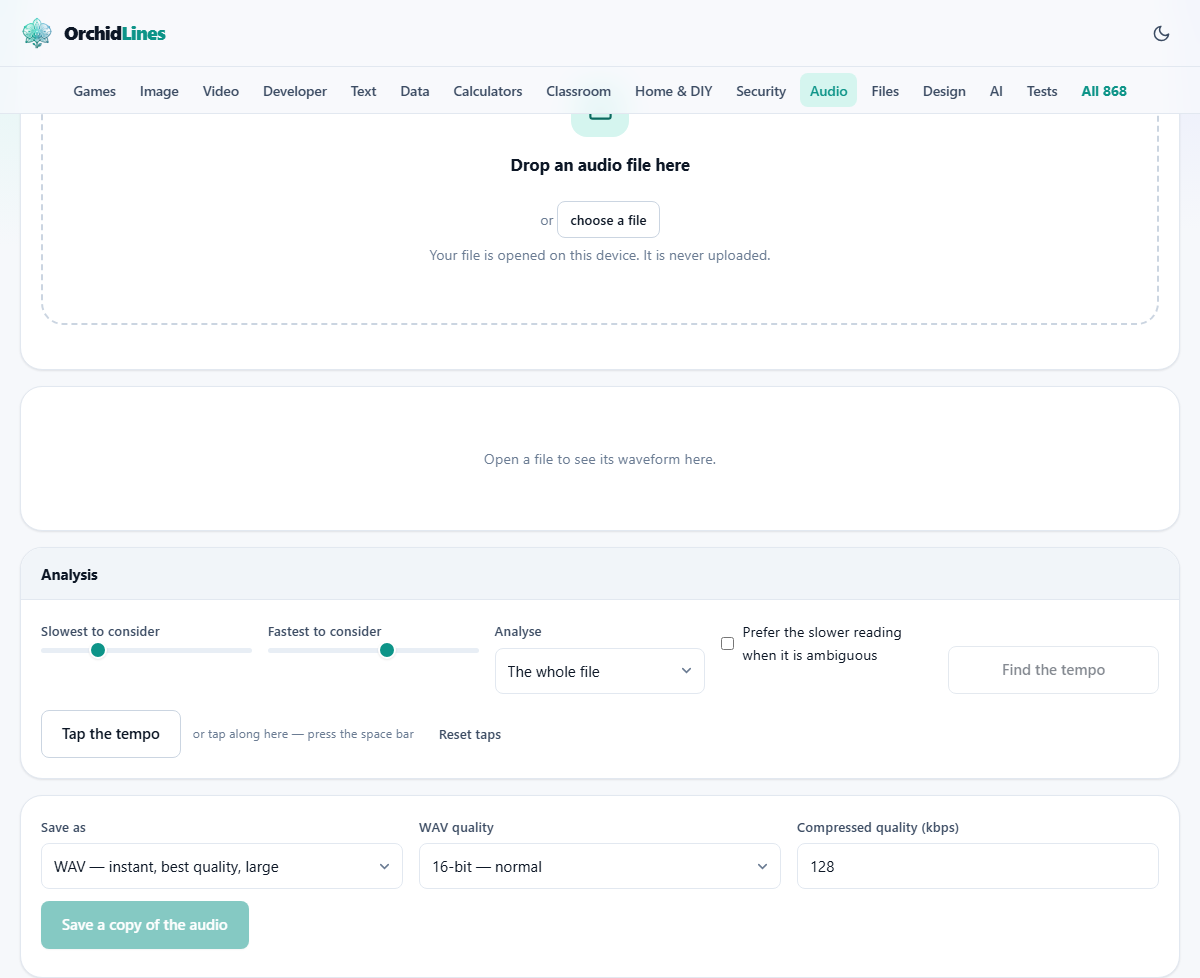
Drag a file onto the drop area, or press choose a file. The formats your browser can unpack are the usual ones: MP3, WAV, M4A and AAC, OGG, Opus and FLAC. Older or unusual formats, .wma being the common one, are not part of that set, and a file the browser cannot unpack is refused with a message suggesting MP3, WAV, M4A or OGG instead.
A line of facts appears under the drop area once the file is in. It names the file, its length, whether it is mono or stereo, and two numbers worth a word of explanation.
Sample rate is how many times a second the sound was measured when it was recorded, written in kHz, meaning thousands of times a second. 44.1 kHz is the old compact disc figure. It has no bearing on tempo.
Peak is the loudest single moment in the file, in decibels counting down from zero. Zero is the ceiling a digital file cannot pass. Minus 6 dB means there is room to spare.
Below that sits the waveform. Press Play to hear it, drag across it to mark out a stretch, and roll the mouse wheel over it to zoom in. Select all puts the marker back around the whole file.
The four settings above Find the tempo
Slowest to consider and Fastest to consider are sliders that fence off the search. The first moves between 40 and 120, the second between 120 and 260, both in steps of 5. They begin at 60 and 200, which covers nearly all popular music.
Narrowing them helps when you already know roughly what you are dealing with. If you are sure a track is somewhere in the region of 90, pulling the top slider down to 140 stops the search from settling on the double. Do leave a real gap between the two, though. Squeezed onto the same number they leave nothing to search.
Analyse offers three choices. The whole file is the default and is usually right. Only what I selected uses the stretch you dragged out on the waveform. Thirty seconds from the middle takes fifteen seconds either side of the halfway point, which is the fastest way to skip an ambient intro on a long track.
Prefer the slower reading when it is ambiguous is a tick box. It takes effect when the measured figure comes out at more than twice your Slowest to consider setting, and then reports the half speed figure instead. It is there for the styles that are conventionally counted at half of what the drums are doing.
What comes back
Press Find the tempo and a progress bar runs while the track is scanned. On a three or four minute song the wait is a second or two. On an hour long recording it is far longer, which is when the middle thirty seconds option earns its place.
Three figures then appear side by side. Tempo, given to one decimal place. Confidence, as a percentage. And Also possible, a row of small chips holding up to four other numbers that fit the same beats.
Confidence is not a score for the music. It measures how far the winning pulse stands above everything else the scan considered, and it drops when the recording has little in it that starts and stops. A held organ chord has no beats to find, and the figure says so.
Under the numbers is a picture of the track's attacks, drawn as spikes, with thin red lines laid over it at the tempo just reported. Those lines are the claim being made. If they sit on the spikes the reading is right, and if they drift away from them it is not. It is the one check that needs no ear at all.
A sentence underneath either tells you the gap between beats in seconds, or warns you that the reading is not confident and points at the alternatives.
A full reading, start to finish
A file called club-edit.mp3 is dropped in. The line of facts reads 3:42 long, stereo, 44.1 kHz, peak minus 0.3 dB. The sliders are left at 60 and 200 and Analyse is left on the whole file.
Find the tempo returns 124.0, confidence 88%, and chips reading 62.0, 248.0 and 93.2. The note underneath says a clear pulse every 0.484 seconds, and the red lines land squarely on the tall spikes.
That is as clean as it gets. The 62 and the 248 are the same beat counted half as often and twice as often, which is why they are offered rather than hidden, and 124 is plainly the one a dancer would count.
Now the same file with Fastest to consider dragged down to 120. The answer changes to 62.0, because 124 is no longer inside the fence. Nothing has gone wrong; you asked a narrower question and got the honest answer to it.
A second file, folk-demo.wav, behaves differently. It is one acoustic guitar and a voice. The reading comes back at 96.4 with a confidence of 27%, and the red lines wander off the spikes within a few bars. That is a track with no reliable pulse to find, and the low number is the tool being straight with you rather than failing.
Tapping it out yourself
Below the analysis sits Tap the tempo, and it is not a consolation prize. For anything with a loose feel, a human foot beats a computer easily.
Play the track anywhere you like, on this page or in any other program, and click the button in time with it. The first click sets the readout to keep tapping. From the second onward it shows a figure and how many taps it came from, and it nags gently until you have eight of them.
The reading is an average across your whole run rather than the last gap alone, so a single clumsy click barely moves it. Leave a gap of more than three seconds and it assumes you have stopped and starts a fresh count. Reset taps clears it whenever you want to start again.
Round the result sensibly. If you tap 119.4 on a track that a machine made, the answer is almost certainly 120.
Common mistakes, and what to do instead
- Reading a track by its intro. Long pads and slow builds have no pulse. Switch Analyse to the thirty second option or select a stretch where the drums are running.
- Judging a live band by one number. Players drift, so a single tempo is only an average. Select a verse and a chorus separately if that matters.
- Expecting an answer from music that has none. Orchestral playing that speeds up and slows down for expression has no fixed pulse, and the low confidence figure is the correct response.
- Trusting a number without looking at the picture. The red lines take two seconds to check and settle the argument.
- Fencing the search too tightly. If both sliders are pushed together the search has nowhere to look and the result says no steady pulse was found between those two figures.
- Taking a half speed answer as an error. Some styles are counted at half the drum rate by convention. The chip next to the answer already holds the other number.
Saving a copy while you are here
The bottom panel writes the audio back out. It is a plain copy: measuring the tempo does not touch the sound, so nothing here speeds a track up or slows it down.
Save as offers WAV plus whatever compressed formats your browser can write. WAV is instant and large, roughly ten megabytes a minute. A compressed save has to be recorded as it plays, so a four minute track takes about four minutes.
WAV quality picks 16-bit for everyday use, 24-bit for studio work, or 32-bit float for further editing. Compressed quality is a figure in kilobits per second, from 32 to 320, starting at 128.
The finished file appears in a Result panel with a small player, its name and its size, and a Download button.
When a different page suits the job better
- To practise at the number you just found, the Metronome gives you a click at any speed.
- To turn a tempo into echo and delay times in milliseconds, the Delay and Reverb Time Calculator does that arithmetic.
- To actually change how fast a track runs, the Speed and Pitch Changer moves the tempo without turning everyone into a chipmunk.
- To loop one bar until you can play along with it, the Audio Cutter will trim it out first.
- For pitch rather than pulse, the Instrument Tuner is the page you want, and for the sound inside a video, extract it first and bring the result back here.
Your track never leaves the room
The whole measurement happens on your own machine. The file is unpacked into memory by your browser, scanned there, and never sent anywhere. There is no queue, no account, and no copy sitting on a server waiting to be deleted.
You can prove it. Load the page, disconnect from the network, then drop a file in and press Find the tempo. Everything still works, because there was nothing on the other end to begin with. For an unreleased mix that only three people have heard, closing the tab is all the cleanup there is.