
Slimming a vector file down to the drawing itself
An SVG that came out of a design app is usually carrying a lot of luggage it does not need. This article explains what that luggage is, what each tick box in the panel throws away, why the decimal places slider behaves in a way you would not guess, and how the PNG export works. A logo is taken through the whole job with real numbers, and there is a list of the traps that quietly damage a file.
Why the file is bigger than the picture
An SVG is not a grid of coloured dots like a photo. It is a set of written instructions: move here, curve to there, fill this shape with that colour. Because it is written out as text, it scales to any size without going blurry, and because it is text, anything else can be written in beside the drawing.
That is what design apps do. They save their own working state in the same file: layer names, guide positions, the app version, notes about how a shape was built, settings that only mean something when the file is opened in that app again. A browser ignores every bit of it, but your visitors still download it, and on a set of icons that waste repeats across your whole site.
Getting a file in
Two doors lead in. Drop an SVG file onto the drop area, or click it to pick one. Below that sits a box for pasting code, which is the quicker route when your drawing is already on the clipboard or sitting in a code editor. Paste it there and press Load pasted code. Anything arriving that way is treated as a file named pasted, so the downloads are named from that.
If the file cannot be read, a red bar appears with the first thing that went wrong printed after it. Two causes cover nearly everything: either the text is not valid markup, usually because only part of it was copied, or there is no drawing element in it at all. Check that your paste starts with the opening svg tag and ends with the closing one.
The six tick boxes, one at a time
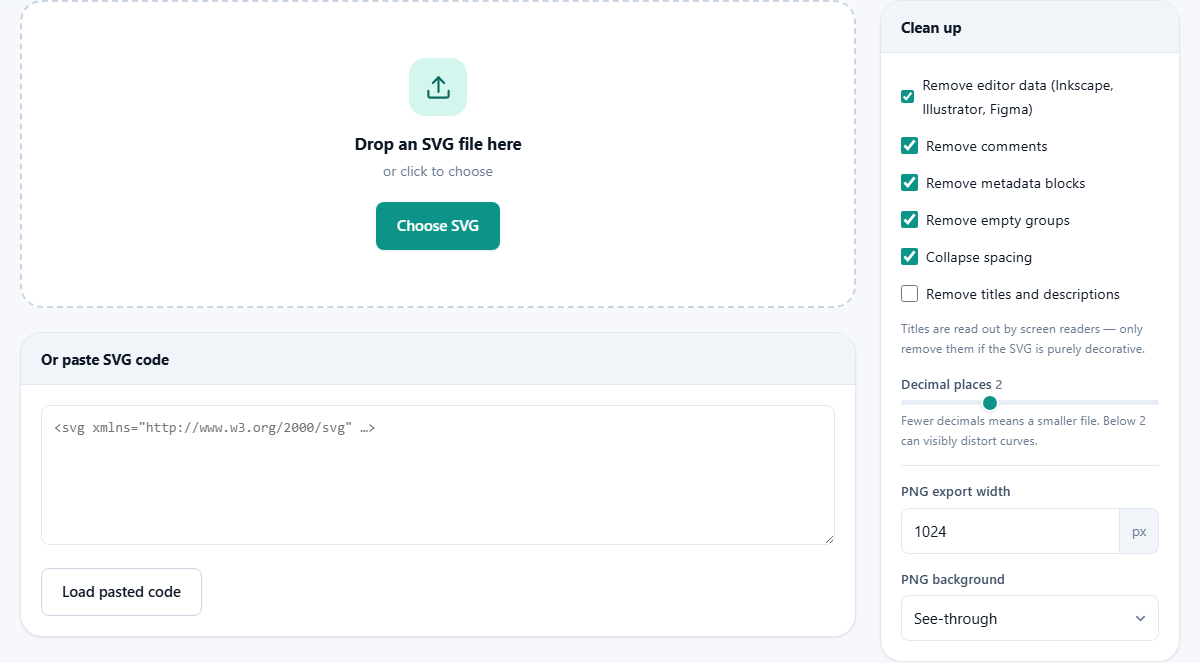
The Clean up panel on the right holds six switches. Five are on when you arrive, and the sixth is off for a good reason. Every change reruns the job at once, so you can watch the numbers move.
- Remove editor data. The big win. Its label names the three design apps whose leftovers it hunts for, and it strips their private attributes from every shape and from the root of the file.
- Remove comments. Notes written between the tags. Useful to a developer, invisible to everyone else.
- Remove metadata blocks. Whole chunks describing the document rather than drawing anything.
- Remove empty groups. A group with nothing left inside it does no work. These often appear only once the editor data has gone.
- Collapse spacing. Takes out the gaps and line breaks between tags. The file becomes one dense line, fine for a browser but harder for a human to read.
- Remove titles and descriptions. Off by default, and think before you turn it on. A title is what a screen reader announces when it meets the graphic. Strip it from a meaningful icon and you have made your page worse to save a few bytes.
Decimal places, and the surprise at zero
Vector points are stored as numbers, and design apps write them out with far more precision than any screen can show. A point at 12 with a long tail of decimals is the same point as 12 with two, but the long version costs extra characters, and a complex drawing holds thousands of them. The slider runs from 0 to 6 and starts at 2, which suits most work.
Here is the part worth knowing. Dragging it to 0 does not round to whole numbers. It switches the rounding off and leaves every number exactly as it came. So if you are chasing the smallest file, 1 is the strongest setting, not 0. Be careful with 1 though: on smooth curves and small icons it can visibly flatten a shape. Watch the second preview as you drag, and if a curve turns into a corner, go back to 2 or 3.
The rounding is picky about where it applies. It touches the numbers that describe geometry, such as path data, transforms and the drawing box, and leaves identifiers, colours and links alone. That is why a heavy round never breaks a link to a gradient.
Reading the three numbers and the two pictures
Once a file is loaded you get three figures across the top: the size Before, the size After, and the Change between them as a percentage. Under those sits a line counting exactly what was taken out, broken down into comments, editor attributes, metadata elements and empty groups. When that line reads mostly zeros, your file was already tidy and there is little here for you.
Below the figures are two small previews, labelled Before and After. These are the real check, and they matter more than the percentage. The job is a success when the file is smaller and the two pictures are identical. If the second one differs, something you switched on went too far. Turn the tick boxes off one at a time until the picture comes back, and you know which setting to avoid on that file.
Three ways to walk away with it
The cleaned code sits in full in a read-only box under the previews, so you can see what you are getting rather than trusting it. Copy code puts that text on your clipboard, which is what you want when the drawing is going straight into a web page. Save SVG downloads it, named after yours with an optimised tag on the end, so the original is never overwritten.
Save as PNG is the third route, and it is why many people come here at all. It turns the drawing into an ordinary picture at whatever size you ask for. Start over clears everything and puts you back at the drop area. Nothing here ever changes the file you started with.
The PNG side of the panel
PNG export width takes a number of pixels between 16 and 8000, starting at 1024. You only set the width. The height is worked out from the shape of the drawing, so the proportions cannot go wrong. PNG background offers See-through or Solid colour, and choosing the second reveals a colour well underneath for picking the shade you want behind the artwork.
Two things to expect. The export is made from the cleaned drawing, so what you see in the second preview is what you get. And your browser draws it, which means anything the file only refers to rather than contains will be missing. Fonts are the usual casualty: text that looks right in your design app can come out in a plain substitute or vanish, so turn text into outlines first if that would hurt. Very large sizes may also come back a little smaller than you asked, since a browser will only allocate so much picture at once. The width actually used is written into the file name.
A logo, worked through
Say a designer sends you a logo as an SVG and it is 34 kilobytes, which feels heavy for a shape you could draw in a minute. Drop it in. The figures come up: Before 34 kB, After 12 kB, Change about two thirds off. The line underneath reports 6 comments, 41 editor attributes, 2 metadata elements and 3 empty groups removed. The two previews are identical, so nothing has been broken.
Now push a little. Drag decimal places from 2 down to 1 and watch the After figure drop by a few hundred bytes more. Look hard at the second preview: the curve of the letter still looks smooth, so keep it. Leave the titles box alone, since this logo carries the company name and a screen reader should read it out.
Press Save SVG and the file comes back with an optimised tag added, ready for the site. Then set the PNG width to 512, leave the background see-through, and press Save as PNG. A second file arrives named with that width, which is your avatar and email signature sorted from the same source.
Mistakes people make here
- Removing titles by habit. It costs almost nothing to keep and it is what a blind visitor hears.
- Chasing the percentage instead of watching the preview. A smaller file that draws wrongly is a worse file.
- Pasting only the middle of a file. Without the opening and closing tags there is nothing valid to read.
- Expecting a smaller picture as well as a smaller file. This removes waste from the text; it never redraws the artwork.
- Hoping it will shrink an SVG with a photo buried inside it. Some exports embed a whole photograph, and that photo is the size problem, not the tags.
- Cleaning a file you still need to edit. Keep the original as your working copy and treat the cleaned one as the version you publish.
When you want a different page
This tool is for vector drawings, so it only accepts SVG files and pasted SVG code. A photo, a screenshot or a scan cannot come in, and no amount of cleaning would turn one into a vector. If a JPG or a PNG is what you have and you want it smaller, that is a compression job for a different page.
It is also not a drawing editor. It never adds, moves or recolours a shape, and it cannot merge two files. If you need one icon in a whole set of sizes bundled together, that is a separate job again. What this page does is narrow on purpose, which is why it is safe to run on files you did not make.