
Packing fifty little pictures into one
This is a closer look at what a sprite sheet buys you, what each setting on this page really controls, how to read the code the tool writes for you, and the handful of small mistakes that make a finished sheet misbehave once it lands on a real website.
Why one image beats many
Every picture on a web page is a separate fetch. The browser asks the server for it, waits, receives it, and moves to the next. Icons make this painful in a way photos do not, simply because there are so many of them. A toolbar with twenty tiny buttons costs twenty round trips, and for files that small, the waiting takes longer than the actual transfer. The overhead is the cost, not the pixels.
A sprite sheet flips that deal. All the small graphics travel together as one file, and each spot on the page shows a little window onto the right part of it. The trick is old, but it still earns its keep on icon-heavy interfaces, in browser games where a character's animation frames sit side by side, and in web apps where dozens of small status marks and buttons would otherwise trickle in one by one.
Loading your images
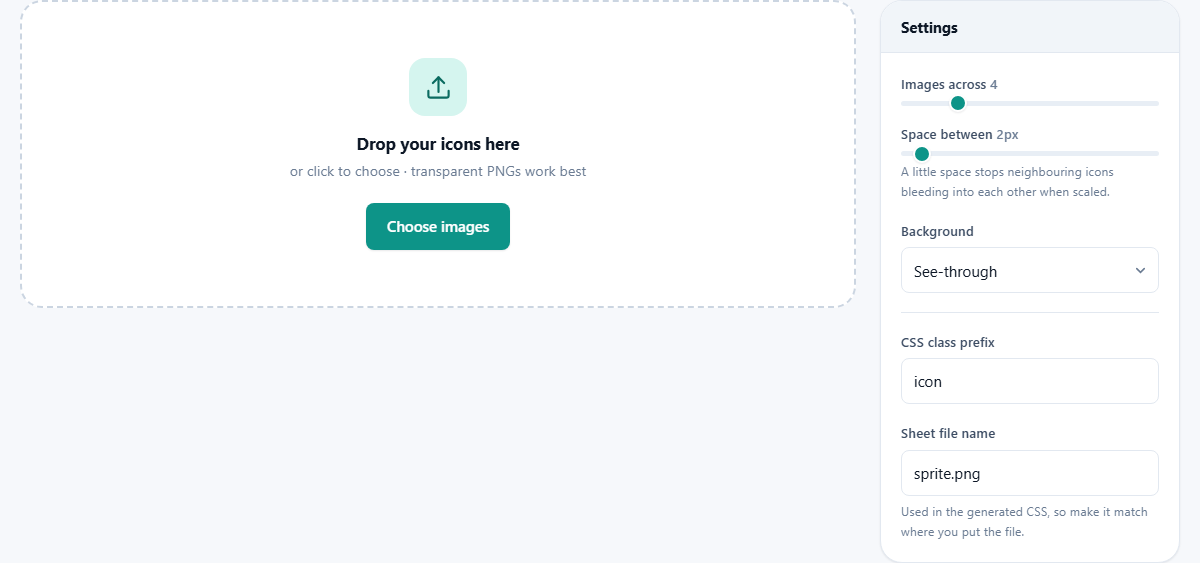
Drag your icons onto the drop area in one go, or click Choose images and select them from a folder. Transparent PNG files suit the job best, since most icons need to sit on whatever colour the page happens to use behind them.
Once loaded, each file appears in a list with the CSS class name it will receive printed beside it. That name is minted from the file name, so a file called cart.png becomes a class along the lines of icon-cart. This is worth glancing over before you build, because those names are what you will be typing into your HTML later. Two buttons sit above the list: Add more appends further images without disturbing the ones already present, and Clear all empties the list to start again. Nothing has been drawn at this stage. The sheet only comes into being when you press the build button.
Shaping the grid
The Settings panel on the right decides the sheet's shape. Images across runs from one to sixteen and sets how many cells fill each row before a new row begins; four is the starting value. Twelve images at four across gives you a grid of three rows. One long row suits animation strips, while a squarish grid keeps the file dimensions modest.
Every cell on the sheet is the same size, matched to the largest image you loaded, and smaller images are centred inside their cell. That uniform rule is what keeps the generated code simple and dependable, but it has a consequence: one oversized picture inflates every cell on the sheet and surrounds the small icons with dead space. If one file in the batch is far bigger than the rest, shrink it before you build.
Space between adds a gap of up to forty pixels around neighbouring cells. Keep at least the default two. High-density screens scale sheets by fractional amounts, and with no gap at all, a thin sliver of the neighbouring icon can appear along an edge.
Background, prefix and file name
Three quieter settings matter more than their size suggests. Background offers See-through or Solid colour, and picking the second reveals a colour swatch. Stay see-through unless every icon will only ever appear against one known colour, because a baked-in background cannot be peeled off later.
CSS class prefix is the word placed at the front of every class name. It starts as icon, and you can type anything up to thirty characters, such as ui or app. Pick something that will not collide with class names already used in your project.
Sheet file name is written into the generated code as the image all those classes point at. It starts as sprite.png. If the file will actually live at /assets/img/sprite.png on your site, type that full path here before building. Get this wrong and every icon on your page shows as an empty box, which is the single most common way a sheet fails in the wild.
Building, and the two kinds of output
Press Build sprite sheet. The combined image appears in a preview over a chequered backdrop, with its dimensions noted beside it, and a code box fills up underneath.
A small menu above that box switches between two forms of output. CSS classes writes one style rule per image, ready to paste into a stylesheet; this is the choice for websites. JSON atlas writes a data file instead, listing where each image sits on the sheet and how big it is, which is the form game engines expect when they pull animation frames or textures from a single sheet. The Copy button puts whichever form is showing onto your clipboard.
For downloads you have two buttons. Save sheet only takes just the image. Download sheet + code takes the image and the code together, which is almost always what you want, since the two are made for each other and neither is much use alone.
What the generated CSS actually does
Each class the tool writes does three things: it fixes the element's width and height to one cell, sets the whole sheet as the element's background, and slides that background so the correct cell sits exactly behind the visible area. Everything outside the window is simply cropped away by the element's edges.
In your HTML, an element carries two classes together, the prefix on its own plus the image's full name, for instance icon and icon-cart on a single span. The shared class attaches the sheet; the specific one does the sliding. If an icon ever shows the wrong picture, or half of two pictures, the slide values no longer match the sheet, which nearly always means the sheet was rebuilt with different images or settings while the old code stayed in the stylesheet. Whenever the sheet changes, the code must change with it. Rebuild both and paste fresh.
A run from start to finish
Suppose you have twelve weather icons, each sixty-four pixels square, named sunny.png, cloudy.png, rain.png and so on through storm.png. Drop all twelve in. The list shows icon-sunny, icon-cloudy, icon-rain and the rest beside their thumbnails.
Set Images across to four, leave the spacing at two pixels, keep the background see-through, and change the sheet file name to /assets/sprite.png, because that is where the file will live on the site. Press Build sprite sheet. The preview shows a tidy grid, four wide and three tall, floating on the chequered backdrop. Flip the output menu to both settings for a look, keep it on CSS classes, and press Download sheet + code.
Upload the image into the assets folder, paste the rules into the stylesheet, and write a span carrying icon and icon-rain. The raindrop graphic appears at sixty-four pixels square, and eleven more icons are now available from that same single download.
Small mistakes with big effects
Most sprite trouble traces back to one of a few causes, all of them quick to fix.
- The path does not match. The code points at whatever sheet file name you typed, so a mismatch leaves every icon blank. Correct the name and rebuild, or edit the path directly in your stylesheet.
- One giant image joined the batch. Since cells match the largest image, everything else swims in empty space and the file balloons. Resize the outlier and build again.
- Spacing was set to zero. Everything looks fine until a scaled display shows slivers of neighbouring icons at the edges. Two pixels of breathing room prevents it.
- Files were renamed after building. Class names were minted from the old file names at build time, so they no longer describe anything. Rename first, then build.
- A solid background was baked in by accident. If icons need to float on different page colours, rebuild with See-through selected.
When to skip the sheet
With only two or three images, the saving in requests is too small to justify the extra step; just use the files directly. Simple flat icons are often better served by inline vector graphics, which stay crisp at every size and can be recoloured from the stylesheet, two things a baked bitmap sheet can never do. Sheets remain the honest winner for detailed, shaded or photographic small images, where vector formats bloat or fail.
If you are building a game rather than a page, the decision is different: take the JSON atlas output rather than the CSS, because an engine wants coordinates and sizes, not style rules. And if what you really want is one big picture made of photos for people to look at, that is a collage, not a sprite sheet, and a different tool does it better.
Built where you sit
That matters more than it might seem for this particular job. Icon sets often belong to unreleased products, client projects under wraps, or purchased packs with licences that frown on redistribution. Close the tab and the only trace of the work is the file sitting in your own downloads folder.