
Building a short animation out of a pile of photos
This page takes a set of still pictures and packs them into one moving file. Below you will find what each setting in the side panel really controls, why width and colours decide how heavy the result is, a full build with real numbers, and the small habits that keep a loop sharp and light.
Why people still reach for a GIF
A GIF is a stack of pictures held in one file. Open it almost anywhere and it starts playing on its own. There is no player to load, no play button to hunt for, and no sound. That is a narrow set of talents. It is also exactly why the format refuses to die.
Think about where a small silent loop earns its place. You are writing a support note and want to show three clicks in a row. You sell mugs and want a buyer to see all four sides. You left a camera pointed at a bowl of dough for six hours and want the rise to happen in two seconds. You drew twelve frames of a walking cat by hand. In each of those cases a video would be too much, and one still picture would not tell the story.
The other reason is pasting. A loop drops into a chat window, a help article or an email and simply runs, and plenty of those places will not play a video at all.
Getting the frames in, and getting them in order
Drop two or more pictures onto the box, or click it and pick them from a folder. The count of frames drives everything else about the file, so it pays to start with fewer than you think you need.
Once they land you get a list. Each row carries an up arrow and a down arrow, and one tap moves that picture a single place earlier or later. This matters more than it sounds. File names rarely sort the way an animation needs them to. A camera may name shots 8, 9, 10 and 11, and the computer will happily put 10 before 9.
Two buttons sit above the list. Add more opens the picker again and adds to what you already have. Clear all empties the list so you can begin again. Nothing is lost by clearing, since the pictures are still sitting in your folder.
One thing to know before you shoot: every frame comes out the same size. If your pictures are different shapes, the odd ones get zoomed in and trimmed at the sides so they fill the frame. Nothing is squashed. So if a subject sits right at the edge of a tall photo in a set of wide ones, expect to lose it.
Width, the number that rules the file size
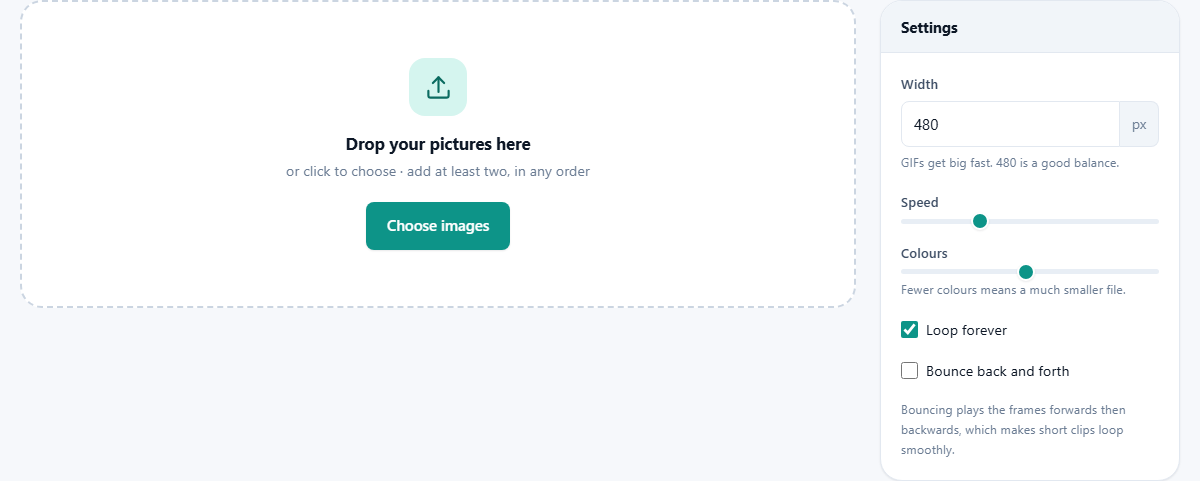
Width is a plain number box, measured in pixels. It takes anything from 32 up to 1600 and starts at 480. The height works itself out, so the shape of your pictures is kept.
Here is why this box matters more than any other on the panel. A GIF stores every frame more or less whole. Double the width and the height doubles too, so each frame now holds four times as many pixels. A 960 pixel version of the same animation is not twice the weight of a 480 one. It is closer to four times.
So 480 is a sensible home. It is wide enough to read words in a screen recording and small enough to send without a fuss. Drop to 240 for a tiny loop beside a paragraph. Go to 800 or beyond only when somebody will view it full screen, and be ready for a big file.
Speed, counted in frames per second
Speed is a slider from 1 to 25 frames per second, and it sits at 8 when you arrive. The number says how many pictures go past in one second. It also sets the running time. Twenty four frames at 8 per second is three seconds long.
Low numbers feel deliberate. At 2 or 3 the eye reads each picture as its own image, which suits a slideshow, a set of chart states, or a recipe in stages. From 6 to 10 you get comfortable movement without much weight. Above 15 the motion turns smooth, but you now need far more pictures to fill the same seconds, and the file grows to match.
One habit worth learning: when a loop feels rushed, do not always pull the slider down. Often the better fix is fewer, better frames at the same speed.
Colours, and the one palette every frame has to share
The colours slider runs from 8 to 256 in steps of 8 and begins at 128. It sets how many separate colours the whole animation is allowed to use.
That limit is the honest truth about this format. A single list of colours has to serve every frame. A photo on screen may hold tens of thousands of shades, so the tool picks a small set and rounds everything else to the nearest one. Skies and skin are where the rounding shows first, because they change slowly. Instead of a smooth run you see soft steps.
Treat the slider as a trade. A screen recording of a form is mostly flat grey and white, so it can look perfect on 32 while the file shrinks a long way. A sunset wants 128 or more. Pull the slider down until you can see the steps, then go back one notch. Very few loops need the full 256.
Loop forever, and the bounce switch
Loop forever is already ticked. Leave it and the animation restarts for as long as anyone is looking. Untick it and the loop plays once, then rests on the last frame. Playing once suits anything with a real ending, such as a form being sent or a joke with a punchline.
Bounce back and forth starts off. Turn it on and the frames run forward, then run back to the start again. It doubles the running time without a single new picture.
Bounce is a repair as much as an effect. A loop jumps when the last frame looks nothing like the first. A door that ends wide open snaps shut with no warning. Bouncing kills that jump, because the journey back is the journey you just made. Anything that opens, grows, turns or pours is a fine candidate. Anything with words on screen is not, since the text will run backwards.
Worked example: a twenty shot desk build
Say you photographed a keyboard being put together. Twenty phone shots, all landscape, each about 4000 pixels wide, named IMG_2041 through IMG_2060.
Drop all twenty in and read the list. Shots 14 and 15 are the wrong way round because you retook one, so tap the up arrow on 15 once. Set Width to 480. Leave Speed at 8, which spreads twenty frames over two and a half seconds. The photos are mostly black plastic on a wooden desk, so drag Colours down to 64.
Leave Loop forever ticked. Tick Bounce back and forth as well, so the build appears to come apart again rather than cutting hard back to a bare board. Press Build GIF. A bar fills while the frames are drawn and squeezed. Then the finished animation shows up under the heading Your GIF, already playing, with its size printed next to the heading.
Watch it twice. If the weight bothers you, try Colours at 32 first, then Width at 360, pressing Build GIF each time to replace what you see. When it looks right, press Download GIF and the file arrives in your downloads folder like anything else.
What you get, and where to put it
You end up with one file ending in .gif. It carries the frames, the speed you chose and the looping setting all inside it. There is nothing else to keep and no second file to remember.
After that it behaves like a picture, because most software treats it as one. Drag it into a chat. Attach it to a bug report. Put it in a web page with an ordinary image tag. Drop it into a slide, where it will usually move during a presentation. Use it as a reaction if the app you are in allows that.
One warning about limits. Chat apps and forums often cap attachment size, and a few quietly turn your loop into a video on the way in. If a tuned file comes back looking different, that is normally why.
The four ways a first attempt goes wrong
Nearly every disappointing result comes down to one of these, and each has a direct answer.
- The file is enormous. In order of effect: cut the width, then cut the colours, then use fewer frames. Halving the width on its own usually takes about three quarters of the weight away.
- The motion stutters at one point. That is a missing picture rather than a wrong setting. Add the shot that belongs there and walk it into place with the arrows.
- Smooth areas look like the contour lines on a map. The palette is too small for that photo. Push Colours up and build it again.
- The loop ends with an ugly jump. Either switch the bounce on, or drop the last frame or two so the ending sits nearer the start.
When a GIF is the wrong file
Give up on the format quickly when it does not fit. Anything past five or six seconds, anything with fine detail spread across the whole frame, and anything with sound belongs in a video instead. A ten second loop of a busy scene can weigh more than a minute of the same thing recorded properly, and it will look worse while doing it.
If your source is already a video, this page cannot help, because it wants separate pictures. And if you only need to show one moment, a single still with a short caption will always be lighter, sharper and quicker to read than any loop.