
The writing hidden inside a photo, and how to take it out
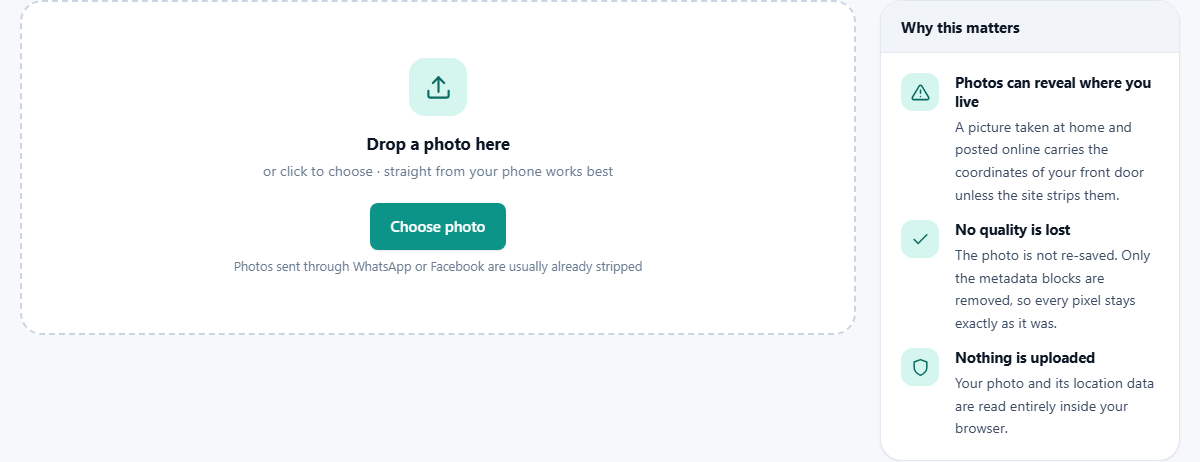
Open a photo and you see the picture. Tucked into the same file, invisible in any viewer, sits a small table of facts about it: which camera, which lens, what time, and very often the precise spot on the map. This piece explains how to read that table, what each part of it means for you, and how the page removes it without altering one pixel of the picture.
The second half of a photo file
Metadata simply means data about data. In a photo it is a list of short labelled facts that the camera writes beside the picture at the moment the shutter closes. The label everyone uses for it is EXIF, and phones fill it in as busily as any camera does.
Drop a file in and the page lists whatever it finds. Typical entries are the camera make and model, the date and time, the date the picture was taken and the date it was digitised, plus the settings behind it: exposure time, F number, ISO speed, shutter speed, aperture, exposure bias, metering mode and whether the flash fired.
Lens details often follow, including lens make, lens model and focal length, with a second focal length figure given in the older 35 mm terms that many photographers still think in. You may also see the stored image width and height, the artist and copyright fields, the software that last saved the file, and orientation.
Orientation, the one that explains a sideways photo
Orientation deserves a note of its own, because it is the reason a photo sometimes appears on its side in one program and upright in another. Cameras rarely rotate the pixels. They record the picture as the sensor saw it and add a note saying which way up it should be shown.
The page turns that note into plain words: normal, mirrored, rotated 180, rotated 90 right, rotated 90 left, and the mirrored versions of each. If a photo keeps appearing sideways somewhere, this line usually tells you why, because the program showing it is ignoring the note rather than mangling the file.
Three dates that do not always agree
You will often see more than one date in the list, and they can differ. One is the plain date and time stored in the main table. One is the date taken, meaning the moment the shutter actually fired. One is the date digitised, meaning when the image became a digital file.
For a picture straight out of a phone all three usually match to the second, so there is nothing to think about. They part company when a file has had a life: a scan of an old print, a photo pulled off a memory card months later, or a picture that some program has re-saved and re-stamped along the way.
That makes the dates worth a glance whenever the age of a photo matters to you, and worth removing whenever it does not. A file sent to a stranger should not be quietly telling them your holiday dates.
The coloured banner reads the situation for you
Before any list appears, a banner across the top gives a verdict in one sentence, and its colour is the fast version of the answer.
A red banner says the photo contains your location, and warns that anyone you send the original to can read it. An amber one says there is hidden data but no map position, which is the common case for a picture that has been through some editing. A quiet blue one says nothing was found at all: either it was stripped already or it was never written.
That last verdict is worth knowing about, because a great many files arrive that way. Sites and chat apps usually clean photos as they pass through. The file that still carries everything is the one you attach to an email or drop into a shared folder yourself.
The location block
When there is a position, it gets its own block above the list. The coordinates are shown to six decimal places, which in practice points at a particular building rather than a neighbourhood. If height was recorded, an altitude in metres appears under them.
Beside them is a See it on a map button. It opens a map in a fresh tab, centred on that point, so you can judge the risk with your eyes instead of trying to picture what a pair of numbers means. People often shrug at the coordinates and change their mind entirely once they see their own street.
Reading the rest, and taking it with you
The panel header carries the file name, its size and its type, with a thumbnail of the picture beside the details so you never lose track of which file you are looking at. A count above the list tells you how many items were found.
The Copy details button puts the whole lot on your clipboard as plain lines of label and value, with the map position added at the end when there is one. That is handy more often than it sounds: proving when a photo was taken, asking a forum which lens produced a shot, or pasting the camera settings into your own notes.
Start over clears the page for the next file. Nothing is remembered between files, so there is no list to tidy up afterwards.
Removing it without touching the picture
Most tools that strip metadata do it the lazy way. They draw the photo onto a canvas and save it again, which compresses the image a second time and quietly costs you detail every single pass.
This page works on the file itself. A JPEG is a chain of blocks laid end to end: some hold the compressed picture, others hold the metadata. Removing all metadata rewrites that chain with the metadata blocks left out and copies the picture blocks across exactly as they were, byte for byte. The result opens as the same photograph it always was, because the pixels were never decoded at all.
When it finishes, a short message says how many blocks were dropped and how much smaller the file has become. The clean copy is saved next to your original with -no-metadata added to its name, and the file you dropped in is left completely alone.
A run through with a real photo
Take a picture from a phone, holiday.jpg, about four megabytes. Drop it in and the banner turns red. The block underneath shows a position to six decimals and an altitude of nine metres. The list holds thirty or so items: the phone model, the date, an exposure of 1/240, ISO 50, a focal length of 5.1 mm and the lens name.
Press See it on a map and the pin lands on the road outside the apartment. That is enough to decide. Press Remove all metadata and the message reports two blocks dropped and roughly forty kilobytes saved. The download is holiday-no-metadata.jpg.
Now do the useful last step: drop that new file straight back into the page. The banner comes up blue with nothing found, and you have checked your own work rather than trusted it. Open both files side by side and the pictures are indistinguishable, because they are identical.
Where people trip up
The mistakes here tend to be about what the risk actually is, rather than about the buttons:
- Worrying about public posts while emailing originals. The post is usually cleaned on the way in; the attachment is not.
- Cleaning one photo of a set. Location tends to be recorded for every shot of the day, so treat the whole batch.
- Expecting it on a PNG or a screenshot. The reading and the removal here are built around JPEG, the format phones and cameras produce. Drop in something else and the page will report nothing found, and the removal button stays out of action with a line saying so.
- Thinking a clean file is an anonymous file. The picture itself still shows your street, your car and the view from your window.
- Renaming the file and assuming that helps. The name has never been where any of this lived.
When another page does the job better
If you are already resizing, compressing or converting a photo for some other reason, those tools rewrite the picture and the metadata goes with it. That is fine when the file is going to be re-saved anyway. Come here instead when the picture must stay exactly as it is, such as an archive copy or a photograph you may print later.
This page also cannot hide anything visible. Faces, number plates and house numbers are part of the picture, so they need a tool that paints over them. And if you want the recording to stop at the source, your phone camera has a location setting that can simply be turned off.