
Turning a wall of text into a picture worth sharing
This guide goes past the basics in the panel above. It walks through every setting on the right, shows what each number does to the picture, and follows one example from pasted reviews to a saved image. It also says plainly where a word cloud helps you and where it quietly leads you astray, so you know which kind of job you are doing.
What the picture is really telling you
A word cloud maps how often a word appears to how large it is drawn. The word you used most is the biggest one on screen. Words you used once sit small at the edges, or drop off the picture when there is no room left to place them.
So it answers one narrow question: which words dominate this text. That is genuinely handy when the text is long and you have not read it yet. A glance tells you the subject before you commit to reading the whole thing.
It suits a pile of survey comments, a folder of reviews, the transcript of a talk, or a chapter you want to sum up on a slide. It is a poor fit for anything where the exact figures matter, or where a phrase means the opposite of the words in it.
Keep that split in mind while you work. Half the time you are making a quick summary of real feedback, and half the time you are making a decoration. Both are fine. Knowing which one you are doing keeps you from reading too much into a pretty shape.
Getting your text in
The big box on the left, labelled Your text, is where it all starts. Paste in as much as you have. A single paragraph gives a thin, unconvincing result; a few thousand words give sizes you can actually lean on.
The Try an example button drops a short speech into the box, so you can watch the tool work before you supply your own material. It is the quickest way to see how the sizes and the packing behave.
The picture redraws a moment after you stop typing, rather than on every keystroke. You can edit the text and watch words swell or shrink as you change what you feed it. There is no build button to press and no waiting.
The three settings that decide what counts
Three controls in the panel change which words are counted at all, and they matter far more than the colours do.
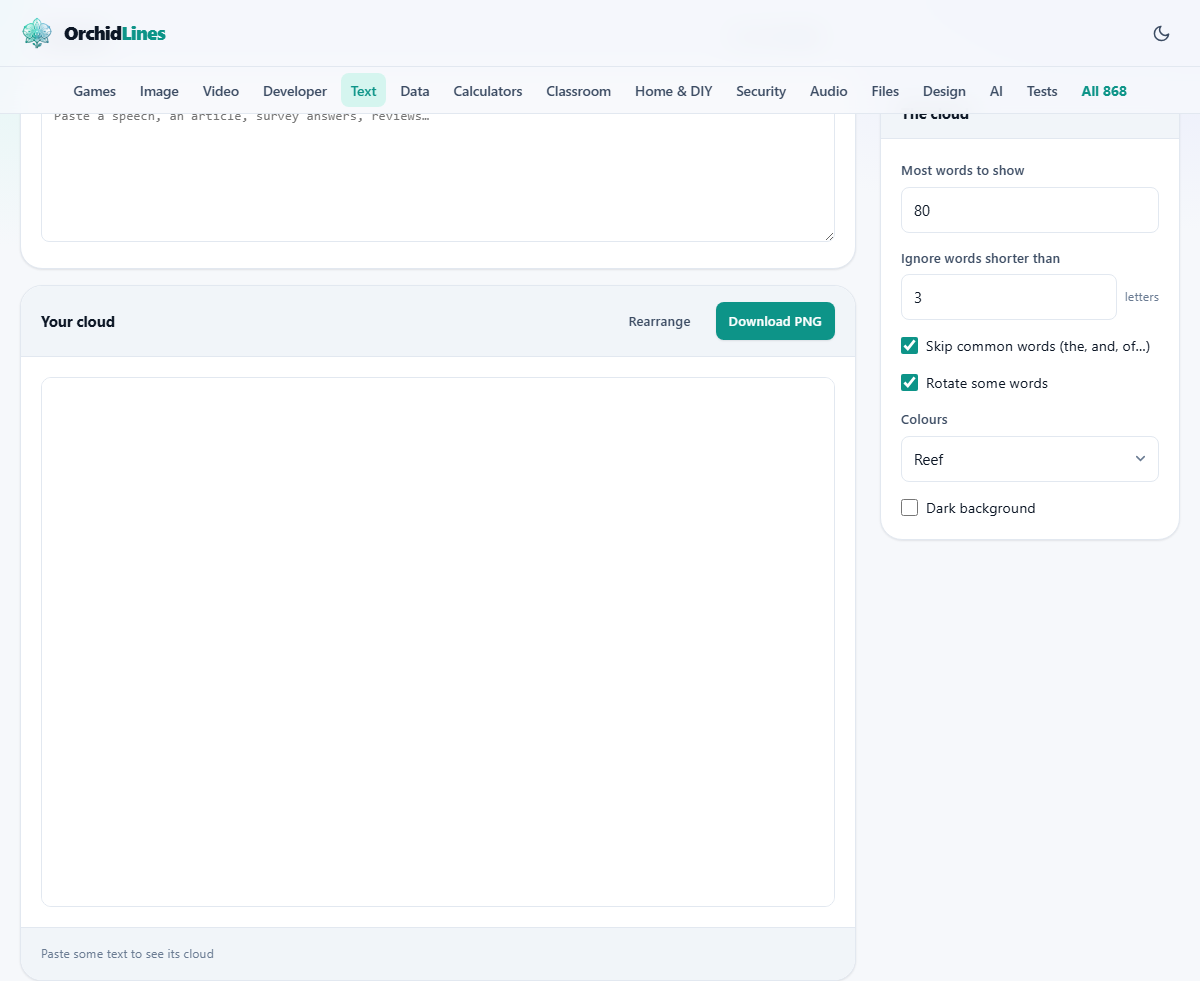
Most words to show caps how many words make it onto the picture. It runs from 5 up to 300 and starts at 80. Lower it for a clean, calm image with only the leading words; raise it for a dense, busy one that shows the long tail.
Ignore words shorter than removes short words from the count. It begins at 3 letters, so two-letter words never show. Push it to 4 or 5 to sweep out small filler that adds nothing to the meaning.
Skip common words is ticked to begin with. It strips the tiny linking words, the sort that glue sentences together, which would otherwise tower over everything real. Leave it on unless you have a clear reason to want them in.
A closer look at how the sizes work
The sizes are set by comparison, not by a fixed rule. The most frequent word is drawn at the largest size, the least frequent of those shown at the smallest, and everything else scales between the two.
This has a quiet effect worth understanding. If one word runs away ahead of the rest, it dwarfs everything and the others look similar to each other. If the top few words are close in count, they end up close in size too, and the picture looks more even.
It also means the sizes are relative to this text alone. A word drawn large in one cloud is not large because it is important in general; it is large because it is common here. Two clouds from two texts cannot be compared by size.
There is a floor as well as a ceiling. Even the smallest word shown is drawn big enough to read, so a rare word is never shrunk to a dot. That keeps the picture legible, but it also flatters the quiet words a little, which is one more reason to read the text rather than trust the shape alone.
The look: colour, tilt and background
Colours offers four sets: Reef, Warm, Cool and Monochrome. Words take colours from the chosen set in turn, so the palette is fixed by the set rather than picked to mean anything. A red word is not red because it is angry; it simply landed on red.
Rotate some words turns about a quarter of the words on their side, for a busier, poster-like feel. Switch it off for a calm, all-level layout that reads more easily from a distance.
Dark background trades the white sheet for near-black, which fits slides built on a dark theme and makes bright words glow.
The Rearrange button repacks the same words from a fresh starting angle. Tap it until the shape suits the space you have. The counts and sizes do not change; only the arrangement moves.
What you get, and how big it is
The picture sits on a drawing area 1200 pixels wide and 800 tall. That is a comfortable size for a slide or a header, and sharp enough for most print.
A short line beneath the picture reports how many words were drawn and names the largest one, along with how many times it appeared. It is a small honesty check: if the biggest word is a surprise, your text is about something other than you thought.
Download PNG saves that exact picture as an image file named word-cloud.png. It slots straight into a slide, a document or a social post. There is no sign-in and no watermark across the middle. The image is yours to use as you like.
A worked example: one week of reviews
Say you have pasted fifty short reviews of a coffee shop. You leave Skip common words on and Ignore words shorter than at 3, and you leave the count at 80 to begin with.
The line under the picture reads something like: 60 words drawn, biggest is "coffee". Around it sit staff, friendly, wait and price, each sized by how often reviewers wrote it.
The word wait is large. That is worth spotting, but the cloud cannot tell you whether people meant a short wait or a long one. So you open the reviews and read the lines that mention waiting. The cloud pointed; the text answered the question.
Now you tidy it for sharing. You drop Most words to show to 35 so only the strong themes remain, tap Rearrange twice to get a wide shape that fits the slide, choose the Warm set, and press Download PNG. The file lands in your downloads ready for Monday's team meeting.
Mistakes that spoil a cloud, and the fixes
- One huge word and little else: you turned Skip common words off, so a word like the swallowed the picture. Turn it back on.
- A word you expected has vanished: it may fall below the length limit, sit past the Most words to show cap, or simply have found no room. Raise the cap or trim the text down.
- Two forms of one word compete, such as run and running: the tool counts words exactly and treats them as separate. Nothing is broken; that is how plain counting works.
- The picture is too crowded to read on a slide: eighty words is a lot from the back of a room. Drop the count to around thirty and it becomes legible.
- The layout differs on every pass: that is by design, not a glitch. Keep pressing Rearrange until one fits, rather than waiting for a single fixed result.
When a word cloud is the wrong tool
If you need the actual numbers, a cloud is the wrong shape for the job. It shows big against small, not twelve against nine. A plain list of words with their counts, or a simple bar chart, gives the exact truth a cloud only gestures at.
If you are hunting for a word to fit a crossword or a tile rack, that is a separate job. The Word Finder on this site searches by pattern or by the letters you hold, and it is built for that instead.
And remember that a cloud flattens meaning entirely. The phrase not helpful becomes a proud, large helpful, because the two words are counted apart. Treat the picture as a summary for the eye, never as evidence for a real decision.
It all happens in your browser
The counting and the drawing run inside this page, on your own machine. Nothing you paste is sent to a server, and the image is assembled locally before you ever download it.
That matters more than it first sounds. Survey answers and reviews are often other people's words, sometimes given in confidence, and a raw dump of them is not something to hand to a random website. Here they stay on your computer, which is where they belong.
There is also nothing to sign into and nothing saved online, so the tool keeps working with the internet off. Once the page has loaded, you can paste, tune and download with no connection at all.