
Seeing exactly what changed between two versions
The help above shows how to paste two versions and read the colours. This article goes deeper. It covers each of the four switches, the buttons, the numbers in the chips, and a full example traced line by line. It also explains the one thing that surprises people most: when the neat word-by-word highlight appears and when it does not.
The situations it was built for
You send a draft to an editor and it comes back. Somewhere in three pages, a few words moved. Reading both from the top to find them is slow and easy to get wrong.
Or two people saved their own copy of the same clause and now nobody is sure which words differ. Or a code file was re-indented and you need to see the real change hiding under all that shifted whitespace. In each case you have an old version and a new one, and the only question is what actually moved. That is exactly what this page answers.
Two boxes, side by side
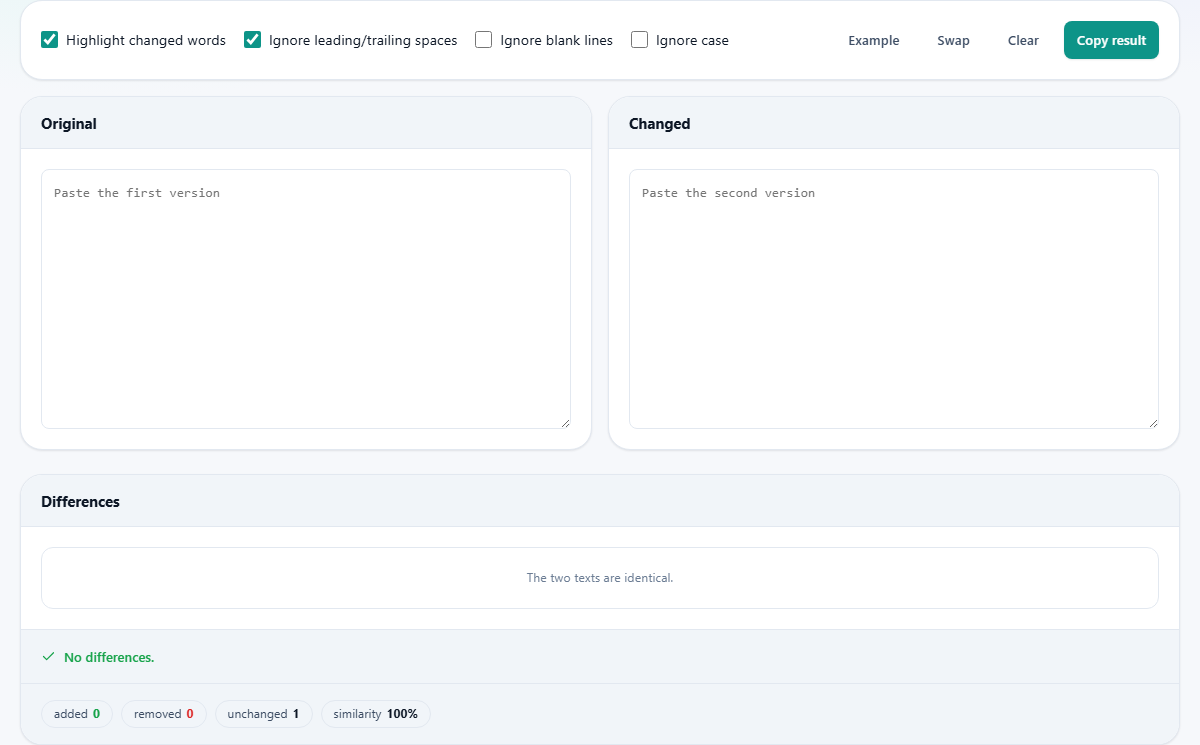
There are two input boxes. The left one, marked Original, holds the older version. The right one, marked Changed, holds the newer version. Paste one into each.
The comparison runs on its own as you type, so there is no button to trigger it. The result builds underneath in the panel headed Differences, and it keeps up as you edit either side.
It waits a short beat after you stop typing before it redraws, so a fast typist sees a steady result rather than a flicker on every keystroke. The switches, by contrast, take effect the instant you toggle them.
Reading the coloured result
The Differences panel shows the two versions in step. A line that only the new version has is marked in green as an addition. A line that only the old version has is marked in red as a removal. A line that is the same in both is left plain, so your eye slides past it.
When a line was edited rather than swapped out whole, it is shown once with only the changed words picked out: the old words struck through, the new words marked. A small number runs down the side so you can point at a spot. The result is a page you can scan, instead of two columns you have to read twice.
The four switches
A row of checkboxes above the boxes decides what counts as a difference. Two are on to begin with:
- Highlight changed words: on by default. It turns an edited line into a word-level mark-up instead of a red line plus a green line. Turn it off if you would rather see whole lines only.
- Ignore leading/trailing spaces: on by default. Spaces at the start or end of a line are set aside, so a change in indentation does not register as a change in the text.
- Ignore blank lines: off by default. Turn it on and empty lines are dropped before the comparison, so spacing differences stop cluttering the result.
- Ignore case: off by default. Turn it on and a capital letter is treated the same as a small one, so a change from Word to word is not flagged.
The buttons and what you can save
Four buttons sit at the end of the switch row. Example loads a short pair of texts so you can see the tool at work. Swap flips the two sides, which is the quick fix when you realise you pasted them the wrong way round. Clear empties both boxes. Copy result puts the whole difference view on your clipboard as text.
There is also a save option that writes the differences as a unified diff: the same plain format that code tools read, with a minus in front of removed lines and a plus in front of added ones. That file drops neatly into a message or a ticket when you need a record of the change rather than a picture of it.
Setting the switches for the job
The right settings depend on what you are comparing, and two setups cover most of what people do here.
For checking a proofread, leave the switches as they arrive. The word highlight is on, so an editor's small fixes appear as small marks rather than whole rewritten lines. Trailing spaces are already ignored, which hides the odd stray space that is not a real edit. Put your draft on the left and the returned copy on the right, and every genuine change stands out on its own.
For reviewing code, make sure Ignore leading/trailing spaces is on, and think about Ignore blank lines too. Re-indenting a file shifts the spaces at the front of almost every line. Without this, the whole file would light up as changed and bury the one line that actually moved. With it on, the indentation is set aside and only the real changes are marked. Leave Ignore case off for code, because a capital letter there usually carries meaning that a lowercase one does not.
The four chips of numbers
Under the result is a small strip of figures. Added counts the lines only the new version has. Removed counts the lines only the old one had. Unchanged counts the lines that stayed the same. Similarity is a rough sense of how much of the whole is still shared, shown as a percentage.
The similarity figure is the one to glance at first when you are reviewing an edit. A high number means a light touch; a low number means most of the text moved, and you should read it properly rather than trust a quick scan.
A worked example, line by line
Press Example. The left box gets four lines beginning The quick brown fox, and the right box gets five lines beginning The quick red fox. Here is what the result shows.
The first line comes up as a single edited line, with brown struck through and red marked in its place, because everything around those two words matches. The line jumps over the lazy dog is identical in both, so it stays plain. The old line and runs away is shown as removed, and the new line then runs away fast is shown as added. A brand-new line, A new line here, appears as an addition. The last line, The end, is unchanged.
The chips read: two unchanged, three added, two removed, and a similarity of thirty-three per cent. That single screen tells you one word was swapped, one line was rewritten, and one line was inserted, without your reading either version end to end.
Even those few short lines would take a moment to check by eye from the top. Here the changes are marked out for you, and that saving grows with every extra line as a real document gets longer.
When the word-by-word highlight appears
Here is the detail that trips people up. The word-level highlight only shows up when the old and new lines still look mostly alike. When they are too different, the tool decides they are not an edit of each other at all, and shows one line removed and a separate line added instead.
Because it lines the two up from the left edge, a change near the end of a line is easy to spot as a small edit, while a change right at the start can look like a full rewrite. That is why, in the example, brown to red was caught as a neat word swap: the whole start of the line, The quick, was shared. The change from and to then, sitting at the very front of its line, pushed the two lines far enough apart that they were shown as a clean removal and addition.
This is worth knowing so you are not puzzled when a tiny change is drawn as two whole lines. It is not a fault. It is the tool being honest that, from where it starts looking, the lines no longer match.
Very large texts and lines versus sentences
The careful comparison does real work, and for very large pairs of text it would be too slow to finish quickly. Past a size limit the tool switches to a simpler method that matches lines by position, and it tells you plainly that it has done so. The result is still useful, just less precise, and only enormous inputs ever hit that point.
One more thing shapes the result: the tool compares lines, not sentences. A whole paragraph written as one long line is treated as a single unit, so any change inside it colours the entire paragraph. If you want a fine result on prose, break the text into shorter lines first. For sentence-level rewrites across a long document, a dedicated editing tool with change tracking will read better.
Both versions stay with you
The whole comparison happens inside the page. Neither the original nor the changed text is sent to a server; the matching, the colours and the numbers are all worked out on your own computer. That matters when the two versions are a contract, a private letter or unreleased code.
Nothing is stored between visits either, beyond what your browser keeps for the page. Close the tab and both boxes are empty next time, with no copy left behind anywhere.