
Bringing order to a list, one line at a time
Text that arrives one item per line almost always needs a tidy before it is any use. This page sorts it, strips the repeats, hides or reveals the duplicates, filters it, shuffles it and numbers it, all in a single pass. This guide names every control, explains the order the steps run in, and follows one messy export from paste to clean result.
The lists that keep piling up
Once you start noticing them, one-per-line lists are everywhere. A column of names dragged out of a spreadsheet. A batch of web addresses copied from a page. A dump of email addresses from a sign-up form. A run of product codes pasted from a stock report. Each shows up rough: out of order, dotted with blanks, carrying the same entry twice.
Doing this by hand is slow and error prone. Sorting a hundred lines in a text editor is miserable, and spotting the one address that appears twice among them is worse. This page takes the whole block at once and hands back a version that is ordered, trimmed and free of repeats, with a count of what it changed.
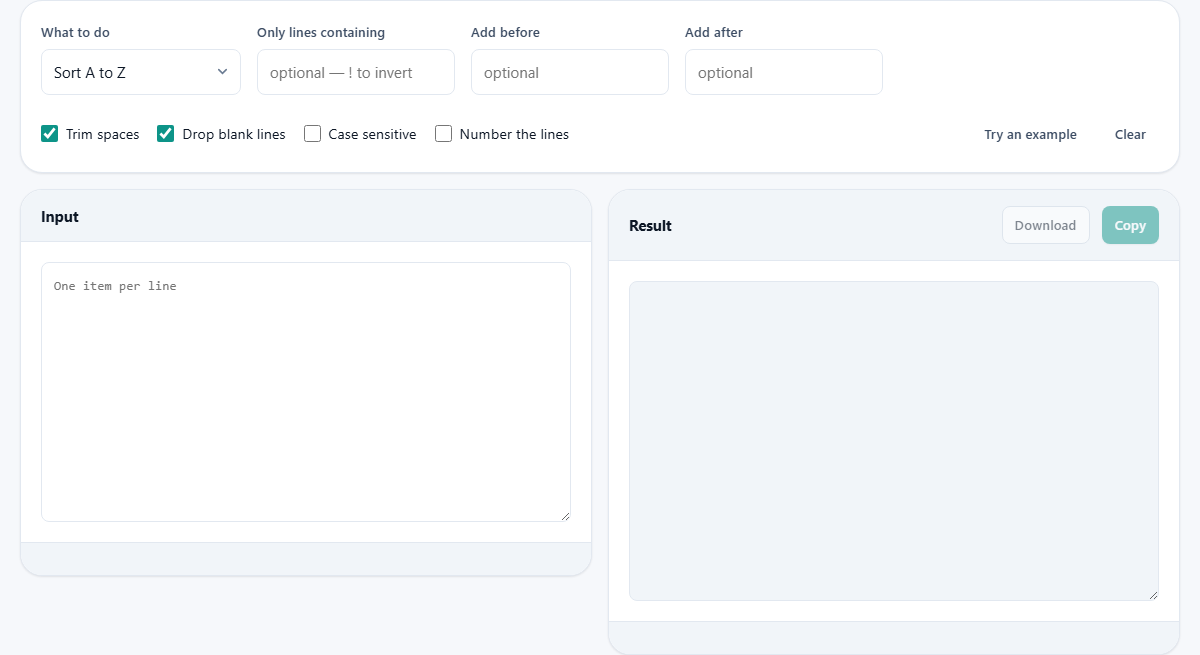
What to do: the operation menu
The menu labelled What to do holds the main action. Sort A to Z and Sort Z to A order the lines. Sort by length arranges them from shortest to longest, which is handy when the length itself is the thing you care about. Remove duplicates keeps the first copy of each line and drops the rest. Show only duplicates does the opposite: it hides the unique lines and leaves just the values that appear more than once, so you can see what was repeated.
The rest rearrange without removing. Reverse the order flips the list end to end. Shuffle randomly scrambles it into a fair random order. Keep the order leaves the sequence untouched, which is what you choose when all you want is to filter or to add a prefix without disturbing anything else.
Natural sorting, so ten lands after nine
Sorting here is natural, which is a small thing that saves a lot of irritation. A plain sort compares character by character, so item 10 slots in right after item 1, because the digit one comes before the digit nine. That ordering is almost never what a person wants from a numbered list.
Instead, runs of digits are read as whole numbers and compared as numbers, so item 2 comes before item 10 the way you expect. The comparison also folds capitals and accents together, so Apple and apple sit side by side rather than every capitalised line clumping at the top. The result reads the way a human would file it.
The four cleaning switches
Four tick boxes decide how the raw lines are prepared. Trim spaces, on by default, shaves stray spaces from the start and end of every line, which is where invisible mess usually hides. Drop blank lines, also on, removes the empty gaps so they do not survive into the result.
Case sensitive changes how repeats are matched. With it off, Apple and apple count as the same line, so removing duplicates keeps only one of them. With it on, the two are treated as different and both stay. Number the lines adds a running number in front of each line at the very end, padded so the numbers line up in a neat column however long the list grows.
Keeping only the lines you want
The Only lines containing box filters the list to the lines that hold a word you type. Enter admin and you are left with just the lines that mention it. Start your text with an exclamation mark and the sense flips: type !admin and every line containing admin is thrown away and the rest kept. The match ignores capitals, so it catches the word whichever way it is written.
The order the steps run in is worth holding in mind. The list is trimmed and cleared of blanks first, then filtered, and only then sorted or deduplicated. So a filter narrows the list before the main operation touches it, which is usually what you want: dedupe the addresses that survive the filter, not the whole pile.
Wrapping every line with Add before and Add after
Two more boxes, Add before and Add after, glue a fixed piece of text onto the front and back of every line. They run after the main operation, so whatever survives sorting and filtering gets wrapped. This is how a bare list becomes something else in one move.
Put a domain in Add before and a list of page names turns into full web addresses. Put a quotation mark and comma around each line and a column of values becomes the makings of a code array. Wrap each line in list tags and you have the bones of an HTML list ready to paste. It is a small feature that removes a lot of repetitive typing.
A worked example: cleaning a member export
Grace has exported a mailing list and it is a mess: about four hundred email addresses, one per line, with blank rows scattered through it and plenty of people who signed up twice, sometimes with different capitals. She pastes the whole thing in. Trim spaces and Drop blank lines are already ticked, so the empty rows vanish at once.
She chooses Remove duplicates and leaves Case sensitive off, so an address written two ways collapses to one. The counts underneath report forty-two duplicates removed, which is roughly what she feared. She then switches the operation to Sort A to Z to put the survivors in order. Finally, to hand the list to a developer as markup, she types an opening list tag in Add before and a closing one in Add after. The result panel now holds a clean, sorted, tagged list, and Copy sends it straight on.
The counts, and taking the result away
Below the result sits a short row of figures. Lines in and lines out show the size before and after, so a big drop is your first sign that a filter or a dedupe did more than you expected. When you remove duplicates, a third figure appears giving the exact number dropped, which doubles as a quick tally of how many repeats the list held.
Copy places the finished lines on the clipboard, and Download saves them as a plain text file, which is the better choice when the list is long. Try an example fills the box with a small sample so you can see each operation in action, and Clear empties it for the next job.
A shuffle that is genuinely fair
Shuffle randomly deserves a note, because random is easy to get subtly wrong. A quick way some tools scramble a list is to sort it with a coin-flip comparison, and that trick quietly favours some positions over others, so the order is less even than it looks. This page uses a proper shuffle that gives every possible arrangement the same chance.
That matters whenever the order carries weight. Drawing names for a rota, picking a random sample to spot-check, deciding who presents first: an uneven shuffle would tilt the result in ways nobody would notice until someone questioned it. Here the draw is clean, so you can lean on it for a fair pick and not just for mixing things up.
Mistakes that catch people out
The commonest surprise is losing lines you meant to keep. If the result is shorter than you expected, check whether a filter is still set from a previous run, or whether Drop blank lines removed rows that were actually meaningful spacing. The lines-in and lines-out counts make this easy to catch.
Another is expecting Show only duplicates to remove things. It does not remove; it reveals. Use it to inspect what is repeated, then switch to Remove duplicates when you actually want them gone. And remember that numbering is added last, so if you copy a numbered list and sort it again elsewhere, the numbers will travel as text and confuse the order.
When another tool is the better fit
This page treats every line as a flat piece of text. If your items are really a single list that needs turning into a comma string, a JSON array or a database clause, a list format converter handles the quoting that job needs. If you need to change a word inside many lines rather than reorder the lines themselves, a find and replace tool is built for that. And if the data belongs in columns, a spreadsheet will keep those columns aligned in a way a line tool cannot.
For the plain work of sorting, deduplicating, filtering and numbering a stack of lines, though, this is the direct route. No columns, no formulas, just a block in and a tidy block out.
Your list stays on your machine
The sorting, filtering and numbering all happen inside the browser you are reading this in. The list you paste is never sent away to be processed, which matters a great deal when it is a column of real email addresses or the names of real people. It is worked on where it sits, on your own device, and it disappears the moment you close the tab. Nothing is stored and nothing is uploaded.