
Cleaning up the tabs, spaces and line endings you cannot see
Whitespace is the part of a file you never look at until it breaks something. A tab where spaces were expected, a stray Windows line ending in a Unix file, a row of trailing spaces, a mark pasted in from a document: each is invisible on screen, and each can wreck a build, a diff or a match. This page converts the whitespace you meant to change and reveals the parts you never knew were there. Below the quick help sit every control, a full example, and the cases where a different tool would serve you better.
The faults that hide in empty space
Whitespace bugs survive because the eye has nothing to catch on. A file looks perfect and still misbehaves. A commit shows the whole file rewritten when you touched a single line. A script that ran yesterday fails today on a machine with a different operating system. A language that cares about indentation complains about a block that appears neatly lined up on screen.
The culprit each time is a character with no ink of its own: a tab pretending to be spaces, a line ending from another operating system, or a space that is not the ordinary one. This page turns those into something you can see, then gives you a copy cleaned to whatever rules you choose.
Putting text in and seeing it laid bare
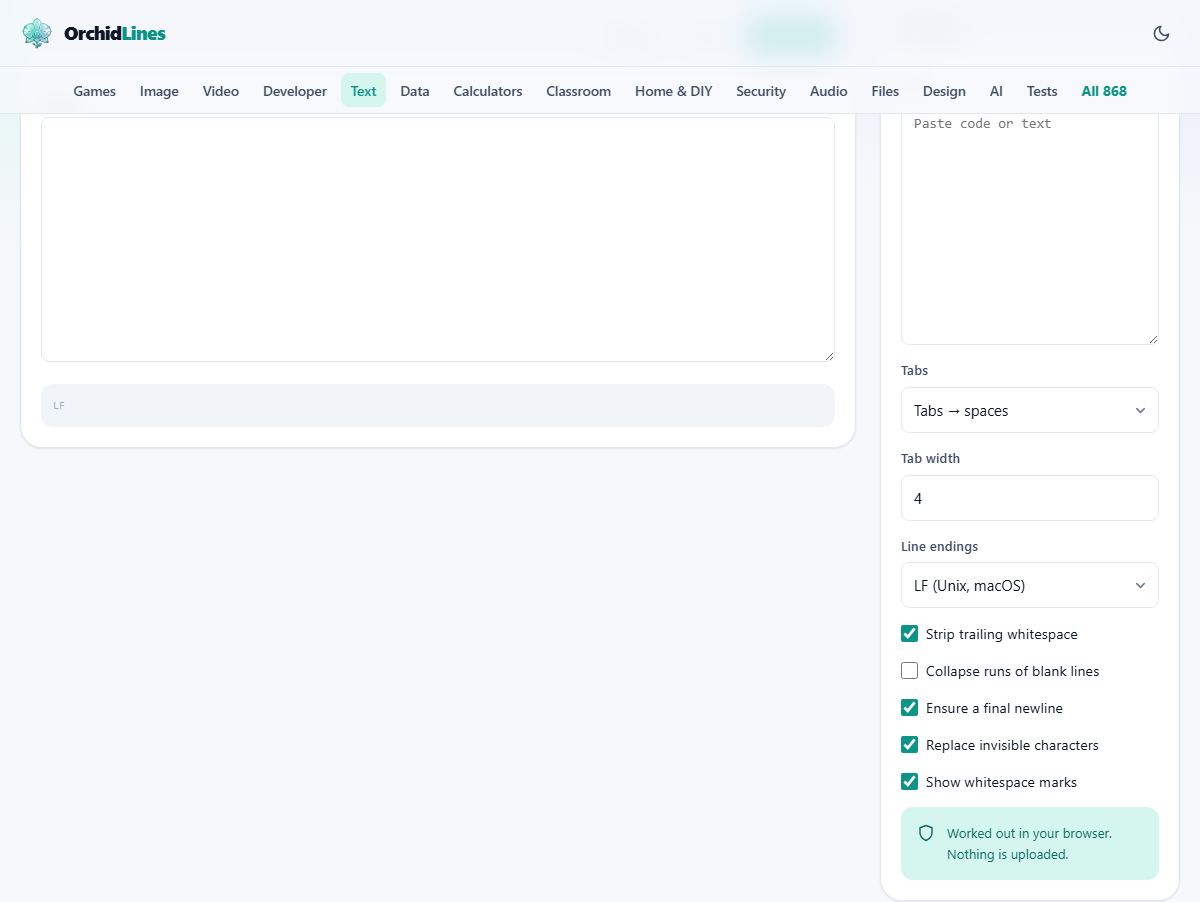
Paste code, a config file or plain prose into the Text box on the right. The cleaned result shows up on the left immediately, with no convert button to press. Anywhere that whitespace carries meaning, this is the box for it.
What separates this from a silent cleaner is the preview beneath the result. With the marks turned on, every space becomes a small dot and every tab an arrow, and each line ending is tagged, so you can read the true shape of the file rather than guess at it.
Tabs, and the width that goes with them
The Tabs menu holds three choices. Tabs to spaces trades each tab for the right number of spaces. Leading spaces to tabs does the opposite, but only on the indentation at the front of a line, since spaces used to line things up within a line are usually there on purpose. Leave alone keeps the tabs where they are while you change other things.
Tab width sets how wide a tab counts as, from one to sixteen, and it is trickier than it first appears. A tab does not equal a set number of spaces; it advances to the next stop, a column that sits on a multiple of the width. Picture three letters typed, then a tab, with the width at four: the tab carries you to column four, a single step along, not a jump of four. Handling that correctly is the whole reason a real tool beats swapping every tab for the same block of spaces, which shoves every later line out of true.
Line endings
Every line in a text file finishes with an invisible marker, and the major systems each picked a different one. The Line endings menu lets you force a single style throughout. LF is the one character used on Unix and modern macOS. CRLF is the two-character pair used on Windows. CR on its own is the old classic-Mac style, rare now but still turning up in ancient files.
Choosing one rewrites every break in the text to match, whatever mixture went in. This is the cure for the commit that marks an entire file as changed when the only real difference is that it has hopped between a Windows and a Unix machine.
Trailing spaces and the final newline
Two small toggles tidy the ends of things. Strip trailing whitespace, on from the start, removes the spaces and tabs that dangle off the end of a line where nobody can see them. They slip in while editing and cause pointless differences when two files are set side by side.
Ensure a final newline, also on, makes certain the file closes with exactly one line break. Plenty of tools expect that last newline and grumble when it is absent, so this settles a complaint you might otherwise spend a while chasing.
Collapsing blank lines
Collapse runs of blank lines begins switched off. Turn it on and any stack of three or more empty lines is squeezed down to a single blank one, which tidies text that has drifted apart across many edits. It stays off by default because a run of blank lines is sometimes deliberate, and flattening it would change spacing you meant to keep.
Replacing invisible characters
Replace invisible characters, on to begin with, deals with the marks that pose as ordinary spacing. Some are spaces of the wrong sort: a non-breaking space, a narrow one, a wide one used in East Asian writing. Each carries a different code number from the plain space, so a search for a normal space glides right past it and a match that ought to work quietly fails. These are turned into ordinary spaces.
Others take up no width at all and show nothing on screen: zero-width spaces and joiners, and the byte-order mark that some programs leave sitting at the very start of a file. Those are removed outright, since they have no place in plain text you are about to paste into code or data. When two entries look the same yet a lookup swears they differ, a hidden mark of this kind is usually the reason.
Showing the whitespace marks
Show whitespace marks, on by default, powers the preview under the result. It draws a dot for each space, an arrow for each tab, a tag on every line ending that names it, and a clear flag on any non-breaking space still lurking about. Nothing in the preview alters your text; it is purely a way to see what is genuinely there.
Switch it off if the marks get in the way of reading the content, though most of the time they are the quickest route to spotting the one odd character in a wall of ordinary ones.
The summary and the warning
Above the result, a short summary reports what came in: how many line endings of each type, how many tabs, and how many lines carried trailing space. It describes the input, so read it as a snapshot of the mess before any cleanup.
A warning surfaces for the two problems most worth flagging. If the text mixes CRLF and LF endings, it says so, because a mixed file looks fine in an editor and still shows as wholly changed in a diff. And if it finds any invisible characters, it names each kind and counts them, so none of them can hide.
A worked example
Press Sample. It loads a short function whose body is indented with a tab, whose first line trails a couple of spaces, whose closing brace ends in a Windows-style CRLF while the rest use LF, and which then holds several empty lines before a last statement.
With the defaults, the tab becomes four spaces at the proper stop, the trailing spaces disappear, the lone CRLF is normalised to LF so the whole file agrees with itself, and a single final newline is guaranteed. The blank lines stay, because collapsing them is switched off. The summary counts the tab, the trailing line and the endings that went in, the warning points out the mix of CRLF and LF, and the preview shows the cleaned body dotted and arrowed so you can confirm the indentation is now spaces.
Getting the clean text out
Three buttons sit above the result. Copy places the cleaned text on your clipboard, ready to paste back. Download saves it as a file called cleaned.txt. Sample reloads the demo whenever you fancy another experiment.
The text you carry away holds the exact endings, indentation and spacing you set, which is what makes it safe to drop straight into a repository, a config file or a data import without a nasty surprise later.
Common mistakes to watch for
The usual trap is converting tabs to spaces without checking the width first. If a file was written for a width of eight and you clean it at four, the indentation still falls on valid stops, but it will not look the way its author intended. Set the width to match the project before you convert.
Another is running the reverse, spaces to tabs, and expecting alignment inside a line to come through untouched. It will not, and that is on purpose: only the indentation at the start of each line is turned back into tabs, because spaces placed mid-line are usually holding a column in place.
A third is forgetting that the summary and the warning describe what you pasted, not what comes out. To confirm the cleanup really worked, read the marked-up preview of the result rather than the input counts sitting above it.
When another tool fits, and where it runs
If your only concern is hunting hidden characters inside a single pasted line, rather than tabs and line endings across a whole file, a tool aimed squarely at that is a tighter fit. If you need to compare two files line by line, a difference viewer is the right instrument. And an editor that formats on save keeps a project tidy without any manual pass at all.
Wherever this one is the right choice, the work is done entirely in your browser. Nothing you paste is uploaded, and none of it is kept once you close the tab. That matters, because the files most in need of a whitespace fix, source code and configuration among them, are often exactly the ones you would least like to send anywhere.