
Listening to your writing instead of reading it
This tool reads text out loud using a voice that already lives on your own device. Nothing is installed, and there is no cap on how much you feed it. This guide walks through the buttons that start and steady the speech, the sliders that shape it, the voice menu and the one label on it worth reading twice, what you can keep afterwards, and where your words actually travel.
When a listen beats a read
There are many moments when hearing words serves you better than staring at them. You can rest tired eyes while a long article plays through. You can catch up on a report with your hands busy on something else. You can follow a set of steps out loud without glancing back at the screen every line.
It is a fine editing trick as well. Reading your own draft in your head hides its faults, because your eye kindly fills in what you meant to write. A voice reading the exact words on the page has no such loyalty, so a clumsy line or a dropped word leaps out. Students lean on it too, since a slower pace paired with a second sense helps a passage settle in the memory.
The text box and the counters
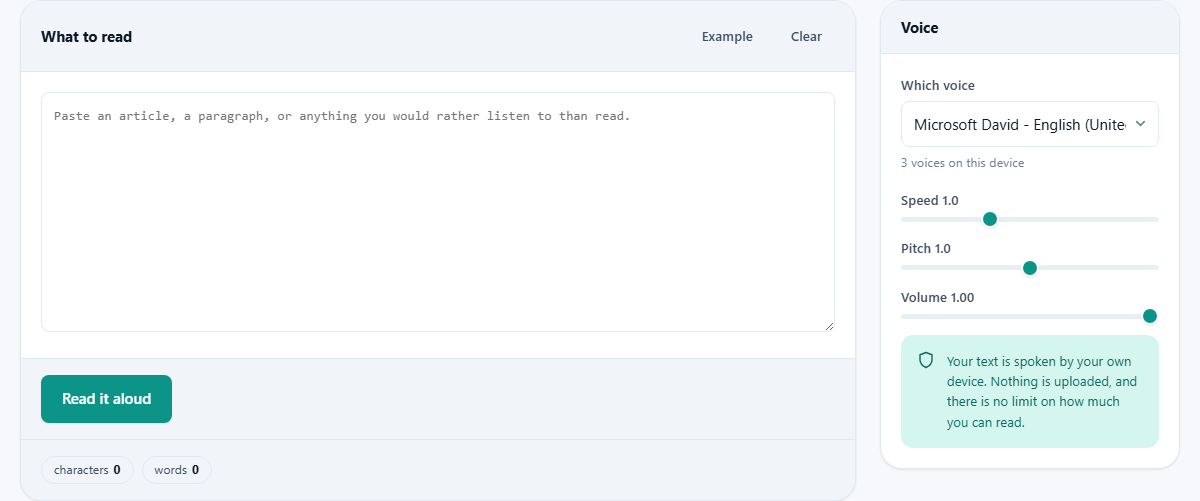
The wide box on the left is where your words go. Paste an article, an email or a whole chapter into it; length is genuinely not a concern here. Two small buttons sit above it. Example fills the box with a short test line, and Clear empties it and drops the cursor back so you can start fresh.
As you type, a row of small chips underneath keeps a running tally: how many characters, how many words, and roughly how long the reading will run at your chosen pace. Push the speed up and that time estimate shrinks to match.
Starting the speech and steadying it
The Read it aloud button sets the voice going. Once it is talking, the row of buttons changes so you can manage it in flight. Pause holds the voice exactly where it is, Resume picks the thread back up from that same spot, and Stop cuts it off and rewinds to the very start.
A small marker beside the buttons reports whether the page is speaking, paused or sitting idle, so you are never left guessing what it is doing.
Which voice
The Voice menu on the right lists the voices your device already holds, sorted into groups by language so a long roster stays easy to scan. Here is the thing that catches people out: this tool carries no voices of its own. It borrows whatever your operating system and browser happen to have, which is the very reason it asks for no payment and never hits a quota.
The trade-off is that your menu and a friend's menu will not look the same. A phone often carries strikingly natural voices. A desktop usually has a few dependable ones built in. A bare machine might offer only one or two flat, mechanical ones. A line below the menu counts how many you have, and if the choice looks thin, adding a language pack in your system settings usually fleshes it out.
The one label to read carefully
A few voices are followed by the word online in brackets, and they are different in a way that counts on a site built around privacy. An online voice is not made on your machine. It is generated on the voice provider's own servers, which means the text you typed is sent away to that provider to be spoken. In other words, for that one kind of voice, your words leave the device.
The tool handles this with care. It refuses to start on an online voice even when your browser would happily default to one; it reaches for an on-device voice first, so the network is only ever touched because you asked for it. The moment you pick a voice wearing the online tag, a plain warning appears spelling out what that means. Every other voice does its work locally and needs no connection at all once the page has loaded.
Finding a read that sounds human
The gap between a wooden voice and a lifelike one is wide, so it is worth a minute to hunt out the good ones. Open the menu and try two or three within your language before you settle on any of them. Newer phones and up-to-date computers often tuck their best-sounding voices lower down the list, past the plain default at the top.
You may notice that some of the smoothest voices are the ones marked online. That is the trade sitting at the heart of this page. The most polished option can be the very one that sends your text away, while the choices that stay private are the ones already living on your device. Which of those wins is a judgement only you can make, and the label is there so you can make it with your eyes open.
Speed, Pitch and Volume
Three sliders shape the delivery. Speed runs from a slow half-pace up to double time, and the figure beside the label updates as you drag. Most people drift to a setting above normal once their ear adjusts to it, while a gentler pace suits close study or a tricky passage.
Pitch lifts or lowers the tone of the voice, and Volume sets how loud it plays against the rest of your system. All three land the next time you press Read it aloud, so the rhythm is simple: nudge a slider, play a line, then nudge again until it sits right.
A worked example
Press Example. The box fills with a well-known pangram, the line about a quick brown fox and a lazy dog, followed by a short prompt to change the voice and speed. The chips below report a few dozen characters, a handful of words, and a reading time of a second or two.
Choose a voice from your own language group and press Read it aloud. Now drag Speed up one notch and press it again. The same sentence returns quicker and with a slightly different feel, which is the fastest route to a setting you could listen to for an hour without growing weary of it. If a voice grates once it gets going, press Stop, pick another from the list, and set the line off again.
No cap, and the reason for it
Reading services that run in the cloud meter you by the character and stop you at a ceiling. This page has no counter of that kind and no paid step, and the reason is baked into how it works rather than being a favour handed out. Since the speaking is done by your device, there is nothing for anyone to charge for and no distant quota to run dry. One short sentence and an entire book are treated exactly alike.
That makes it an easy home for the long material other readers shy away from: a full feature article, a dense agreement you would sooner hear than wade through, or a chapter of your own draft played back before it heads out the door.
What you can keep afterwards
The result here is sound, not a file. The page can ask your device to speak, but browsers do not hand a website the audio they generate, so there is no recording to save and no button that offers one. When you genuinely need an audio file, capturing your computer's own output while the voice plays is the usual way around it.
Because the reading is live rather than rendered, you steer it as it happens: play, pause, jump the speed, swap the voice, and set it off once more. It is a player, not an exporter.
Common snags, and their fixes
A few things trip people up, and each has a plain answer.
- Only one or two voices listed: your device is sparse, so add a language pack in its settings to widen the choice.
- A voice that sounds mechanical: work through the others in the same language group, since quality swings widely from one to the next.
- French or Spanish read with an English accent: the wrong language group is selected, so switch to a voice made for that language.
- A long piece that cuts out partway: some browsers time the speech out, so press play again to continue, and break very long documents into parts.
- No sound and a blocked-audio message: click once anywhere on the page, which satisfies the browser's rule that audio must follow a click, then try again.
Where your words go
For every voice without the online label, the reading is done by your own device and nothing you paste travels anywhere. Your operating system's speech engine takes the text, speaks it, and that is the whole story.
The single exception is an online voice, and it is tagged precisely so the choice rests with you, made with open eyes. If keeping the text on your own machine matters to you, stay with any voice that has no online tag, and every word you type stays where you typed it.