
Building a contents list whose links actually work
This page reads the headings out of a Markdown document and builds a linked list of them. The hard part is the anchor, the little tag each link points at, and this tool makes anchors that match what code-hosting sites produce. Here is how to feed it, how each option shapes the list, how to check every link before you publish, and where the usual links break.
When you need one
A long Markdown file is easier to use with a contents list at the top. Readers jump straight to the part they want instead of scrolling for it.
The obvious home for this is a project README or a page of documentation. Anywhere you write in Markdown and the document runs long, a jump list near the top earns its space.
The catch is that a contents list is only useful if the links land. A list full of dead links looks worse than no list at all, and that is the problem this tool is built to avoid.
For a short file with only a handful of sections, you may not need a list at all. Many hosts show an outline of their own, and a jump list for four headings just adds a screen to scroll past. Save it for the documents that really are long.
Pasting your document
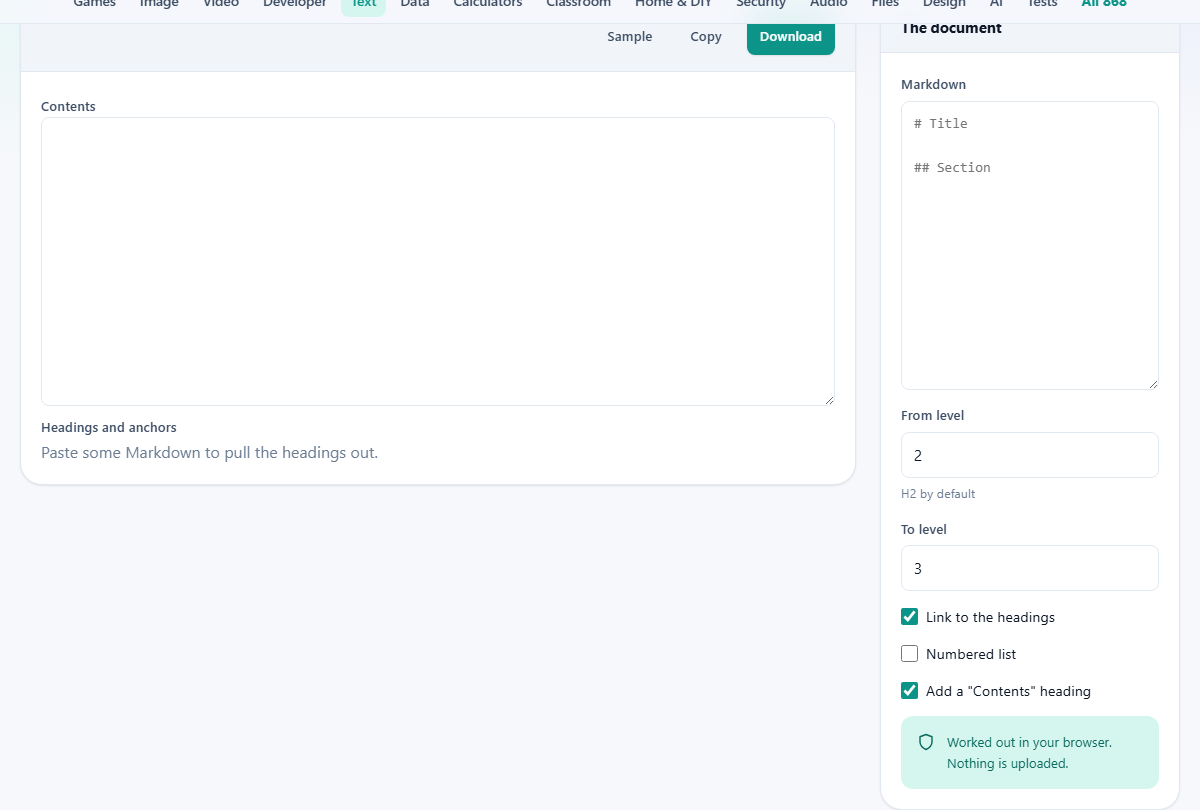
The side panel is titled The document, and its Markdown box is where the text goes. Paste the whole file, not just the headings. The tool looks through all of it and pulls out the heading lines for you.
You do not need to clean it up first. Body text, code, lists and links can all stay; only the headings are read, and the rest is left alone.
Choosing which headings appear
Two number boxes decide the range. From level sets the top heading you want in the list, and To level sets the deepest.
They start at H2 and H3, which suits most documents. The single H1 is usually the document title, so it is left out on purpose. If you do want the title in the list, set From level to 1. If your sub-sub-headings are noise, pull To level back to 2.
The list options
Three checkboxes decide how the list looks. Each one flips a plain either-or choice.
- Link to the headings wraps every item as a link to its anchor. Turn it off and you get a plain outline of the headings with no links, which is handy as a quick summary.
- Numbered list swaps the bullet dashes for numbers. Leave it off for a simple bulleted list, or turn it on when the order is part of the point.
- Add a Contents heading puts a short Contents title above the list, so you can drop the whole block straight into the file with a header already in place.
What comes out
The Contents box shows the finished Markdown list. Nested headings are indented under their parents, so the shape of the document is visible at a glance.
Above it, a short summary line reports how many headings were found and how many lines the finished list runs to. Three buttons handle the rest. Sample loads a demo document. Copy lifts the list to your clipboard. Download saves it as a file named contents.md.
The anchor table is the safety check
Under the list sits a table headed Headings and anchors. It lists every heading it found, with three columns: the level, the heading text, and the exact anchor it produced.
This is the part to actually read. A link is dead when its anchor does not match the heading it should point at, and the anchor column shows you the real tag before you publish. Headings that fall outside your chosen range are dimmed, so you can see they were spotted but left out.
How the anchor is built
The anchor follows a fixed recipe. The heading text is dropped to lower case. Everything that is not a letter, a digit, a space or a hyphen is removed. Then the spaces become hyphens.
So a heading like What's New? (v2) turns into whats-new-v2. The question mark and the brackets are stripped, the apostrophe goes, and the rest joins up with hyphens. Get one of those steps wrong and every link misses, so the recipe is worth trusting rather than hand-typing.
The duplicate-heading trap
Two headings with the same words cannot share one anchor. The sites this matches solve it by numbering the repeats, and the counting starts from zero on the first repeat.
So the first Usage stays usage. The second becomes usage-1. The third becomes usage-2. It reads odd at first glance, but it is the rule the host uses, so the tool copies it exactly. A generator that counted from one would break every repeated link, quietly, and you would only notice once the page was live. When repeats are found, a warning appears to point them out.
Code fences and formatting are handled
A hash at the start of a line usually marks a heading, but not inside a code block. A comment like a hashed note in a shell script is not a heading, and treating it as one would drop nonsense into your list. The tool skips anything fenced in a code block, so those lines are ignored.
Inline formatting in a heading is cleaned up too. Bold marks, italics, inline code and link syntax are peeled off the visible text, so the list reads as plain words.
A worked example
Press Sample and a small demo document loads. It has a title, an Installation section, a section called What's New? (v2), and then the word Usage used three times as a heading at different levels. It also has a code block with a hashed comment inside.
Leave the range at H2 to H3. The title is an H1, so it is left out. The hashed comment sits in the code block, so it is skipped. The list comes out with Installation, then What's New? (v2) linking to whats-new-v2, then the three Usage entries linking to usage, usage-1 and usage-2 in turn.
The warning lights up because Usage repeats, and the anchor table shows each of the three getting its own numbered tag. That is the whole trap, solved and visible in one glance.
Common mistakes and fixes
If a link is dead, the cause is almost always a repeated heading or punctuation the recipe stripped. Open the anchor table and read the tag it actually made; the mismatch is usually obvious once you see it.
If a heading is missing from the list, check the level range. It may sit above From level or below To level, in which case it shows dimmed in the table rather than in the list.
One more thing to know: this reads Markdown headings only. Headings written as raw HTML are not picked up, so convert them to Markdown first if you want them counted.
Keeping the list in step
A contents list is a snapshot. It matches the headings the moment you build it, so it drifts out of date the instant you add, rename or move a section.
The fix is simple: build it again when the headings change. Paste the current document, copy the fresh list, and swap it in over the old one. It takes seconds, and it beats a reader clicking a link that no longer goes anywhere.
A good habit is to rebuild the list right before you publish. That way the anchors you ship are the ones your headings actually carry, not the ones they had three edits ago.
A note on emoji in headings
Some people put a small icon at the start of a heading. The visible text in the list keeps that icon, so the list still reads the way the heading does.
The anchor, though, drops it, because the host drops it too when it builds the real tag. Matching that behaviour is the whole point, so the link still lands even though the icon is gone from the anchor.
When another tool is a better fit
If all you want is a single web-address slug from one title, the Slug Generator is the simpler choice. It follows general web rules, while this tool copies a code host's own anchor rules, which is a different job.
If the Markdown you are pasting is full of hidden marks from a word processor, run it through the Text Cleaner first. Clean text in gives clean headings out.
It all happens on your device
The document you paste is read and cut up entirely by your own browser. It is not sent anywhere, so a private or unreleased README stays private while you work on it.
Because the work is local, the list updates as you type and keeps working with no connection. Nothing about your document is stored on a server, and closing the tab clears it from the page.
That suits work in progress. Draft documentation, an internal guide, notes for a product not yet out: all of it can be turned into a contents list here without a single line of it leaving your computer.