
Reading a script to camera without looking down
This page scrolls your words up the screen at a steady pace, so your eyes can stay on the lens while you talk. You paste a script, pick a speed, and press Start. This guide walks through the script box, every setting, the hands-free keys, mirror mode for glass rigs, and a full take from start to finish.
What it is for
When you record yourself talking, looking down at notes gives the game away. Your eyes drop, your voice flattens, and the take feels read rather than said.
A prompter fixes that. It rolls the script past a fixed point near the lens, so you look straight ahead and sound natural. People use it for video intros, webinars, product demos, course lessons and speech practice.
This one lives in the browser, so there is nothing to install. A laptop, a tablet propped beside the camera, or even a phone can all act as your prompter.
Pasting the script
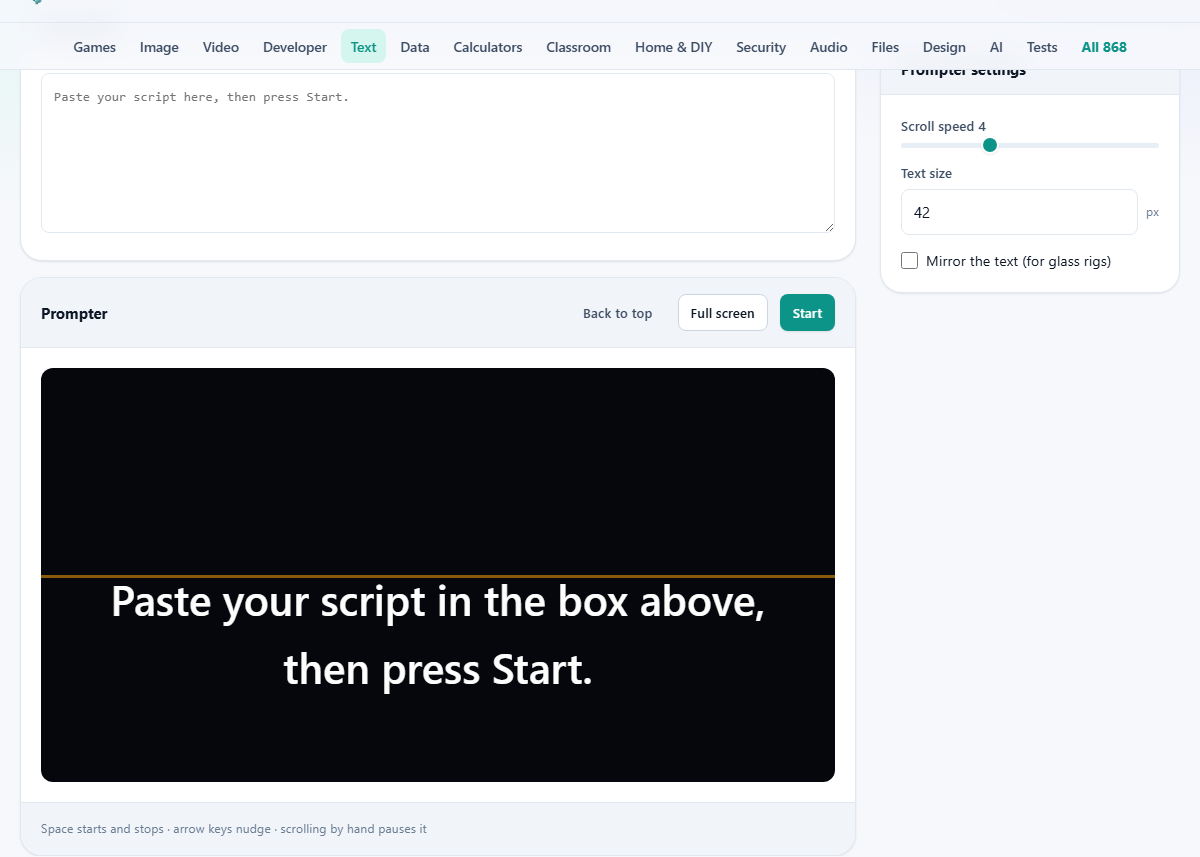
The top box, labelled Your script, is where the words go. Paste the whole thing in one go. It appears in the prompter view below, ready to roll.
How you lay it out changes how easy it is to follow. Break the script into short paragraphs with a blank line between them. A single solid block is hard on the eye; clear gaps give you a place to breathe and a spot to find your line again.
You can edit the words right in the box and the view updates as you type. So a last-minute change of a name or a figure is quick, and the keyboard shortcuts stay out of your way while your cursor is in the box.
The prompter buttons
Three buttons sit above the rolling text, and each does one plain thing.
- Start begins the scroll. Once it is moving, the same button reads Pause, so one press stops it and the next carries on.
- Back to top jumps the script back to the first line. It is the reset between takes, so you are ready to go again without scrolling by hand.
- Full screen throws the script across the whole display, hiding everything else, which is what you want the moment the camera rolls.
The three settings
A small panel on the side, titled Prompter settings, holds the controls that shape the read.
- Scroll speed is a slider from 1 to 10, set to 4 to begin with. Low numbers crawl for a slow, careful read; high numbers race for a brisk one. Nudge it until the pace matches your voice.
- Text size is a number in pixels, starting at 42, and it goes from 16 up to 120. Bigger text is easier to read from across a room, so raise it if the camera sits back.
- Mirror the text flips the words left to right. Leave it off unless you are using a glass rig, which is explained further down.
Hands-free control
Once you are rolling you do not want to reach for the mouse. The keyboard covers the moves you need.
The space bar starts and stops the scroll, so you can pause the second something interrupts you and pick straight back up. The up and down arrow keys nudge the text a little either way when you drift off the line.
There is one more safety net. If you scroll or swipe the moving text by hand, the auto-scroll stops on its own, so you can hunt for your place in peace. Press space to set it going again. These keys are ignored while you are typing in the script box, so editing never triggers them.
Full screen and camera placement
Full screen matters more than it sounds. Filling the display makes the text large and calm, with no buttons or browser edges to pull your eyes off the mark.
Where you put the screen is the other half. The trick only works when your gaze stays close to the lens. Set the screen right under the camera, or as near to it as you can manage, so the drop from lens to text is tiny and nobody notices.
What mirror mode is really for
A proper prompter rig uses a sheet of angled glass in front of the lens. The glass reflects a screen lying flat below it, and the camera shoots straight through the glass. Because a reflection is flipped, the screen has to show flipped text for it to read the right way round in the glass.
That is the only reason to turn Mirror on. If your text looks backwards, you have switched it on by mistake; turn it off. Reading straight from a laptop or phone never needs it.
A full take, step by step
Say you are recording a one-minute welcome for a course. Paste the script into the top box, split into four short paragraphs with blank lines between them.
Set Text size to 60 so you can read it from a step back, and leave Scroll speed at 4 for a first try. Press Full screen, get settled, then tap the space bar to start the roll.
Halfway through, someone knocks at the door. Tap space to freeze the text, deal with it, then tap space again to carry on from the same line. When you finish, press Back to top and you are set for a second take. If the pace felt rushed, drop the speed to 3 before you go again.
Reading from a phone or tablet
A tablet stood on end next to the camera is the classic low-cost prompter, and this page works on one just as it does on a laptop. Paste the script, press Full screen, and the words fill the small display.
On a phone the screen is tiny, so raise the Text size and keep the phone close to your face. Because you can pause with a tap, a phone propped against a mug can carry you through a short clip in a pinch.
The touch controls follow the same rule as the mouse. A swipe on the moving text stops the scroll, so you can nudge back to your line, then tap to run it on.
A quick check before you record
A minute of setup saves a ruined take. Run through a short list before the camera rolls.
- Read one paragraph at your chosen speed and confirm it feels comfortable.
- Raise the Text size until you can read it from where you will sit or stand.
- Check that Mirror is off, unless a glass rig makes you need it.
- Go Full screen so no buttons show in the frame.
- Rest a hand near the space bar so a pause is one tap away.
Finding the right speed
There is no perfect number, only the one that fits your voice. Rehearse a single paragraph and adjust after it, rather than guessing for the whole script.
The pace you want is the one where you are never waiting for the next line and never chasing it. A little slow is safer than a little fast, since a rushed read is harder to fix in the edit.
Common mistakes and fixes
The most common trap is a script written to be read, not spoken. Long sentences that look fine on paper trip the tongue out loud. Cut them short, use everyday words, and keep one idea per line.
Another is setting the speed once and hoping. Do a quick practice run and tune it before the real take.
If the roll seems stuck at the end, that is by design. The scroll stops when it reaches the last line rather than leaving you staring at a blank screen. Press Back to top to reset.
When something else suits better
This tool reads a script; it does not write one. Draft and trim your words in a plain editor first, then bring the finished version here to read.
For a shoot with lots of little jobs to track, a simple checklist keeps you on course, so the To-Do List on this site pairs well with a prompter session. And for a single line you can hold in your head, no prompter is needed at all.
Your script stays with you
Nothing here is uploaded. The words sit in this page while you read and go no further, which matters because a script is often unpublished work you would rather keep to yourself.
There is no send button and no account. Close the tab and the script is gone from the page, so a shared or public computer leaves no trace of what you were about to say.
It also means the prompter keeps working with the internet switched off. Once the page has loaded, you can turn off the wifi and record in a quiet room with no worry about anything phoning home.
Small touches that lift a take
A few habits make a bigger difference than any setting. Stand or sit at the same height as the lens, so your eyes look level rather than up or down.
Mark the natural pauses in your script with a short line of their own, and the gap on screen becomes a cue to slow down. And keep the speed a touch under what feels right, because a calm read almost always beats a rushed one on playback.