
Getting the hidden mess out of pasted text
Copy a few lines from a document, a PDF or a web page and you often paste in more than you can see. This page finds and removes that hidden clutter. Here you will learn what each checkbox catches, which ones are safe to leave on, which ones actually delete content, and how to read the before-and-after counts.
The problem it solves
Text carries baggage. A word processor turns your straight quotes into curly ones. A PDF chops sentences into short lines. A web page hides tags and stray marks between the letters.
None of it shows until it bites. A curly quote stops a code snippet from running. A hidden mark makes two matching words refuse to match. A stray tag turns a neat paragraph into soup.
This is the tool for the moment before you paste somewhere fussy: into code, a spreadsheet, a database field, or a plain form that expects plain text.
It is also a quick sanity check. When something imports wrong and you cannot see why, running the text through here often reveals a hidden mark you had no idea was there.
The two boxes
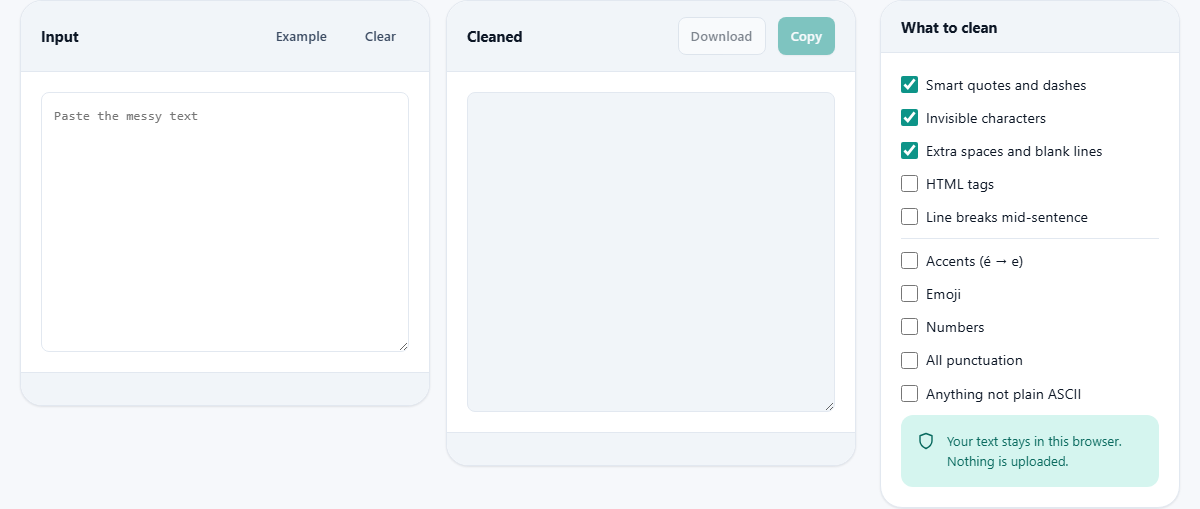
On the left is the Input box. Drop your messy text there, exactly as it arrived, with no need to tidy it first. The Example button fills it with a deliberately dirty sample so you can watch the work happen, and Clear empties it again.
On the right is the Cleaned box, which updates the instant you change anything. Copy lifts the result to your clipboard. Download saves it as a plain file called cleaned.txt.
You never edit the right box by hand. It is a live view of what your input becomes under the switches you have picked, so every tweak on the left shows up on the right straight away.
The three safe defaults
The choices sit in a side panel titled What to clean. The top three come switched on, because they only fix things that are invisible or swappable. They never change your meaning.
- Smart quotes and dashes turns curly quotes back into straight ones and long dashes into a simple hyphen. It also mends a few cousins, like the three-dot ellipsis.
- Invisible characters strips the marks that take up no space at all, such as a zero-width space or a soft hyphen. These are the sneaky ones that break a search for no visible reason.
- Extra spaces and blank lines squeezes long runs of spaces down to one and trims a stack of empty lines down to a single gap.
Two extra fixes for common sources
Below the safe three sit two more, left off until you want them, because they suit particular sources.
- HTML tags removes the angle-bracket markup you get when copying from a web page. Block tags like a paragraph become a line break first, so the text does not all run together.
- Line breaks mid-sentence is the rescue for text pasted out of a PDF. A PDF breaks a line wherever the page ended, not where a sentence did, so this rejoins the lines that clearly carry on.
The lower group deletes real content
Under a divider is a second set. These do not tidy your text; they remove parts of it. Reach for them on purpose, not by habit.
- Accents, shown with an example of an accented e becoming a plain e, flattens letters to their bare form. In many languages that changes the word, so use it only when the target truly cannot cope.
- Emoji pulls out the little pictures. Useful when a system chokes on them, or when you want a plain, printable line with no colour in it.
- Numbers deletes every digit. Handy for stripping page numbers or codes out of a block of copied text, but it will take out dates and prices too.
- All punctuation strips anything that is not a letter, a number or a space. What is left is bare words, which is sometimes exactly what a rough word list wants.
- Anything not plain ASCII is the heaviest hammer here. It removes every character outside plain English, which is handy for an old system and ruinous for anything in another language.
Reading the counts
Under the Cleaned box, three chips keep score: characters in, characters out, and the number removed. Together they tell you how much was hiding in there.
A status line adds detail in words. It names the smart characters, invisible characters, HTML tags and emoji it caught, so you are not left guessing whether anything was done. When the text was already tidy, it simply says so.
Watch the removed count when you flip a switch. If it jumps by a lot, that option was pulling out more than you expected, which is your cue to check the Cleaned box before you copy anything out.
A worked example
Press Example. The box fills with a sample full of curly quotes, a long dash, a zero-width space wedged inside a word, clumps of spaces, spare blank lines, a scrap of HTML, an accented word, a number and one bright emoji.
With the three defaults on, the quotes go straight, the long dash becomes a hyphen, the hidden mark vanishes so the split word reads as one, and the runs of space and blank lines collapse. The HTML, the accent, the number and the emoji all stay, because those switches are still off.
Now tick HTML tags and the angle-bracket markup drops away, leaving the sentence inside it. Tick Accents and the accented word loses its mark. Tick Numbers and the digits go. Tick Emoji and the picture disappears. Each change shows at once, and the removed count climbs as you go.
A second example: a PDF paste
PDF text is the classic case, so it is worth its own run. Copy a paragraph from a PDF and it often lands as a column of short lines, each one broken where the page happened to end.
Paste it in and tick Line breaks mid-sentence. The tool joins the lines that plainly continue a thought, while leaving a real gap between paragraphs alone. What was a jagged column reads as flowing sentences again.
Leave the top three on at the same time and any curly quotes or odd spacing from the PDF get cleared in the same pass. One paste, one tidy result.
Good habits with the heavy switches
Treat the lower group like a set of sharp knives. Turn one on, look at the result, then decide, rather than flipping several at once and hoping.
Keep an untouched copy of the original somewhere until you are happy. Because these switches remove content for real, an undo is just your own backup.
If you only need a plain skeleton of the words, All punctuation and Numbers together get you there fast. If you need to feed an old system that only speaks basic English, the ASCII switch is the one, but expect it to be blunt.
Why the invisible ones matter most
The characters you cannot see cause the strangest bugs. A zero-width space sits between two letters, takes up no room, and yet makes a password or a product code fail to match.
Curly quotes are a quieter trap. To your eye they read as quotes, but to a computer they are different characters, so pasted code will not run and a data file parses wrong.
Because you cannot spot these by looking, the word-by-word status line is the point. It proves what was there and what was taken out.
Common mistakes and how to fix them
The usual slip is ticking the heavy options without meaning to. If your text suddenly lost its accents or its numbers, look at the lower group and switch off whatever you turned on.
Another is expecting the PDF fix to run on its own. It stays off by default, so tick Line breaks mid-sentence when your paste is full of short broken lines.
If a code snippet still refuses to run after a clean, check that Smart quotes and dashes is on. That single switch is the fix for most snippets that will not start.
When a different tool is the right call
This tidies text; it does not reshape it. If you want to turn a title into a web address, the Slug Generator does that job properly, accents and all.
If you are building a contents list from a Markdown file, the Markdown Table of Contents tool reads the headings and links them. Clean the file here first if it is full of hidden marks, then hand it over.
Nothing you paste is sent away
The whole clean-up happens right here in the page. Your text stays inside this browser, on the machine in front of you, and no copy is shipped off for processing.
That makes it safe for private drafts, client work and anything under wraps. The page keeps your last input and your chosen switches on this device so they are ready next time, and wiping your browser data clears them.
There is a nice side effect too. With nothing to send and nothing to wait for, the result appears the moment you type, and the page keeps working even with no connection at all.