
Turning titles into tidy web addresses
A slug is the short, readable tail on the end of a web address. This page makes one from any heading, and it is careful with accented letters that most tools quietly drop. Below is what each setting does, how the accent handling works, how to read what comes back, and where a different tool would serve you better.
Where a slug earns its keep
Every article, help page and product listing needs an address. The part people can actually read is the slug. For a post called How to Make Bread, a clean slug is how-to-make-bread.
You reach for this when you name new pages. Paste a stack of draft titles and get a matching stack of links back. It also helps when you rename one page and want the fresh address to look neat.
A good slug pays off in two more places. It shows up in search results, where a clear link invites a click. It also gets shared by hand, in chat and email, so a readable one travels better than a wall of numbers.
Bloggers, shop owners and writers use it the most. So do people moving a whole site, who need hundreds of old titles turned into plain, lower-case links in one go.
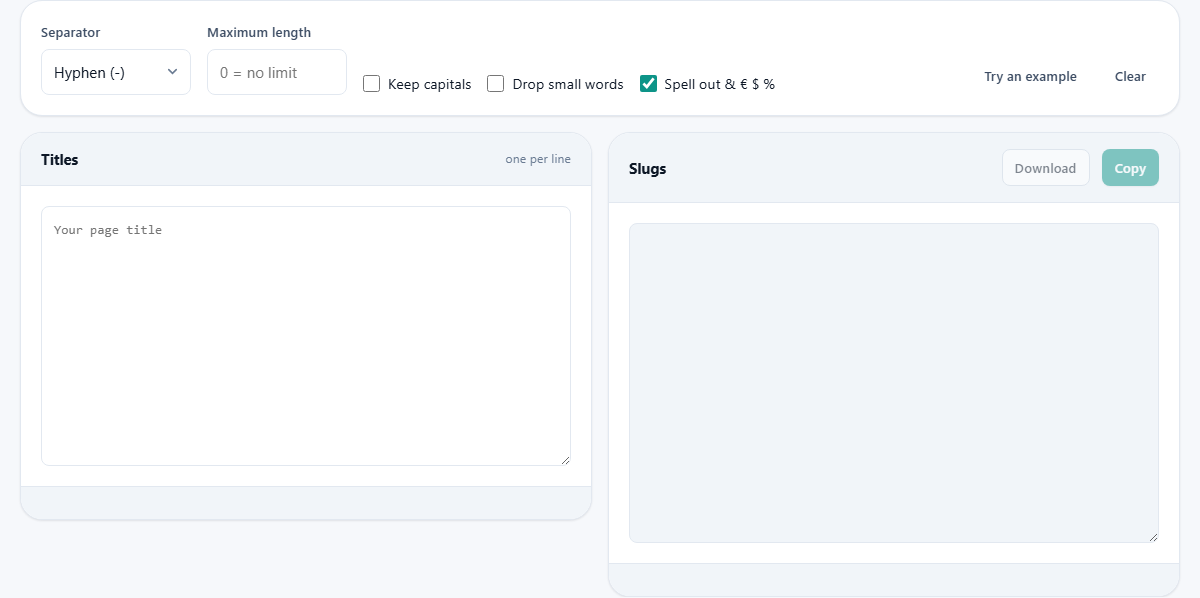
Setting up the input
The left box is where your titles go. Put one title per line. Each line is treated on its own, so a list of twenty headings gives you twenty slugs, in the same order.
Blank lines stay blank. That means you can keep a gap between groups and the layout survives. There is no limit on how many lines you paste, so a full export of old page titles is fine.
Every control, one at a time
The strip of options above the boxes shapes the result. Here is what each one changes.
- Separator picks the joining character. Hyphen is the default and the right pick for web addresses. Underscore suits file names. Dot is there for the odd case that wants it.
- Maximum length caps the slug at a number of characters. Zero means no cap. When a slug is too long, it is cut back to the last whole word so it never ends in the middle of one.
- Keep capitals leaves the letters as you typed them. Off, everything drops to lower case, which is the safer choice for links.
- Drop small words removes filler like the, and, of and to. It makes a slug shorter, but read the result, because the wording can turn odd.
- Spell out and euro dollar percent is on by default. It swaps common symbols for words, so an ampersand becomes and, a dollar sign becomes usd, and a percent sign becomes percent.
Hyphen, underscore or dot
The separator choice matters more than it looks. For a public web address, pick the hyphen. Search engines treat a hyphen as a gap between words, so how-to-make-bread reads as four words to them.
Underscore is the old habit from file names, and some systems still expect it there. In a web address it can glue words together in a search engine's eyes, so keep it for files, not links.
Dot is the rare one. It suits a version tag or a short code where a full stop reads naturally. For everyday page addresses, leave it alone and stay with the hyphen.
Reading what comes back
The right box fills in as you type. Under it sits a small preview built like a real link, example.com followed by your first slug, so you can see the shape at a glance.
Two little chips report the count of slugs made and the length of the first one. That length chip is handy when you have set a cap, because it tells you at a glance whether the first slug is sitting under your limit.
When you are happy, use Copy to grab the lot, or Download to save them as a plain text file named slugs.txt. The file is just the slugs, one per line, ready to drop wherever you need them.
Two buttons sit above. Try an example loads a messy title so you can watch the tool work. Clear empties the input for a fresh start.
A worked example
Say you type Creme Brulee & Cafe, written with its French accents, into the box. Leave every setting at its default: hyphen, no length cap, lower case, and spell-out on.
The tool changes the accented letters to plain ones, turns the ampersand into the word and, drops everything to lower case, and joins the words with hyphens. You get creme-brulee-and-cafe.
Now tick Drop small words. The word and is filler, so it goes, leaving creme-brulee-cafe. Set Maximum length to 12 and the slug is trimmed back to the last whole word, giving creme-brulee.
Try a different title to see the symbol swap. Type Save $5 Today with spell-out on and you get save-usd-5-today. Turn on Keep capitals and a name like iPhone Case comes out as iPhone-Case rather than iphone-case.
Why accents are the whole trick
Most tools throw away anything that is not a plain letter. That quietly deletes an accented letter, so a word ends up with a hole in it. This one splits each accented letter into a base letter and its mark, then removes only the mark. The base letter stays.
A few letters have no plain twin. The German sharp s becomes ss. The o with a stroke becomes o. The joined ae stays as ae. Those come from a short list, because no amount of stripping would ever produce them.
The symbol swap works the same way. With the option on, an ampersand reads as and, a euro sign as eur, and a pound sign as gbp. That reads far better than watching them vanish and leaving a gap.
Common slip-ups and quick fixes
If a slug ends in the wrong place, your length cap is probably too tight. Raise the number, or set it to zero and let the whole thing through.
If words you wanted are missing, Drop small words is on. It is meant to strip filler, but it will take out any word on its list, so switch it off if the meaning suffers.
The biggest mistake is out in the world, not in the tool. Never change a slug that is already live. Every old link points at the old address, so a change breaks them all. If you truly must, set up a redirect from the old link to the new one.
Aim for three to five words. A short slug is easy to read, easy to share, and does not get chopped off in a search result. A very long one helps nobody.
Converting a whole list at once
The one-title-per-line rule is what makes bulk work easy. Copy a column of headings from a spreadsheet, paste it straight in, and each row becomes its own slug in the box on the right.
The order never shifts, so line five in equals line five out. That lets you paste the slugs back beside the titles they came from without any guessing.
For a site move this is the quick path. Export the old page titles, drop them here, hit Download, and you have a text file of clean links ready to map onto the new pages.
What always happens, whatever you pick
Some cleanup runs no matter which boxes you tick. Letters with a set spelling, like the sharp s or the crossed o, are always swapped, because dropping them would silently change the word.
Runs of odd characters collapse to a single separator, so two spaces do not leave a double hyphen. A separator can never sit at the very start or end either, so you never get a slug that opens or closes with a stray dash.
That baseline is why the output is safe to paste into an address bar as is. The settings only fine-tune what is already a valid link.
When another tool fits better
This makes web-address slugs. If instead you want a linked contents list for a Markdown document, the Markdown Table of Contents tool is built for that, and it copies the way code hosts number repeated headings.
If your titles arrived full of hidden junk from a word processor, run them through the Text Cleaner first, then bring the tidy text here.
It runs on your own machine
There is no upload step. A small script loads with the page and does the whole job inside your browser tab. The titles you paste never reach us and never touch a server.
So it works with the network switched off. The page does remember your last titles and settings on this device, so they are waiting next time, and clearing your browser data wipes that copy for good.
This matters for real work. Draft titles are often unpublished, and product names can be a secret until launch day. Because nothing leaves your machine, none of that is exposed while you tidy it up.
A quick habit worth keeping
Decide the slug once, near the start, and write it down beside the title. Changing it later is the costly move, so getting it right early saves a redirect and a round of broken links.
When in doubt, keep it short and plain. A slug made of a few real words, all in lower case, joined by hyphens, is the one that ages best and reads well everywhere it lands.